Best answer

Error When Testing ClickUp/Google Tables Zap ""You do not have access to this task"."

  • October 27, 2023
  • 5 replies
  • 89 views

I am trying to use Zapier to send new rows added to a Google Table (not Sheet) to ClickUp. When I test my zap, I receive the following error:

Failed to create a task in ClickUp

The app returned "You do not have access to this task".

I can’t find any information on the task the Zap can’t access. I’ve looked through the history, and nothing is listed. I’ve hit a brick wall as far as troubleshooting is concerned, so any advice is welcome. Thanks in advance.

Best answer by Troy Tessalone

@wodajr 

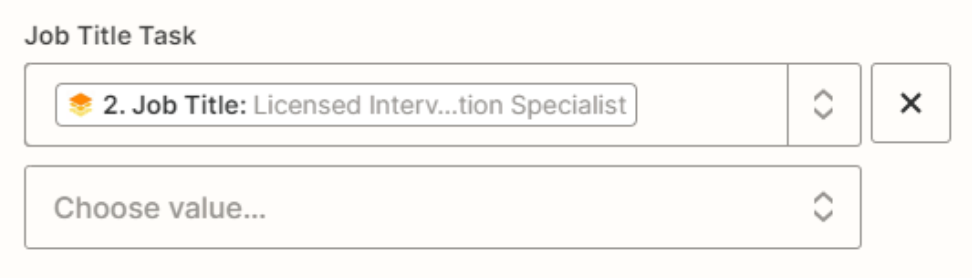
Issue is likely related to this field.

The field is a dropdown with a list of options.

Each dropdown list option has 2 values (top/bottom).

If you are going to map a dynamic variable, then the variable value must match the bottom value of a list option.


This post has been closed for comments. Please create a new post if you need help or have a question about this topic.

5 replies

Troy Tessalone
Zapier Orchestrator & Solution Partner
Forum|alt.badge.img+14
  • Zapier Orchestrator & Solution Partner
  • 34031 replies
  • Answer
  • October 27, 2023

@wodajr 

Issue is likely related to this field.

The field is a dropdown with a list of options.

Each dropdown list option has 2 values (top/bottom).

If you are going to map a dynamic variable, then the variable value must match the bottom value of a list option.


  • Author
  • Beginner
  • 2 replies
  • October 27, 2023

Thanks again, @Troy Tessalone. That seems to have solved it.


Troy Tessalone
Zapier Orchestrator & Solution Partner
Forum|alt.badge.img+14
  • Zapier Orchestrator & Solution Partner
  • 34031 replies
  • October 27, 2023

Hi @wodajr 

Good question.

Please post screenshots with how your Zap steps are configured to help give us context.


  • Author
  • Beginner
  • 2 replies
  • October 27, 2023

Thanks @Troy Tessalone! I’ve included the workflow with the pertinent screenshots.


Step 1: Connecting to the Google Table with the Applicant’s Data

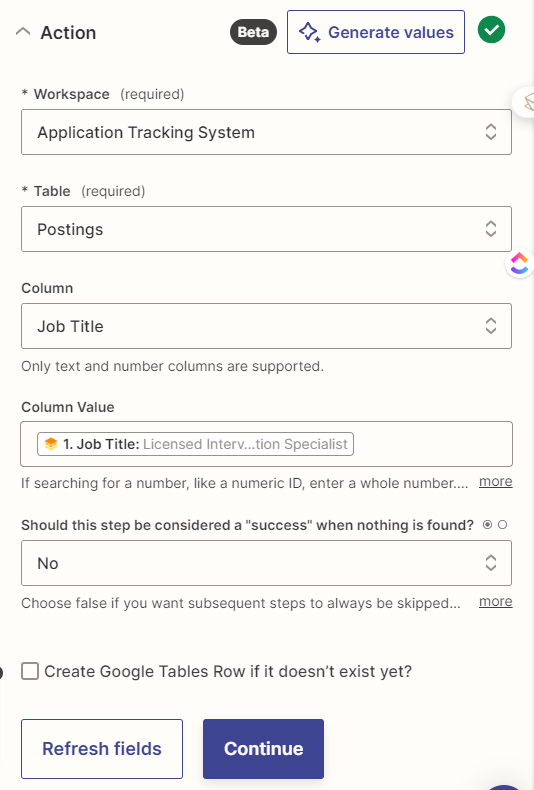
Step 2: Lookup the job posting associated with the application from the Job Postings Google Table

Step 3: Date Formatting

Step 4: Phone Number Formatting

Step 5: Date Formatting

Step 6: Trasferring data from Google Tables to ClickUp


ken.a
Forum|alt.badge.img+6
  • Zapier Staff
  • 6780 replies
  • October 30, 2023

That’s awesome @wodajr! Big thanks to Troy for pointing you in the right direction!

If you have any other questions, please don’t hesitate to reach out to the Community. We’re always happy to help! 😊