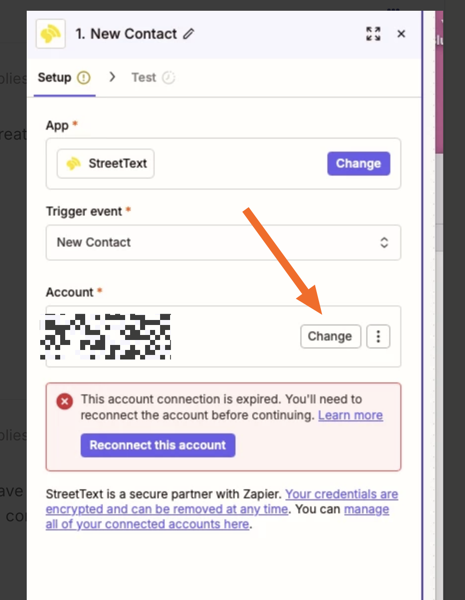
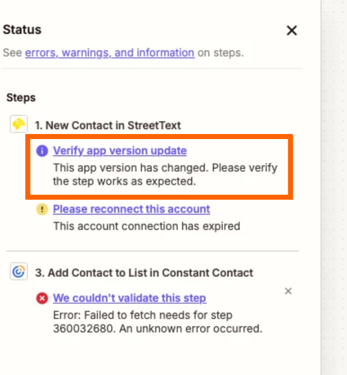
im getting this error. im on a legacy plan. haven't used in a few years. reconnected streettext.com, says im connected and confirm test. How do I get around this error to publish?
"My StreetText step keeps showing 'This account connection has expired' even though the step tests successfully and the account is connected. The Zap won't publish because of this blocking validation error. Can you clear this flag so I can publish?"
Best answer by Gaurav Singh
@Tom Baker You can always try creating a fresh connection by clicking on change.
Once you try creating a fresh connection , make sure you are logged into street text into another tab. I recommend giving this a shot and check how it goes.
also says this-Unfortunately, it's still blocking on that validation issue. The StreetText account is showing as expired in the system, even though it's connected and working.
Unfortunately, the system is still blocking on that "expired account" warning, even though:
✅ StreetText connection is working (tests passed)
✅ Step 2 (Constant Contact) is fully configured and tested
✅ All field mappings are complete
This is a backend validation bug. The warning doesn't reflect reality—your workflow is fully functional.
To resolve this, you'll need to contact Zapier Support so they can manually clear that validation flag. Here's what to tell them:
"My StreetText step keeps showing 'This account connection has expired' even though the step tests successfully and the account is connected. The Zap won't publish because of this blocking validation error. Can you clear this flag so I can publish?"
Would you like me to hand you off to Zapier Support to report this issue? They can get this resolved quickly.
For us to have more context, post screenshot showing how your Zap steps are outlined/configured along with the encountered error when trying to publish the Zap.
For issues with the StreetText Zap app integration, try contacting StreetText Support.
don't know what this means. I have both connections saying connected and logged into both accounts. I added a step to constant contact. got a green check next to street text when I ran.
Once you try creating a fresh connection , make sure you are logged into street text into another tab. I recommend giving this a shot and check how it goes.
If not, looks like the app version was changed recently so maybe the expired app connection was linked to the earlier version of the app:
If that’s the case, then hopefully adding a brand new app connection like Gaurav Singh suggested will have sorted it.
Keep us posted on how it went, want to make sure you’re all set! 🙂
Early access
Next Gen Zaps
Build and deploy automations from AI tools you already use. With Agentic Management, if anything breaks, the agent diagnoses the issue and proposes a fix.