Best answer

Zapier not uploading file to the proper folder OneDrive folder

  • March 9, 2026
  • 8 replies
  • 26 views

Forum|alt.badge.img

I have my zap set up to create a folder in one drive then extract the attachments by looping, then upload the file(s) to the same folder that was created. 

It is creating the folder in the proper location but it is not uploading to that folder. Instead, it is uploading them to my root folder.

I have tried to point it to the ID from the create folder step, I have even created another step to find the folder and point it to that but it keeps uploading the file(s) to the root folder. 

Best answer by Madduxtx

Using the name of the folder like you suggested worked for a few days. Then we started getting errors. The workaround was to initially place it in a static folder, add a find a folder inside the loop then move it to the dynamic folder. Outside the loop Zapier handles the Onedrive dynamic metadata really good. Inside the loop that meta data does not transfer and must be recalled again inside the loop. I hope this helps someone in the future. 

8 replies

Troy Tessalone
Zapier Orchestrator & Solution Partner
Forum|alt.badge.img+14
  • Zapier Orchestrator & Solution Partner
  • March 9, 2026

Hi ​@Madduxtx 

Help links for using files in Zaps: https://help.zapier.com/hc/en-us/articles/8496288813453-Send-files-in-Zaps


Help us have more info by posting screenshots showing how your Zap steps are outlined/configured.


drtanvisachar
Forum|alt.badge.img+5
  • Zapier Solution Partner
  • March 9, 2026

Hey ​@Madduxtx !

This usually happens when the upload step isn’t actually recognizing the folder reference you’re passing in, even though the folder was created correctly.

A couple things I’d try.

First, rebuild the upload step completely and remap the folder field from the create folder step. Sometimes that field keeps an old selection behind the scenes and defaults back to root.

Second, make sure you are mapping the actual folder ID or folder path from the create folder step, not the folder name. If the step only receives the name, OneDrive often drops the file in the root.

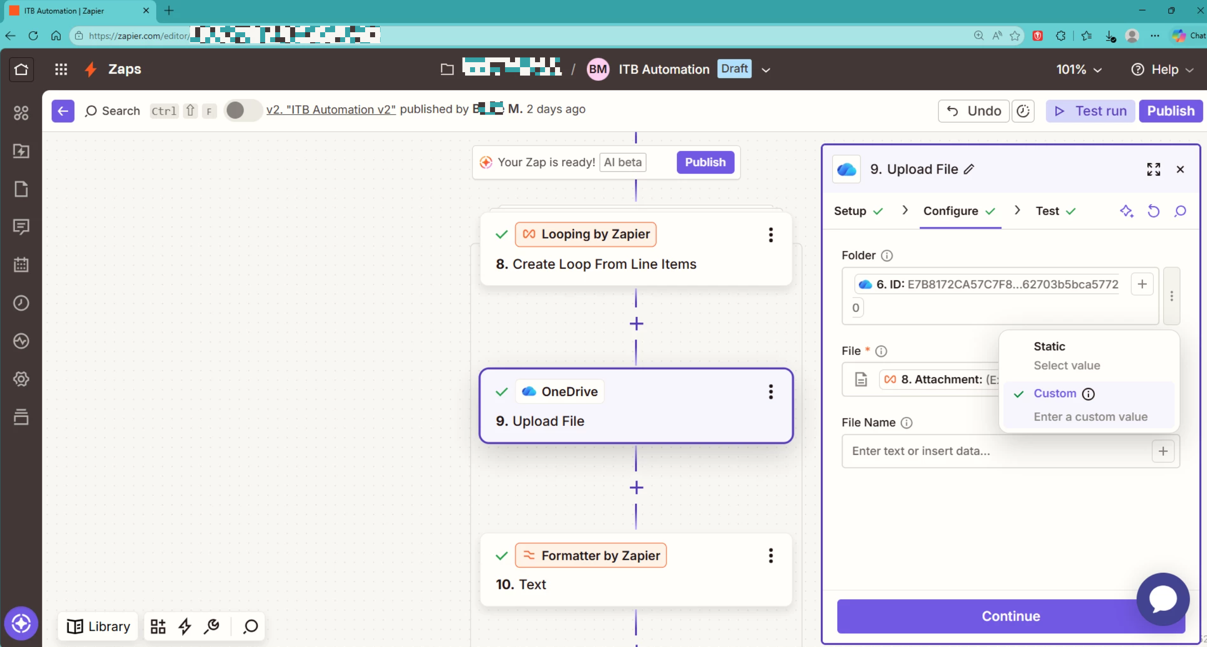
Also check that the folder field in the upload step is set to Custom before mapping the value. If it is still tied to the folder picker selection, Zapier may ignore the dynamic value you mapped.

Since you are looping attachments, it is also worth confirming that the folder ID from the create folder step is being passed into the upload step inside the loop. If the loop only contains the file data and not the folder reference, Zapier will default the upload location to root.

Dr. Tanvi Sachar
Monday Certified Partner, Tuesday Wizard


Forum|alt.badge.img
  • Author
  • Beginner
  • March 9, 2026

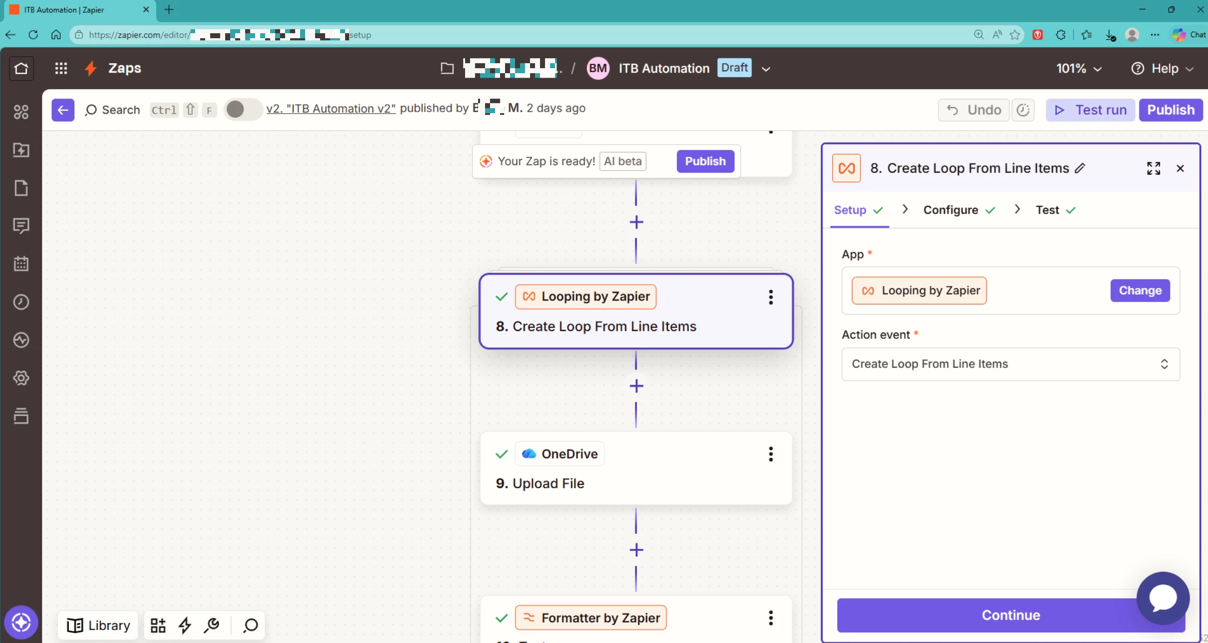
The upload looks to be included inside the looping sequence by the small bracketing around it. I have tried as you suggested making sure that custom is selected before mapping and deleting and rebuilding. it worked correctly during testing but after we went live is when it stopped working properly. I’m being told this is a known issue when creating a folder and uploading in the same zap. At the moment I am trying to find out how to use s sub zap so I can split this zap in two and have the ending zap as my trigger for the second leg. 

This post has been edited by a moderator to remove personally identifiable information (PII). Please remember that this is a public forum and avoid sharing personal or potentially sensitive details.


Forum|alt.badge.img
  • Author
  • Beginner
  • March 9, 2026

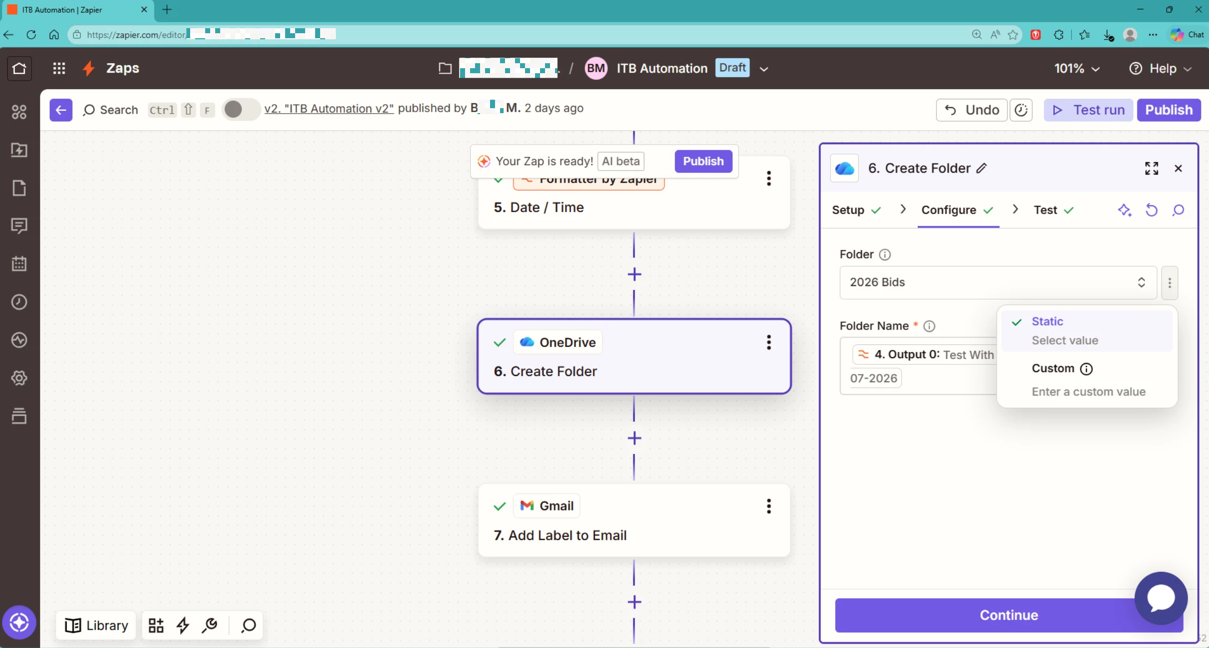
Additional screen shots. 


This post has been edited by a moderator to remove personally identifiable information (PII). Please remember that this is a public forum and avoid sharing personal or potentially sensitive details.


drtanvisachar
Forum|alt.badge.img+5
  • Zapier Solution Partner
  • March 9, 2026

@Madduxtx 

Yeah, your setup actually looks right from the screenshots. The upload step is inside the loop and you’re passing the folder ID from the Create Folder step, which is exactly how it should be wired.

What you’re describing after going live is something people run into with OneDrive. The folder gets created, but the next step fires so quickly that OneDrive hasn’t fully registered that folder yet. When that happens, the upload step just drops the file into the root instead.

Two things usually fix it.

First thing I’d try is adding a short Delay step right after the Create Folder step. Even 1–2 minutes is usually enough time for OneDrive to recognize the folder before the uploads start.

If that doesn’t stabilize it, splitting the process like you mentioned is a good approach. One Zap creates the folder and stores the folder ID somewhere (Storage by Zapier, Airtable, a sheet, etc.). The second Zap triggers from that record and handles the loop and uploads using that saved folder ID.

Honestly though, most of the time a small delay after the folder creation solves it. OneDrive can just be a little slow catching up when folders are created and used immediately after.

Dr. Tanvi Sachar
Monday Certified Partner, Tuesday Wizard


SamB
Community Manager
Forum|alt.badge.img+11
  • Community Manager
  • March 16, 2026

Hi there ​@Madduxtx 👋 

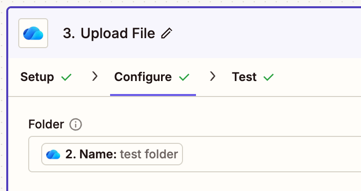
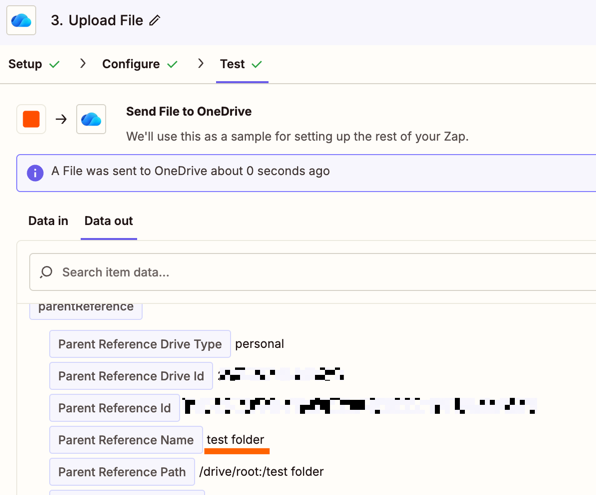
I did some testing in my own Zap and couldn’t get it to work with the ID field selected either, but it did work when I selected the Name of the folder instead of the ID field:

7b1af478f336187c757401365dc2d9ac.png

e71807a8f75c4c78dde820c167d2bb3d.png

Can you try using the folder’s name instead and let us know if that does the trick? 


Forum|alt.badge.img
  • Author
  • Beginner
  • Answer
  • March 16, 2026

Using the name of the folder like you suggested worked for a few days. Then we started getting errors. The workaround was to initially place it in a static folder, add a find a folder inside the loop then move it to the dynamic folder. Outside the loop Zapier handles the Onedrive dynamic metadata really good. Inside the loop that meta data does not transfer and must be recalled again inside the loop. I hope this helps someone in the future. 


SamB
Community Manager
Forum|alt.badge.img+11
  • Community Manager
  • March 17, 2026

Glad to hear you got it sorted ​@Madduxtx! Really appreciate you following up here to share details of the approach that worked for you. 🤗 

If you’ve not done so already, I’d recommend reporting the IDs not working as well as the errors you ran into to our Support team in case they were due to a bug. In the meantime, hope you have a great rest of your day! 😁