Question

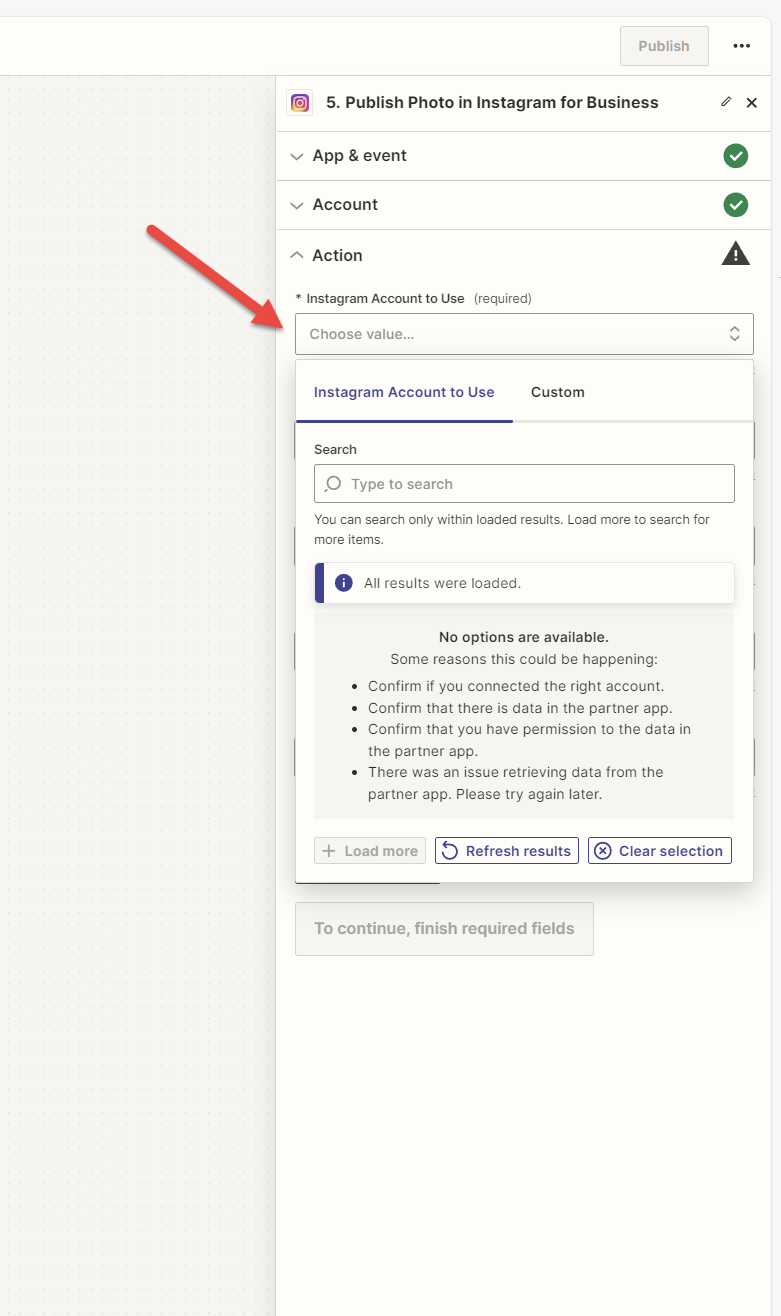
Unable to find an Instagram Business Account when setting up my Zap to publish the photos.

  • February 12, 2024
  • 31 replies
  • 1436 views

Show first post
This post has been closed for comments. Please create a new post if you need help or have a question about this topic.

31 replies

  • New
  • February 15, 2025

Hi ​@ken.a I solved it. It had nothing to do with zapier but with instagram. My facebook account was not listed as a site on my instagram. I could fix it now. Thanks anyways


ken.a
Forum|alt.badge.img+6
  • Zapier Staff
  • February 17, 2025

That’s an amazing news ​@PowerPunch! Thank you for looping back with an update here!

If you have any other questions, please don’t hesitate to reach out to the Community. We’re always happy to help! 🤗


  • New
  • February 24, 2025

Had the same issue, nothing to do with Zapier, issue is with convoluted process and permission structure on Meta side.

Your Instagram account needs to be linked to your Meta business account but you also need to have a Facebook page in the same group AND, Instagram and DB pages need to be linked to each other directly, having them under the same business account is not enough. 


SamB
Community Manager
Forum|alt.badge.img+11
  • Community Manager
  • February 24, 2025

Thanks so much for sharing details of what worked for you, ​@dusko.a! 🤗 It’s really helpful to know that the Instagram account needs to be linked to the Meta business account, have a Facebook page in the same group, and that the Instagram and Facebook pages must be directly linked to each other. This will definitely help others running into the same issue.

Appreciate you taking the time to post this—thanks again! 🙌


Hi there @lookingup,

You should be able to find the ID of the Instagram account in this window here:

525b42632bcbb19408c851bf8929723b.png
(view larger)

The ID should contain numbers below the Instagram account name.

Where do i find this page?


JammerS
Forum|alt.badge.img+6
  • Zapier Staff
  • April 25, 2025

Hi ​@Masonic Order,


The screenshot you mentioned appears to be from the Instagram Business Account settings within Facebook. To access this page, log in to the Facebook account linked to your Instagram Business Account, click the dropdown arrow on the top right, and select "Manage Pages." Choose the connected Facebook Page, then click "Settings" in the left-hand menu, followed by "Instagram." This section will display your Instagram Business Account details, including the ID. Remember, these steps apply only if your Instagram account is set as a Business Account and linked to a Facebook Page—if you're using a personal or Creator account, the process may differ.