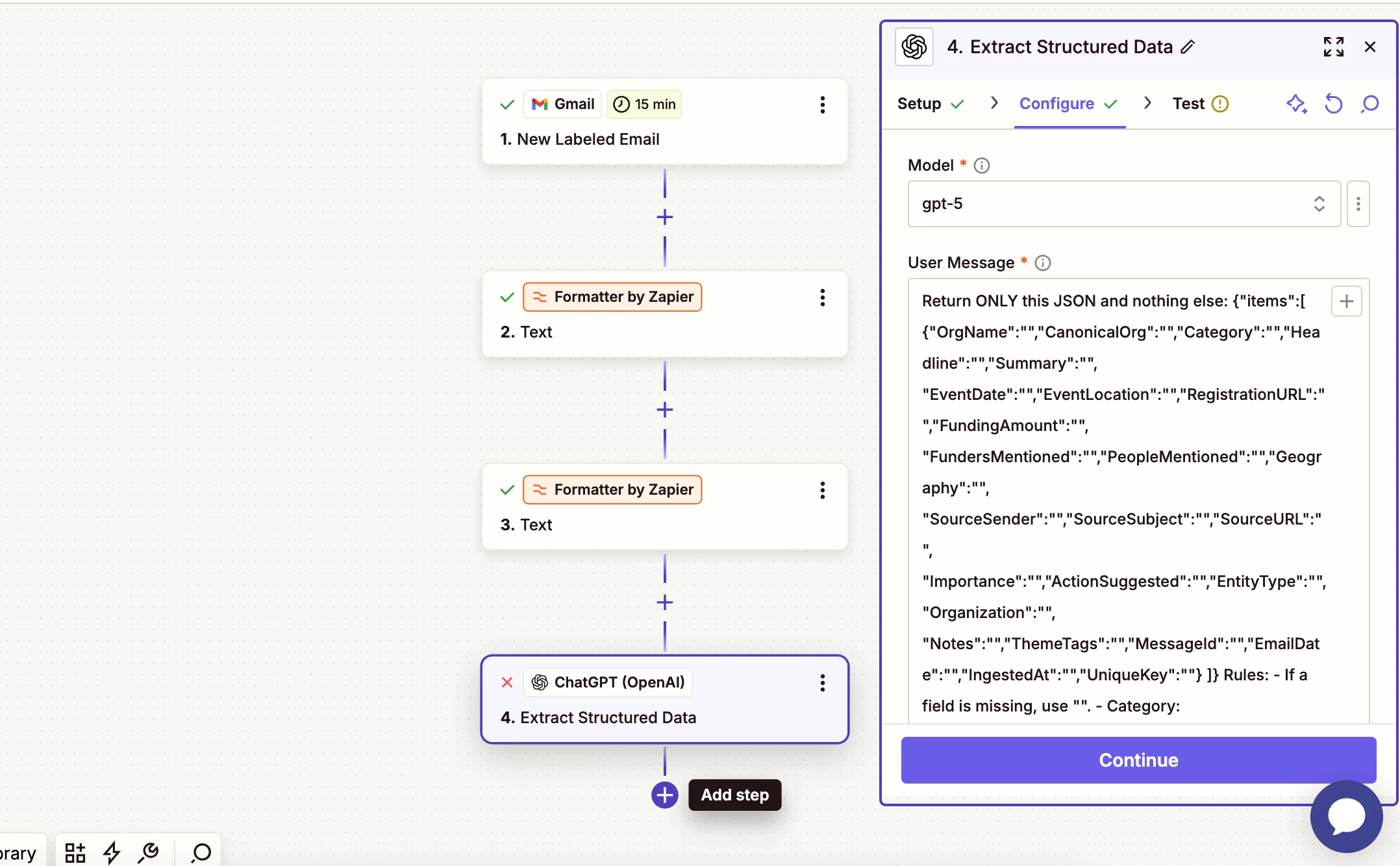
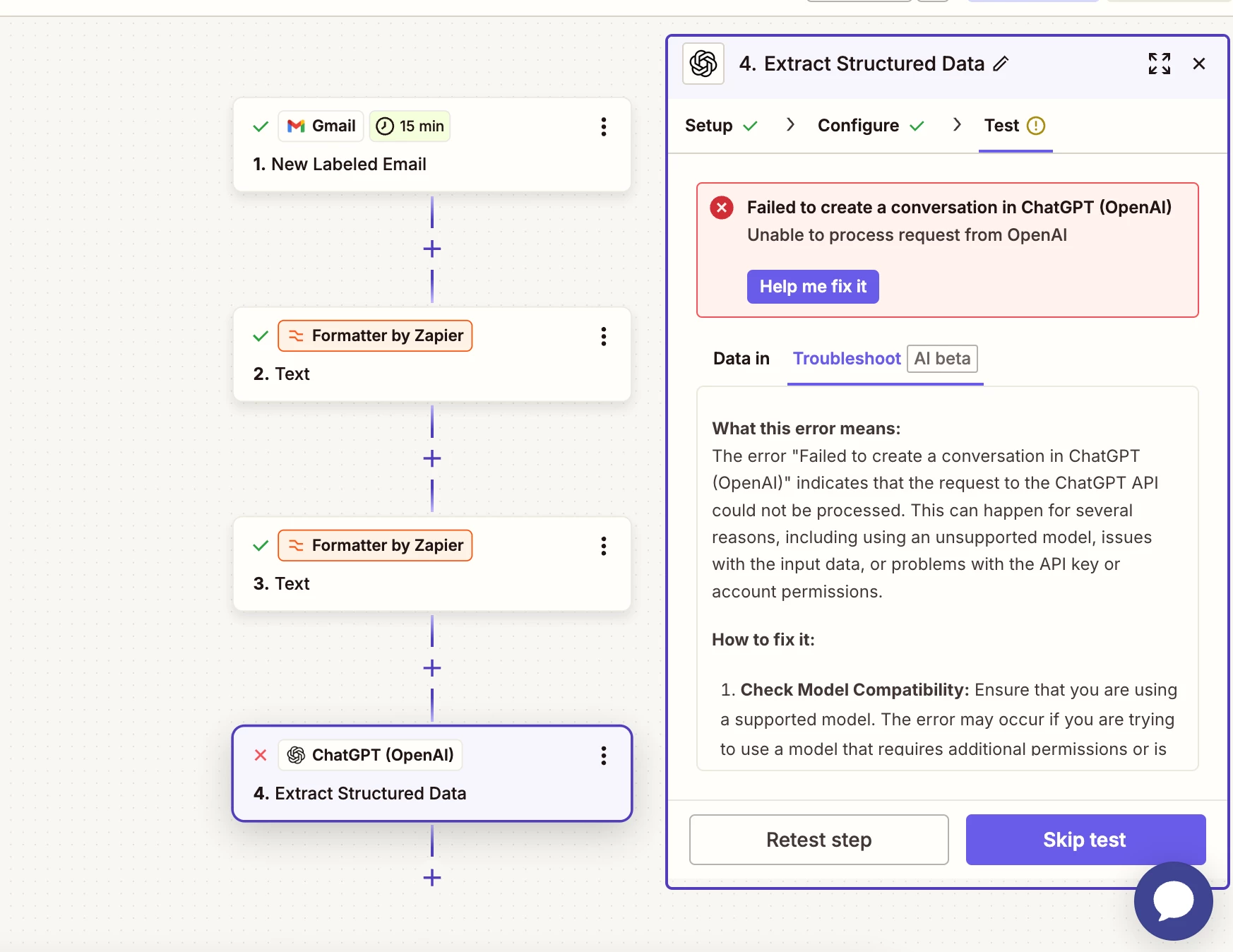
I receive several newsletter and update emails from organizations daily. It’s very hard to keep up but I do want to stay up-to-date on what’s happening in the field I am in. I was hoping to use Zapier (Free plan) and Chat GPT (Plus) to provide me with a weekly summary of the week’s newsletter/update emails I receive. Because much of the broader field news overlaps from newsletter to newsletter and I’ll be using some of the content for our own quarterly newsletter, I’d like to receive a summary of all the information shared in the week’s emails with the summary being broken up into categories instead of a summary of each email. (i hope that makes sense) I asked ChatGPT to provide a step by step guide but I am running into issues at Step 2 A-D. When I test at 2D it fails. I’ve tried all the trouble shooting. Copied step by step guide I’m following and screenshots below. Please let me know where I could be going wrong. Thank you
0) One-time setup: templates
-
Download and import these into Google Sheets (File → Import → Upload → “Insert new sheet”):
-
Updates Log (CSV) – the master database:
Download -
Org Lookup (CSV) – canonical names + partner flags:
Download
-
-
In the Updates Log sheet, you already have these columns (keep as-is):
IngestedAt, EmailDate, OrgName, CanonicalOrg, Category, Headline, Summary, EventDate, EventLocation, RegistrationURL, FundingAmount, FundersMentioned, PeopleMentioned, Geography, SourceSender, SourceSubject, SourceURL, Importance, ActionSuggested, EntityType, FieldPartner, Notes, ThemeTags, MessageId, UniqueKey -
(Optional but recommended) Add data validation dropdowns:
-
Category:
Win, Funding, Event, Update, Report, Media, OrgIntel -
ActionSuggested:
FollowUp, Invite, Track, None -
EntityType:
Organization, Donor, Funder, Coalition, Unknown -
FieldPartner:
Yes, No, Unknown
-
1) Gmail: safe manual labeling
-
Create label: Org Updates.
-
Turn on Gmail keyboard shortcuts (Settings → General): press
lto label quickly. -
Daily: search
has:list OR unsubscribeto surface newsletters, then apply the label to only those you want ingested. (1-to-1 emails stay unlabeled.)
Your Zap only runs when you apply Org Updates, so you keep full control.
2) Zap #1 — “Ingest labeled email → parse with AI → add rows to Google Sheet”
Name: Field Updates Ingest
Step A — Trigger (Gmail)
-
App: Gmail
-
Event: New Labeled Email
-
Label/Mailbox:
Org Updates -
Test Trigger: Pick a real labeled email so fields populate.
Step B — Formatter: remove HTML (safeguard)
-
App: Formatter by Zapier
-
Event: Text → Remove HTML Tags
-
Input: Body HTML from Gmail
-
Result field name (rename):
Body_Clean
Some newsletters don’t fill “Body Plain.” This guarantees you have readable text.
Step C — Formatter: truncate (avoid oversize errors)
-
App: Formatter by Zapier
-
Event: Text → Truncate
-
Input:
Body_Clean -
Length: 12000
-
Result field name:
Body_Truncated
This prevents the “Unable to process request” error caused by giant emails.
Step D — AI extraction (ChatGPT (OpenAI))
-
App: ChatGPT (OpenAI)
-
Event: Create Conversation Message (sometimes shown as “Conversation → Create Message”) I’m using the “User Message” box
-
Model: gpt-4o-mini (more reliable inside Zapier) I am using gpt-5 on Plus subscription
-
Response Format: Text (or JSON; do not select JSON Schema)
-
System (optional): I’m using the “Instructions” box
Return strict JSON only. No explanations, no markdown. -
User Message: (paste, then insert fields via the picker on the right)
Return ONLY this JSON and nothing else: {"items":[ {"OrgName":"","CanonicalOrg":"","Category":"","Headline":"","Summary":"", "EventDate":"","EventLocation":"","RegistrationURL":"","FundingAmount":"", "FundersMentioned":"","PeopleMentioned":"","Geography":"", "SourceSender":"","SourceSubject":"","SourceURL":"", "Importance":"","ActionSuggested":"","EntityType":"","Organization":"", "Notes":"","ThemeTags":"","MessageId":"","EmailDate":"","IngestedAt":"","UniqueKey":""} ]} Rules: - If a field is missing, use "". - Category: Win|Funding|Event|Update|Report|Media|OrgIntel. - Split multiple announcements into separate items. - Summary: 2–3 factual sentences. No markdown. - UniqueKey = EmailDate|CanonicalOrg|Headline. EMAIL: From: {{Gmail From Name}} <{{Gmail From Email}}> Subject: {{Gmail Subject}} Date: {{Gmail Date}} Body: {{Body_Truncated}} Message-Id: {{Gmail Message ID}} View-in-browser (if any): {{(insert any link field you see)}}
If the test fails:
Reconnect the ChatGPT (OpenAI) account in this step.
Confirm you inserted Body_Truncated (not raw HTML).
Keep Max output tokens around 600–800; Temperature ~ 0.2.
Step E — Parse JSON I have not gotten to this step.
-
App: Formatter by Zapier
-
Event: Utilities → Parse JSON
-
Input: the entire output text from Step D (ChatGPT).
This exposes line items:
items[0].OrgName,items[1].Category, etc.
Step F — Google Sheets: write rows
-
App: Google Sheets
-
Event: Create Spreadsheet Row(s) (Zapier will offer “Create Multiple Spreadsheet Rows” if it detects line items)
-
Spreadsheet: your Updates Log spreadsheet
-
Worksheet: the sheet you imported
-
Map fields:
-
IngestedAt→items[].IngestedAt(if blank, you can map Zapier’s{{zap_meta_human_now}}) -
EmailDate→items[].EmailDate -
OrgName→items[].OrgName -
CanonicalOrg→items[].CanonicalOrg -
Category→items[].Category -
Headline→items[].Headline -
Summary→items[].Summary -
EventDate→items[].EventDate -
EventLocation→items[].EventLocation -
RegistrationURL→items[].RegistrationURL -
FundingAmount→items[].FundingAmount -
FundersMentioned→items[].FundersMentioned -
PeopleMentioned→items[].PeopleMentioned -
Geography→items[].Geography -
SourceSender→items[].SourceSender -
SourceSubject→items[].SourceSubject -
SourceURL→items[].SourceURL -
Importance→items[].Importance -
ActionSuggested→items[].ActionSuggested -
EntityType→items[].EntityType -
Organization→items[].Organization -
Notes→items[].Notes -
ThemeTags→items[].ThemeTags -
MessageId→items[].MessageId -
UniqueKey→items[].UniqueKey
-
Turn the Zap ON.
From now on, anything you manually label Org Updates flows into the sheet, clean and categorized.
3) Sheet automations (quality of life)
A) Dedupe flag (optional)
Add a new column DupFlag in Updates Log, row 2 formula:
=IF(COUNTIF($Z$2:Z2, Z2)>1, "DUP", "")
(Assuming UniqueKey is in column Z; adjust the letter for your sheet.)
B) Auto-mark Field-Partners (via Org Lookup)
In FieldPartner (or a helper column), use:
=IFERROR( IF(VLOOKUP([@[CanonicalOrg]], 'Org Lookup'!A:C, 2, FALSE)="FieldPartner","Yes","No"), IF([@[Organization]]="","Unknown",[@[Organization]]) )
-
Update the range to match your Org Lookup sheet columns.
C) Highlights view for weekly/mmonthly
Create a new sheet Weekly View with a header row (same columns). In A2, use:
=FILTER('Updates Log'!A2:Z, 'Updates Log'!B2:B >= TODAY()-7, 'Updates Log'!B2:B <= TODAY(), 'Updates Log'!R2:R >= 4)
-
Replace column letters if yours differ: B = EmailDate, R = Importance, Z = UniqueKey etc.
-
For monthly, copy this sheet as Monthly View and change
TODAY()-7toEOMONTH(TODAY(),-1)+1and the end toEOMONTH(TODAY(),0).
4) Zap #2 — Weekly digest email (from the sheet)
Name: Weekly Digest
Step A — Schedule
-
App: Schedule by Zapier
-
Event: Every Week
-
Day: Friday
-
Time: 3:00 PM America/New_York
Step B — Get rows (Weekly View)
-
App: Google Sheets
-
Event: Get Many Spreadsheet Rows (Advanced) (or similar “Get Many”/“Lookup Many” option)
-
Spreadsheet: your Updates Log spreadsheet
-
Worksheet: Weekly View
-
How many: e.g., 200 (enough for a week)
If your Zapier account doesn’t show a “Get Many Rows” action, use “Lookup Spreadsheet Rows (With Line Item Support)” and set a broad range; or skip this and use Zapier Digest (alt path below).
Step C — Summarize to a polished digest (ChatGPT (OpenAI))
-
App: ChatGPT (OpenAI)
-
Event: Create Conversation Message
-
Model: gpt-4o-mini
-
Response Format: Text
-
System (optional):
Be concise, factual, and scannable. -
User Message: (insert the rows array from Step B as JSON)
Draft "Weekly Org Updates — Week of {{date range}}" from the JSON rows below. Sections (in this order): 1) 🏆 Wins 2) 💰 Funding 3) 📅 Events (include EventDate + RegistrationURL if present) 4) 📣 Other Updates (Reports/Media/OrgIntel) Rules: - Each bullet: "Org — Headline — 1-sentence summary". - Cap to ~12 bullets ordered by Importance desc. - End with "Organization Highlights" listing any with FieldPartner='Yes'. JSON rows: {{rows from Step B}}
Step D — Email it
-
App: Gmail
-
Event: Send Email
-
To: you (and/or team)
-
Subject:
Weekly Org Updates — {{date range}} -
Body: the output of Step C.
Alternative (simpler): Instead of Steps B/C, in Zap #1 append a one-liner to Digest by Zapier for every item, and set Digest to release weekly. You’ll get a raw but clean list. The Sheets database remains your system of record.