Best answer

MyCase trigger only shows Status field for added, not updated leads

  • May 30, 2026
  • 8 replies
  • 64 views

Forum|alt.badge.img

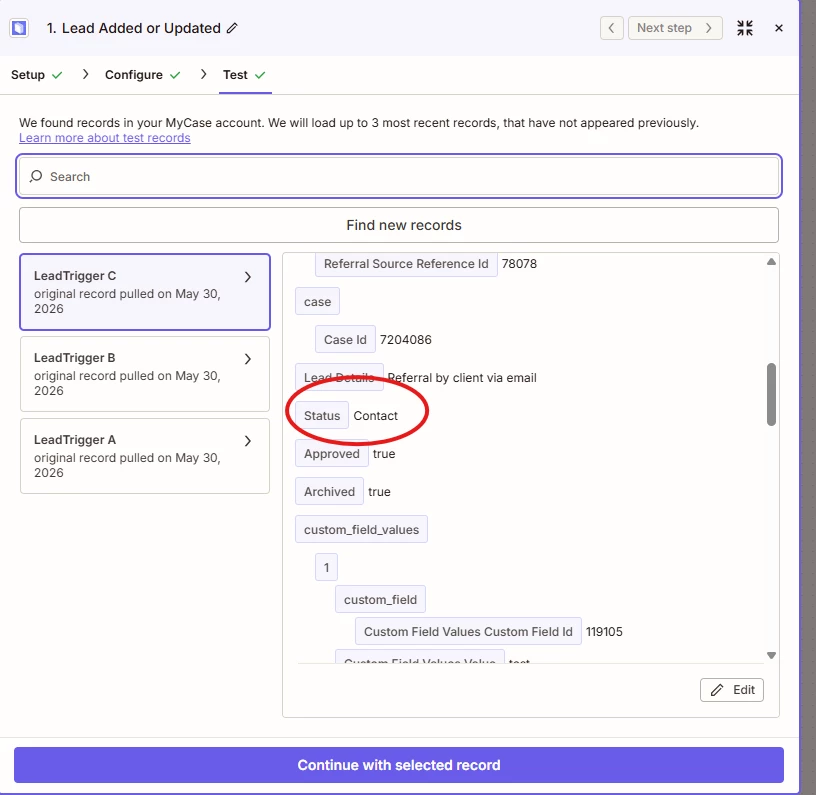
I’m trying to create a zap that triggers when a pipeline lead, in MyCase, gets it’s status changed to “Follow Up”.  Once the status changes, I want document templates pulled and inserted in the documents tab and sent to an outbox email in google.  I can figure out the document part, which I thought would be the struggle, but on lead add or update, I can’t get it to see the “Status” field unless I choose “add”.  I need the trigger for a lead that’s already in the pipeline who’s status changed.

Best answer by Dude0201

Troy,

So just to give you an update, I found a solution.  I got to tunnel visioned with that particular tab, Potential Case details, and I took a step back and realized I could add fields in the “Lead Details” tab.  Once I did that, I’ve now got the zap to see a toggle switch turned “on”, pull out certain values based on the services being requested, grab a temp document and edit it, and then place it in an outbox ready to send an email.  I was just giving you an update in case someone else runs into this issue.  Thanks a lot for the help and have a great week.

8 replies

Troy Tessalone
Zapier Orchestrator & Solution Partner
Forum|alt.badge.img+14
  • Zapier Orchestrator & Solution Partner
  • May 30, 2026

Hi ​@Dude0201 

Add a Filter as Zap step 2: https://zapier.com/apps/filter/integrations#help


For us to have more context about what you are referring to, post screenshots showing how your Zap trigger step is configured along with the DATA OUT that is returned related to the Status.


Forum|alt.badge.img
  • Author
  • Beginner
  • May 30, 2026

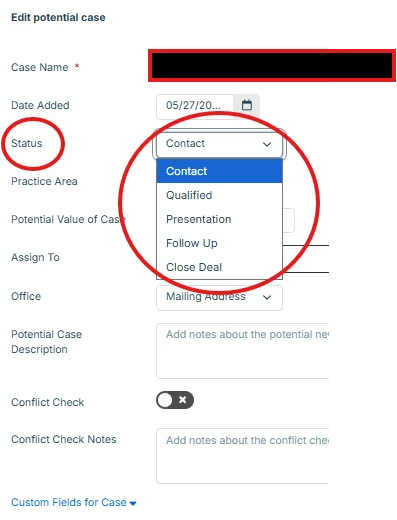
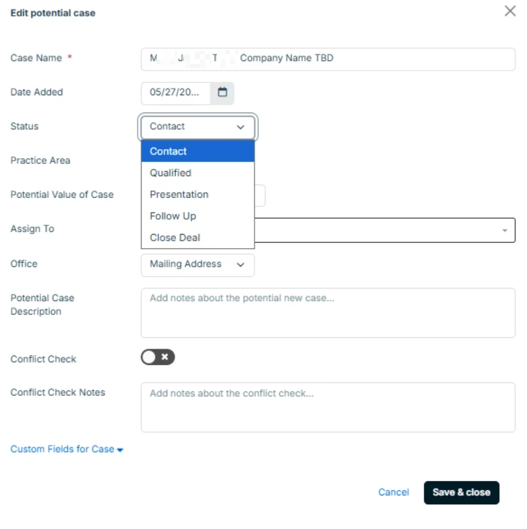
Thanks for responding Troy.  Let me start by saying I’ve only been doing this for 3 weeks.  I’m just a retired guy helping a buddy with his company.  So I want the zap to trigger when we update the “Status” or stage of a Lead.  As they progress through the stages (contact, qualified, presentation, follow up, close deal) I want a zap to trigger when we they’ve made it to “follow up”. 

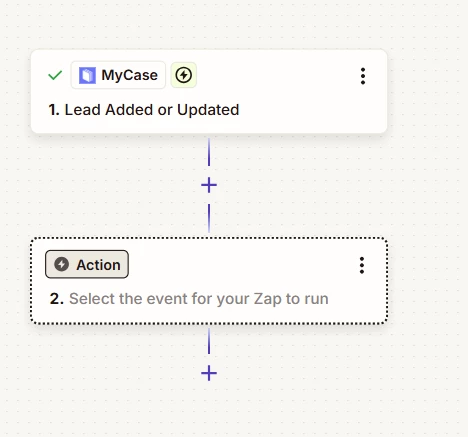
When I start the zap I have an option for “Lead added or updated”. 

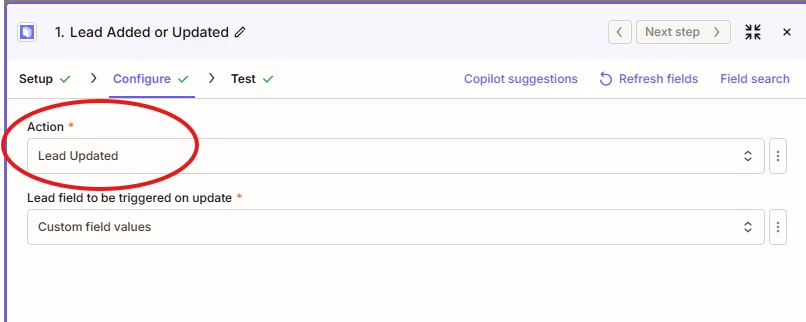
When I get to the Configure stage, I choose between “added” or “updated”. 


I need the trigger to hit when the lead is updated, but when I choose updated and go to the test trigger the “status” field isn’t there, however, when I choose “added” that field now appears in the output data.

I choose “Custom fields” for the values, but these are the values I can select from: First name; last name; middle initial, email, address, phone, lead details, birthdate, drivers license, referral source, custom fields.  I get the most data from “custom fields”


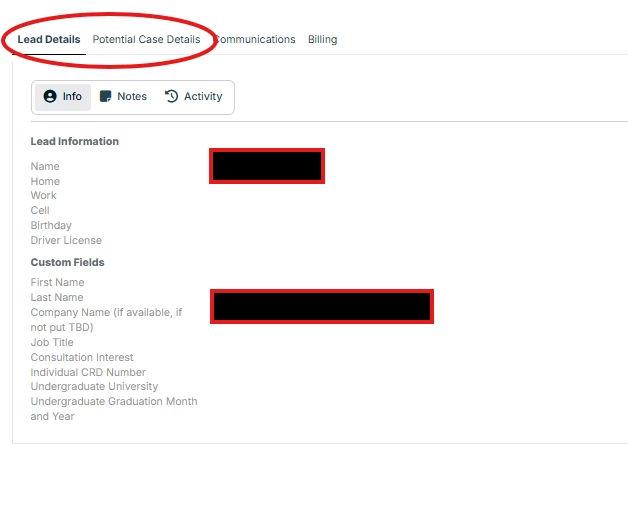
Once a lead is added and you want to make changes or updates there are tabs at the top of the screen, “lead details” and “potential case details”.The tab where “status” can be changed is in Potential case details. The tab that the “update” zap is looking at is “Lead details”, which doesn’t have that field. 


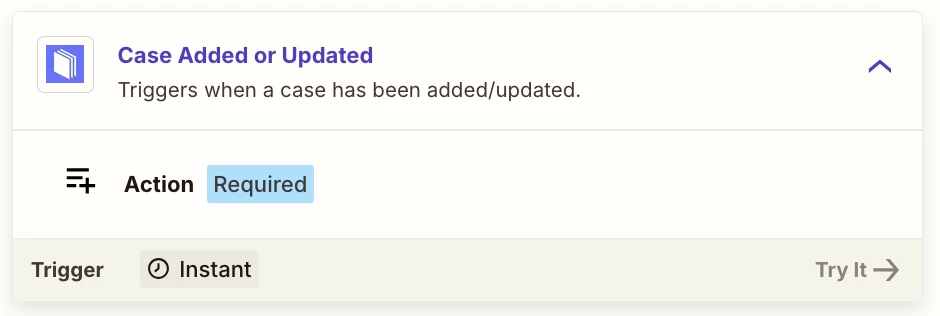
When I choose “add” instead of “update” it’s an entirely different screen where that field is available because we would be choosing an option for a new lead. I’ve even tried “case added or updated”, but it isn’t in there because it’s a case now and not a lead, therefore there isn’t stage progression like that.

Any help would be greatly appreciated..  Google Gemini and I have been working for days on this lol

b49dfe764a8bd5165f54bf7cffee1f33.png
 

This post has been edited by a moderator to remove personally identifiable information (PII). Please remember that this is a public forum and avoid sharing personal or potentially sensitive details.


Troy Tessalone
Zapier Orchestrator & Solution Partner
Forum|alt.badge.img+14
  • Zapier Orchestrator & Solution Partner
  • May 31, 2026

@Dude0201 

NOTES:


Forum|alt.badge.img
  • Author
  • Beginner
  • June 1, 2026


Thanks so much Troy.  I’ll give it a try


Forum|alt.badge.img
  • Author
  • Beginner
  • Answer
  • June 3, 2026

Troy,

So just to give you an update, I found a solution.  I got to tunnel visioned with that particular tab, Potential Case details, and I took a step back and realized I could add fields in the “Lead Details” tab.  Once I did that, I’ve now got the zap to see a toggle switch turned “on”, pull out certain values based on the services being requested, grab a temp document and edit it, and then place it in an outbox ready to send an email.  I was just giving you an update in case someone else runs into this issue.  Thanks a lot for the help and have a great week.


SamB
Community Manager
Forum|alt.badge.img+11
  • Community Manager
  • June 4, 2026

That's great to hear ​@Dude0201! 🎉 Thanks so much for coming back to share how you solved it, and thanks as always ​@Troy Tessalone for jumping in to help out. 🙌


Forum|alt.badge.img
  • Author
  • Beginner
  • June 8, 2026

Hey Sam and Troy, just one quick update/warning to add to this for anyone reading this thread down the line!

While moving the fields to the 'Lead Details' tab completely solved the visual layout issue for our team, the actual engine under the hood required one more step: we had to upgrade our MyCase account to the Advanced tier. Upgrading was the only way to unlock the backend API access needed for Zapier to properly communicate with that toggle switch and pull the advanced custom data values out.

Once we got that API bridge built, we accidentally walked straight into a hidden Infinite Loop Trap in Google Drive right afterward, and I wanted to document the fix here.

Our flow was:

  1. Trigger: Lead Details toggle switch turns 'On' (via the newly unlocked MyCase Advanced API).

  2. Action: Generate a temporary Google Doc from a master template, fill in the custom details, and convert/move it to a permanent folder as a client PDF.

  3. Action: Delete the temporary Google Doc to keep the drive clean.

The Trap: In that final step, we initially used a permanent file vaporization setting in the API/Zap action instead of the standard 'Move to Trash' option. Because the file was instantly obliterated from existence while the automation session was still resolving, it corrupted the file-tracking logic. Zapier panicked, lost its place, and immediately restarted the entire Zap from Step 1—creating an infinite loop that burned through tasks and generated duplicate files.

The Fix: If you are building a self-cleaning document pipeline like this, always use the standard 'Delete File' action that sends the file to the regular Google Drive Trash Bin. Do not use any permanent bypass delete settings. Sending it to the trash allows the session to close cleanly, preventing the Zap from looping.

Additionally, if you break a loop by deleting your target folder in Google Drive and recreating it with the exact same text name, Zapier will throw a "File is a folder. As such, it cannot be processed as a file" error. This happens because Zapier tracks folders by a hidden unique ID, not by name. You have to manually clear and refresh the folder selection fields in every step of your Zap to point to the new folder ID.

Hopefully, this saves someone else a few gray hairs when scaling up their MyCase Advanced integrations!


SamB
Community Manager
Forum|alt.badge.img+11
  • Community Manager
  • June 9, 2026

Wow ​@Dude0201!! 👏 Really appreciate you sharing such detailed update here. It’ll be super helpful for anyone who comes across this in the future! 🤗