Best answer

Jotform multiple choice to Airtable multiple select

  • March 17, 2026
  • 8 replies
  • 42 views

Hi there,

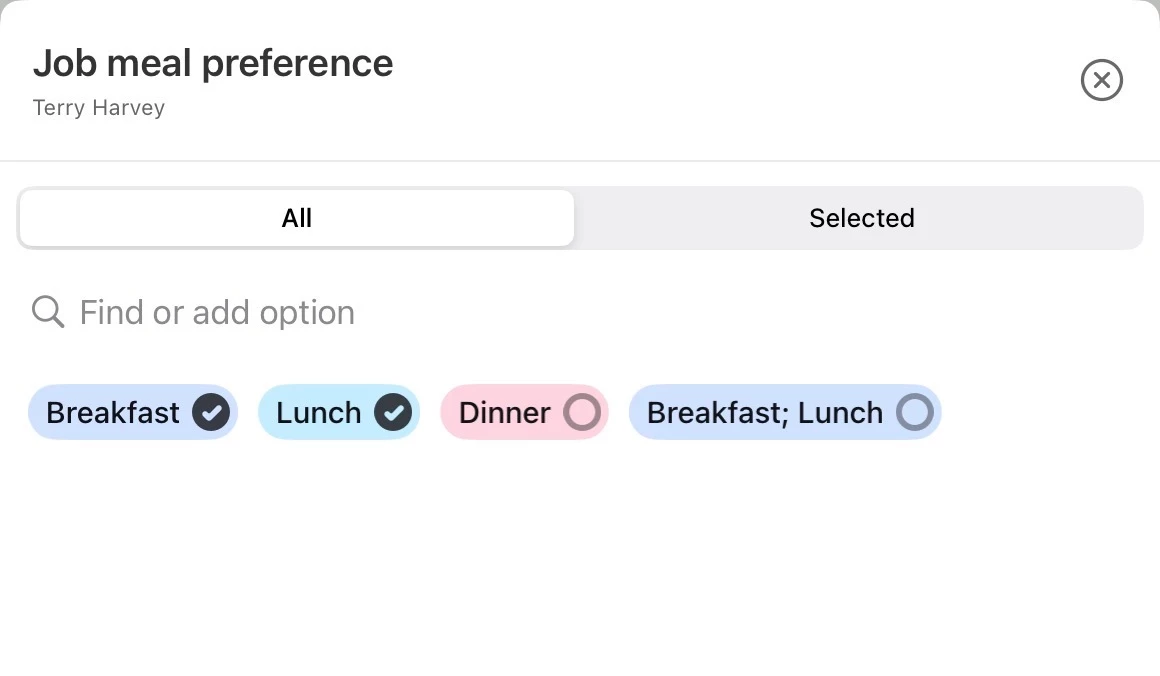
I have a Zap to update Airtable records with the results of a Jotform survey, which is working smoothly with one small annoyance. A multiple choice question in the Jotform ends up in the updated Airtable entry as a semicolon-delimited list (e.g. “A; B; D”). If I use the native Airtable integration in Jotform, multiple choice answers in the Jotform populate the new Airtable record as separate entries in the column (“A”, “B”, “D”), which can be color-coded individually, found, counted by summary functions, etc. Is there a way to use the Zap to preserve multiple choices as multiple choices?

Here’s an example of what it’s doing and what I’d like it to do:
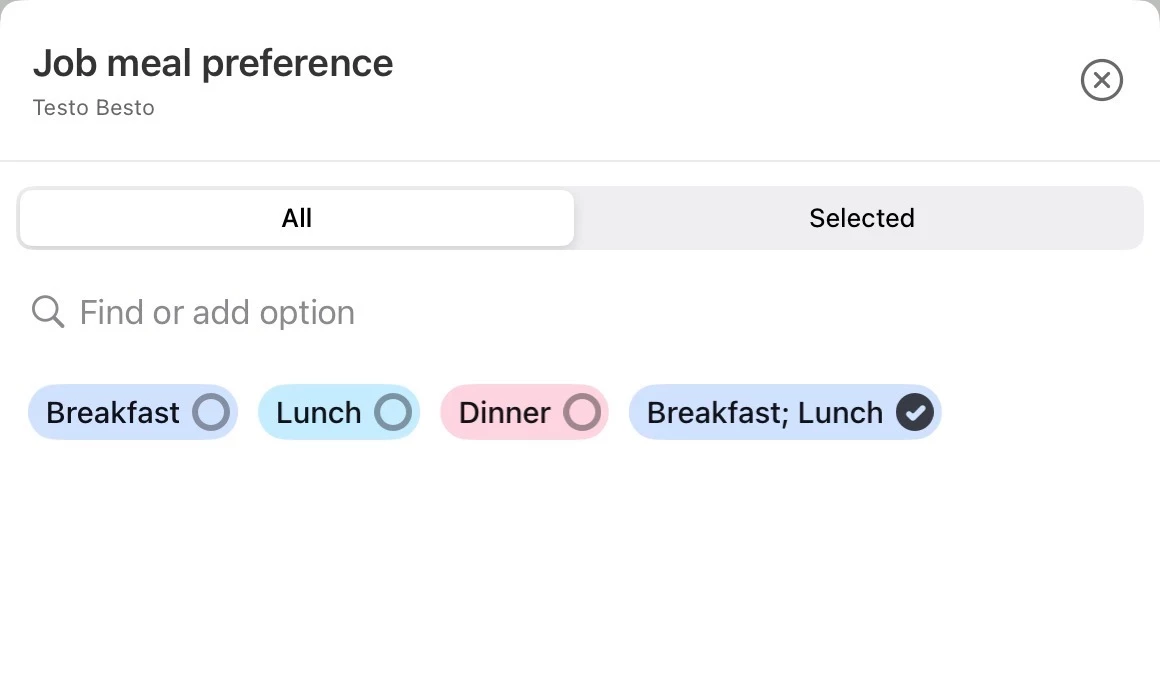
Thank you!

—jere7my

Best answer by Troy Tessalone

Hi ​@jere7my 

Try this: Formatter > Text > Replace

Replace the ; with ,

Help: https://zapier.com/apps/formatter/integrations#help


TIPS:


I want to add multiple different values to my "Multiple Select" Airtable field but they're all merged

If you're trying to add multiple options to fields like this:

Separate the values with commas when mapping them in the Zap editor, either like this:

Or by placing commas between fields you insert from a previous Trigger or Action, like this:


8 replies

Forum|alt.badge.img
  • New
  • March 17, 2026

Hi ​@jere7my 

Add a Formatter or Code step between your Jotform trigger and Airtable action:

Option A - Formatter (easier):

  • Event: Text > Split Text

  • Field: Select your multiple choice field

  • Separator: ; (semicolon + space)

Option B - Code by Zapier (more control):

Add a Code by Zapier step between your Jotform trigger and Airtable action.

Set it up as:

  • Event: Run Python/JavaScript

  • Input Data: Add a field (e.g., choices) and map it to your Jotform multiple choice field

  • Code: Write a few lines to split the semicolon-delimited string into a clean array, handling any extra spaces

Then in your Airtable step:
Map the code step's output to your multiple select field.

This gives you full control over formatting, error handling, and custom logic if your data isn't consistently formatted.

Both methods convert "Breakfast; Lunch" → ["Breakfast", "Lunch"], giving you separate color-coded options in Airtable.


If you're still stuck, I offer a free 20-min Zapier troubleshooting call. Book it through my Zapier Directory profile — it's listed under Resources on the left side: https://zapier.com/partnerdirectory/automatemybiz!-->


Troy Tessalone
Zapier Orchestrator & Solution Partner
Forum|alt.badge.img+14
  • Zapier Orchestrator & Solution Partner
  • Answer
  • March 17, 2026

Hi ​@jere7my 

Try this: Formatter > Text > Replace

Replace the ; with ,

Help: https://zapier.com/apps/formatter/integrations#help


TIPS:


I want to add multiple different values to my "Multiple Select" Airtable field but they're all merged

If you're trying to add multiple options to fields like this:

Separate the values with commas when mapping them in the Zap editor, either like this:

Or by placing commas between fields you insert from a previous Trigger or Action, like this:


  • Author
  • New
  • March 17, 2026

Hi ​@jere7my 

Add a Formatter or Code step between your Jotform trigger and Airtable action:

Option A - Formatter (easier):

  • Event: Text > Split Text

  • Field: Select your multiple choice field

  • Separator: ; (semicolon + space)


I have tried this and instead of giving me “Lunch” and “Dinner” it gives me "{"output”: [“Lunch”" and "“Dinner”]}”, which is closer but with a lot of extra cruft. Both options for segment index, “All (as line-items)” and “All (as Separate Fields)” give me similar output. I’m feeding the step output from Formatter into the Airtable field, which is Object.to_json(Raw output:{...}).

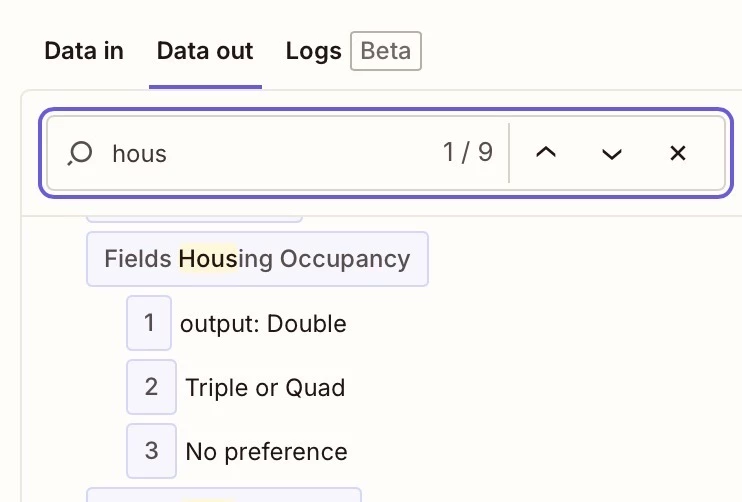
I deleted the Object.to_json and just left the raw output of the Formatter step, and it gets rid of the brackets and quotes but the first entry is still “output: Lunch”. The second entry is “Dinner”. I don’t know where the word “output” is coming from.


Troy Tessalone
Zapier Orchestrator & Solution Partner
Forum|alt.badge.img+14
  • Zapier Orchestrator & Solution Partner
  • March 17, 2026

@jere7my 

Try testing live, then see how the data for that field value is returned. (It may be in a more ideal format to work with.)

Sometimes the data returned from an app in a Zap step can be different in EDIT/TEST vs LIVE.

Check your Zap Run history details to see the DATA IN/OUT: https://zapier.com/app/history/


Help link for how to use a previous Zap Run as a Zap trigger example record to configure Zap action steps: https://help.zapier.com/hc/en-us/articles/35632951078029-Use-previous-Zap-runs-as-trigger-test-records


  • Author
  • New
  • March 17, 2026

@jere7my 

Try testing live, then see how the data for that field value is returned. (It may be in a more ideal format to work with.)

Sometimes the data returned from an app in a Zap step can be different in EDIT/TEST vs LIVE.

Check your Zap Run history details to see the DATA IN/OUT: https://zapier.com/app/history/


Help link for how to use a previous Zap Run as a Zap trigger example record to configure Zap action steps: https://help.zapier.com/hc/en-us/articles/35632951078029-Use-previous-Zap-runs-as-trigger-test-records


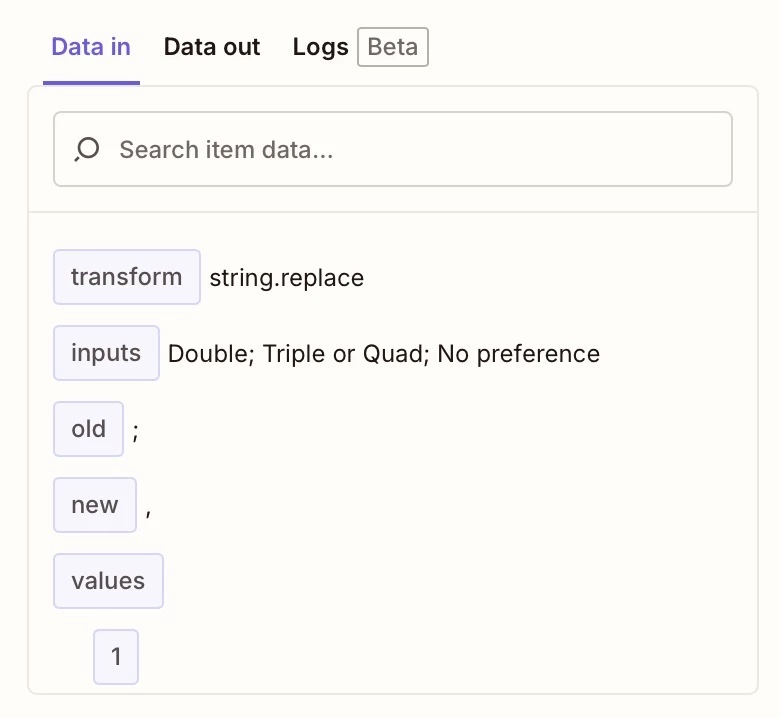
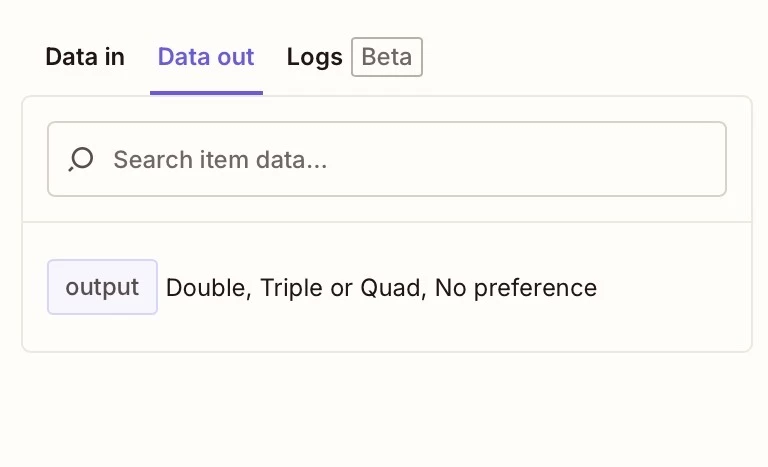
Thanks; I’ve been doing this in live mode with the actual Jotform. I looked at the data in and out in the runs; it looks like it is labeling the output as "output”, which makes sense, and then somehow that label gets attached to the data. The input and output are perfectly correct, but bizarrely the label gets stuck on. Screenshots:


EDIT: I switched from “Step output” to “Output” in the Update Record step and that seems to work. I was using "step output” because the help said "Make sure to use the Formatter step's Output field in your next action, not the original trigger field."


Troy Tessalone
Zapier Orchestrator & Solution Partner
Forum|alt.badge.img+14
  • Zapier Orchestrator & Solution Partner
  • March 18, 2026

@jere7my 

TIP: When posting screenshots make sure to include the full Zap step context, so we can tell which Zap step the screenshot relates to.


  • Author
  • New
  • March 18, 2026

@jere7my 

TIP: When posting screenshots make sure to include the full Zap step context, so we can tell which Zap step the screenshot relates to.

It’s a moot point now, because I just realized Zapier entered me into a free trial of the pro plan without informing me, and the “Zap” I’ve spent nine hours working on can only be created in the pro plan and will be useless in two weeks unless I upgrade. This is not a solution I can move forward with.


Troy Tessalone
Zapier Orchestrator & Solution Partner
Forum|alt.badge.img+14
  • Zapier Orchestrator & Solution Partner
  • March 18, 2026

@jere7my 

Info about Zapier Trial: https://help.zapier.com/hc/en-us/articles/8496197192461-Get-started-with-your-free-Zapier-trial


When you create a new Zapier account, you're automatically enrolled in the Pro 14-day trial, so you can try the features of Zapier's individual plans, including: