Best answer

How to pull client data from SimpleText to Jobber using Zapier

  • August 23, 2026
  • 6 replies
  • 44 views

I have Zap setup to pull data from SimpleText and send to Jobber. I am trying to grab the User contact phone number and then search Jobber for the client and place a new request  and note (SMS) message into the Jobber Request area. 

 

Best answer by SamB

Hey ​@StephenChrist! 👋 

Looks like our Support team were able to help get this sorted. Sharing the steps here in case it helps anyone else running into the same thing:

How to fix it
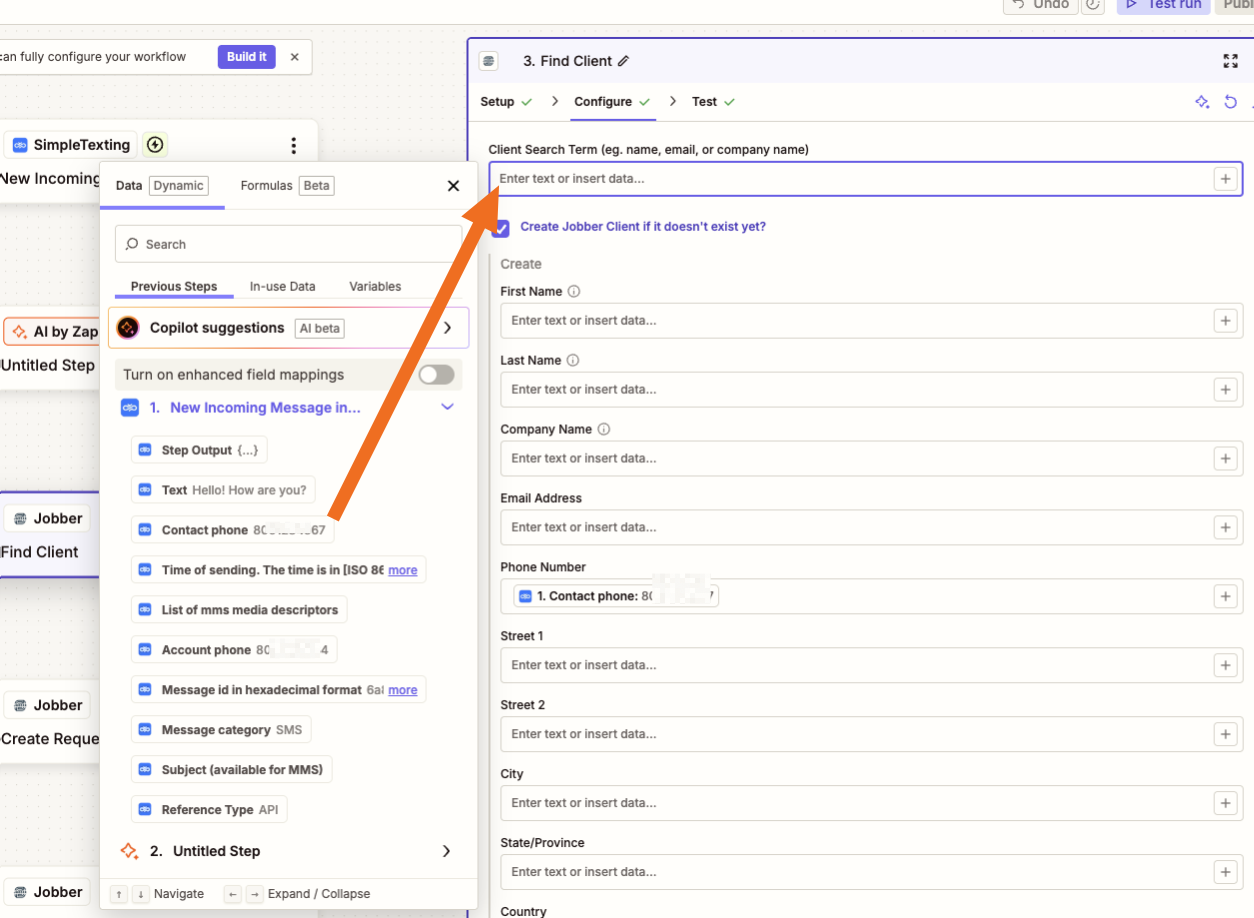
You'll want to map the phone number from the trigger step into that search field instead of typing text. When you click into the field, choose the phone number field coming from your SimpleTexting trigger, like this:
 
e752241560eb8fd28a7ca1a2d7b788d3.png

 
Once that's mapped, the Find Client step will look up the actual number from each incoming message. If the number matches an existing client, Jobber returns that client's info; if it doesn't, your step is set up to create the client instead — so either way the request will attach to the right person.
 
After you update that field, run a fresh test and check your Zap History to confirm each message is now pulling the correct client.


I'll mark this as the best answer since that seems to have got the correct Jobber client found. Let us know if you run into anything else! 🙂
6 replies

Troy Tessalone
Zapier Orchestrator & Solution Partner
Forum|alt.badge.img+14
  • Zapier Orchestrator & Solution Partner
  • August 24, 2026

Hi ​@StephenChrist 

Post screenshots showing how your Zap steps are outlined and configured in the CONFIGURE tab while in EDIT mode with the field mappings visible, along with any encountered errors while testing a Zap step.


If you are looking to hire help, there is a directory of Zapier Partners: https://zapier.com/partnerdirectory


SamB
Community Manager
Forum|alt.badge.img+11
  • Community Manager
  • Answer
  • September 17, 2026

Hey ​@StephenChrist! 👋 

Looks like our Support team were able to help get this sorted. Sharing the steps here in case it helps anyone else running into the same thing:

How to fix it
You'll want to map the phone number from the trigger step into that search field instead of typing text. When you click into the field, choose the phone number field coming from your SimpleTexting trigger, like this:
 
e752241560eb8fd28a7ca1a2d7b788d3.png

 
Once that's mapped, the Find Client step will look up the actual number from each incoming message. If the number matches an existing client, Jobber returns that client's info; if it doesn't, your step is set up to create the client instead — so either way the request will attach to the right person.
 
After you update that field, run a fresh test and check your Zap History to confirm each message is now pulling the correct client.


I'll mark this as the best answer since that seems to have got the correct Jobber client found. Let us know if you run into anything else! 🙂


  • Author
  • Beginner
  • September 27, 2026

I am trying to extract the SimpleText Reply of SMS into Jobber Request as as note. It is configured, but not working. Also, how to I make sure that data is refreshed. It seems to populate old data on my testing. Here is a link to the Zap:

[Zap link removed]


This post has been edited by a moderator to remove sensitive details. Please remember that this is a public forum and avoid sharing private information such as Zap links.


SamB
Community Manager
Forum|alt.badge.img+11
  • Community Manager
  • September 28, 2026

Sorry to hear the Zap isn’t working ​@StephenChrist. Our Support team can review Zap links securely, but here in the Community we’ll need screenshots instead (with any personal or sensitive information redacted).

When the Zap is published and runs live, it should only trigger on new messages. The Zap editor can sometimes keep showing an older sample from the trigger, so that may be why you’re still seeing the old test data. You can try sending a new message to SimpleTexting and then test the trigger again to see if that loads it, or modify an existing test record so you can use different values for testing the Zap. Alternatively, you can run a live test by turning the Zap on, sending a new message to trigger the Zap and then using that live Zap run as the test record.

Keep us posted on how it goes!


  • Author
  • Beginner
  • September 28, 2026

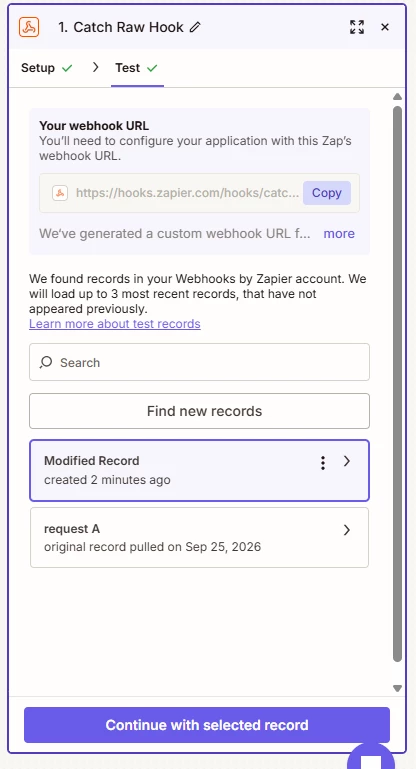
Some screen shots


SamB
Community Manager
Forum|alt.badge.img+11
  • Community Manager
  • September 29, 2026

Thanks for sending over that screenshot ​@StephenChrist. That looks like it’s a different trigger, is that the same Zap as the one you were using to pull data from SimpleTexting and send to Jobber? Or is it a different Zap that you’re having trouble using different test data in?

It looks like you’ve successfully modified the test record. When you click the Continue with selected record button (pictured at the bottom of your screenshot) does that then allow you to test the Zap’s actions with the modified version of the test record data? Or is it still using the data from the original “request A” test record?