Question

How to automate data transfer from Google Sheets to Monday.com using Zapier

  • July 30, 2026
  • 18 replies
  • 101 views

I’ve tried multiple times now and keep getting the same result, so I’m hoping the community can help. I basically want a zap to monitor a specific folder in Google Drive for when a file is added (to which it will always only be a xlsx/spreadsheet). It then needs to read the rows of the spreadsheet and push the data to a board in Monday.com, mapping the fields for handover.


I’ve tried it via the Google Sheets option and Looper by Zapier option but it doesn’t work. The closest I’ve got is it will create one item in Monday for the first row, but the loop won’t add the others, even though it says it will.


Ideally, I want to receive an email with the attachment in Gmail, “Add to Drive” putting it in the right folder, and the Zap does the rest without any intervention. I can then do this each day, adding a new spreadsheet to the folder and the Zap will read it, add the data as needed, and rinse and repeat.


Can anyone help?

18 replies

Troy Tessalone
Zapier Orchestrator & Solution Partner
Forum|alt.badge.img+14
  • Zapier Orchestrator & Solution Partner
  • July 30, 2026

Hi ​@ChrisHG87 

Help links for using Looping in Zaps: https://zapier.com/apps/looping/integrations#help


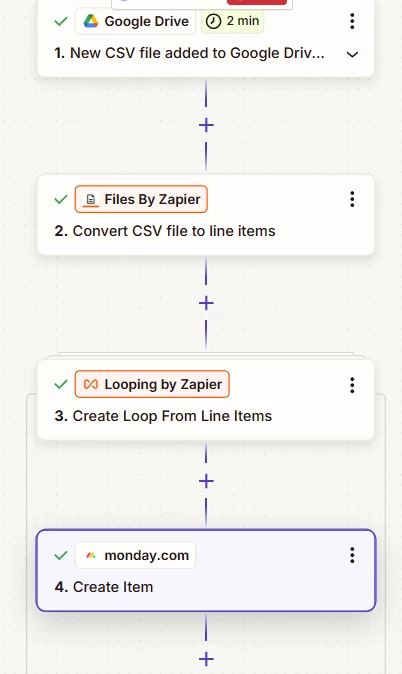
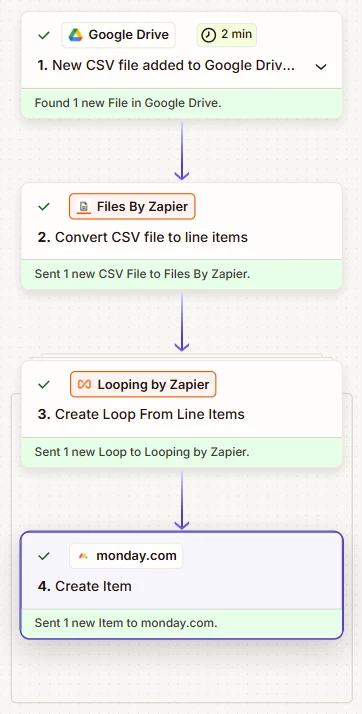
For us to have more info, post screenshots showing how your Zap steps are outlined and configured in the CONFIGURE tab while in EDIT mode with the field mappings visible.

NOTE: When testing the Looping step, only the first loop iteration will be tested.


  • Author
  • Beginner
  • July 31, 2026

Hi Troy,


Thanks for the reply.

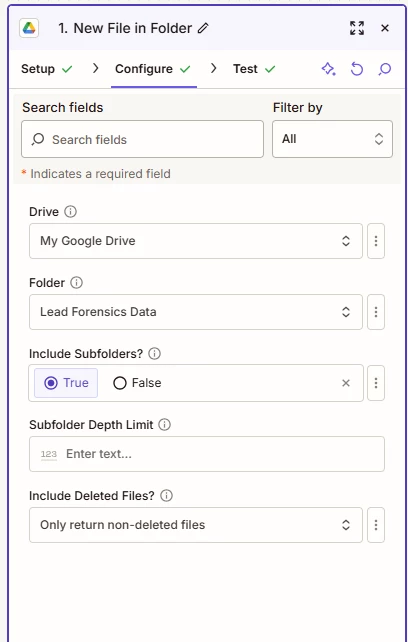
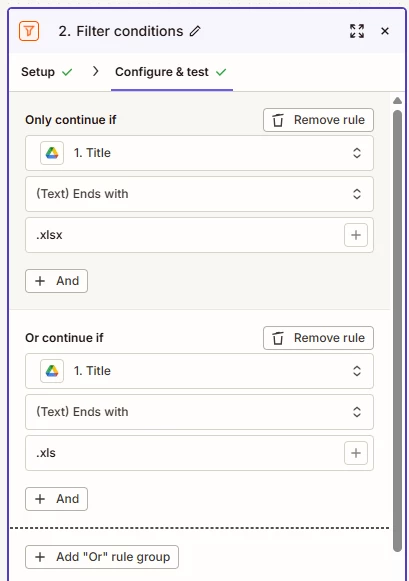
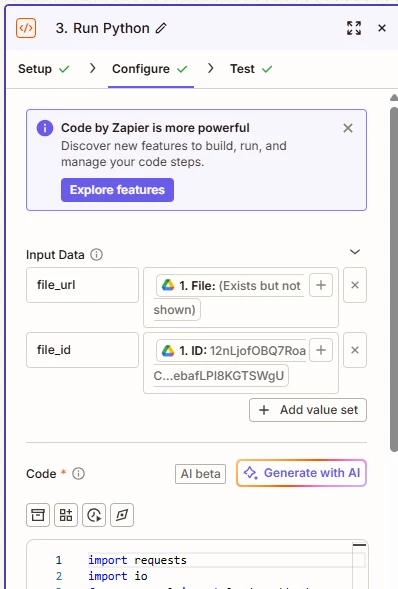
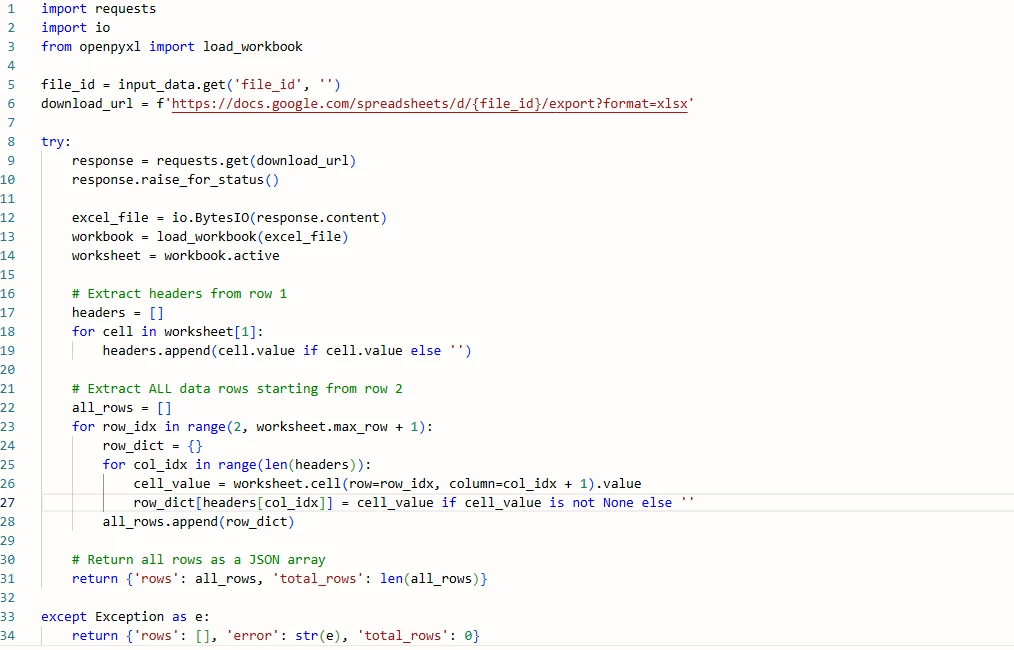
I’ve skipped the Monday step as it’s previously worked, but hopefully the below can help. Just to add, this was all done via Copilot.

Thanks


Troy Tessalone
Zapier Orchestrator & Solution Partner
Forum|alt.badge.img+14
  • Zapier Orchestrator & Solution Partner
  • July 31, 2026

@ChrisHG87 

The screenshots do not show how all of your Zap steps are outlined and configured.


You likely do not need a Code step.


IF the XLS is a flat file format (e.g. headers as first row), then get the CSV version of the GSheet.

Help: 


You can use the Files by Zapier app to get the CSV file rows: https://zapier.com/apps/files-by-zapier/integrations#triggers-and-actions


Use Looping (Create Loop from Line Items).

Map data in to the Looping step from the Files by Zapier step.

Then map data out from the Looping step to Monday.

NOTE: When testing the Looping step, only the first loop iteration will be tested.

Help: https://zapier.com/apps/looping/integrations#help


Make sure to test LIVE with a XLS file that has a few rows.

Check the Zap Runs history: https://zapier.com/app/history/


  • Author
  • Beginner
  • August 3, 2026

Hi Troy,


So I remade this but still don’t seem to be getting anywhere. 

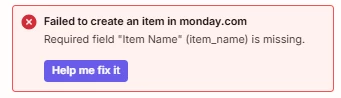
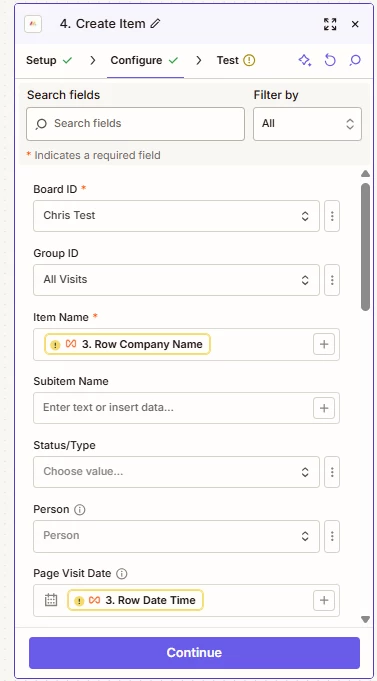
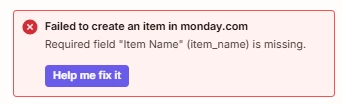
I get to the point where the test runs with static values, but as soon as I add in the fields and try a test, I’m getting the below, even though it has a value that is pulling from the Loop items. Any ideas?


Troy Tessalone
Zapier Orchestrator & Solution Partner
Forum|alt.badge.img+14
  • Zapier Orchestrator & Solution Partner
  • August 3, 2026

@ChrisHG87 

In the Files by Zapier step, you need to map the download link to the CSV version of the file, rather than the file objects.


Help: 


  • Author
  • Beginner
  • August 3, 2026

Hi Troy. But what if that file is different each time the zap runs? The aim is to upload a new file each day so therefore the file name will change each time - does this matter? Thanks, C


Troy Tessalone
Zapier Orchestrator & Solution Partner
Forum|alt.badge.img+14
  • Zapier Orchestrator & Solution Partner
  • August 3, 2026

Troy Tessalone
Zapier Orchestrator & Solution Partner
Forum|alt.badge.img+14
  • Zapier Orchestrator & Solution Partner
  • August 3, 2026

@ChrisHG87 

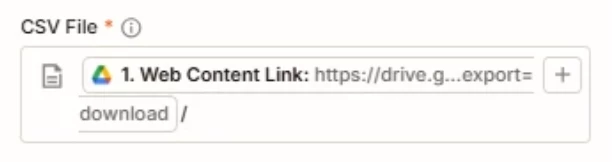
The mapped variable from GDrive for the CSV version of the spreadsheet should look like this: 


  • Author
  • Beginner
  • August 4, 2026

Hi Troy,


With “Find a File”, the file name will be different for each CSV that gets added to Google Drive, therefore I don’t know how to map to something that will change every day?


The key point is that I add a CSV to the folder, the Zap finds it and pulls the data from that particular file. Then the next time, the file will be different. Therefore the dynamic variable being mapped to a particular file won’t work will it?


I’m confused? 


Troy Tessalone
Zapier Orchestrator & Solution Partner
Forum|alt.badge.img+14
  • Zapier Orchestrator & Solution Partner
  • August 4, 2026

@ChrisHG87 

Why are you now trying to use GDrive “Find a File” as a Zap action step?

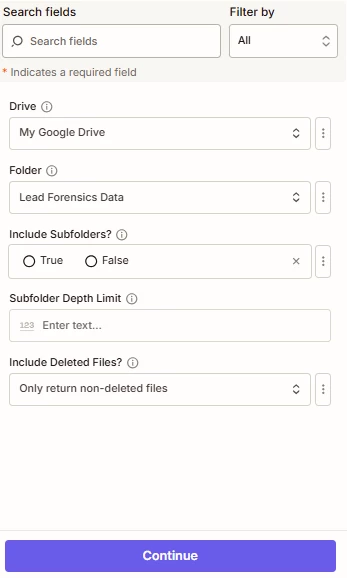
Your previous screenshots show GDrive as the Zap trigger step: GDrive - New File in Folder

Every new CSV/XLS file added to the GDrive Folder in Zap step 1 will return the same data points to map to Zap action steps.


If you are looking to hire help with your project, there is a directory of Zapier Partners: https://zapier.com/partnerdirectory


  • Author
  • Beginner
  • August 4, 2026

Hi Troy,

Apologies for the confusion.

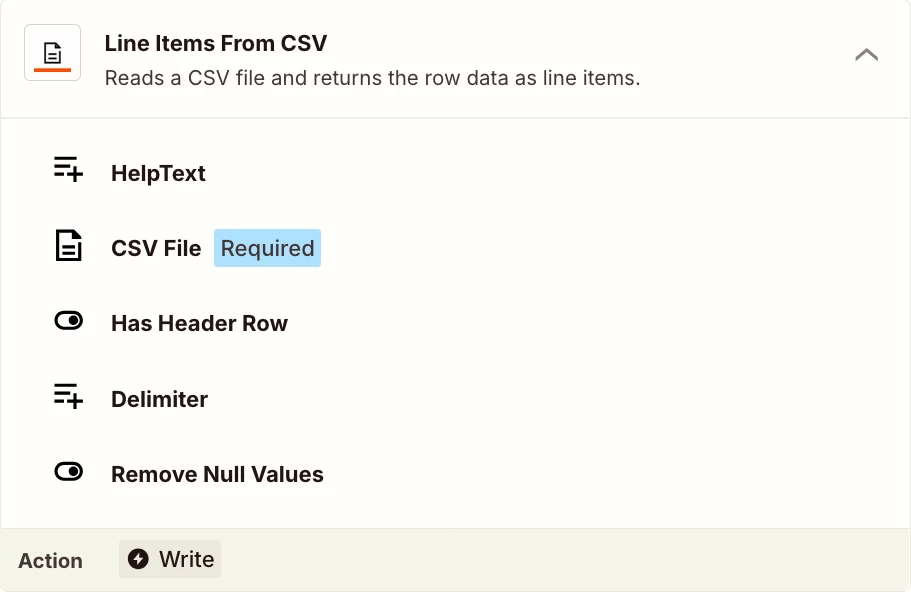
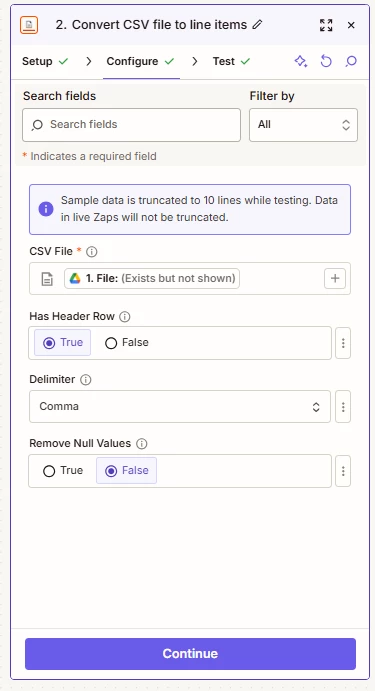
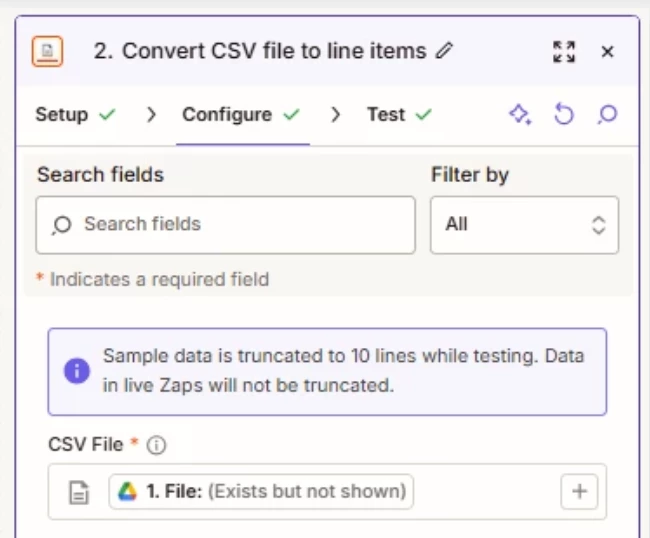
In “2: Convert CSV file to line items”, the “CSV File” field, can you advise what I need to map or what I need to type/find?

At the moment, “Export links Text CSV” isn’t one of the fields I can find?

Thanks,


C


Troy Tessalone
Zapier Orchestrator & Solution Partner
Forum|alt.badge.img+14
  • Zapier Orchestrator & Solution Partner
  • August 4, 2026

@ChrisHG87 

Did you review both of the help links below? (If no, do that.)


Are you uploading a CSV or a XLS file to the GDrive Folder?


Post a screenshot of the top 3 rows so we can see how the file is structured.

Post screenshots showing the DATA OUT from Zap step 1, so we have true context about the data you are trying to use from GDrive.


https://community.zapier.com/show%2Dtell%2D5/how%2Dto%2Dget%2Dthe%2Dcsv%2Dversion%2Dof%2Dexcel%2Dgsheet%2Dxls%2Dfile%2Dusing%2Dgdrive%2D14686?tid=14686&fid=5

https://community.zapier.com/show%2Dtell%2D5/gdrive%2Dfile%2Dlink%2Dformats%2Dgsheets%2Dgdocs%2Dgslides%2D25077?tid=25077&fid=5


  • Author
  • Beginner
  • August 5, 2026

Hi Troy,


I’m always going to be uploading a CSV. Regarding the data, I can’t really share as it’s specific to customers, but it’s just a number of text fields that I’m mapping to Monday.


Regarding Step 2: there was no “Export links Text CSV”.


Copilot will get it so every field maps with static data, but it won’t publish with the variable, so it’ll remove it to get it past the test, but then when I add back in, I get the “Item Name” issue, but the spreadsheet I’m using for the test has multiple rows of valid data.


Troy Tessalone
Zapier Orchestrator & Solution Partner
Forum|alt.badge.img+14
  • Zapier Orchestrator & Solution Partner
  • August 5, 2026

@ChrisHG87 

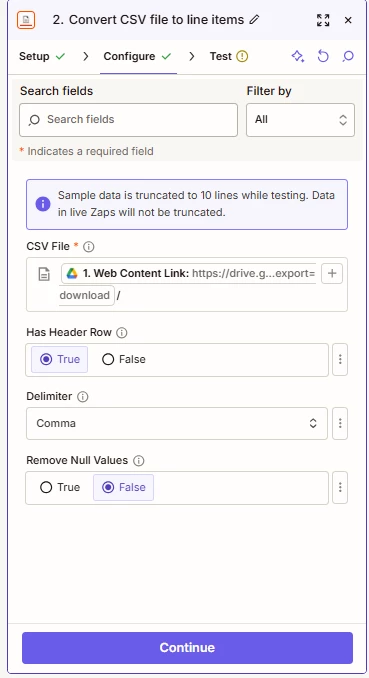
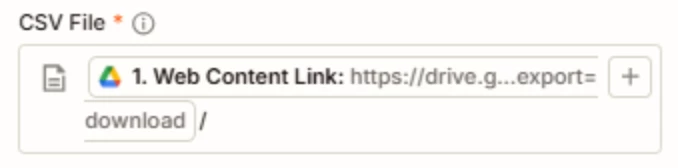
In your screenshot you have a trailing / that needs to be removed for the CSV File input field.


The best way for us to have true context is to show screenshots of these:

  • how your Zap steps are outlined
  • how your Zap steps are configured in the CONFIGURE tab while in EDIT mode with the field mappings visible
  • DATA IN from the TEST tab
  • DATA OUT from the TEST tab

  • Author
  • Beginner
  • August 5, 2026

Hi Troy,

I’ve screenshotted everything and uploaded this to Google Drive - I’ve sent you the link privately. I’ve black out private data but this is just text based content.

Hopefully this can help.

Thanks,

C


Troy Tessalone
Zapier Orchestrator & Solution Partner
Forum|alt.badge.img+14
  • Zapier Orchestrator & Solution Partner
  • August 5, 2026

@ChrisHG87 

See screenshots below.


Make sure to remove the trailing / in the CSV File field input value.


Previously provided help links for using Looping: https://zapier.com/apps/looping/integrations#help

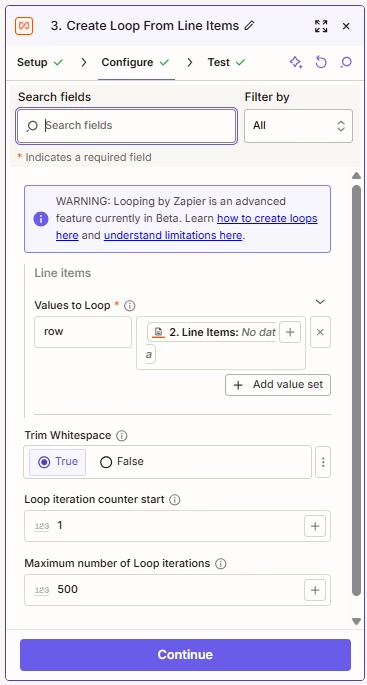
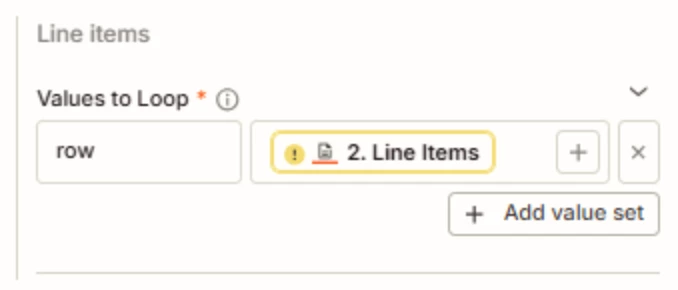
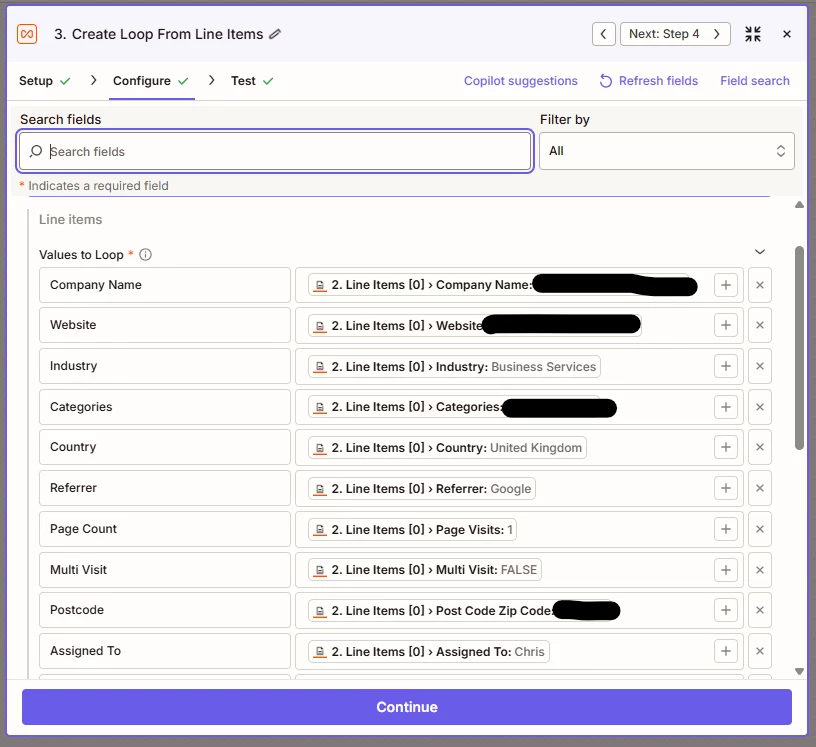
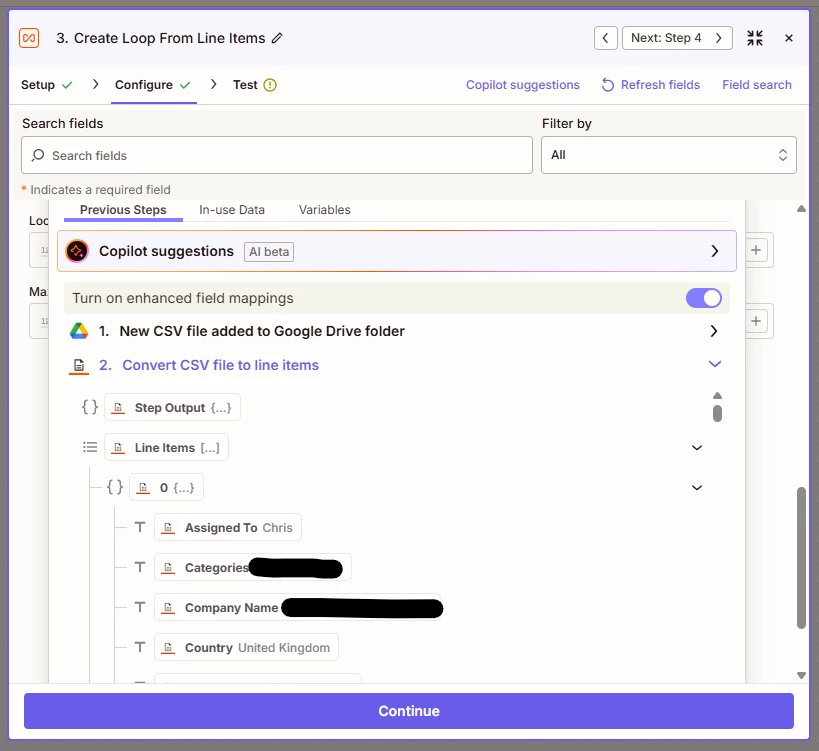
For the Looping step, for the Line Items, you need to map each desired data point from Zap step 2 to its own Values to Loop key/value set.

e.g. If you want to map 5 CSV columns from Zap step 2, then in the Zap step 3 Looping, there should be 5 Values to Loop lines.

Such as: Company Name, Country, Industry, etc.

Click the button [Add Value Set].


EXAMPLE
Left side: Company Name

Right side: Variable for “Company Name” mapped from Zap step 2


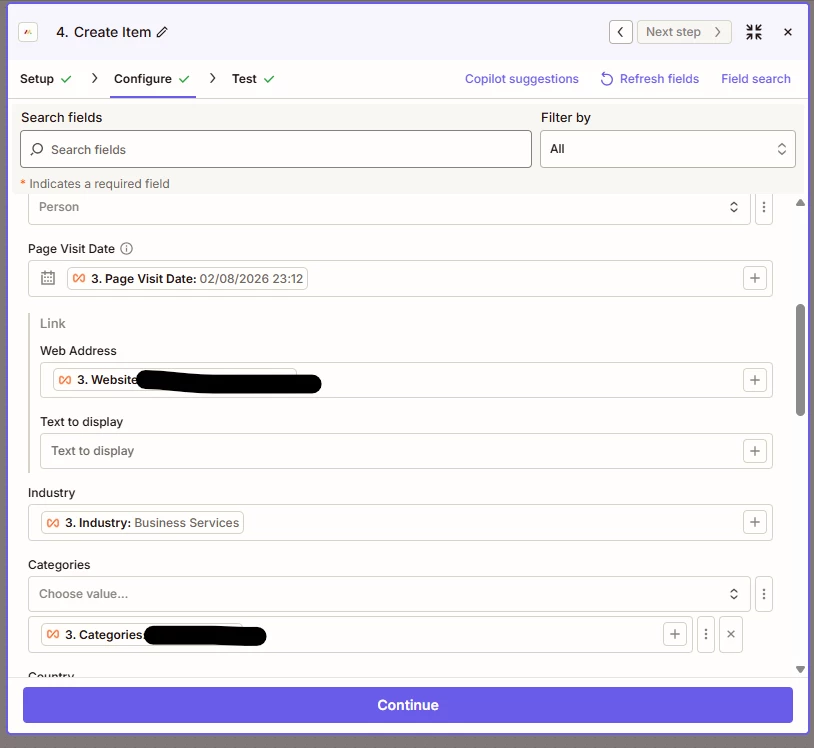
TIP: Don’t forget to remap your variables from Zap step 3 (Looping) to Zap step 4 (Monday).


Forum|alt.badge.img+1
  • New
  • August 5, 2026

The Export links fields only exist for native Google Sheets files, not for an uploaded .xlsx. Drive treats an uploaded xlsx as a plain binary file, so it has no CSV export link at all, which is why that field never appears in the mapping list no matter what you pick.

Two ways around it.

Convert it after it lands. Add a Google Drive step that re-uploads the new file with the convert option turned on, which produces a real Google Sheet, and take the CSV export link from that step rather than from the trigger. The trigger feeds it the file id, so nothing is hardcoded.

Or skip Drive for the parsing entirely. The file is arriving by email anyway, so trigger on the Gmail message with an attachment, pass the attachment straight into Files by Zapier to get line items, then loop into Monday. Fewer moving parts and nothing that depends on the file name.

On the daily file name worry: that is not actually a problem. New File in Folder hands you the file id, and the id is the stable handle everything downstream should use. The name only matters if something in the chain is searching by name, which is why Find a File was pulling you sideways.


  • Author
  • Beginner
  • August 6, 2026

Hi Troy,

Ah this makes sense. I’ve got Steps 3 and 4 mapped like this now:


However, the file has 10 lines and it’s only pulling the first. In Step 3, I mapped it to these:


Any ideas?