
Question

How to automate data transfer from Google Sheets to Monday.com using Zapier

  • July 30, 2026
  • 3 replies
  • 21 views

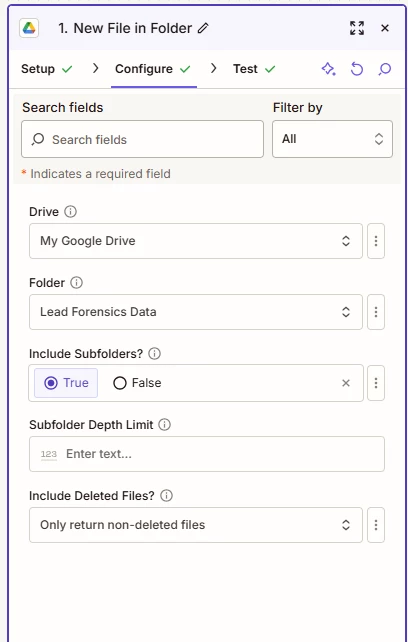
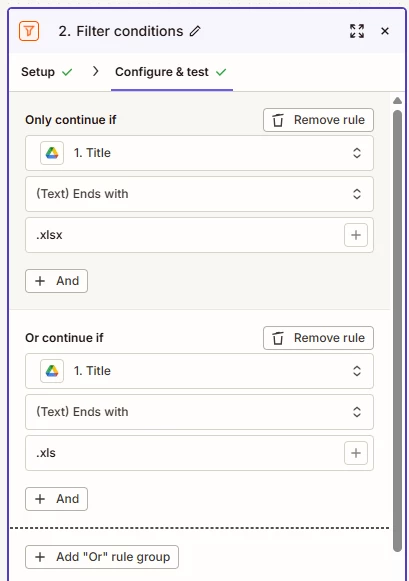
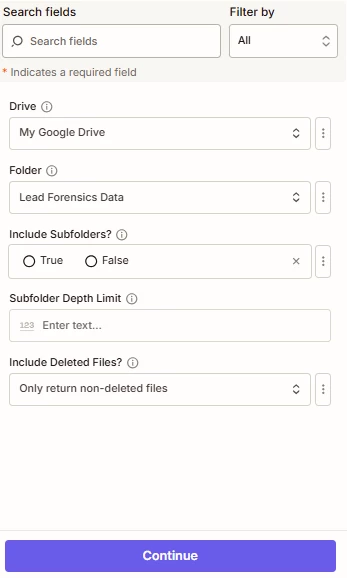
I’ve tried multiple times now and keep getting the same result, so I’m hoping the community can help. I basically want a zap to monitor a specific folder in Google Drive for when a file is added (to which it will always only be a xlsx/spreadsheet). It then needs to read the rows of the spreadsheet and push the data to a board in Monday.com, mapping the fields for handover.


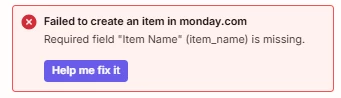
I’ve tried it via the Google Sheets option and Looper by Zapier option but it doesn’t work. The closest I’ve got is it will create one item in Monday for the first row, but the loop won’t add the others, even though it says it will.


Ideally, I want to receive an email with the attachment in Gmail, “Add to Drive” putting it in the right folder, and the Zap does the rest without any intervention. I can then do this each day, adding a new spreadsheet to the folder and the Zap will read it, add the data as needed, and rinse and repeat.


Can anyone help?

3 replies

Troy Tessalone
Zapier Orchestrator & Solution Partner
Forum|alt.badge.img+14
  • Zapier Orchestrator & Solution Partner
  • July 30, 2026

Hi ​@ChrisHG87 

Help links for using Looping in Zaps: https://zapier.com/apps/looping/integrations#help


For us to have more info, post screenshots showing how your Zap steps are outlined and configured in the CONFIGURE tab while in EDIT mode with the field mappings visible.

NOTE: When testing the Looping step, only the first loop iteration will be tested.


  • Author
  • New
  • July 31, 2026

Hi Troy,


Thanks for the reply.

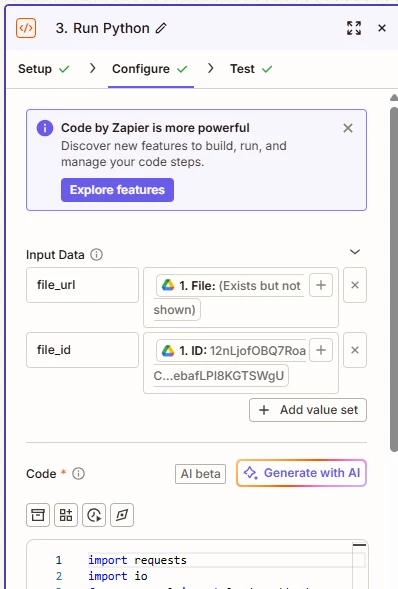
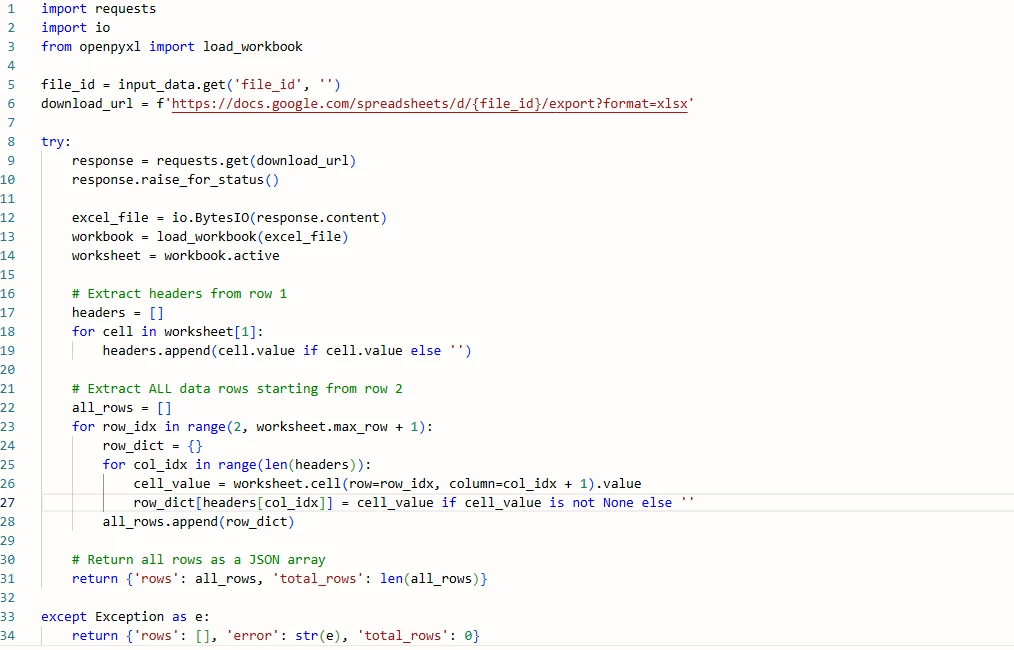
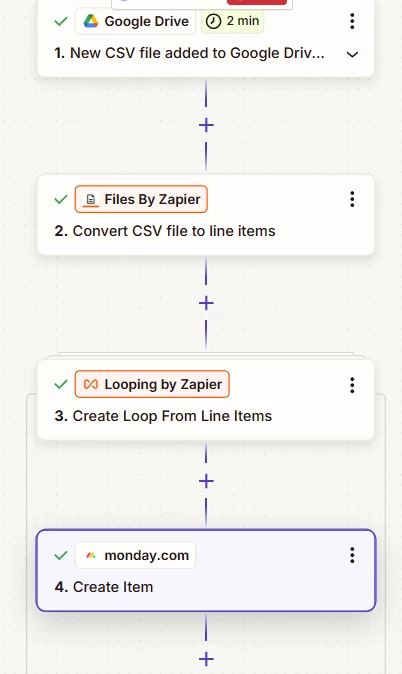
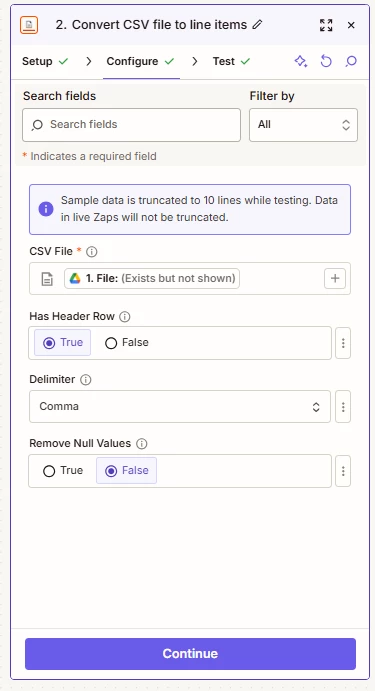
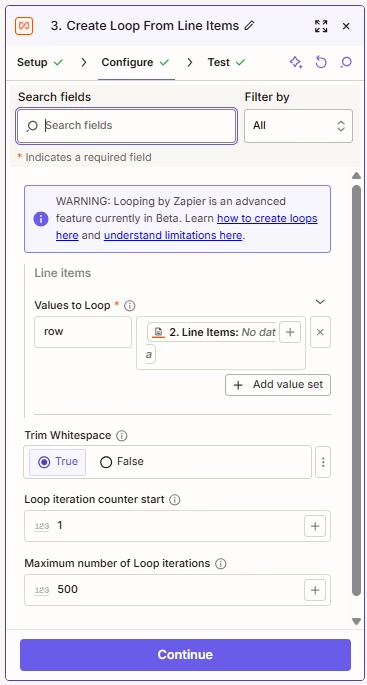
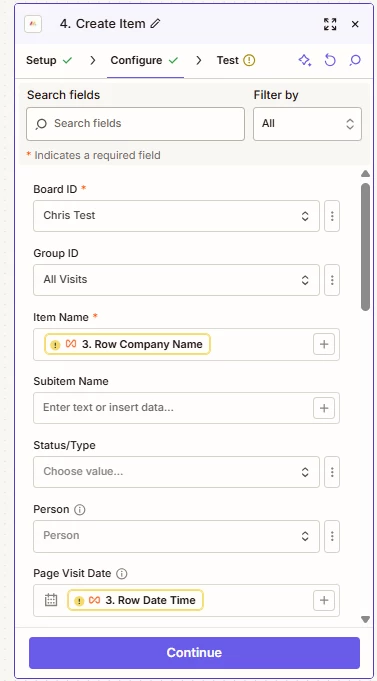
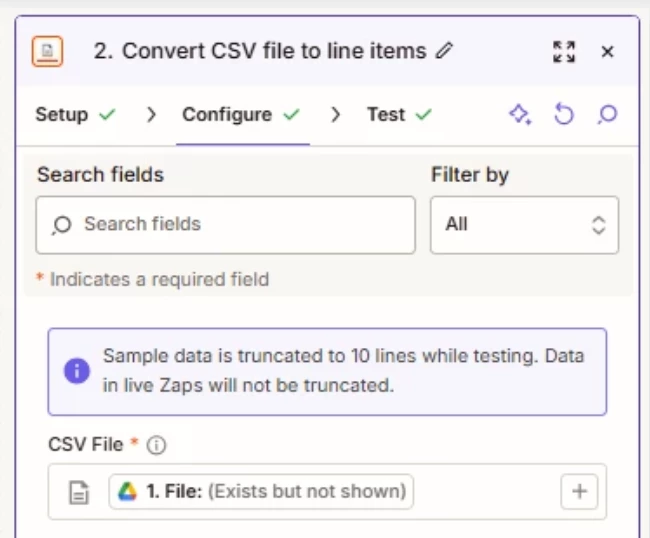
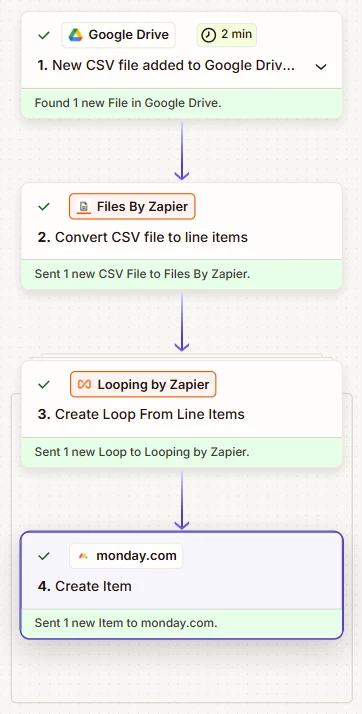
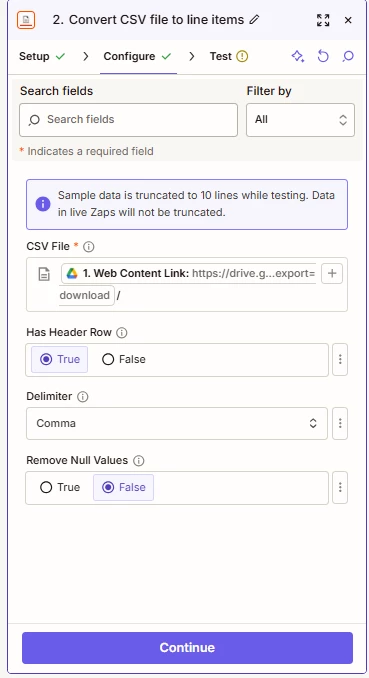
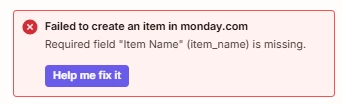
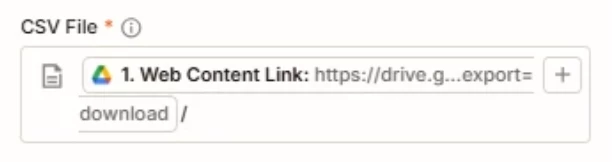
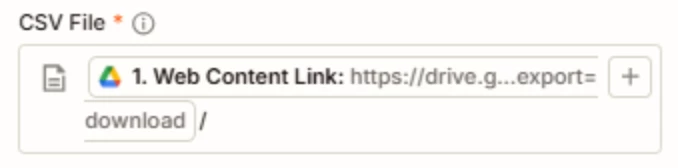
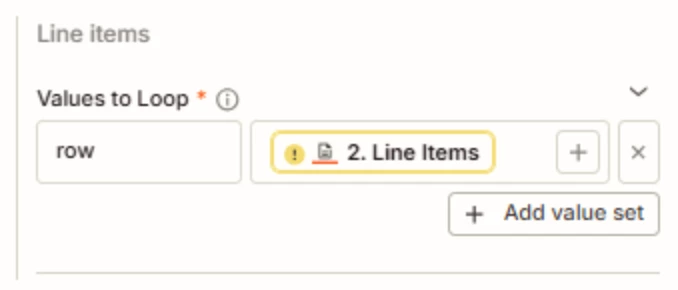
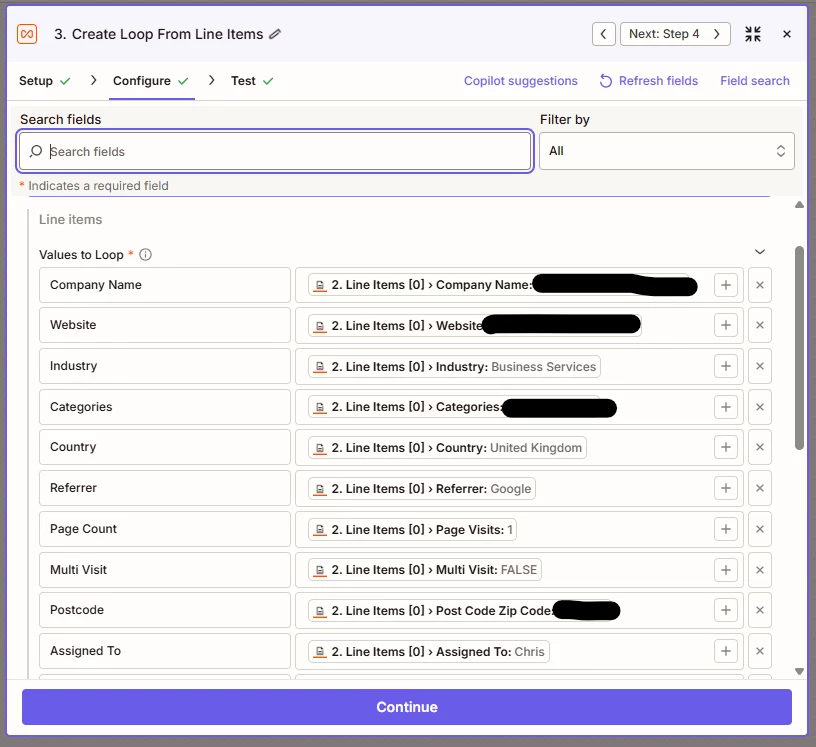
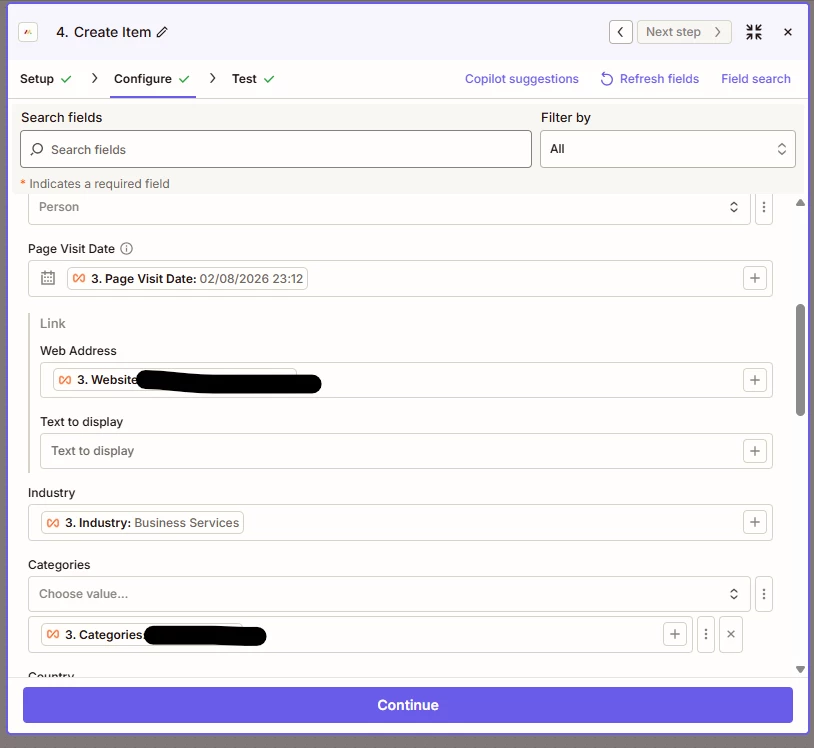
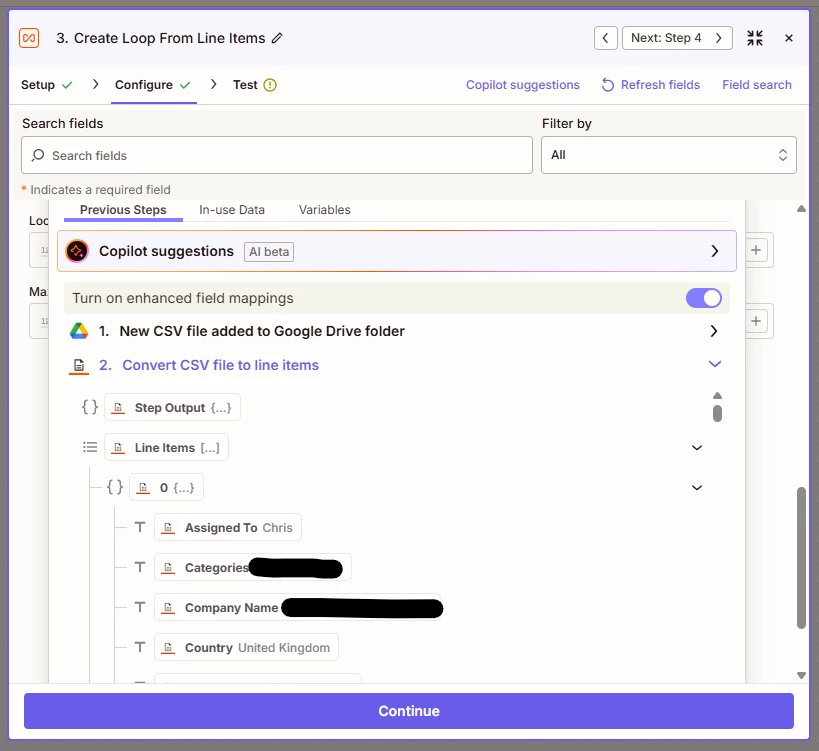
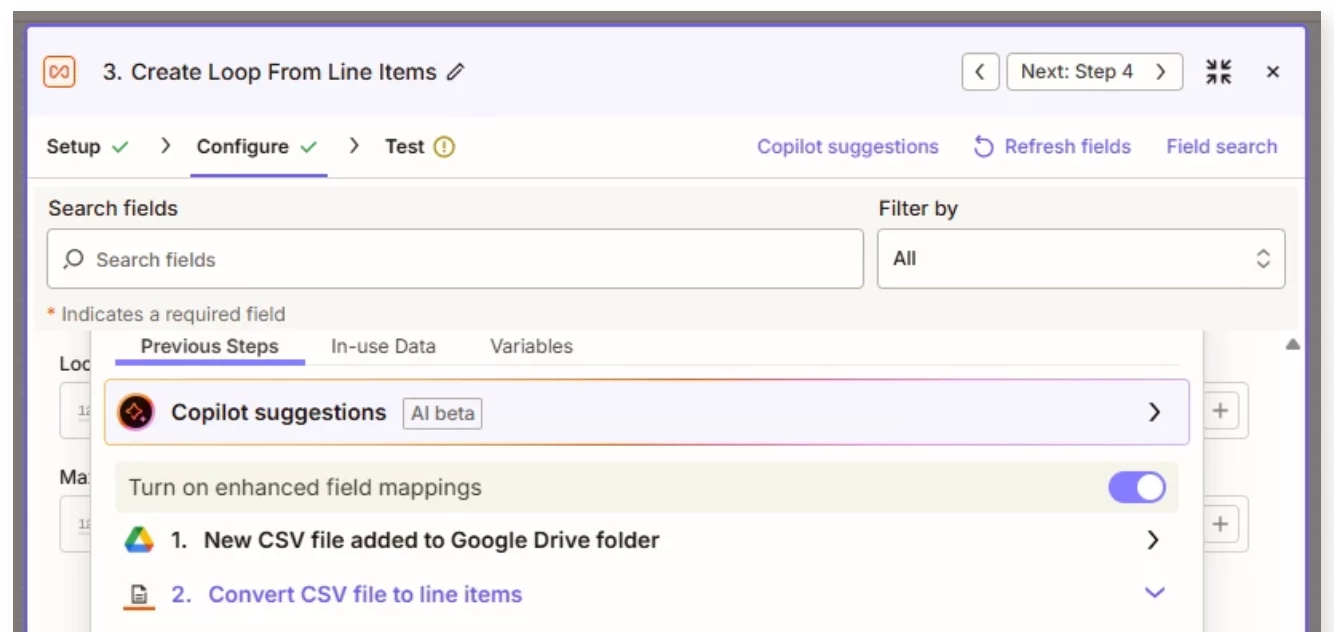
I’ve skipped the Monday step as it’s previously worked, but hopefully the below can help. Just to add, this was all done via Copilot.

Thanks


Troy Tessalone
Zapier Orchestrator & Solution Partner
Forum|alt.badge.img+14
  • Zapier Orchestrator & Solution Partner
  • July 31, 2026

@ChrisHG87 

The screenshots do not show how all of your Zap steps are outlined and configured.


You likely do not need a Code step.


IF the XLS is a flat file format (e.g. headers as first row), then get the CSV version of the GSheet.

Help: 


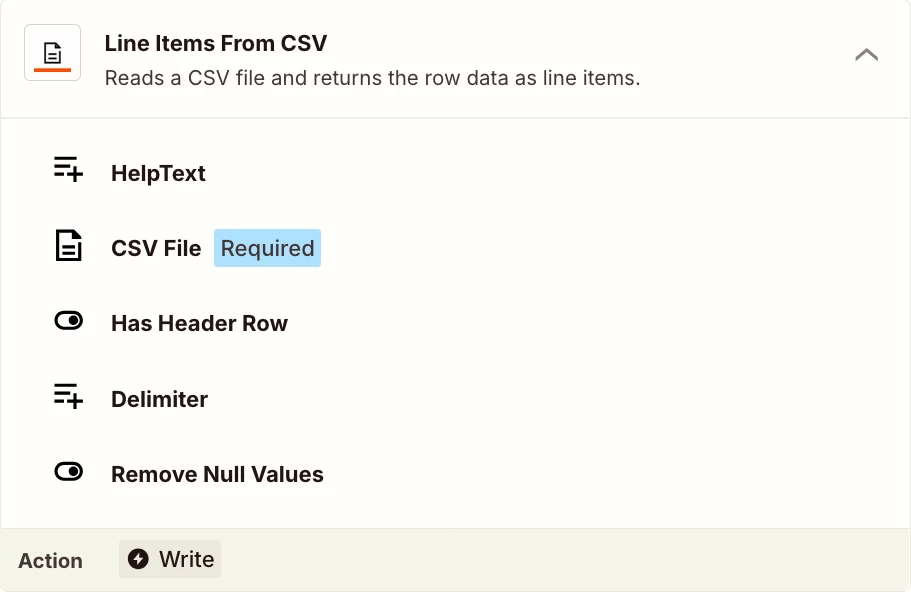
You can use the Files by Zapier app to get the CSV file rows: https://zapier.com/apps/files-by-zapier/integrations#triggers-and-actions


Use Looping (Create Loop from Line Items).

Map data in to the Looping step from the Files by Zapier step.

Then map data out from the Looping step to Monday.

NOTE: When testing the Looping step, only the first loop iteration will be tested.

Help: https://zapier.com/apps/looping/integrations#help


Make sure to test LIVE with a XLS file that has a few rows.

Check the Zap Runs history: https://zapier.com/app/history/