Question

How to automate data transfer from EveryAction to Microsoft Loop using Zapier

  • February 9, 2026
  • 7 replies
  • 65 views

Hey there,


I’m trying to run data from our organization’s CRM (namely, EveryAction) through Zapier into Microsoft Loop. I know I can do it manually but I’d love to set it up so that I can just link these two and run the Zaps when I need to. Is there a way I can link these two? Every time I try to begin the zap with EveryAction, it gives me an error that there is no trigger available for EveryAction, but I need it to be the starting point. Any help would be greatly appreciated.


7 replies

Troy Tessalone
Zapier Orchestrator & Solution Partner
Forum|alt.badge.img+14
  • Zapier Orchestrator & Solution Partner
  • February 9, 2026

Hi ​@nkeller2431 

Search all Zap app integrations here: https://zapier.com/apps

Each Zap app has a profile page that lists the available triggers/actions and help links.


EveryAction has 0 triggers available and only actions available: https://zapier.com/apps/everyaction/integrations#triggers-and-actions

So EveryAction can’t be used as the Zap trigger step.


Microsoft Loop does not have a Zap app integration.

See available Microsoft Zap app integrations here: https://zapier.com/apps/categories/microsoft


Forum|alt.badge.img+1
  • Beginner
  • February 9, 2026

I have an EveryAction integration that makes use of some Zapier tools. It’s admittedly pretty hacky, but it’s working for us.


Step one: In EveryAction, set up a scheduled report that sends the report to an email address (I’ll use serviceaccount@yourcompany.org as an example here)

Step two: Create an email address at parser.zapier.com dedicated to this integration

Step three: Configure serviceaccount@yourcompany.org to automatically forward these scheduled reports to the parser email address you created in step two

Step four: Have the parser parse out the email link to the report that’s embeded in the email, as well as any other pertinent information in the email

Step five: Create a Zap that’s triggered by that parser email address receiving an email. That Zap can download the report via the link and upload it somewhere. We upload it to Google Drive via this Zap.

We do additional processing once it hits drive via Google App Scripts. I hope this helps!


drtanvisachar
Forum|alt.badge.img+5
  • Zapier Solution Partner
  • February 10, 2026

Hello ​@nkeller2431 
 

EveryAction’s Zapier integration currently has actions only, no triggers, so it can’t be the first step in a Zap.
 

Workarounds:

Use Schedule by Zapier (or a manual trigger) to start the Zap, then run the EveryAction action.
If EveryAction can send webhooks, use Webhooks by Zapier as the trigger instead.

Microsoft Loop also doesn’t have a native Zapier app right now, so you’ll likely need a middle step (SharePoint, OneNote, or a Microsoft 365 file) that Loop can reference.

Dr. Tanvi Sachar
Monday Certified Partner, Tuesday Wizard


  • Author
  • Beginner
  • March 5, 2026

I have an EveryAction integration that makes use of some Zapier tools. It’s admittedly pretty hacky, but it’s working for us.


Step one: In EveryAction, set up a scheduled report that sends the report to an email address (I’ll use serviceaccount@yourcompany.org as an example here)

Step two: Create an email address at parser.zapier.com dedicated to this integration

Step three: Configure serviceaccount@yourcompany.org to automatically forward these scheduled reports to the parser email address you created in step two

Step four: Have the parser parse out the email link to the report that’s embeded in the email, as well as any other pertinent information in the email

Step five: Create a Zap that’s triggered by that parser email address receiving an email. That Zap can download the report via the link and upload it somewhere. We upload it to Google Drive via this Zap.

We do additional processing once it hits drive via Google App Scripts. I hope this helps!


This has been extremely helpful! I do have one additional question for you. Since you’re also working with EA, the report likely looks similar. How do you get the system to parse the link within the email? Do I have to set up the zap prior to doing it so it connects? Just trying to troubleshoot as I go


Forum|alt.badge.img+1
  • Beginner
  • March 6, 2026

I have an EveryAction integration that makes use of some Zapier tools. It’s admittedly pretty hacky, but it’s working for us.


Step one: In EveryAction, set up a scheduled report that sends the report to an email address (I’ll use serviceaccount@yourcompany.org as an example here)

Step two: Create an email address at parser.zapier.com dedicated to this integration

Step three: Configure serviceaccount@yourcompany.org to automatically forward these scheduled reports to the parser email address you created in step two

Step four: Have the parser parse out the email link to the report that’s embeded in the email, as well as any other pertinent information in the email

Step five: Create a Zap that’s triggered by that parser email address receiving an email. That Zap can download the report via the link and upload it somewhere. We upload it to Google Drive via this Zap.

We do additional processing once it hits drive via Google App Scripts. I hope this helps!


This has been extremely helpful! I do have one additional question for you. Since you’re also working with EA, the report likely looks similar. How do you get the system to parse the link within the email? Do I have to set up the zap prior to doing it so it connects? Just trying to troubleshoot as I go


Strange, I thought I already replied to this, but I don’t see my reply…

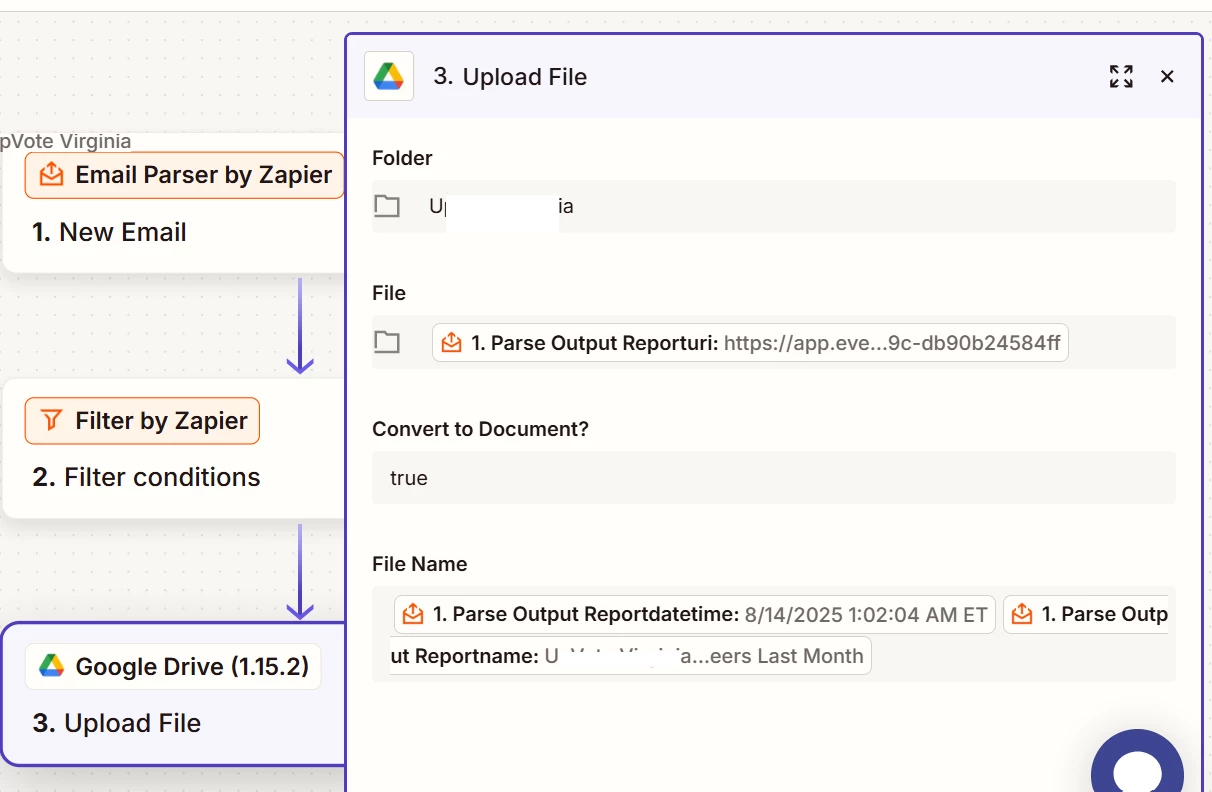
I just map the parsed out report URL to the “file” property of the Google Drive app, and configure it to treat it as a file. The app ends up downloading the report via the link. See this image:


SamB
Community Manager
Forum|alt.badge.img+11
  • Community Manager
  • March 12, 2026

Hey there ​@nkeller2431 👋 Did the Email Parser approach BobbyA suggested do the trick?

Let us know how it went, want to make sure you're all set! 🙂


Forum|alt.badge.img
  • New
  • March 12, 2026

Hi ​@nkeller2431 

Here's the EveryAction API doc that might help: https://docs.everyaction.com/reference/email-overview!-->

Have you tried Schedule by Zapier as trigger? That usually does the trick!

!-->

Use Schedule by Zapier as your trigger

  1. Trigger: Schedule by Zapier (runs hourly/daily)

  2. Action: EveryAction - use "Find Person" or "Search" to pull your data

  3. Action: Microsoft Loop - add/update content

This bypasses EveryAction's lack of triggers entirely. You control when it runs, and the Zap pulls fresh data from EveryAction each time.

Note: Since Microsoft Loop doesn't have a direct Zapier app, you may need to use Microsoft OneNote or SharePoint as an intermediate step, then embed that in Loop.

If you're still stuck, I offer a free 20-min Zapier troubleshooting call. Book it through my Zapier Directory profile — it's listed under Resources on the left side: https://zapier.com/partnerdirectory/automatemybiz


!-->