Question

Google Form to Contractor Foreman integration — New Submission

  • July 21, 2026
  • 3 replies
  • 17 views

Hello,

I recently configured a basic Zap to connect new Google Form submissions to the Lead module of Contractor Foreman. That is working fine so far. I would now like to:

  1. Automatically assign a specific Sales Rep
  2. Automatically assign “Online Web Form” as the Referral Source to easily identify new Google Form submissions from the Lead List. 
  3. Automatically assign “Qualified” as the Lead Stage
  4. Map other fields from the Google Form to Contact Details and Sales tabs

An additional custom action was attempted using Copilot which resulted in an error. Basically, the sticking point was “Can the Referral Source and Lead Stage custom fields be set via API during lead creation?”

Any recommendations greatly appreciated.

3 replies

robintrainward
Zapier Orchestrator & Solution Partner
Forum|alt.badge.img
  • Zapier Orchestrator & Solution Partner
  • July 21, 2026

Hi ​@Isro-tt

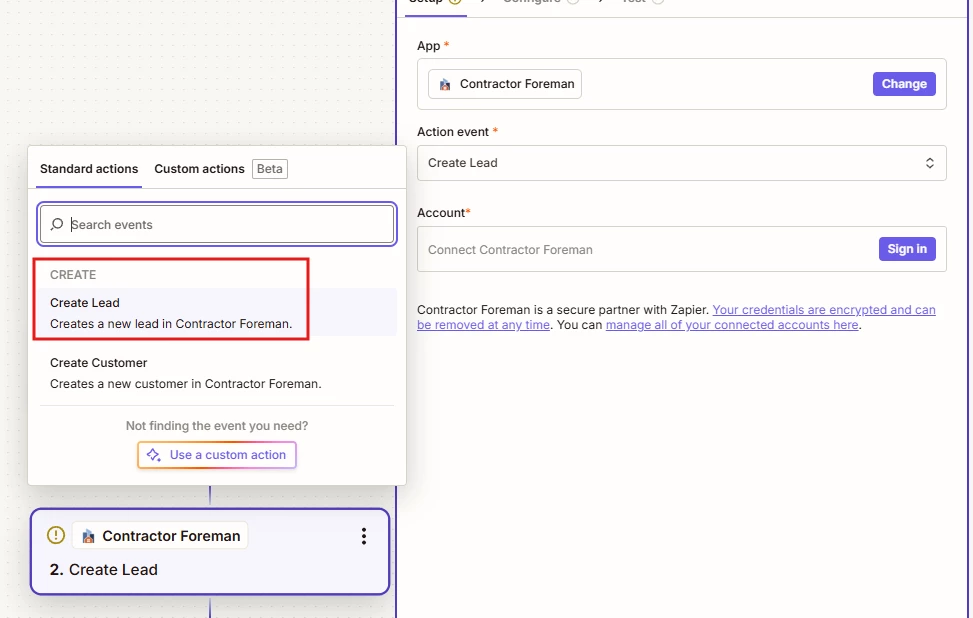
I can't see the configuration for your Zap, but here's how I'd approach it using the “Create Lead” action for Contractor Foreman (Pictured).

  • Sales Rep: Map the value from your Google Form into the Sales Rep field. You might need an intermediary step like a zap table that holds sales rep and sales rep ID.
  • Referral Source: If this field is available in the Zap action, simply hardcode it to "Online Web Form" (or select it from the dropdown if one is provided).
  • Lead Stage: Likewise, hardcode this to "Qualified" if the field is available.
  • Other fields: Use datapills from your Google Form(or a combination of datapills) to populate the remaining Contact Details and Sales fields.
    ex. [first_name] + [last_name]

One thing to keep in mind is that not every field may be available in Zapier. Ultimately, it depends on what the Contractor Foreman API exposes and which fields the Zapier integration supports.


Hope this helps and if you’d like more help please provide screenshots of the configuration tab.


Samuel Dansaki

It sounds like you've already got the hardest part working.


From what you've described, I'd first verify whether Referral Source and Lead Stage are actually writable through the Contractor Foreman API. If those fields aren't exposed in the "Create Lead" endpoint, Zapier won't be able to populate them directly during lead creation.


A couple of things I'd check:


- Use Webhooks by Zapier to inspect the API payload and see which fields are accepted.

- If Contractor Foreman supports an Update Lead endpoint, you may be able to create the lead first and then update those custom fields in a second Zap step.

- For assigning a Sales Rep, if the API accepts the user/rep ID, you can usually hardcode that value or use a Lookup Table if you have multiple reps.


If you're still stuck after checking the API, I'm happy to take a quick look at your Zap and help troubleshoot. Feel free to book a time here:

--Link removed by moderator--

This post has been edited by a moderator to remove self-promotional Calendly booking link as per our Community Code of Conduct.


Hello,

I recently configured a basic Zap to connect new Google Form submissions to the Lead module of Contractor Foreman. That is working fine so far. I would now like to:

  1. Automatically assign a specific Sales Rep
  2. Automatically assign “Online Web Form” as the Referral Source to easily identify new Google Form submissions from the Lead List. 
  3. Automatically assign “Qualified” as the Lead Stage
  4. Map other fields from the Google Form to Contact Details and Sales tabs

An additional custom action was attempted using Copilot which resulted in an error. Basically, the sticking point was “Can the Referral Source and Lead Stage custom fields be set via API during lead creation?”

Any recommendations greatly appreciated.

Once you have the basic Google Form-to-Contractor Foreman Lead sync running, the most common roadblock developers hit is automatically handling file uploads (like job site photos or PDFs). 

Google Forms handles file uploads by saving the files to your Google Drive and outputting a nested string array of GDrive URLs (e.g., ["https://drive.google.com/open?id=123..."]). If you map this raw variable directly to Contractor Foreman, the sync will fail or only upload a broken text link because Contractor Foreman requires either a direct binary file stream or a publicly accessible download URL.

To automate this cleanly, you must insert a middle step to handle the file permissions and download:

Step 1: Google Forms (Trigger)
- Triggers on a new form submission.

Step 2: Google Drive - Find File (Action)
- Use the file ID extracted from your Google Form response to locate the uploaded file in your Drive.

Step 3: Google Drive - Share File (Action)
- Temporarily update the sharing preference on that specific file to "Anyone with the link can view" (this is safe as it only affects that specific uploaded file, not your whole drive).

Step 4: Contractor Foreman - Create Lead/Upload Attachment (Action)
- Instead of mapping the raw Google Form output, map the "File (Exists but not shown)" or the direct "Web Content Link" variable returned by Step 3's Google Drive module into the attachments field. 

This ensures Contractor Foreman can actively fetch and store the actual image or PDF directly on the Lead card, keeping your field files synchronized without manual transfers.