Question

FB Page connection error in Zapier

  • October 3, 2025
  • 2 replies
  • 19 views

Hi, 

My FB Page has successfulled connected and test ok.  But when I try to create step by call out the page, it comes with error.
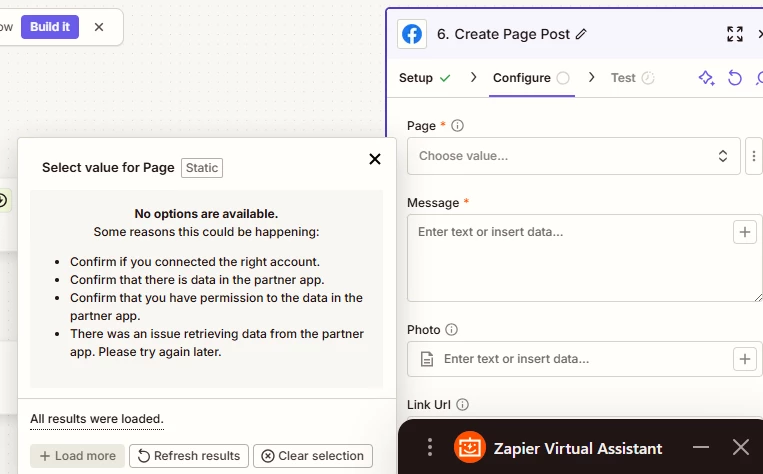
 

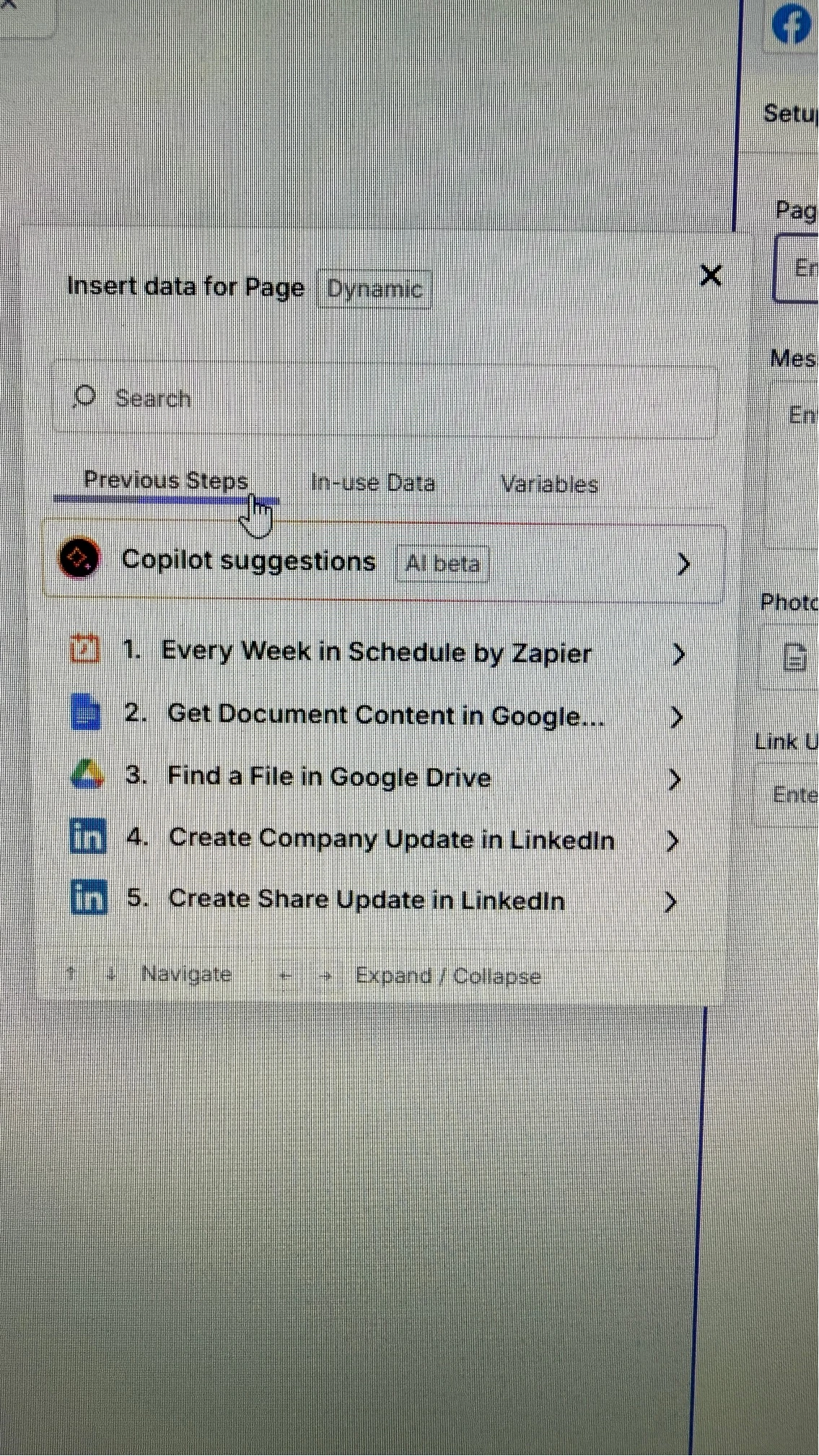
while the support chatbot and community recommend to manually input the page number, there is not place in custom input to input page number, can only select values from previous steps or system values.  I already checked all the boxes in FB Page under Zapier connections.  


This post has been closed for comments. Please create a new post if you need help or have a question about this topic.

2 replies

Sparsh from Automation Jinn
Forum|alt.badge.img+6

Hey ​@AISaaSHub,

Here is a helpful article about Facebook Pages in Zapier- https://help.zapier.com/hc/en-us/articles/8495933127693-How-to-get-started-with-Facebook-Pages

Referencing some of the tips from the article-

  • You'll need to be a Facebook Page Admin.
  • You'll need to grant Zapier view and edit access in your Business Settings.
    • In Additional Business Integration Settings, the Who can see you use this business integration? field needs to be set to Public. 
  • Some Facebook accounts may require additional permission to be authorized to post. You'll need to have your Identify Confirmed in your Identity Confirmation settings.
  • If you’ve updated to a Meta work account, you’ll need to reconnect to any previously connected Meta accounts in your Zapier account. Learn more about how to reconnect your account and prevent disruption to your Zaps.

Try these to see if it fixes your issue. If you want to add custom value to a dropdown in Zapier, see more about it here- https://help.zapier.com/hc/en-us/articles/8496241696141-Add-custom-values-to-dropdown-menu-fields-in-Zaps. Hope it helps!


SamB
Community Manager
Forum|alt.badge.img+11
  • Community Manager
  • October 7, 2025

Hi there ​@AISaaSHub 👋 Did Sparsh’s reply help you to get the necessary page selected in that Create Page Post action? 

Want to make sure you’re all good here, so please let us know how it went!