
Best answer

Excel → Trello Checklist via Zapier is splitting line items incorrectly

  • June 2, 2026
  • 11 replies
  • 58 views

JTHOM6
Forum|alt.badge.img

Hi, I’m using Zapier to send Excel data into a Trello checklist.

My Excel setup:

  • Column A = ID
  • Column B = Description (contains commas)

Sample data:

10001 | DEVICE ALPHA, HIGH FLOW, MODEL X  
10002 | SENSOR UNIT, TYPE B, SERIES 200
10003 | CALIBRATOR, PRIMARY FLOW, MODEL Z

Goal: Each row becomes one checklist item, like:
10001 DEVICE ALPHA, HIGH FLOW, MODEL X

Issue: Zapier splits the data into multiple checklist items (one per word/phrase) instead of keeping each row together.

How can I combine Column A + B so each row stays as one checklist item and doesn’t split on commas?

My current Zapier setup:
New Row in Table

Find Row

Formatter (Utilities)

Create Loop from Line Items

Created Card (Trello)

 

Best answer by JTHOM6

Hi ​@Troy Tessalone 

Unfortunately, that didn’t do the trick. It fired the checklist to Trello, but it combined everything into a single checklist item instead of creating separate items.

But voilà! I found the right recipe. ​@SamB 

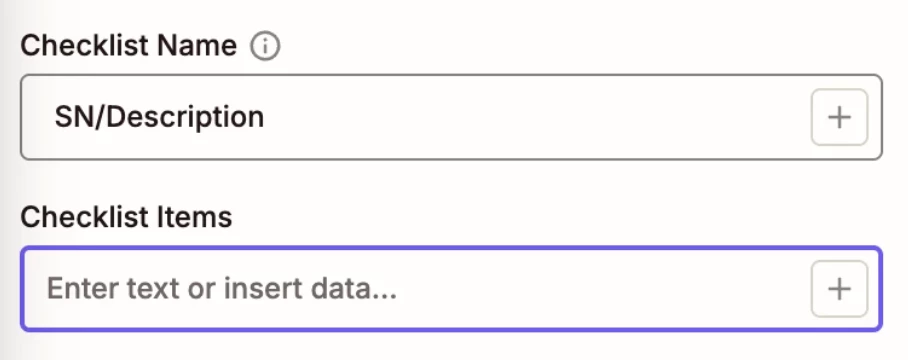
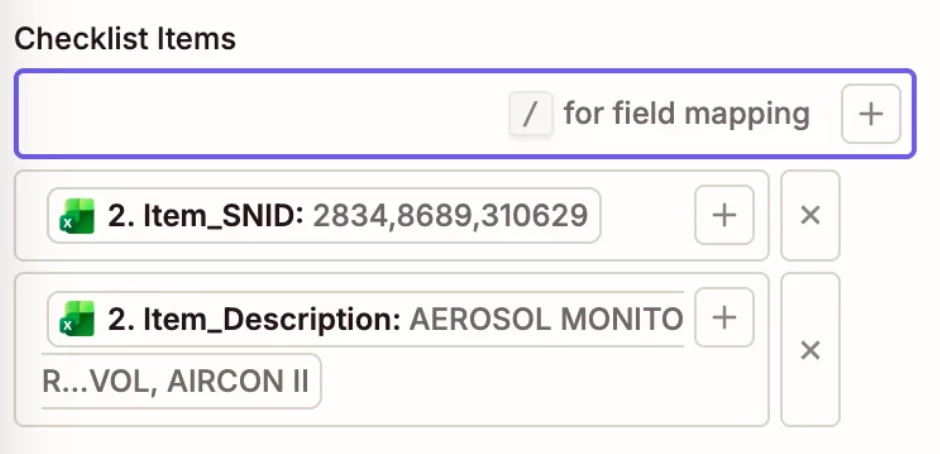
In the previous step, I made sure to turn on "Enhanced Field Mappings" so it would give me the dropdown options (see attached). Once enabled, Zapier treats the data as line items. From there, I simply selected the fields I wanted to appear in the Trello checklist. In my case, I chose S/N and Description by mapping the corresponding Excel columns.

That did the trick and created the checklist items correctly.

11 replies

Troy Tessalone
Zapier Orchestrator & Solution Partner
Forum|alt.badge.img+14
  • Zapier Orchestrator & Solution Partner
  • June 2, 2026

Hi ​@JTHOM6 

For us to have more context, post screenshots showing how your Zap steps are outlined and configured in the CONFIGURE tab while in EDIT mode with the field mappings visible.


JTHOM6
Forum|alt.badge.img
  • Author
  • Beginner
  • June 2, 2026

Hi ​@Troy Tessalone! Please see attached


Troy Tessalone
Zapier Orchestrator & Solution Partner
Forum|alt.badge.img+14
  • Zapier Orchestrator & Solution Partner
  • June 2, 2026

@JTHOM6 

Zap step 2 is configured to already return results as line items.

So you should not need Zap step 3 (Formatter), so remove that step.

Instead, map the data from Zap step 2 to the Looping (Create Loop from Line Items) step.


JTHOM6
Forum|alt.badge.img
  • Author
  • Beginner
  • June 2, 2026

@Troy Tessalone  I removed the Formatter step. I mapped the line items from Step 2 directly into the Looping step. Does this look right? Also, in the Create Card step, what data should  I click?


Troy Tessalone
Zapier Orchestrator & Solution Partner
Forum|alt.badge.img+14
  • Zapier Orchestrator & Solution Partner
  • June 2, 2026

@JTHOM6 

Actually, you don’t need the Looping step, so you can remove the Looping step.

Trello Card field “Checklist Items” supports line items.

So map the data from Zap step 2 (Excel) to the Trello Card step.


JTHOM6
Forum|alt.badge.img
  • Author
  • Beginner
  • June 2, 2026

Thanks, Troy, for the continued support. From the dropdown, which option should I choose? For example, if I select Item_SNID and Item_Description, they show up in Trello as separate lists like “SNID1, SNID2, SNID3” and “D1, D2, D3,” instead of being paired as “SNID1 – D1, SNID2 – D2, SNID3 – D3.”


Troy Tessalone
Zapier Orchestrator & Solution Partner
Forum|alt.badge.img+14
  • Zapier Orchestrator & Solution Partner
  • June 2, 2026

@JTHOM6 

Map both variables in the same input field: [SNID] - [Description]


SamB
Community Manager
Forum|alt.badge.img+11
  • Community Manager
  • June 5, 2026

Hey ​@JTHOM6 👋 Have you had a chance to try Troy’s suggestion of adding both the Item_SNID and Item_Description fields into the same Checklist Item field yet?

Let us know if that does the trick, or if you could do with some more help!


JTHOM6
Forum|alt.badge.img
  • Author
  • Beginner
  • Answer
  • June 5, 2026

Hi ​@Troy Tessalone 

Unfortunately, that didn’t do the trick. It fired the checklist to Trello, but it combined everything into a single checklist item instead of creating separate items.

But voilà! I found the right recipe. ​@SamB 

In the previous step, I made sure to turn on "Enhanced Field Mappings" so it would give me the dropdown options (see attached). Once enabled, Zapier treats the data as line items. From there, I simply selected the fields I wanted to appear in the Trello checklist. In my case, I chose S/N and Description by mapping the corresponding Excel columns.

That did the trick and created the checklist items correctly.


Troy Tessalone
Zapier Orchestrator & Solution Partner
Forum|alt.badge.img+14
  • Zapier Orchestrator & Solution Partner
  • June 5, 2026

@JTHOM6 

Good to know.


SamB
Community Manager
Forum|alt.badge.img+11
  • Community Manager
  • June 8, 2026

That’s great ​@JTHOM6! Thanks so much for sharing how you solved it 🤗 I’ll get that marked as the Best Answer to help surface it to others that might be looking to do something similar. 

And thank you for jumping in to help out here ​@Troy Tessalone, always appreciated! 🧡