
I need to create quotation in exact online with several quotation lines, but standard zap allows to create only a quotation with 1 line item, and there is no another action like add quotation line.
How can I do it?

Best answer
Problem with exact online quotation creation
- Beginner
Best answer by Mohammad_Shahzaib_Nawaz
Hi
The part that is stopping you is a small misread. That "Quotation lines" section is not a single line, it is a line item group, which means it can hold many lines, not just one.
The reason it looks like one line is just how Zapier shows line items. To create more than one line, the data going into those fields needs to come in as a list, so a list of item IDs, a list of quantities, and a list of prices. Zapier then creates one quotation line for each item in the list.
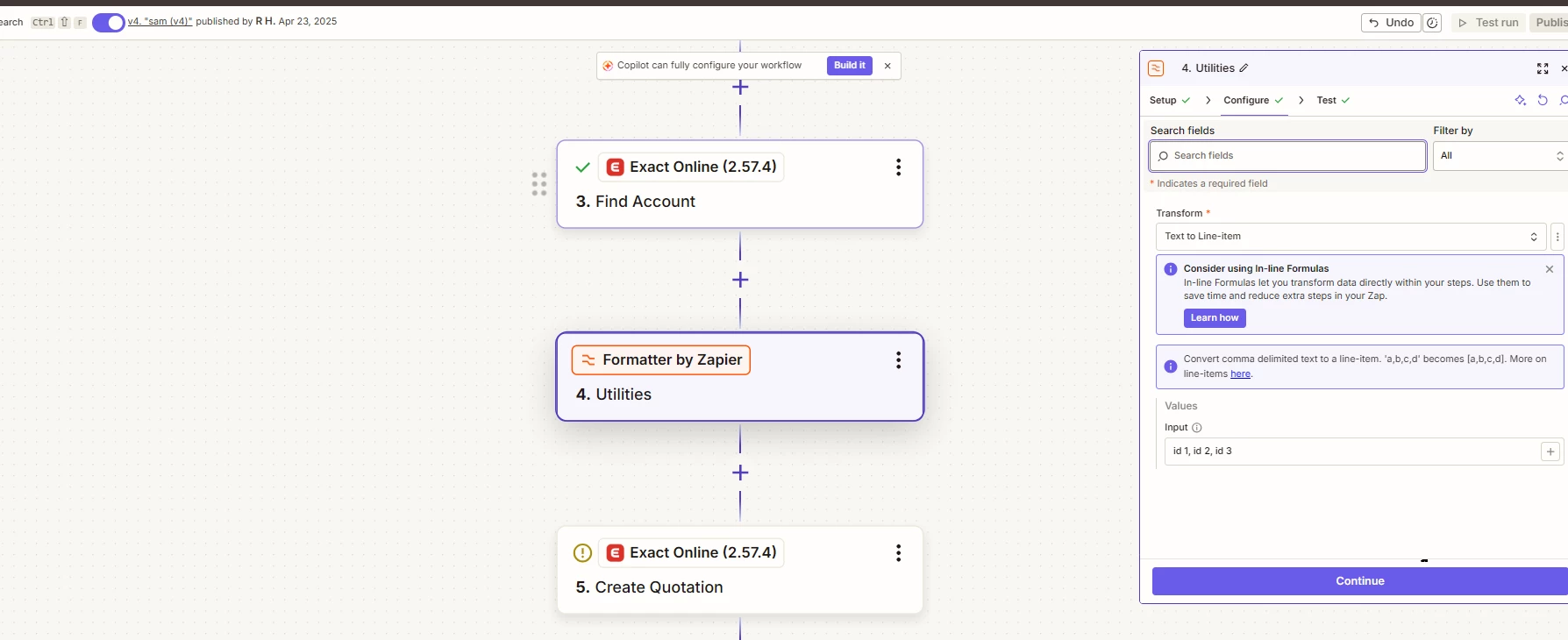
If you only have a few fixed lines, the easiest way is to click the "Add value set" button at the bottom of that section and fill in each line one by one. If the number of lines changes each time, you can build the lines first using a Zapier Formatter step. Add a Formatter, choose Utilities, then Text to Line Item to turn your values into line items, and then map those into the quotation line fields.
Two things to watch out for. The lists need to line up in the same order, so the first item matches the first quantity and first price, otherwise the lines come out mixed up. Also the Item field expects the actual Exact Online item ID, not the name, so if you are passing in dynamic values you will need a lookup table to turn the names into the correct IDs.
This post has been closed for comments. Please create a new post if you need help or have a question about this topic.





Early access

Next Gen Zaps
Build and deploy automations from AI tools you already use. With Agentic Management, if anything breaks, the agent diagnoses the issue and proposes a fix.
Request access now
Enter your E-mail address. We'll send you an e-mail with instructions to reset your password.