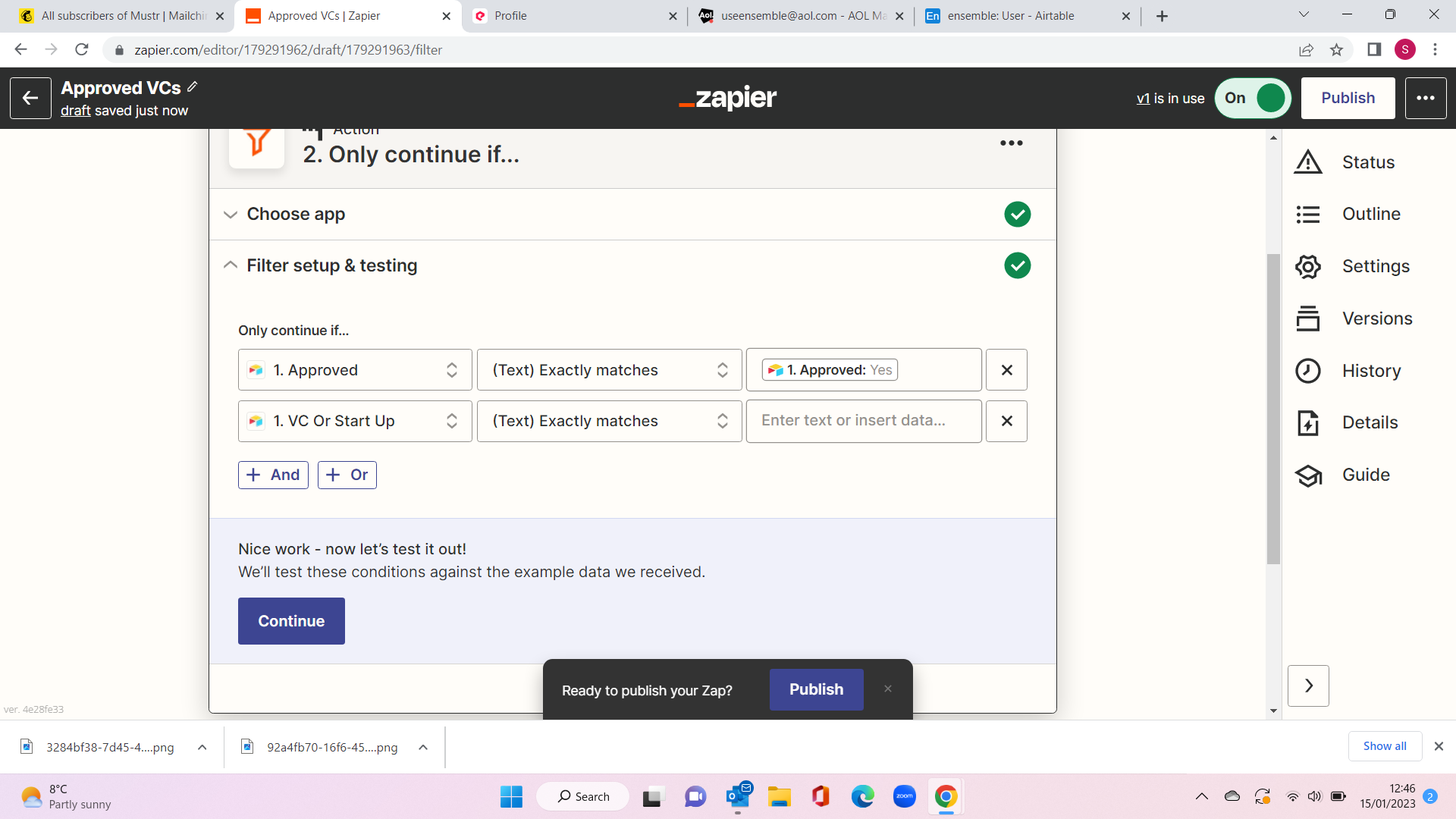
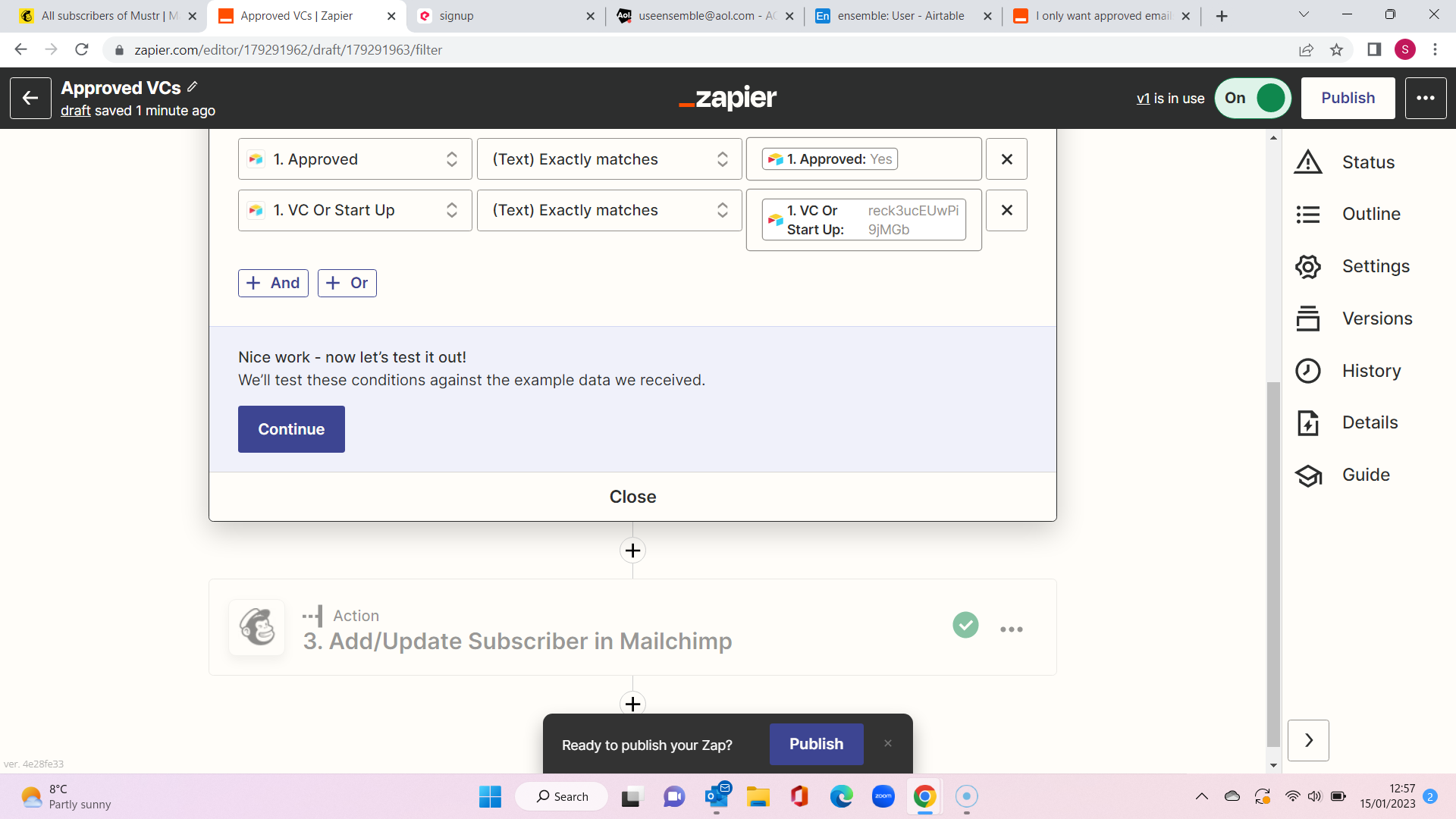
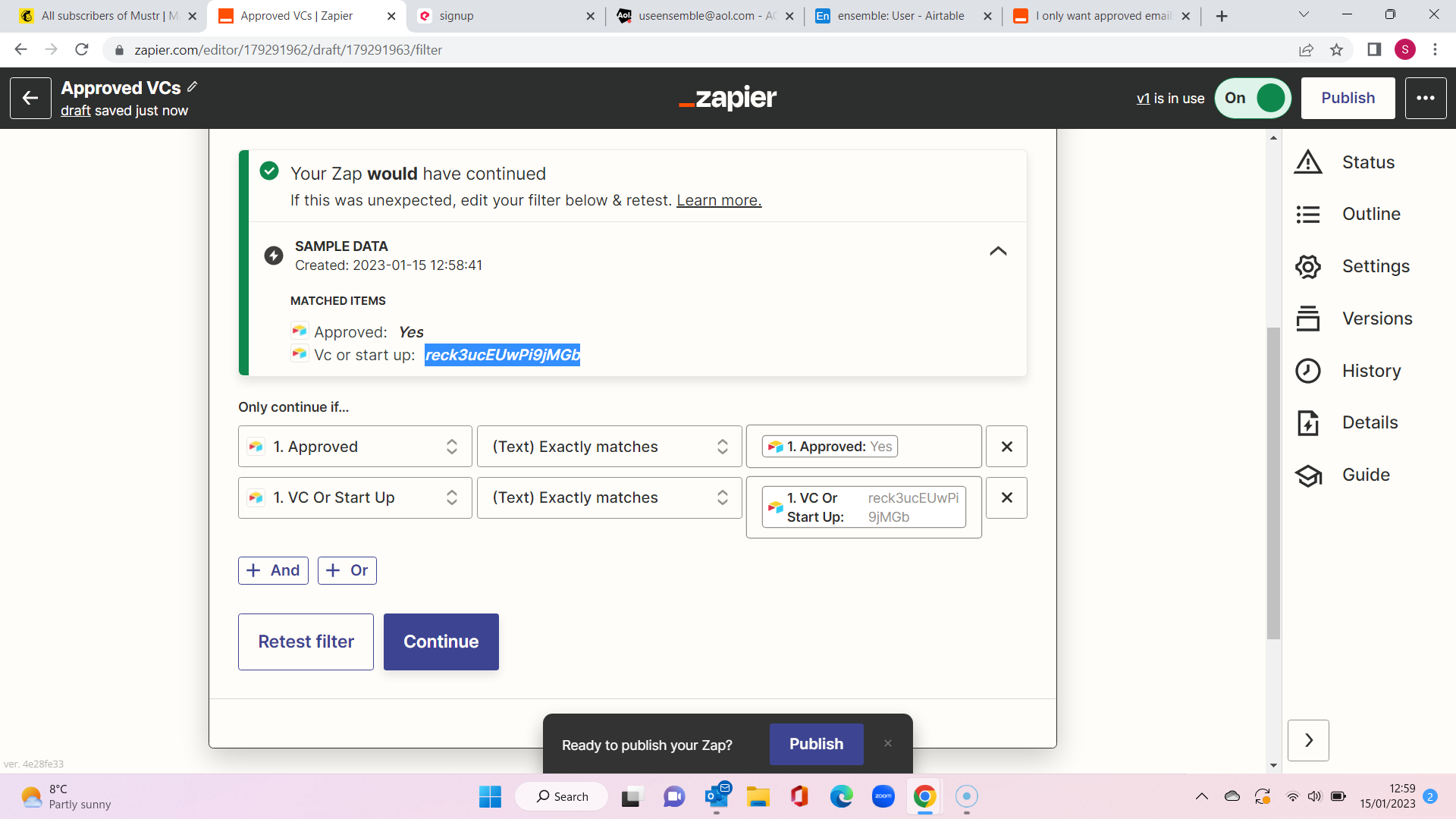
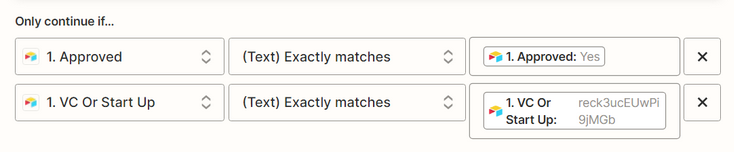
Hey @Sam Perry! Just checking in here. Were you able to find success with Troy’s suggestion? He’s correct in that you will want to type something into the filter fields on the right, rather than inserting data from other steps. So, you would type “Yes” into the first box.
For the second box, it looks like you’re trying to filter on a linked record but only the record ID is being returned. For this, you will need to add another column in Airtable to lookup the actual “VC Or Start Up” value. You can do that by using a “Lookup” column type.
Once you have that set up, here is what you’ll need to do:
- Text your Airtable step to find and use those values in your Zap
- Edit your filter conditions to have two groups. They will look something like this:
Group 1:
- Approved > Exactly Matches > “Approved”
- VC Or Start Up > Contains > “VC”
OR
Group 2:
- Approved > Exactly Matches > “Approved”
- VC Or Start Up > Contains > “Start Up”
Of course, I am assuming those are the values being written to the “VC Or Start Up” but hopefully, this helps illustrate the idea and how you’ll want to set this up to achieve the outcome you’re after.
Keep us posted with how things turn out! We want to make sure you’re good to go here. 🙂