
I made the first chatbot.
I made an action on the event keyword in the user message "call", which creates a form enter name and phone and a submit button. After clicking submit I want to write the name and phone as a new line in google sheets.
The form appears, but after clicking submit except for the text in the chatbot "you will be contacted" no entry in the table occurred
Please give the exact source of documentation for studying this task.

Best answer
How to troubleshoot Zapier Chatbot form submissions not writing to Google Sheets
- Beginner
Best answer by drtanvisachar
I made the first chatbot.
I made an action on the event keyword in the user message "call", which creates a form enter name and phone and a submit button. After clicking submit I want to write the name and phone as a new line in google sheets.
The form appears, but after clicking submit except for the text in the chatbot "you will be contacted" no entry in the table occurred
Please give the exact source of documentation for studying this task.
Hello
In Zapier your form showing plus the message “you will be contacted” means the chatbot step ran but no Zap is firing to write to Google Sheets
What to do in Zapier
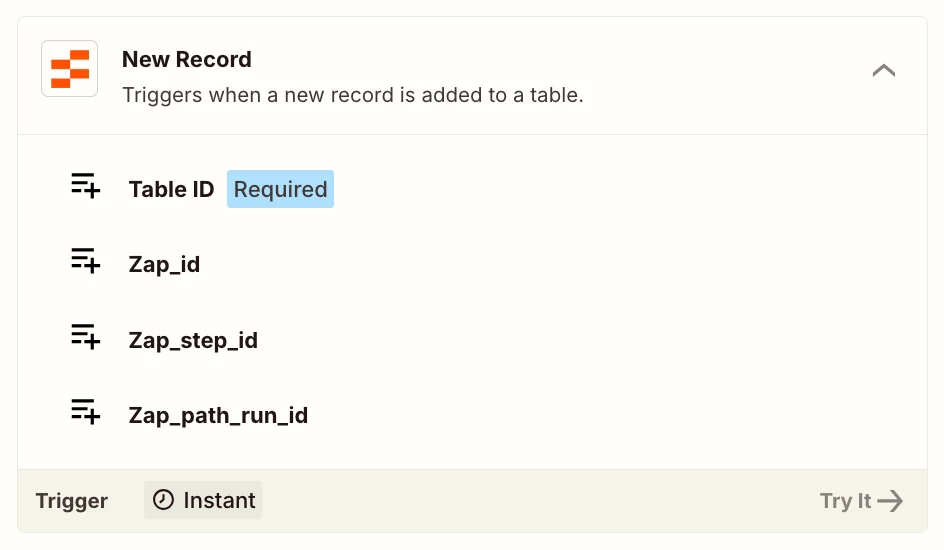
1 Create a Zap with the correct trigger
Use Zapier Interfaces as the trigger and pick Form Submission Created then select the exact Interface Page and Form you built
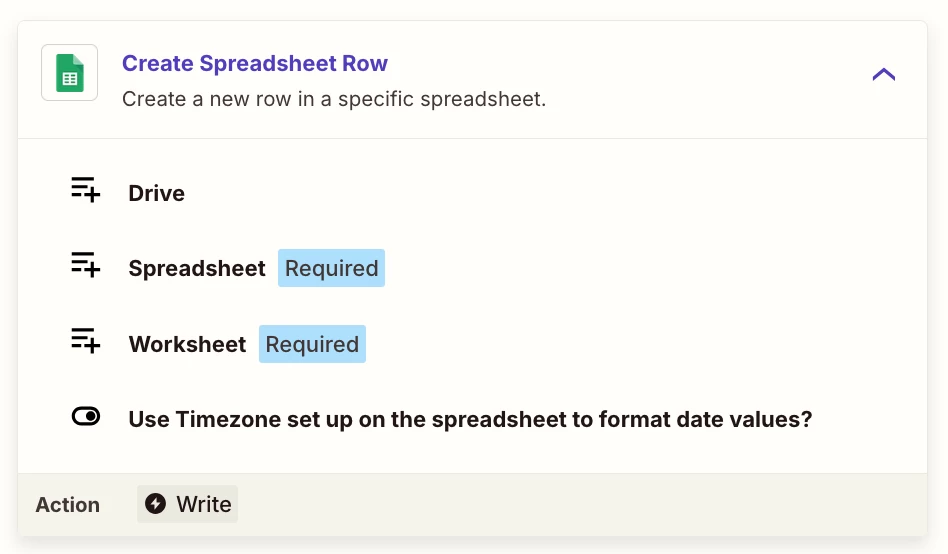
2 Add the Google Sheets write action
Add Google Sheets action Create Spreadsheet Row and map the form fields name and phone into the right columns
3 If you are using a chatbot button instead of an Interfaces form
Use the Zapier Chatbots trigger Chatbot Button Click and then write to Google Sheets
Exact docs to study
Zapier Interfaces trigger Form Submission Created
Google Sheets in Zapier Create Spreadsheet Row
Zapier Chatbots trigger Chatbot Button Click
Dr. Tanvi Sachar
Monday Certified Partner, Monday Wizard
This post has been closed for comments. Please create a new post if you need help or have a question about this topic.







Early access

Next Gen Zaps
Build and deploy automations from AI tools you already use. With Agentic Management, if anything breaks, the agent diagnoses the issue and proposes a fix.
Request access now

ZapConnect 2026 is coming
Join us September 23rd, 2026 for a free, one-day virtual event with 30+ sessions on AI automation. Get live build-alongs, playbooks, and strategies to lead AI transformation at your organization.
Log in to the Community
No account yet? Create an account
Use your Zapier credentials
Log in with ZapierEnter your E-mail address. We'll send you an e-mail with instructions to reset your password.