

Best answer

How to pull name and email from Google Sheets to send personalised emails?

  • May 30, 2026
  • 3 replies
  • 12 views

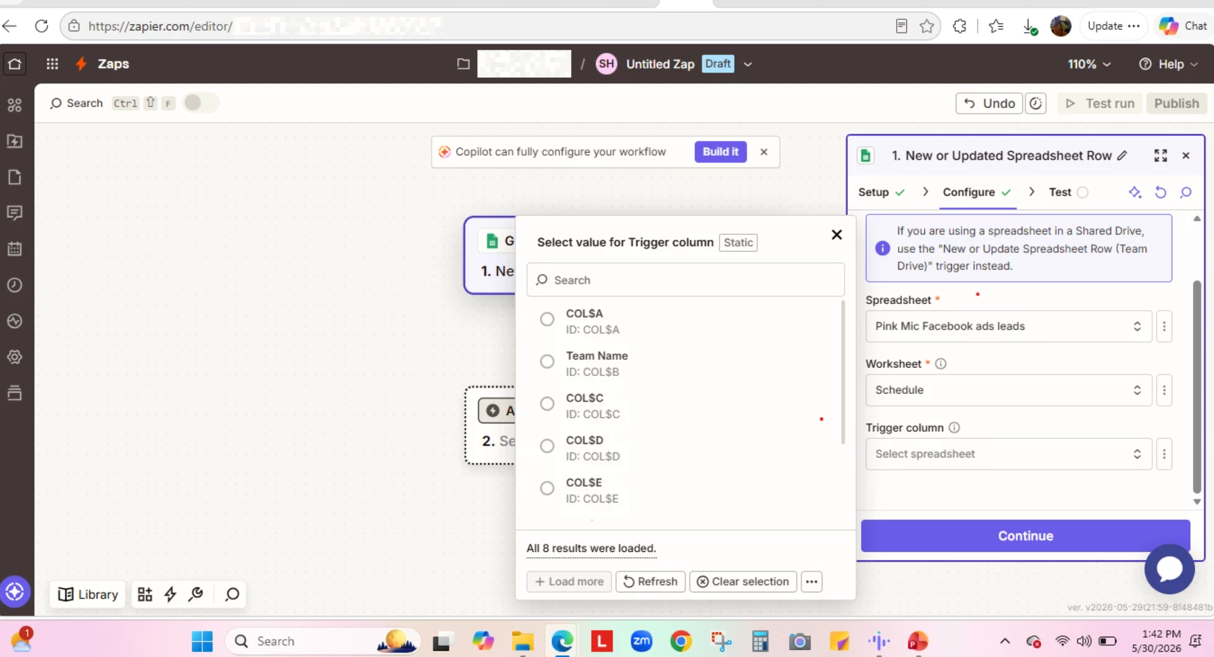
Hello. I am connecting zapier to my google sheets thats housing my meta ads leads. It asked me to choose the columne to send the emails to. column 5:H houses the Full Names and column 5:I houses the emails. which do I choose so that every time the messages only reflects the customers names and emails only? 
 

This post has been edited by a moderator to remove personally identifiable information (PII). Please remember that this is a public forum and avoid sharing personal or potentially sensitive details like full names or Zap links.


Best answer by Fahad S

Hi ​@Pinkmicconsulting 

Your spreadsheet doesn't have headers (like "Name" or "Email" in row 1), so Zapier just shows you those weird COL$A codes instead of friendly names .

Here's how to make it work:

Step 1 – Set up the trigger the right way
When you're in the Google Sheets trigger, pick a specific column to watch. Don't pick "Any column" or "Static" – that'll just confuse things . Pick the column that gets filled when a new lead comes in (like a timestamp or the first column with data).

Step 2 – Run a test
Click "Test trigger" to pull in one lead from your sheet. This is important - it shows Zapier what the actual data looks like .

Step 3 – Map the fields in your email
Now in your email action (like Gmail), here's the simple trick:

  • For the "To" email field: pick COL$I from the dropdown (that's column I where your emails live)

  • For personalizing the name in your message: pick COL$H (that's column H with the names)

When you pick them from the dropdown instead of typing them, Zapier automatically pulls the right info for each lead .

Quick tip: Add a header row to your sheet (row 1 with "Name" and "Email" in those columns). Then refresh your Zap and you'll see actual words instead of those COL$A codes.

Hope this helps!

3 replies

Forum|alt.badge.img+3
  • Zapier Solution Partner
  • Answer
  • June 1, 2026

Hi ​@Pinkmicconsulting 

Your spreadsheet doesn't have headers (like "Name" or "Email" in row 1), so Zapier just shows you those weird COL$A codes instead of friendly names .

Here's how to make it work:

Step 1 – Set up the trigger the right way
When you're in the Google Sheets trigger, pick a specific column to watch. Don't pick "Any column" or "Static" – that'll just confuse things . Pick the column that gets filled when a new lead comes in (like a timestamp or the first column with data).

Step 2 – Run a test
Click "Test trigger" to pull in one lead from your sheet. This is important - it shows Zapier what the actual data looks like .

Step 3 – Map the fields in your email
Now in your email action (like Gmail), here's the simple trick:

  • For the "To" email field: pick COL$I from the dropdown (that's column I where your emails live)

  • For personalizing the name in your message: pick COL$H (that's column H with the names)

When you pick them from the dropdown instead of typing them, Zapier automatically pulls the right info for each lead .

Quick tip: Add a header row to your sheet (row 1 with "Name" and "Email" in those columns). Then refresh your Zap and you'll see actual words instead of those COL$A codes.

Hope this helps!


Troy Tessalone
Zapier Orchestrator & Solution Partner
Forum|alt.badge.img+14
  • Zapier Orchestrator & Solution Partner
  • June 1, 2026

Hi ​@Pinkmicconsulting 

Help links for using GSheets in Zaps: https://zapier.com/apps/google-sheets/integrations#help


Thank you SO very much!



