Question

How do I save PDF attachments from Gmail to the correct folder in Google Drive?

  • November 24, 2024
  • 5 replies
  • 301 views

Hi Zapier Community,

I’m trying to create a Zap that automatically saves PDF attachments from specific emails in my Gmail inbox to the appropriate folder in Google Drive. However, instead of saving the PDFs as they are, Zapier is creating Google Docs with unintelligible text that doesn’t help me at all.

Here’s what I’ve done so far:

  1. Set up Gmail as the trigger to look for specific emails containing PDFs.
  2. Used Google Drive as the action to save the files in the correct folder.

I’ve double-checked the setup but can’t figure out why the PDFs aren’t saving as actual PDFs. Am I missing a step, or is there a workaround to ensure only the original PDF file is saved to Google Drive?

Any advice or troubleshooting tips would be greatly appreciated. Thank you in advance!

This post has been closed for comments. Please create a new post if you need help or have a question about this topic.

5 replies

Badger
Forum|alt.badge.img+5
  • New
  • November 24, 2024


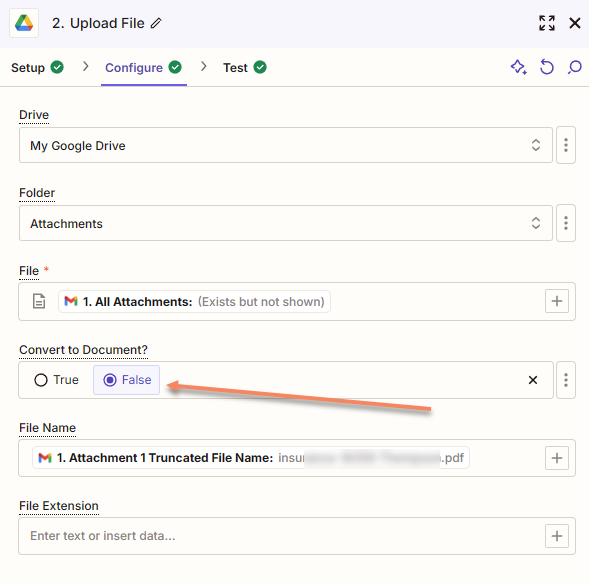
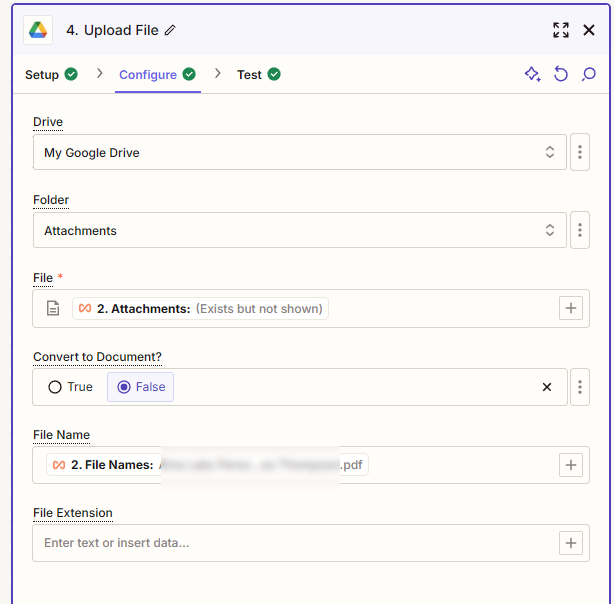
The first thing I would check is that you have “Convert to Document?” set to False. 


I hope this is useful.


Troy Tessalone
Zapier Orchestrator & Solution Partner
Forum|alt.badge.img+14
  • Zapier Orchestrator & Solution Partner
  • November 25, 2024

Hi ​@Act-Bold 

For us to have more info, post screenshots showing how your Zap steps are outlined and configured in EDIT mode with the field mappings.

Try these Zap steps:

  1. Trigger: Gmail - New Attachment
  2. Action: Filter
    1. Check the File Format is: pdf
  3. Action: GDrive - Upload File
    1. Map the file object variable from Zap step 1
      1. e.g. File (exists but not shown)

SamB
Community Manager
Forum|alt.badge.img+11
  • Community Manager
  • November 29, 2024

Hey there ​@Act-Bold! 👋

Did either of the suggestions here help to get the files correctly uploaded as a PDF instead of a Google Doc?

Want to make sure you’re all squared away here so please do let us know if you need further assistance here! 


  • Author
  • Beginner
  • December 2, 2024

Hi Everyone,


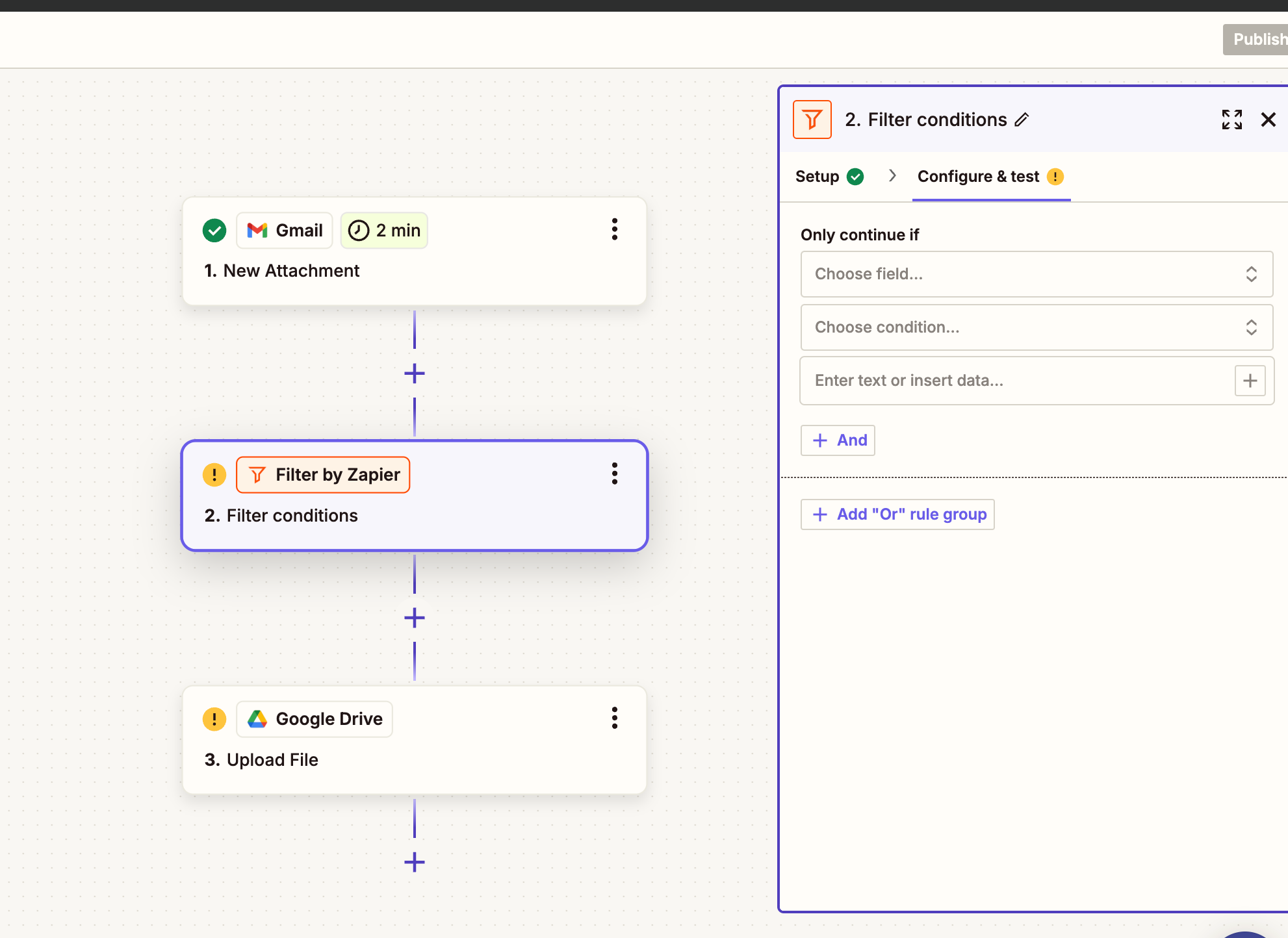
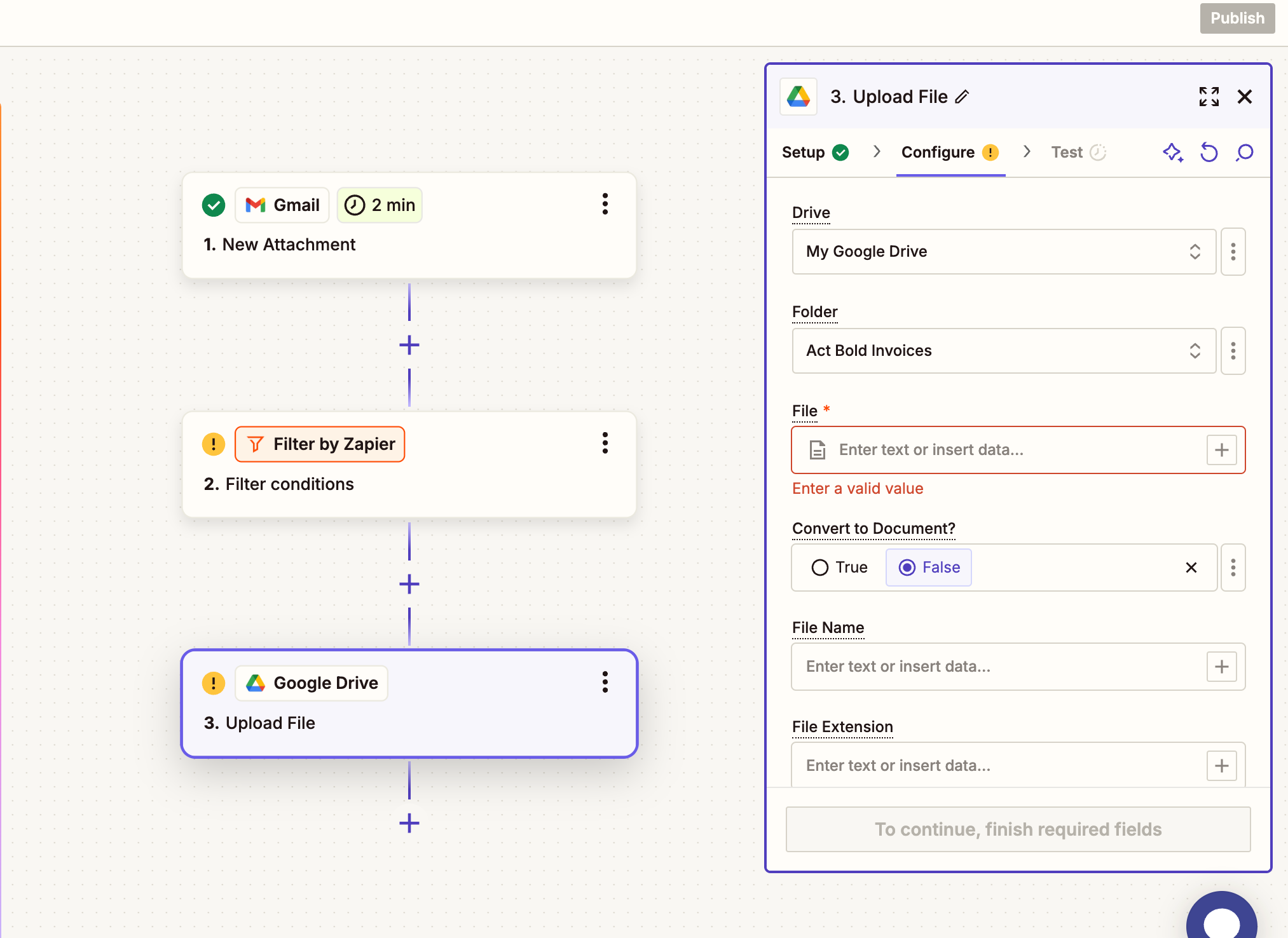
thank you so much for answering. I have changed the convert to document part, but in my test run, it still shows up as a document. I have copy pasted Troy’s steps into the Zap AI assistant and I am stuck at the next cross road. In the filter conditions I don’t know what to add… I’ve added all screenshots regarding the zap below

This post has been edited by a moderator to remove personal information. Please remember that this is a public forum and to remove any sensitive information prior to posting.


Badger
Forum|alt.badge.img+5
  • New
  • December 2, 2024

@Act-Bold 

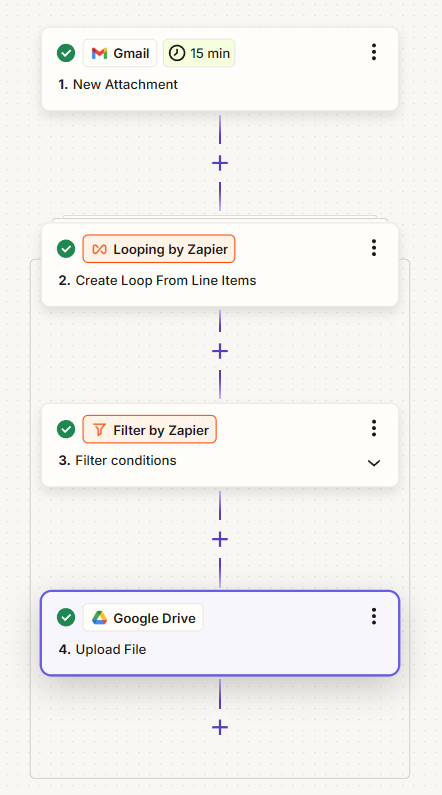
When dealing with multiple attachments you are probably going to need to use some looping. Otherwise you’ll only get the first attachment that may not be the PDF file.

unfortunately the action is Upload File and not files, so it only uploads one file at a time.

This is an example workflow I would use to solve the issue.


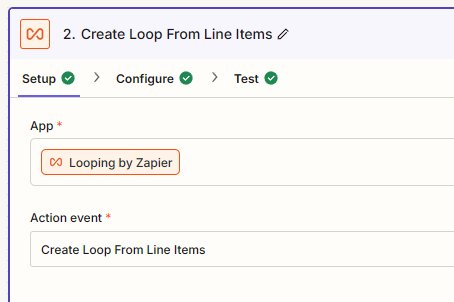
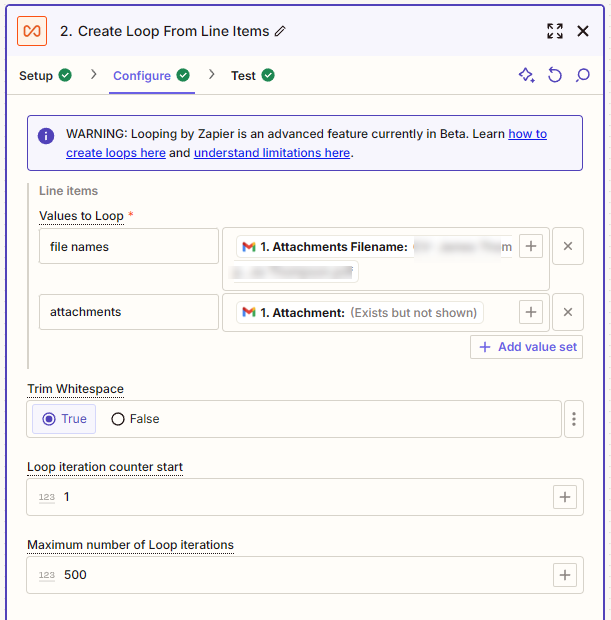
I am assuming you have the first step already and will start with Looping which you’ll need to config like this:


Configure the loop to look for the File names and the attachment like so


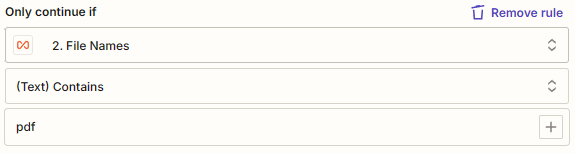
Next set a filter to remove any none PDF files. This part I haven’t tested as I only have a free account at present. but the filter should prevent the non-pdf files from uploading. I’m making the assumption it won’t end the loop. 

(Second thought you should make that .pdf just in case)

The Upload should be configured like this


This should do want you want and remove the non-pdf’s from uploading. 

Let me know if you need help.