
Best answer

Formatter Split Text - How Do I References Items

  • June 29, 2023
  • 5 replies
  • 220 views

DanNovit

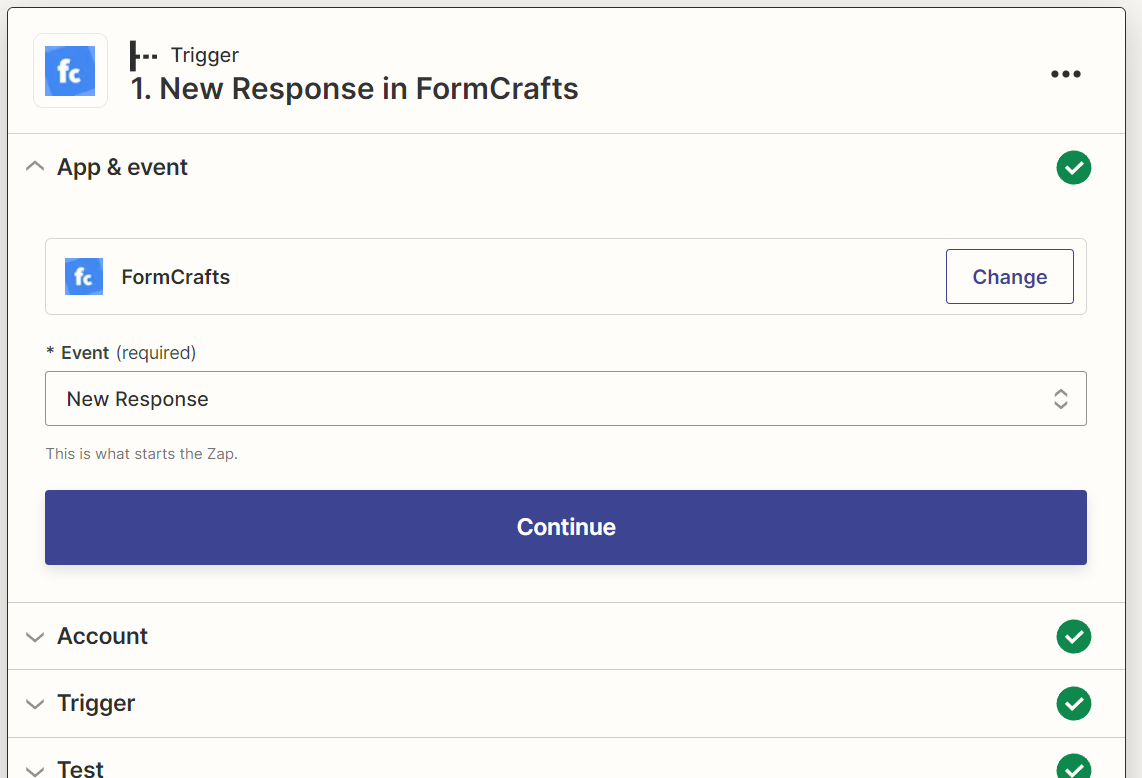
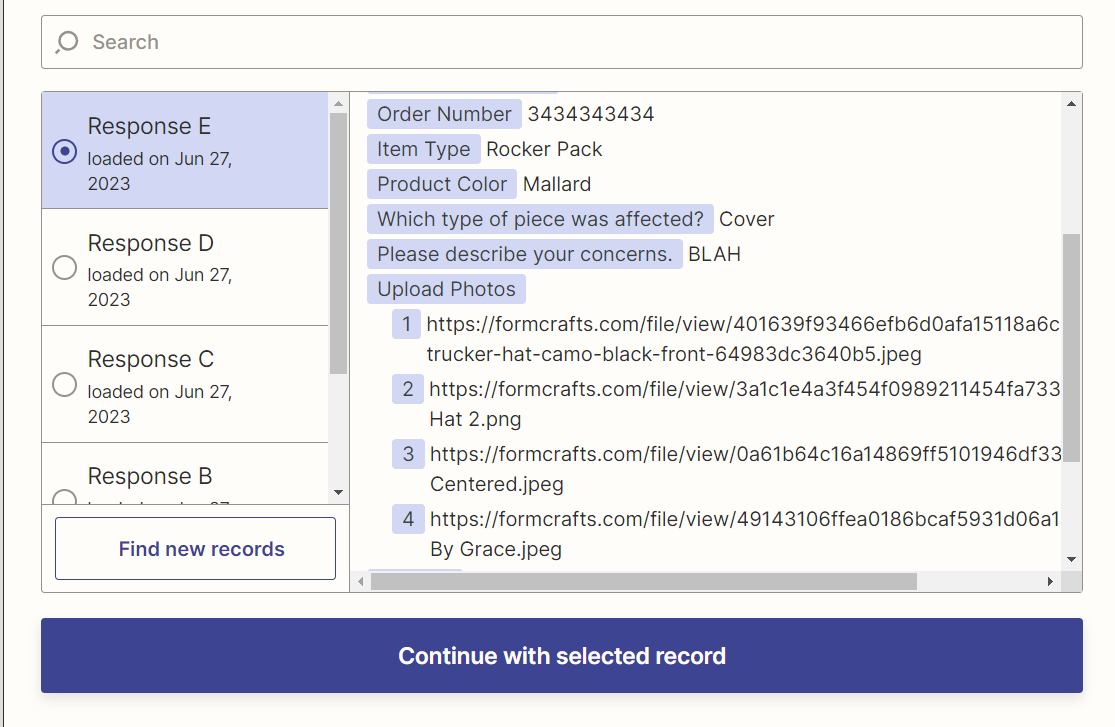
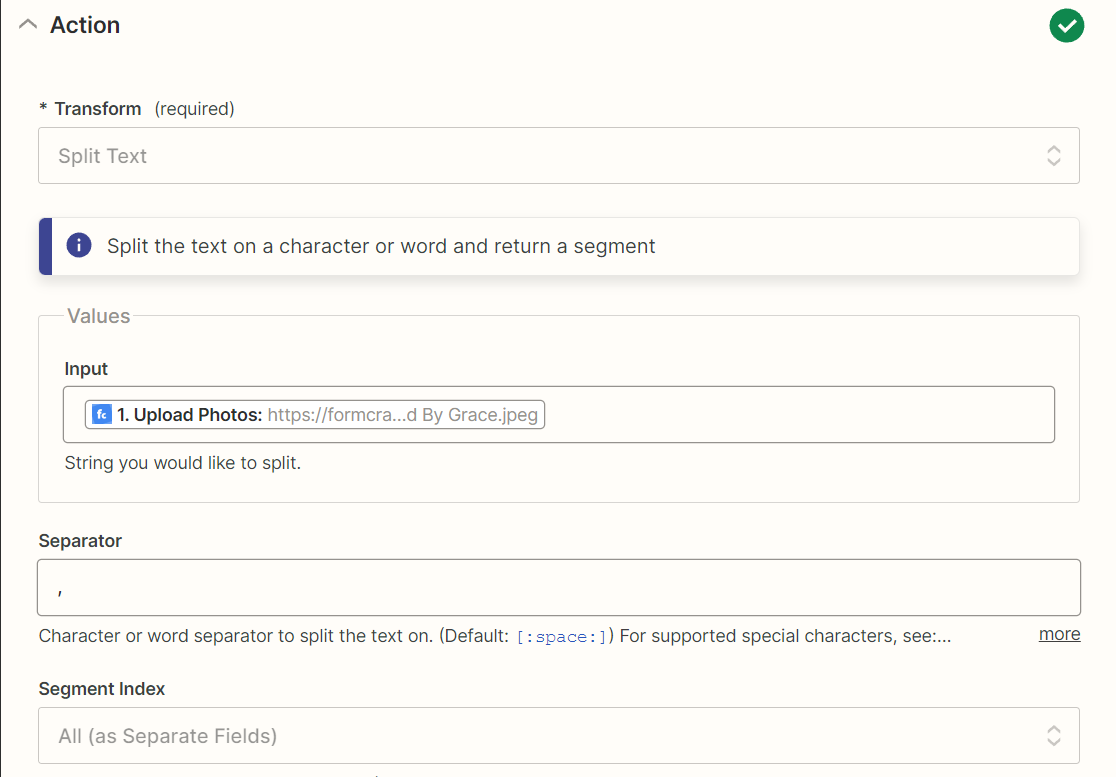
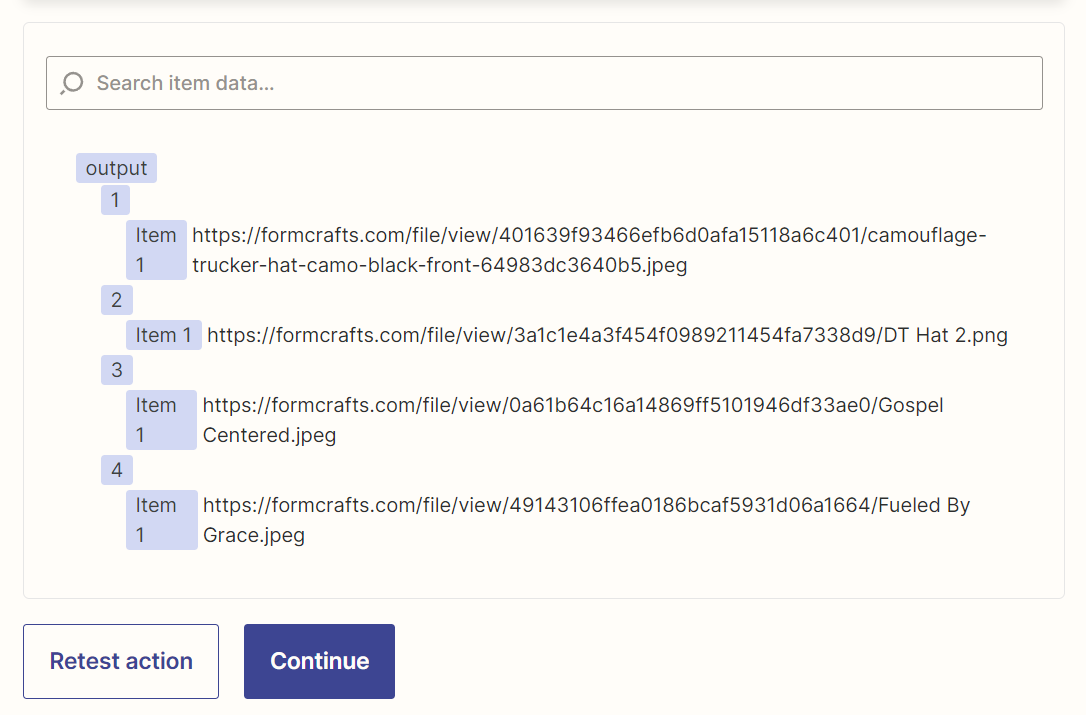
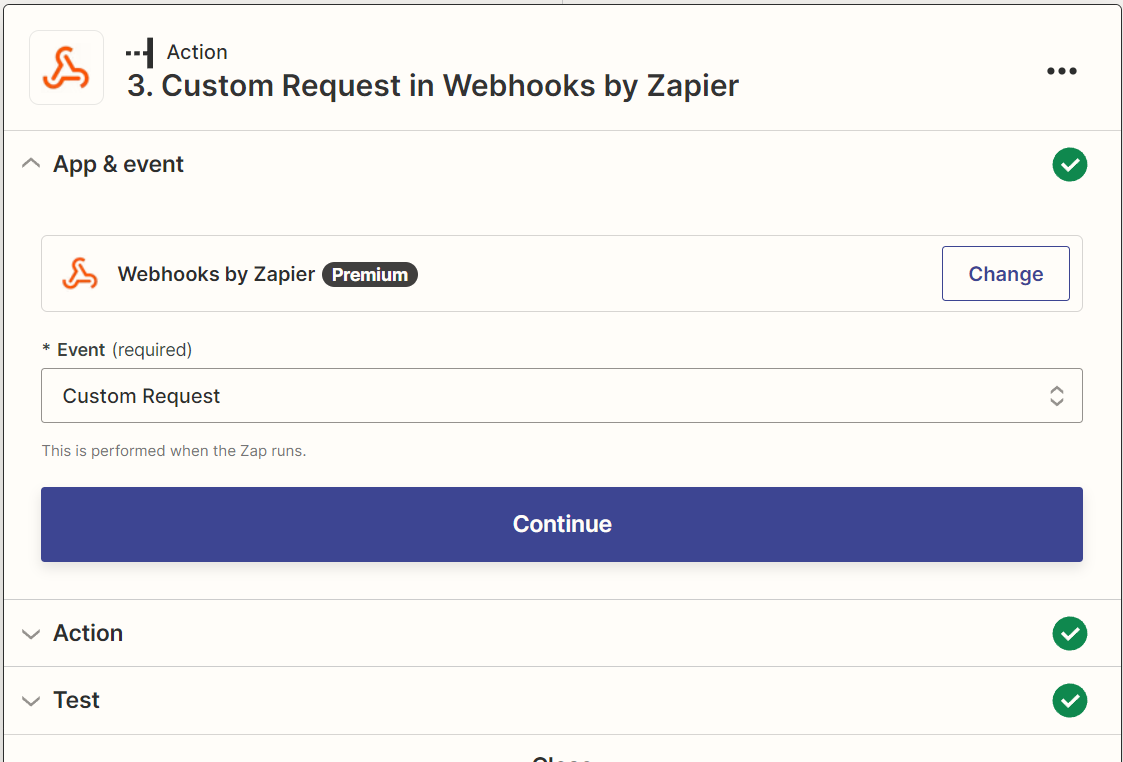
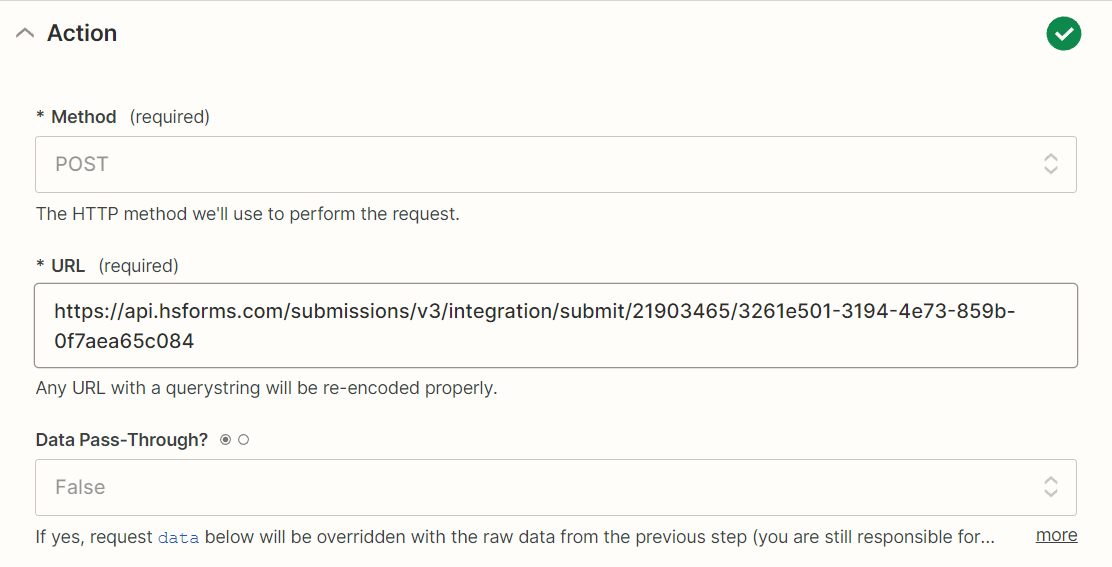
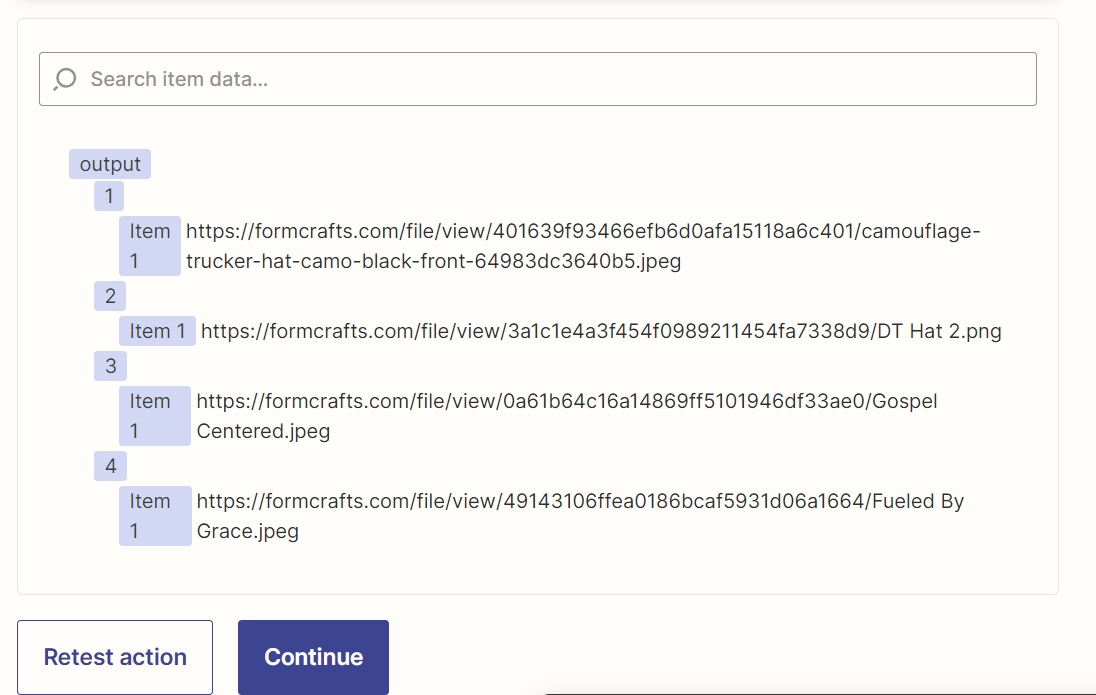
I’m using a Formcrafts form, that has a multi-file upload field. The values come in as an array, so I’m using the Formatter to split the text (Image URLs) out, and I need to map each of the values using a custom webhook integration going out to HubSpot. 

The issue I’m having is that only the first value is available when using the ‘insert data’ drop down when adding fields to the JSON object in the data section of the webhook. I am also not able to derive how to reference the other items from the shortcode that gets placed in to the data section ({{_GEN_1687880306824__output[]Item 1}}). I tried to simply swap in Item 2, but that doesn’t work, nor would it make sense given what the output of the formatter, see screenshot. 
Any help that you can provide would be greatly appreciated. 
Best answer by Troy Tessalone

@DanNovit 

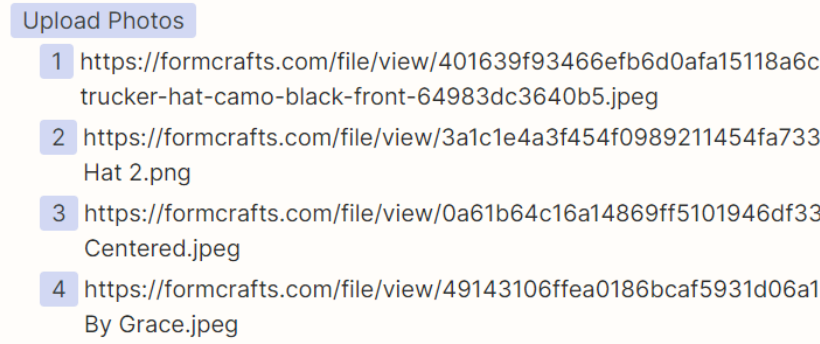
From the Zap trigger, the Photos already come as an array.


Try this…

  • Action: Formatter > Utilities > Line Items to Text
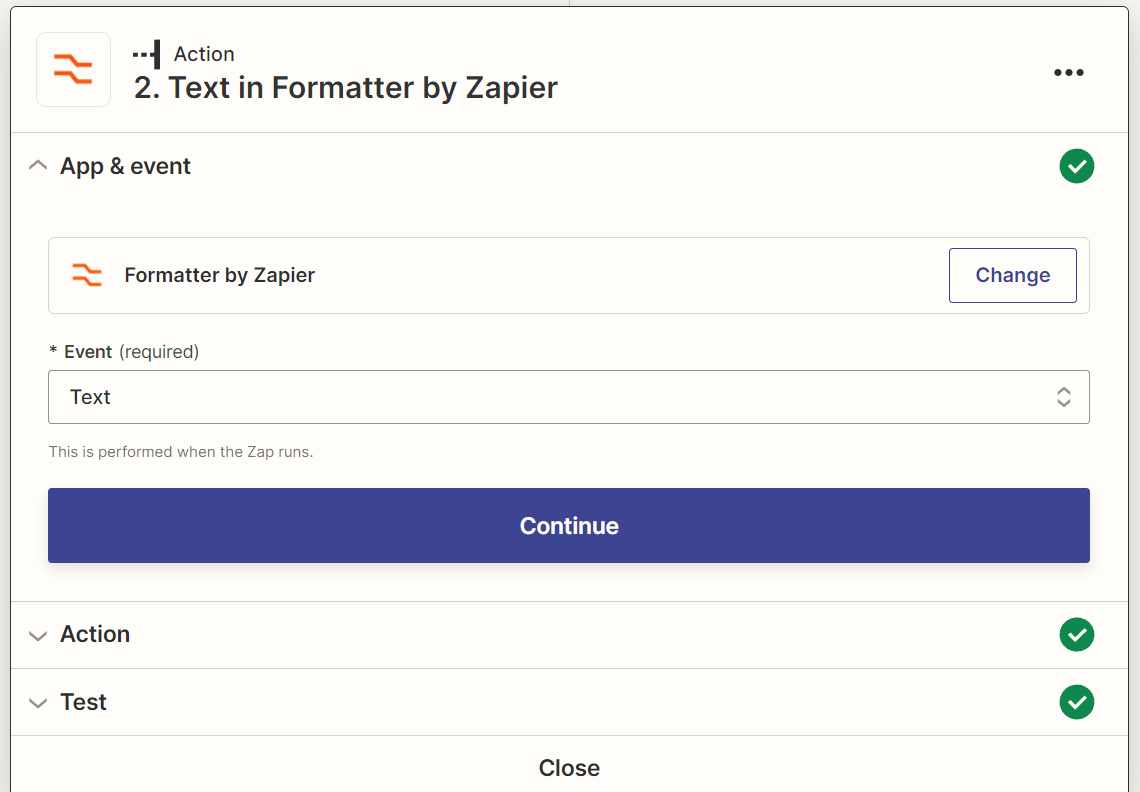
  • Action: Formatter > Text > Split
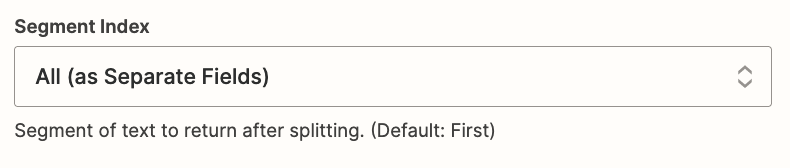
    • set Segment Index to All (as Separate Fields)


This post has been closed for comments. Please create a new post if you need help or have a question about this topic.

5 replies

Troy Tessalone
Zapier Orchestrator & Solution Partner
Forum|alt.badge.img+14
  • Zapier Orchestrator & Solution Partner
  • June 29, 2023

Hi @DanNovit 

Good question.

To help give us more context, please provide detailed screenshots with how each of your Zap steps are configured, thanks.


DanNovit
  • Author
  • Beginner
  • June 29, 2023

Hi Troy,

Please see the below screens. The data portion of the custom webhook is lengthy, so I copied the JSON to a file and attached it here as well. 

Data: attached

Thanks!


Troy Tessalone
Zapier Orchestrator & Solution Partner
Forum|alt.badge.img+14
  • Zapier Orchestrator & Solution Partner
  • Answer
  • June 29, 2023

@DanNovit 

From the Zap trigger, the Photos already come as an array.


Try this…

  • Action: Formatter > Utilities > Line Items to Text
  • Action: Formatter > Text > Split
    • set Segment Index to All (as Separate Fields)


DanNovit
  • Author
  • Beginner
  • June 29, 2023

Looks like that got the job done Troy, thank you!


SamB
Community Manager
Forum|alt.badge.img+11
  • Community Manager
  • June 30, 2023

That’s fantastic news @DanNovit! I’m so pleased to hear Troy’s suggestion did the trick. 😁

Seems like you’re all sorted for now but please do reach out in the Community again if you run into any further issues or questions!