Question

ClickUp: How do I apply the same custom field value in a parent task to its subtasks?

  • August 16, 2026
  • 2 replies
  • 10 views

Hello!


I’m interested in making an automation wherein when a custom field has been applied (for this instance, my Project Phase custom field) in a parent task, it also applies the same value to my sub-tasks.


Is there a way to do this easily? It seems it requires an API request but I am unsure how this works. 


Trigger would just be every time a project phase custom field is updated to a new phase, it also updates the sub task to that same value.


Hope I can hear from someone! thanks!

2 replies

SamB
Community Manager
Forum|alt.badge.img+11
  • Community Manager
  • August 17, 2026

Hello and welcome ​@cmshake! 👋 

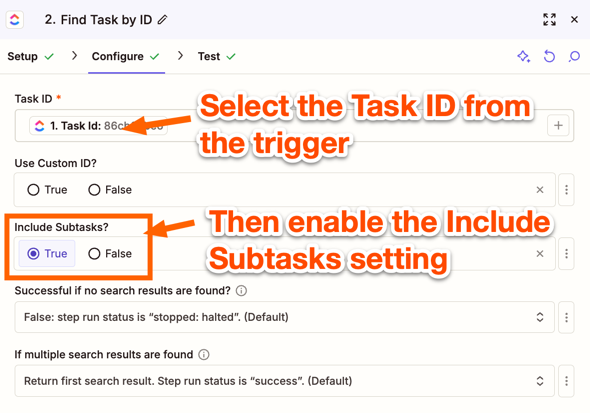
No need for an API Request action, I tested this out and you could use Looping by Zapier to help get all the subtasks updated. ClickUp’s Task Changes trigger can be set up to only trigger when that Project Phase custom field is set to “new phase”. From there you use ClickUp’s Find Task by ID search action to find the subtasks. It has a the ability to also return the subtasks for a specific task. So you’d select the Task ID that’s output by the trigger and enable the Include Subtasks setting:

e1cd21acffecf6f0c5ee6e18bf7dcfe2.png
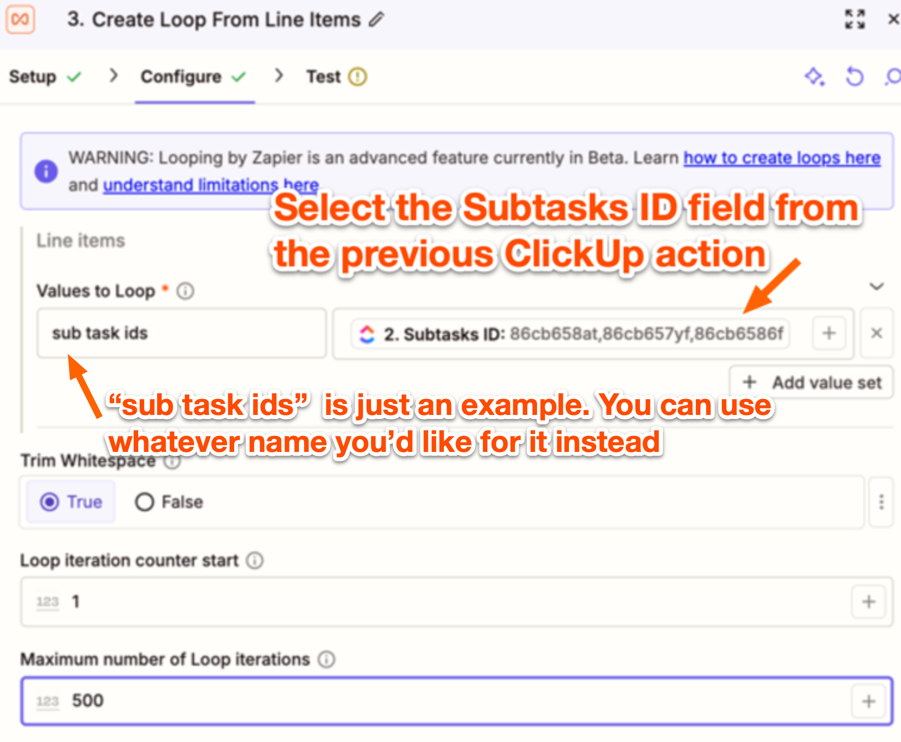
Then you’d use a Create Loop From Line Items (Looping by Zapier) action and set it up to take the IDs of the subtasks from the previous action, like so:

599f6dd8ce7c089f812496cacbdd0be4.png

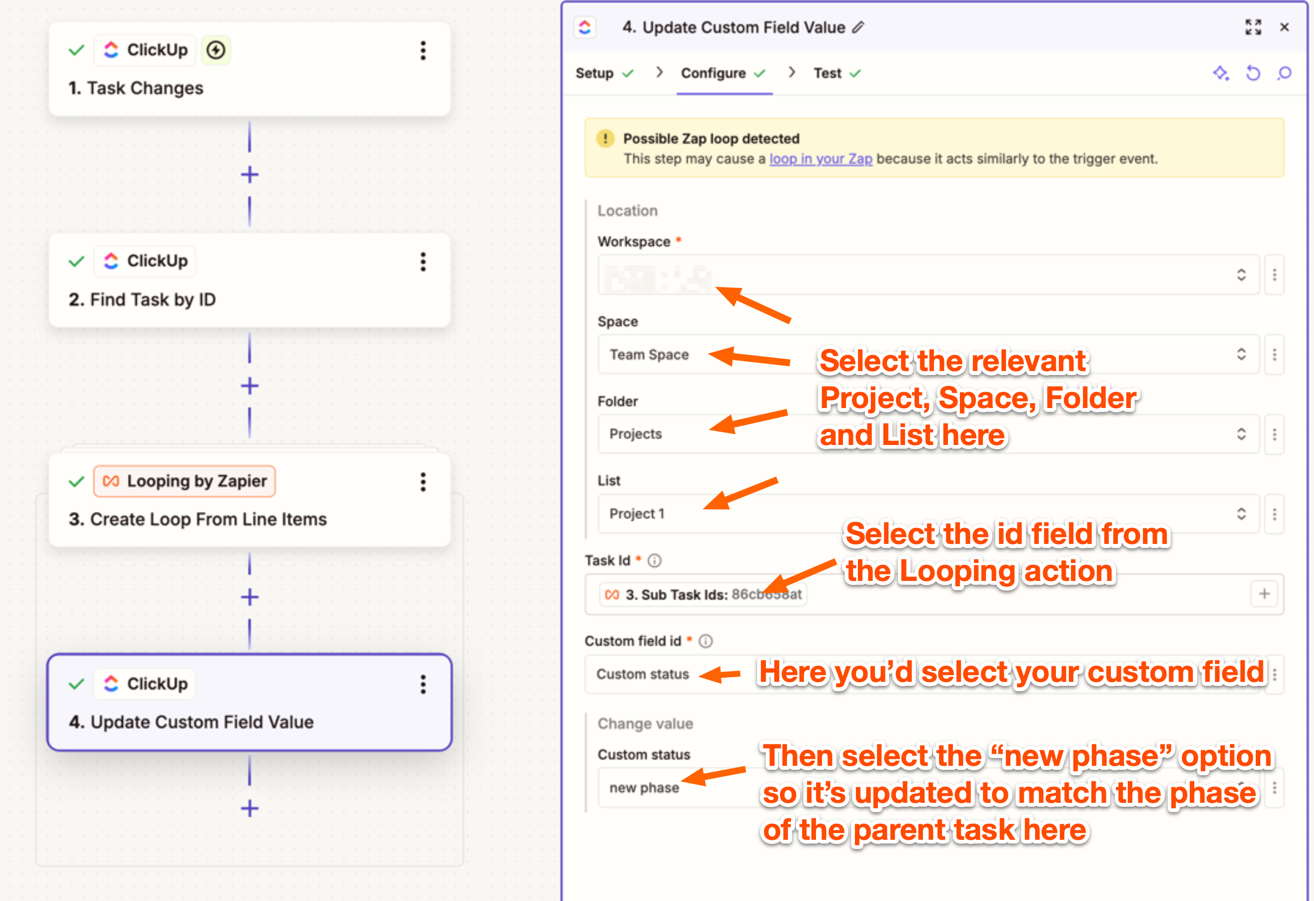
 Then you’d add a Update Custom Field Value ClickUp action into the Looping section to have it update it to the have the same custom field status as the one that triggered the Zap. For example:

759ff94d677e46b555f8c8846dc4c2e7.png
 

With that approach the Zap would trigger only when a parent task’s Project Phase changes to “new phase”. Then it find it’s sub tasks, passes it’s IDs to the Looping action and for each subtask ID it receives it will run that Update Custom Field Value action to set it’s Project Phase to “new phase” as well. If you’ve not worked with Looping actions before you can learn more about them in our Loop your Zap actions guide.

Let us know how it goes!


Make sure you add a Filter step before the Loop to ensure there are actually subtasks to update . Otherwise, the loop will run with zero iterations and may cause an error