Question

Zapier Loop does not actually loop through values

  • December 5, 2025
  • 13 replies
  • 45 views

I have a form that has a few multi-select fields. One in particular is a list of about 50 offices. For each office selected I want to apply a particular tag to that contact in our CRM. 

I have a loop in my zap that has two steps within it: look up the tag ID using a formatter look-up table, apply the tag to the contact in our CRM.

There is very limited logging around loops, but it seems that the look-up table is not looking up individual items. Instead its looking up the entirety of the list, rather than the individual elements. This leads to an invalid look up, which returns an invalid tag ID. As far as I can tell the loop only runs once despite the list having multiple elements.

Is this another bug with the loop tool? I know it has been in beta for almost a decade now, but something as simple as looping through a list and working element-by-element seems like a basic feature for this tool. 

13 replies

Troy Tessalone
Zapier Orchestrator & Solution Partner
Forum|alt.badge.img+14
  • Zapier Orchestrator & Solution Partner
  • December 5, 2025

Hi ​@Dylan Wolters 

For us to have more info, post these screenshots:

  • how your Zap steps are outlined
  • how your Zap steps are configured in the CONFIGURE tab while in EDIT mode with the field mappings visible so we can see the field types
  • the DATA OUT from Zap step 1 so we can see the data structure

Sparsh from Automation Jinn
Forum|alt.badge.img+6

Hey ​@Dylan Wolters,

I think it’s not formatted correctly and that’s why it’s it’s not working. Try using Formatter action in Zapier to fix the formatting. See more about it here- https://help.zapier.com/hc/en-us/articles/8496212590093-Get-started-with-Formatter. Also you didn’t specify which Looping acting you are using and which CRM.

Please post screenshots of Data In, Data Out as well as how each Zap step is configured for us to have more context. Hope it helps!


  • Author
  • Beginner
  • December 8, 2025

Hey ​@Dylan Wolters,

I think it’s not formatted correctly and that’s why it’s it’s not working. Try using Formatter action in Zapier to fix the formatting. See more about it here- https://help.zapier.com/hc/en-us/articles/8496212590093-Get-started-with-Formatter. Also you didn’t specify which Looping acting you are using and which CRM.

Please post screenshots of Data In, Data Out as well as how each Zap step is configured for us to have more context. Hope it helps!

Hi ​@Dylan Wolters 

For us to have more info, post these screenshots:

  • how your Zap steps are outlined
  • how your Zap steps are configured in the CONFIGURE tab while in EDIT mode with the field mappings visible so we can see the field types
  • the DATA OUT from Zap step 1 so we can see the data structure

Thanks for the responses! I’ll breakdown what my setup was and the steps I tried. I’ll start with context on the data structure and then explain how I configured the loop in Zapier.


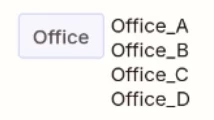
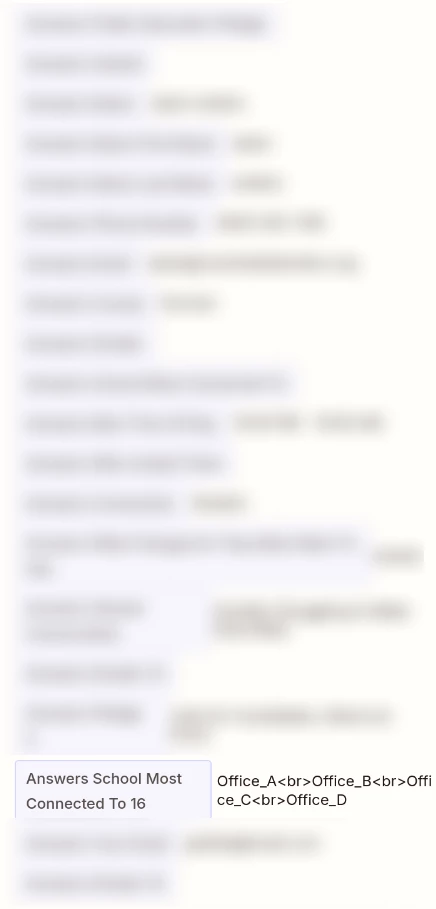
The list of offices comes as a <br> delimited text like this: Office_A<br>Office_B<br>Office_C<br>Office_D. I am using the EveryAction integration to sync this data into our CRM.


Configuration of the Loop

There are two ways for me to convert this into a list. Both of these options result in the loop correctly identifying each element in the list. 

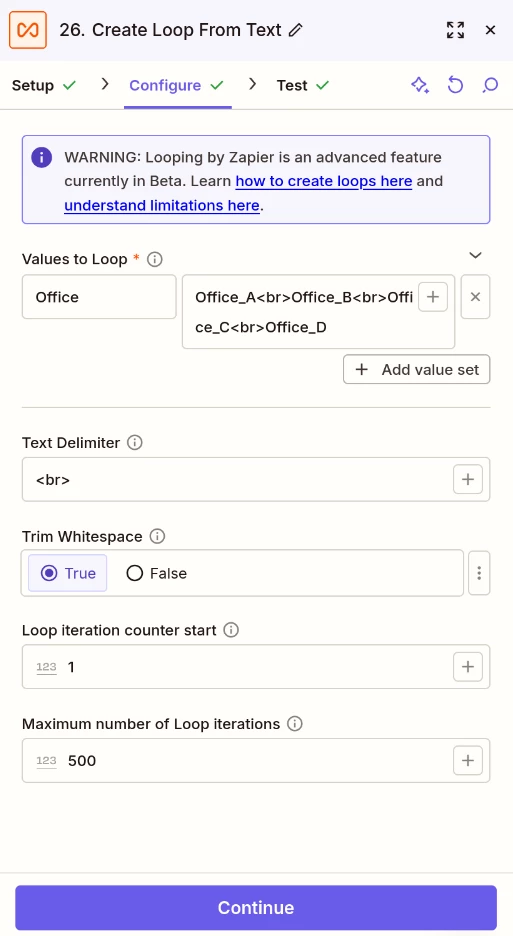
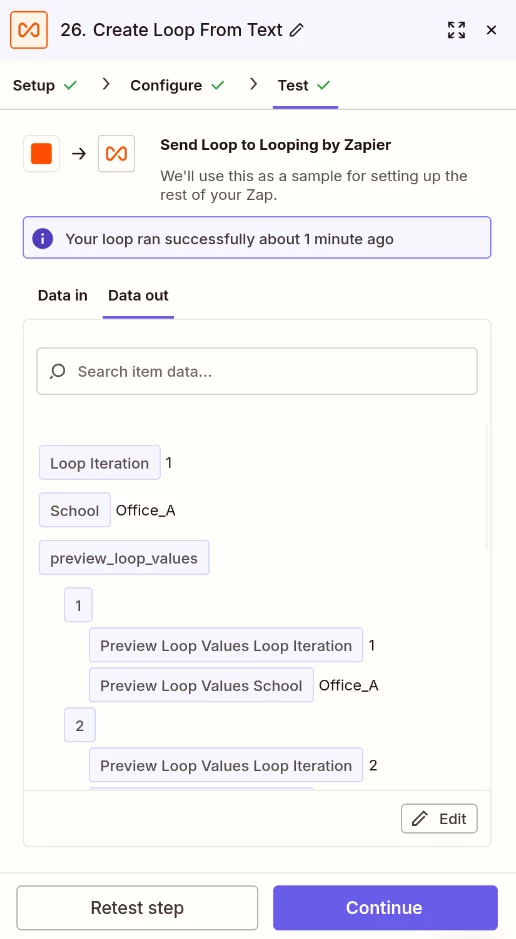
  1. Utilize the built-in Create Loop from Text option in the Loop configuration. Then pass the list of offices as the values, and specifying <br> as the delimiter. Using the example delimited text above, this correctly identifies and returns a list with four elements, one for each office. Please see images below:
    Configuration of Loop using Create Loop From Text option


Output of loop from Create Loop From Text Configuration
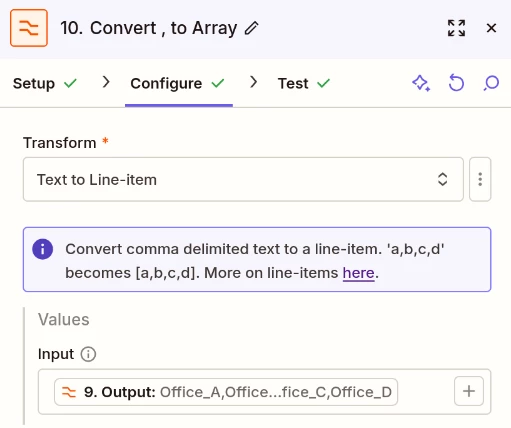
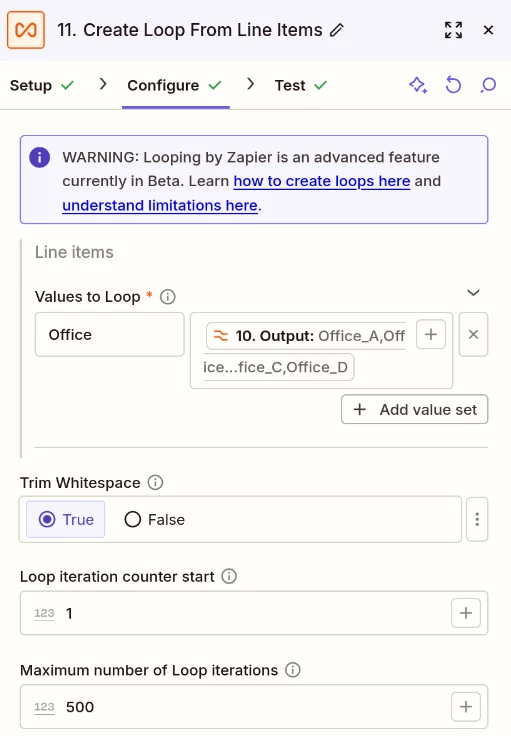
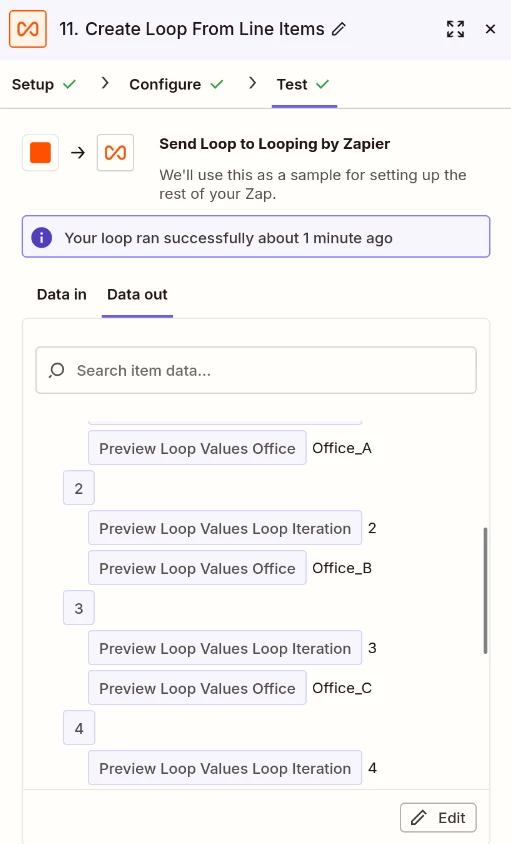
  1. Alternatively, I can use a combination of the Formatter tool and the built-in Create Loop From Line Items option in the Loop tool. This means using text formatter to find and replace <br> with ,. Then I can use Formatter to Convert Text to Line Item which returns a list with four elements, one for each office in the example above. From here, I configure the Loop to Create Loop From Line Items, passing in the output of the previous Formatter step. See images below for this configuration.
     

    Formatter find and replace for <br> to , 
    Formatter convert comma delimited text to line-item
    Passing the output of formatter text to line item to loop
    Loop correctly identifies each element of the list


Configuration of Actions for each loop

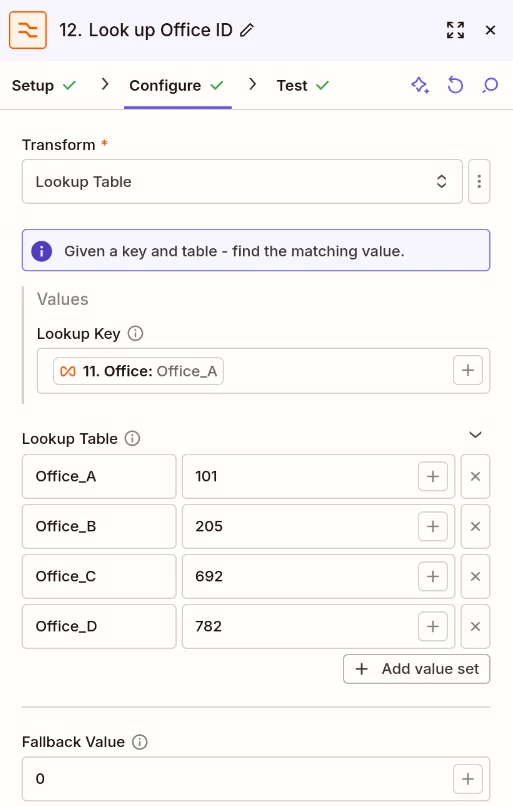
For each element in the list, I want to look up a unique ID of the office. This ID is used to tell EveryAction which office to tag the submission with. If someone selects multiple offices they should be tagged with each one. I use the Formatter utility Look-up Table to match each value to its key/ID. I pass in the element variable from the loop configuration as the lookup key. 

Formatter look up table using Loop element to find office ID

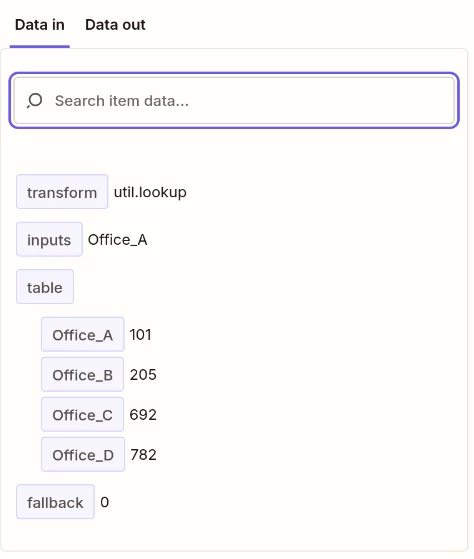
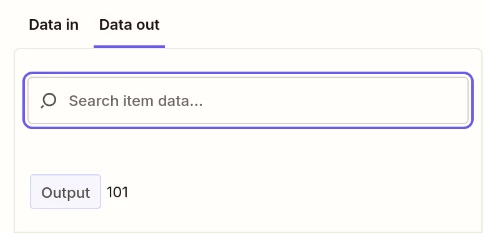
This correctly returns the appropriate ID during testing. The two images below provide the data-in and data-out for this look up table during testing.

Formatter lookup table data-in
Formatter Lookup Table Data-Out

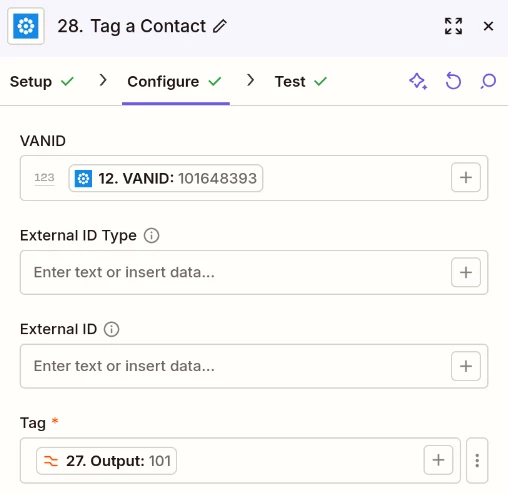
Lastly, I have an EveryAction Apply Tag to Contact step that passes the unique ID identified in the formatter lookup table and the contact’s ID (found earlier in the zap). This step works as expected when testing, resulting in the contact being correctly tagged with Office_A in our CRM. See image below for configuration of this step:

EveryAction tag a contact configuration


What Goes Wrong in Production

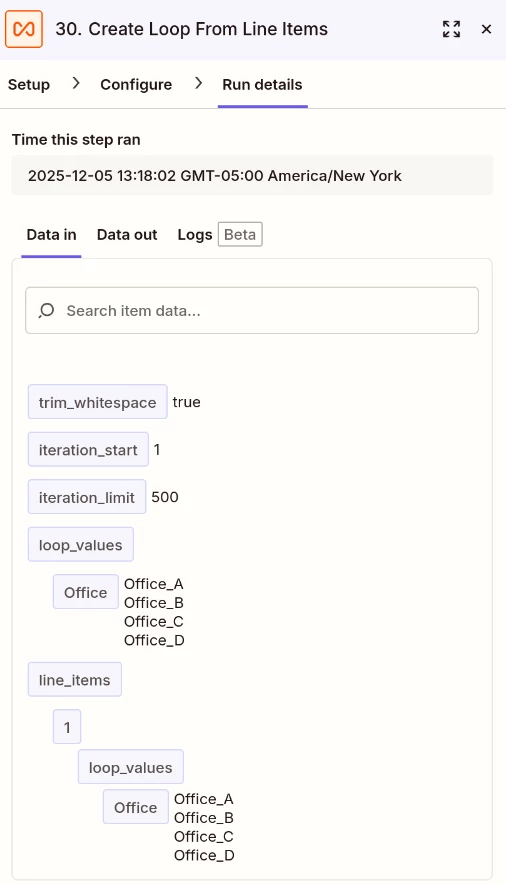
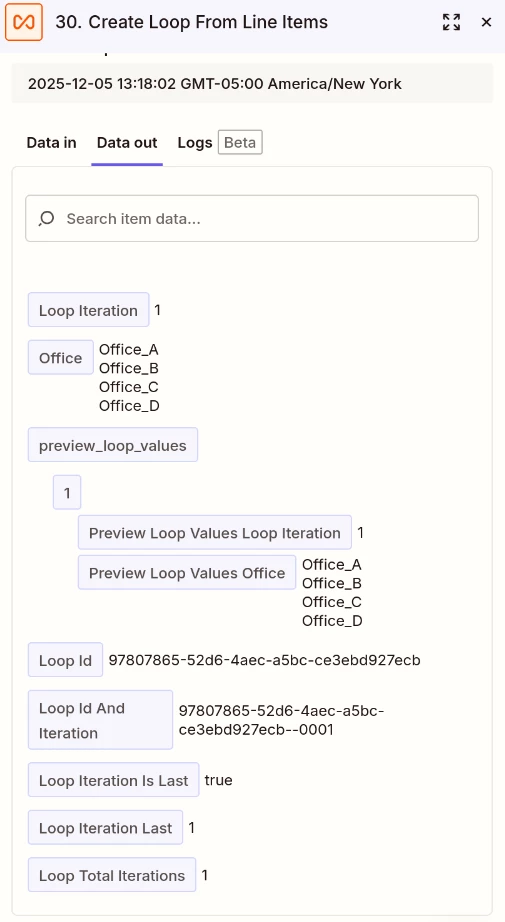
After publishing the zap and submitting the form everything correctly processes up until the loop. The Look-up table always returns 0. When investigating, the formatter look-up table lists all four offices as the “Inputs” which results in an invalid look-up in the table and a return of the fallback value. The loop itself only reports that it runs once, not four times as we would expect. The final two images below show the Data-In and Data-Out of the loop as it runs in production:


Production Loop Data-In
Production Loop Data-Out


Conclusion

When the loop runs, it is not looping through each element as they appear during testing. It seemingly concatenates the values into one long text and then completes a single loop on the entirety of the list, rather than four for each element. This occurs regardless of how the list is created as described in the Configuration of the Loop section above.


Troy Tessalone
Zapier Orchestrator & Solution Partner
Forum|alt.badge.img+14
  • Zapier Orchestrator & Solution Partner
  • December 8, 2025

@Dylan Wolters 

There can be difference with how the data is returned when testing vs live Zap Runs.

You can use this workaround to get a live Zap Run example to use as the Zap trigger example: https://help.zapier.com/hc/en-us/articles/35632951078029-Use-previous-Zap-runs-as-trigger-test-records


Appears the “Office” variable data value is separated by line break and not actually by <br>.

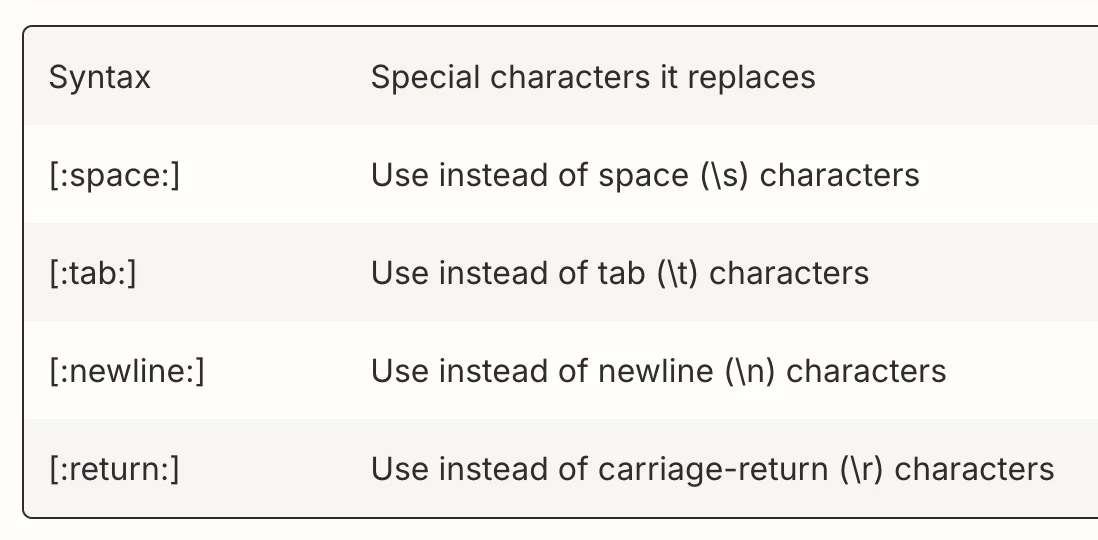
Try using this as the separator: [:newline:] or [:return:]

Help: https://help.zapier.com/hc/en-us/articles/8496278339725-Find-and-replace-values-in-your-Zaps


  • Author
  • Beginner
  • December 8, 2025

Appreciate this! I made adjustments to try the special character fields. None of them changed the lookup field always returning the fallback value! I used a combination of both configurations described in the Configuration of the Loop section as well. It’s still only passing one combined value rather than looping through the list. Though in this case the <br> is now present in the final input when using the special characters flags.


Troy Tessalone
Zapier Orchestrator & Solution Partner
Forum|alt.badge.img+14
  • Zapier Orchestrator & Solution Partner
  • December 8, 2025

@Dylan Wolters 

Post screenshots showing the original data OUT format of the “offices” so we can see the structure from Zap step 1.


  • Author
  • Beginner
  • December 8, 2025

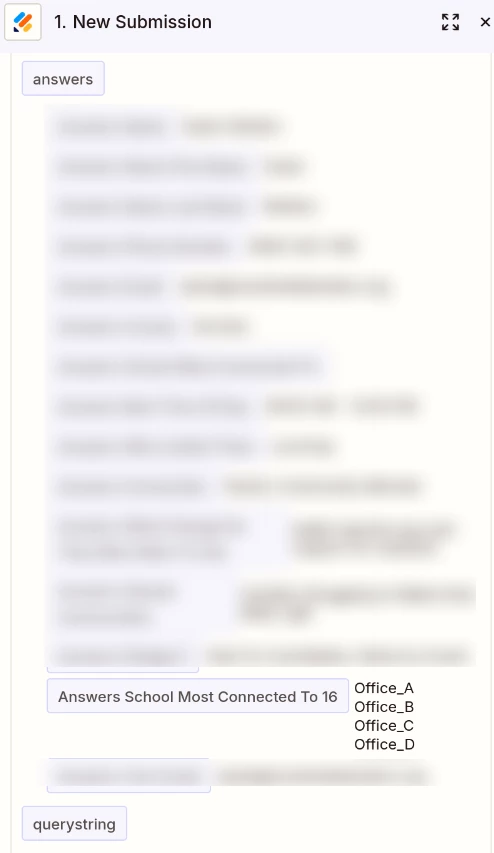
here is a screenshot of the data out, mostly blurred to anonymize the information. 

The text shared above is copied directly from this field.


Troy Tessalone
Zapier Orchestrator & Solution Partner
Forum|alt.badge.img+14
  • Zapier Orchestrator & Solution Partner
  • December 8, 2025

@Dylan Wolters 

Is that DATA OUT from a live Zap Run found in the Zap Run history?

https://zapier.com/app/history/


  • Author
  • Beginner
  • December 8, 2025

It looks slightly different when i view it from teh Zap Run history!


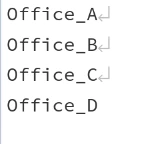
I also checked the text field for this and can confirm that the end line character is being read as a return key. You can see the characters printed out here explicitly:


Troy Tessalone
Zapier Orchestrator & Solution Partner
Forum|alt.badge.img+14
  • Zapier Orchestrator & Solution Partner
  • December 8, 2025

@Dylan Wolters 

Including this again…
Help link for how to get a live Zap Run as a Zap trigger example to use to configure and test: https://help.zapier.com/hc/en-us/articles/35632951078029-Use-previous-Zap-runs-as-trigger-test-records


Since the actual live Zap Run data for “offices” has line breaks/returns instead of <br>, you need to adjust the logic to handle that expected data format.


Simplest would be to use: Looping - Create Loop form Text

Try setting the text delimiter as one of these:

  • [:newline:]
  • [:return:]


If you need to hire help, there is a directory of Zapier Partners: https://zapier.com/partnerdirectory


  • Author
  • Beginner
  • December 8, 2025

Try setting the text delimiter as one of these:

  • [:newline:]
  • [:return:]


I tried both of these options and some other combinations to be sure - the loop still isn’t iterating over individual elements. 


I appreciate the resource but I’m not comfortable hiring a contractor for this since it seems most likely that the Loop feature is bugged (which I would not expect a contractor to be able to fix)!


  • Author
  • Beginner
  • December 8, 2025

Okay! I’ve finally gotten the loop to run. There were a few inconsistencies in how the data was being presented during testing which caused issues in debugging. the [:return:] DID work. there was a secondary issue caused by me looking for the <br> code, which had to be resolved.


Troy Tessalone
Zapier Orchestrator & Solution Partner
Forum|alt.badge.img+14
  • Zapier Orchestrator & Solution Partner
  • December 8, 2025

@Dylan Wolters 

So all set?!