Best answer

Troubleshooting parsing error when updating multiple rows in Google Sheets

  • January 26, 2026
  • 7 replies
  • 30 views

Hello! 

I am trying to update multiple rows in google sheet using Update Spreadsheet Row(s). 

I first look up the rows that meet the criteria by using Lookup Spreadsheet Row(s) Advanced, which it did return the values I am looking for - the row numbers that match the searched criteria

But when i try to feed in an array or line item that specify which rows to look for under Update SpreadSheet Rows, i receive this error message for the input value provided for the row number - 

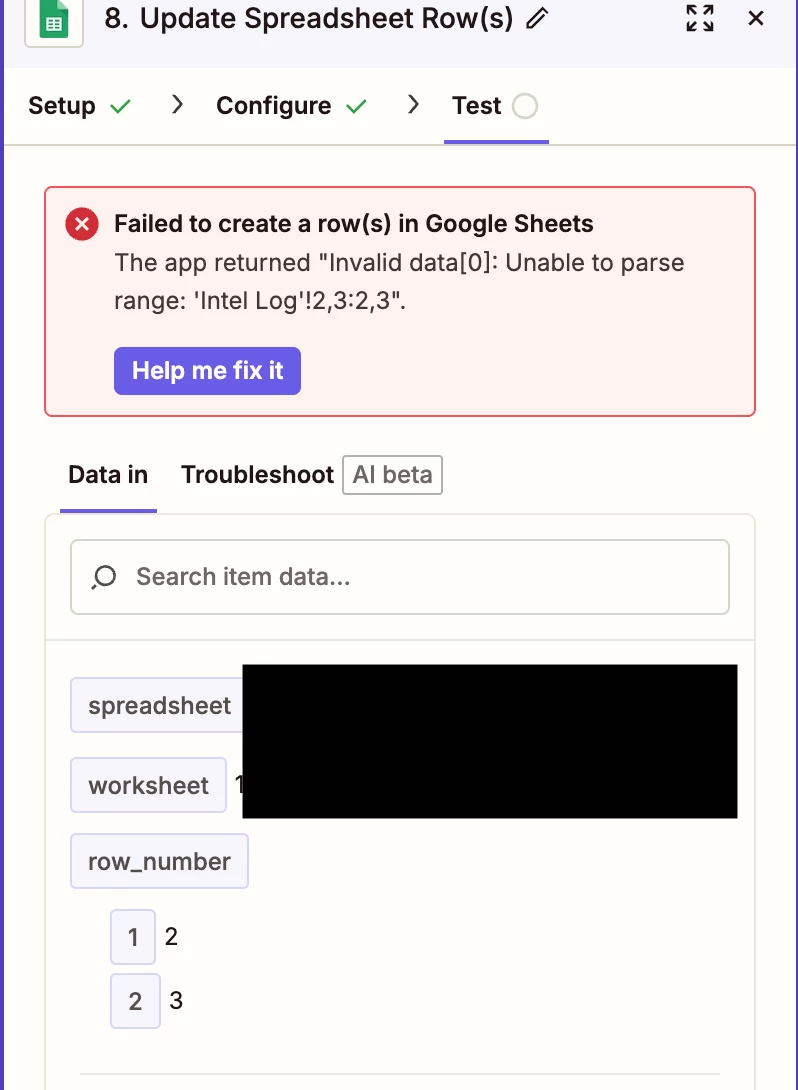
Failed to create a row(s) in Google Sheets

The app returned "Invalid data[0]: Unable to parse range: 'Intel Log'!2,3:2,3".


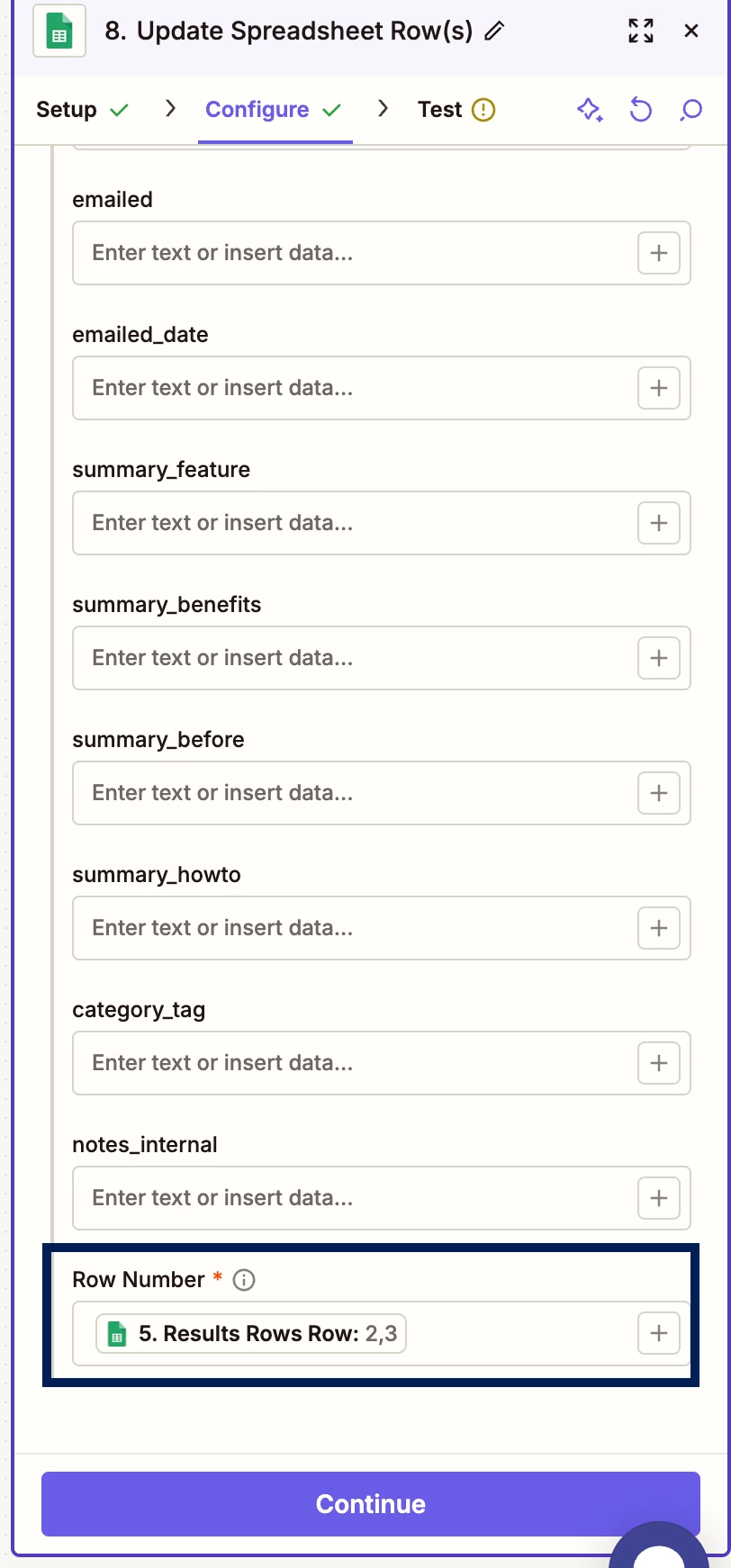
Below is the data input that i provide for row numbers shown during test step: 
Really appreciate any guidance here! Been searching few hours for a solution, includign talkign to AI, looking available forums, but none seem to help. Thank you!

Best answer by Troy Tessalone

@beccavocado 

Issue may be that the data returned from Zap step 5 is an array of arrays aka nested arrays.

When that happens, the nested array data gets flattened into a text string, thus when you map the variable to the Row Number field the field does not treat that data as an array, which the field expects the data to be structured as.


You can try one of these options:

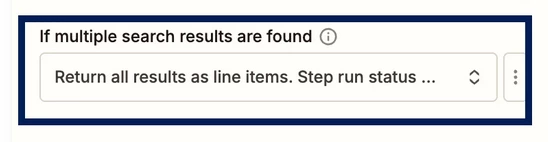
  • For Zap step 5, change the selection for “If multiple search results are found” to ‘Return first result...’
    • The Zap step is already configured to return multiple results, so this should solve the nested array issue
  • Otherwise, you can try adding one of these options:
    • Formatter > Text > Split
      • Return all as line items
    • Formatter > Utilities > Text to Line Items

7 replies

Troy Tessalone
Zapier Orchestrator & Solution Partner
Forum|alt.badge.img+14
  • Zapier Orchestrator & Solution Partner
  • January 26, 2026

Hi ​@beccavocado 

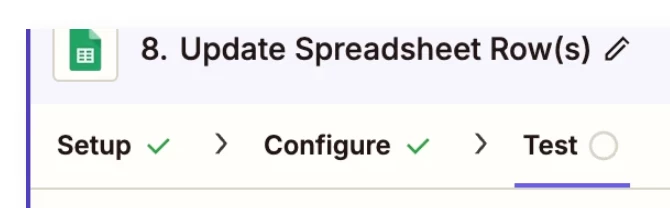
For us to have more info, post screenshots showing how your Zap step 8 is configured in the CONFIGURE tab with the field mappings visible.


  • Author
  • New
  • January 26, 2026

Hi ​@beccavocado 

For us to have more info, post screenshots showing how your Zap step 8 is configured in the CONFIGURE tab with the field mappings visible.


Hi ​@Troy Tessalone , 

Thank you for your help! 

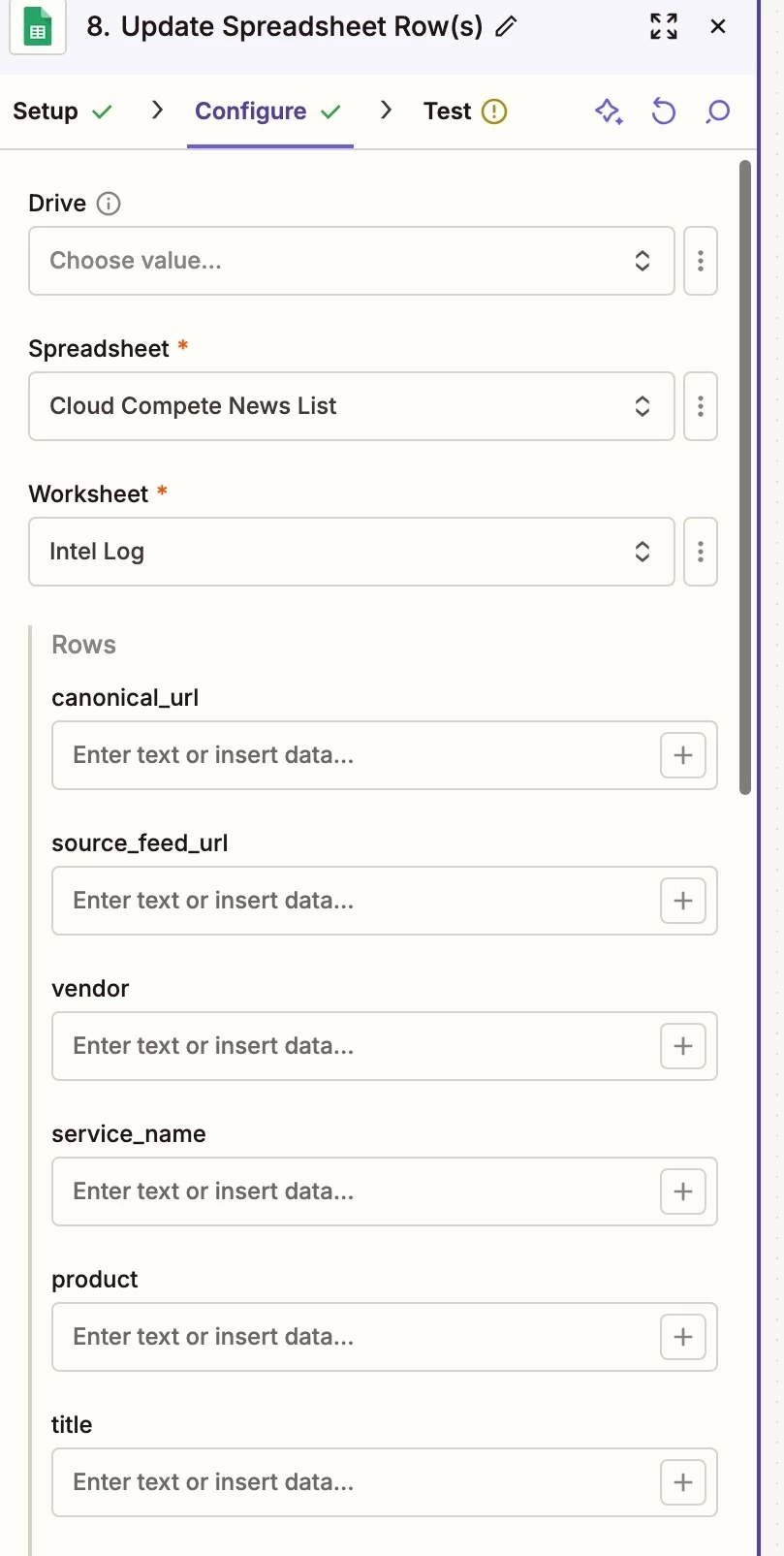
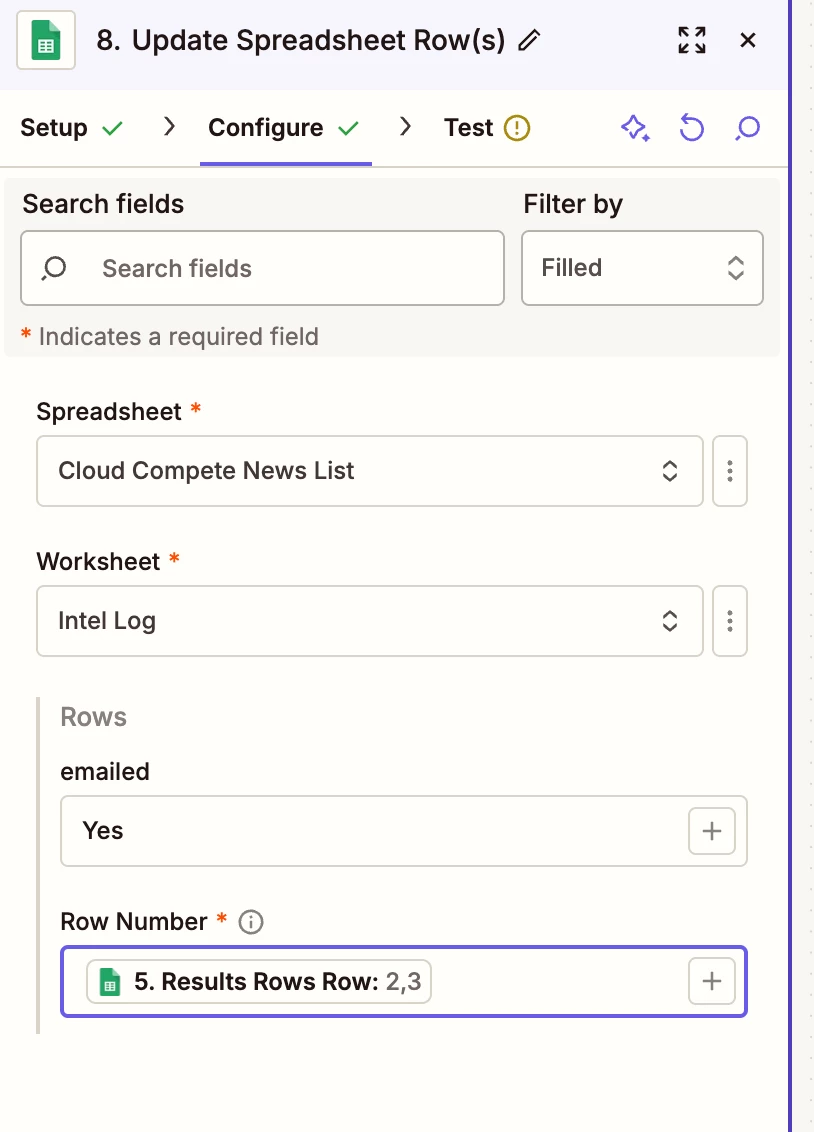
Please see below two screenshots as the field mappings are long -  

(Note: my understanding is that the Result Rows Row (variable provided under Row Number) is a line item value that Google sheet will be able to treat each number as row number idex and update the fields in those rows in the Google sheet) 


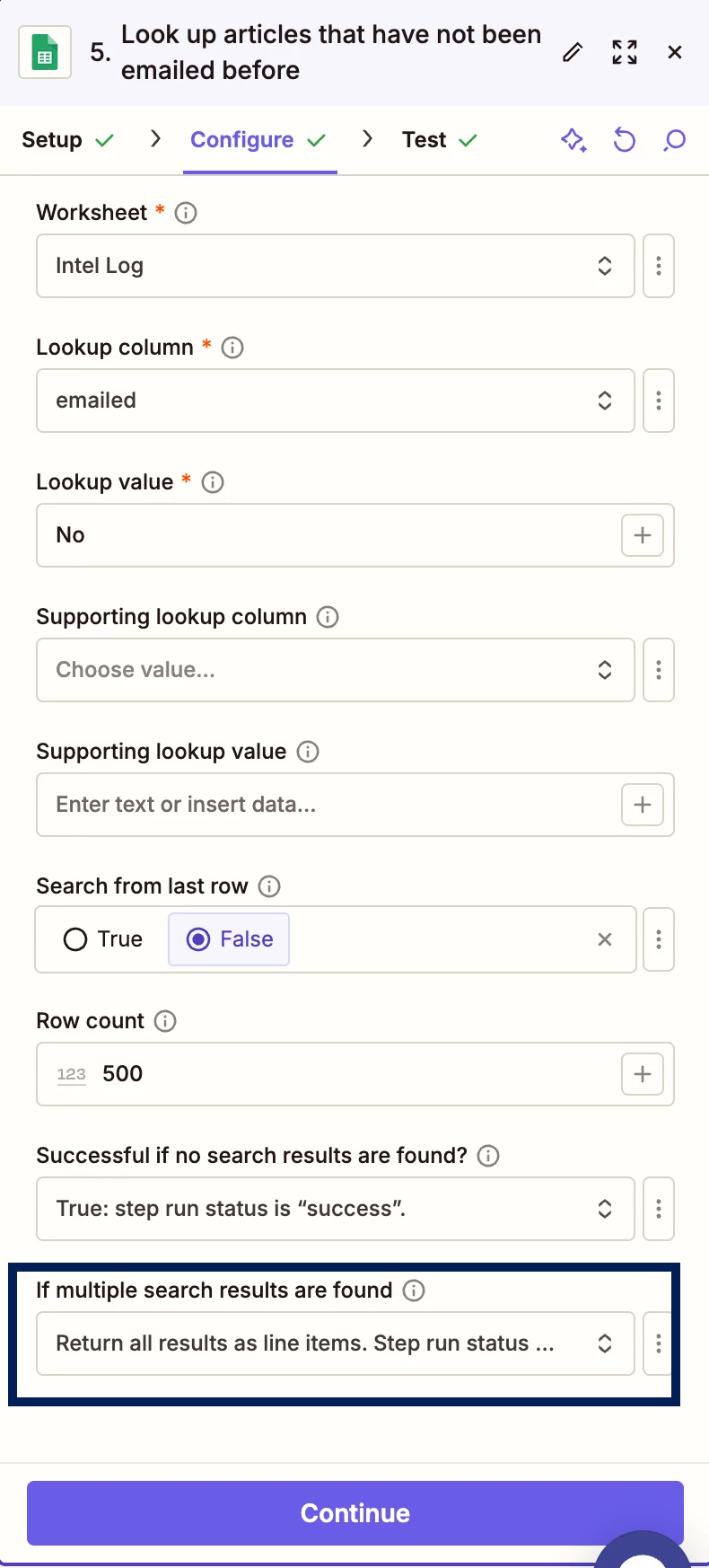
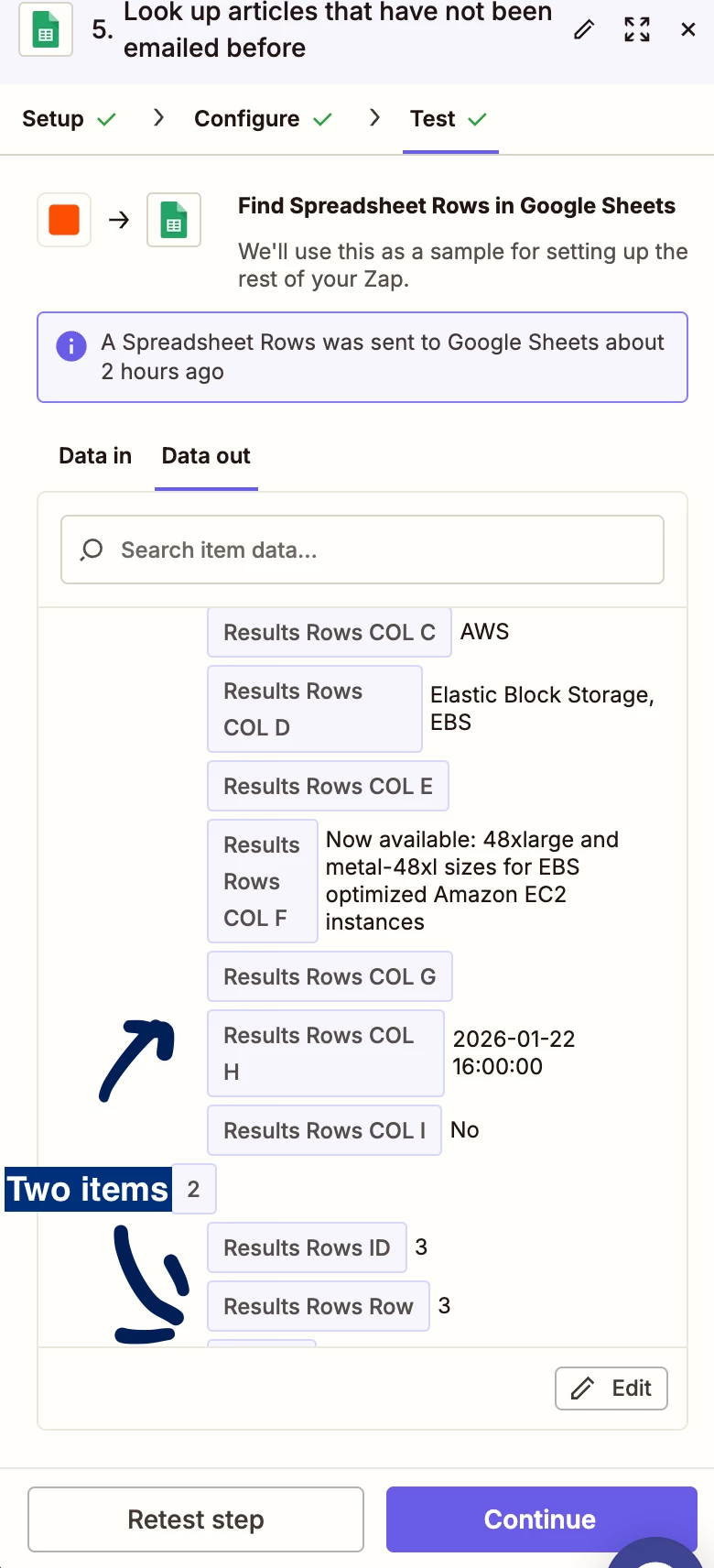
Step 5 screen shot, which I used step 5 data_out to feed into step 8 (I expect to see two results returned from the step5 test and was able to see that):


Step5 - Test results


Troy Tessalone
Zapier Orchestrator & Solution Partner
Forum|alt.badge.img+14
  • Zapier Orchestrator & Solution Partner
  • January 26, 2026

@beccavocado 

TIP: You can use the magnifying glass icon to filter the fields to only show the fields that are filled in.


For Zap step 8, what other columns are you trying to update?

Looks like you only have the Row Number field mapped with a variable BUT no other columns configured to be updated.

You need to specify the Row Number AND at least 1 other column to update.


  • Author
  • New
  • January 27, 2026

@beccavocado 

TIP: You can use the magnifying glass icon to filter the fields to only show the fields that are filled in.


For Zap step 8, what other columns are you trying to update?

Looks like you only have the Row Number field mapped with a variable BUT no other columns configured to be updated.

You need to specify the Row Number AND at least 1 other column to update.


Hi ​@Troy Tessalone , thanks for the tip! 

somehow I missed filling the field when i paste the screenshots. but in other cases, the field was field with value. Please see the screenshot below. I still run into the parsing error regardless. I am thinking that maybe there is a bug in this “Update Spreadsheet Row(s)” function?

(I am trying to update the emailed field to show which content i have already sent out in email so next time i don’t need to send out again) 

Additionally, is there any successful example of how others use “Update Spreadsheet Row(s)” to update multiple rows in googlesheet successfully that I can look at? We can debug from there as well. Thank you!


Troy Tessalone
Zapier Orchestrator & Solution Partner
Forum|alt.badge.img+14
  • Zapier Orchestrator & Solution Partner
  • Answer
  • January 27, 2026

@beccavocado 

Issue may be that the data returned from Zap step 5 is an array of arrays aka nested arrays.

When that happens, the nested array data gets flattened into a text string, thus when you map the variable to the Row Number field the field does not treat that data as an array, which the field expects the data to be structured as.


You can try one of these options:

  • For Zap step 5, change the selection for “If multiple search results are found” to ‘Return first result...’
    • The Zap step is already configured to return multiple results, so this should solve the nested array issue
  • Otherwise, you can try adding one of these options:
    • Formatter > Text > Split
      • Return all as line items
    • Formatter > Utilities > Text to Line Items

  • Author
  • New
  • January 27, 2026

@beccavocado 

Issue may be that the data returned from Zap step 5 is an array of arrays aka nested arrays.

When that happens, the nested array data gets flattened into a text string, thus when you map the variable to the Row Number field the field does not treat that data as an array, which the field expects the data to be structured as.


You can try one of these options:

  • For Zap step 5, change the selection for “If multiple search results are found” to ‘Return first result...’
    • The Zap step is already configured to return multiple results, so this should solve the nested array issue
  • Otherwise, you can try adding one of these options:
    • Formatter > Text > Split
      • Return all as line items
    • Formatter > Utilities > Text to Line Items


@Troy Tessalone  -  thank you very much, I was able to resolve this issue by selecting the return result option in step5 as “Return first result...’. Thanks!! I was stuck for two days ;). 


SamB
Community Manager
Forum|alt.badge.img+11
  • Community Manager
  • January 27, 2026

YAY! 🎉 Thanks so much for sharing how you got on ​@beccavocado. Really glad Troy was able to help you get this solved - awesome work on this ​@Troy Tessalone!!! 🙌  

Please do reach back out in Community if you need help with anything else. Until then, happy Zapping! 😁⚡