Best answer

Troubleshooting Google Drive file not found error

  • January 5, 2026
  • 9 replies
  • 29 views

Hi - I am trying to configure a step in my multi-step Zap that doesn’t seem to be working.

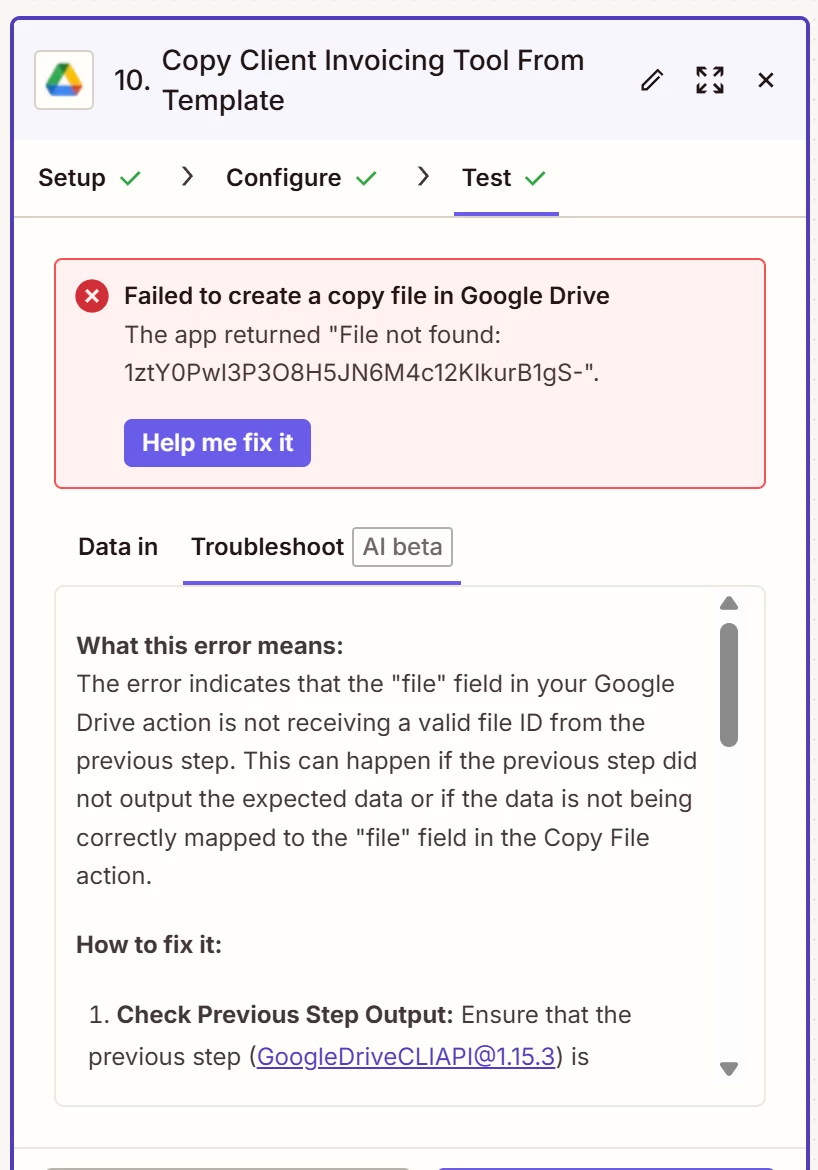
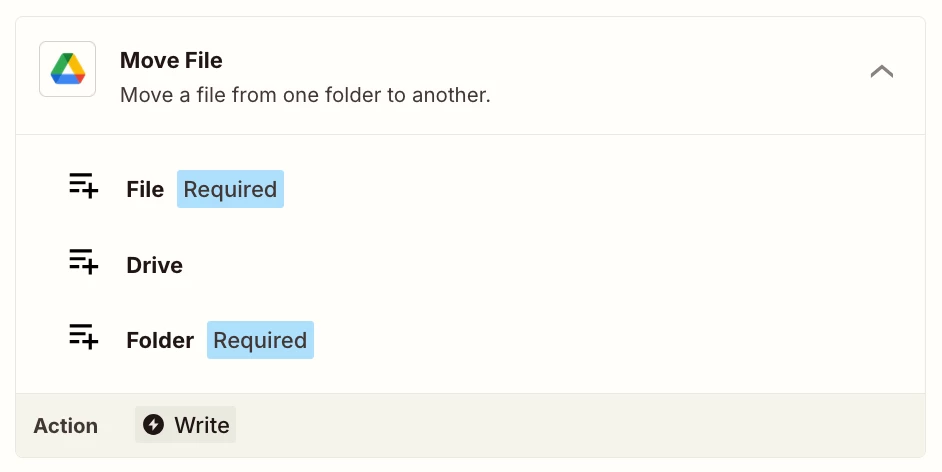
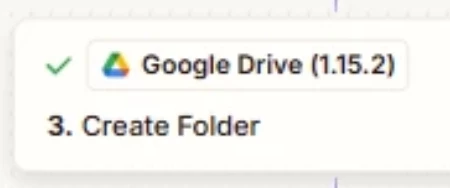
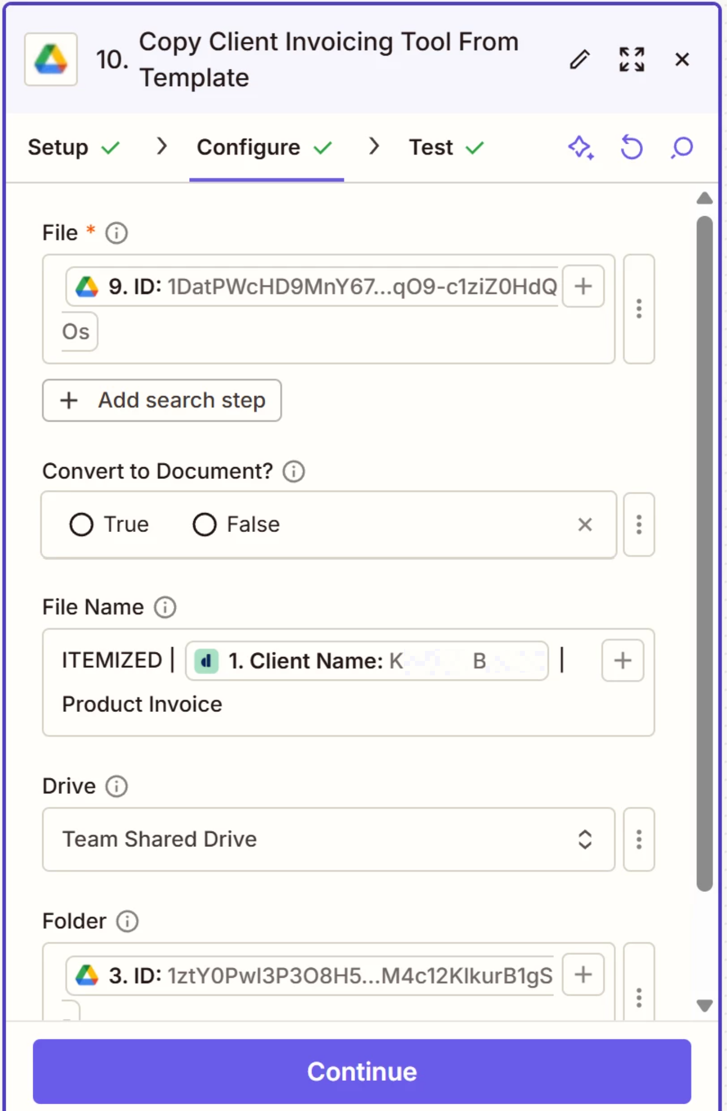
I first added a search step that prompts the Zap to find the template Google Sheet. From there, I copy the template Google Sheet, rename it using a client’s name, and then want to move the named copy to the same client’s folder. The client folder was created in an earlier step in the same Zap (see configuration in first screenshot below). I specify a custom destination folder using the folder ID from the previous step in the Zap, but it’s still rendering the error message that the file was not found (see second screenshot below).

To troubleshoot, I tested what would happen if I set the destination folder as a static folder. The Zap worked, but that’s not ideal. I want the destination folder to be the custom folder from an earlier step in the Zap. 

Any thoughts? Thanks in advance for your help troubleshooting this! 
 

This post has been edited by a moderator to remove personally identifiable information (PII). Please remember that this is a public forum and avoid sharing personal or potentially sensitive details.


Best answer by Troy Tessalone

@Kate F 

Perhaps try turning the Zap ON and testing live, then check the Zap Run history to see the DATA IN/OUT for each step: https://zapier.com/app/history/


Help link for how to use a recent live Zap Run as the Zap trigger example record to configure a Zap: https://help.zapier.com/hc/en-us/articles/35632951078029-Use-previous-Zap-runs-as-trigger-test-records

9 replies

Troy Tessalone
Zapier Orchestrator & Solution Partner
Forum|alt.badge.img+14
  • Zapier Orchestrator & Solution Partner
  • January 5, 2026

Hi ​@Kate F 

For us to have more info, post screenshots showing the outlined order of the Zap steps.

Help links for using GDrive in Zaps: https://zapier.com/apps/google-drive/integrations#help


You can try adding this Zap step: GDrive - Move File


  • Author
  • Beginner
  • January 5, 2026

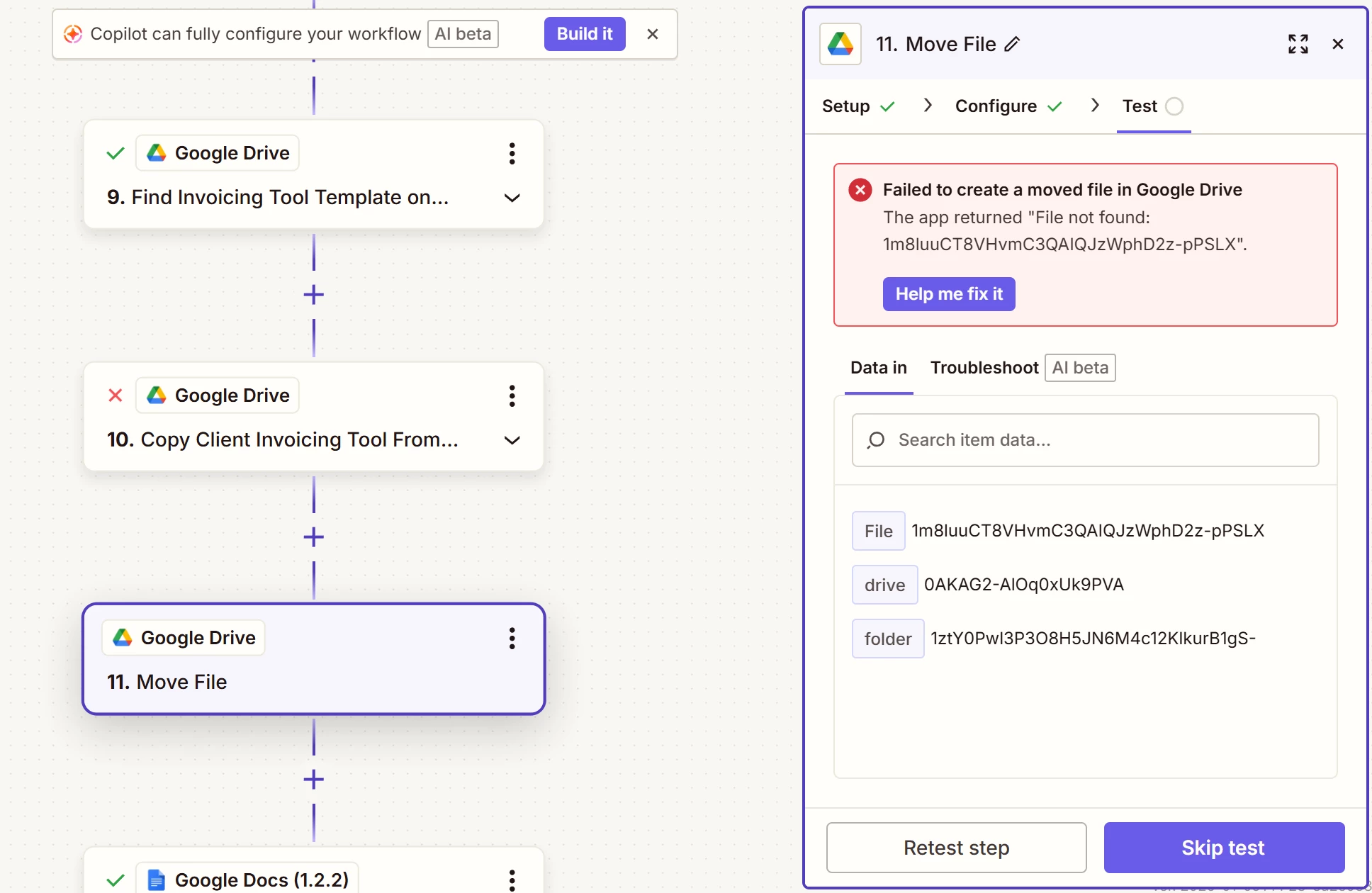
Hi Troy, thanks for your quick reply. Before posting this question, I tried adding a step “Move File” after the copy was made, and that didn’t work. Here’s a screenshot of that error. 


  • Author
  • Beginner
  • January 5, 2026

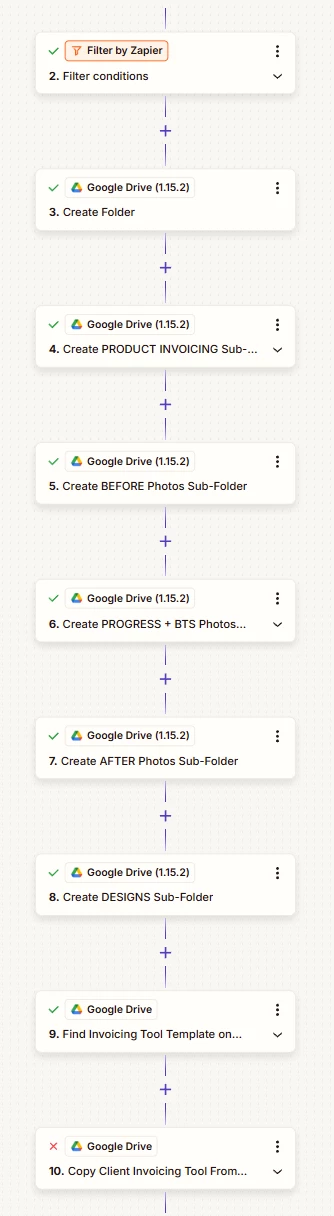
And here’s a full outline of the zap. Once a client signs the contract in Dubsado, the Zap puts a filter on the trigger to confirm it’s a client contract signed, then creates a folder for the client, and a number of subfolders within that same, named client folder. From there, it finds the Google Sheet template, copies that and renames it in the client’s name. Now I just want to move that named client Google Sheet to the client’s folder created in step 3. 


Troy Tessalone
Zapier Orchestrator & Solution Partner
Forum|alt.badge.img+14
  • Zapier Orchestrator & Solution Partner
  • January 5, 2026

@Kate F 

Make sure the GDrive File ID being used to test the Zap steps still exists.

Make sure the GDrive File being copied is in the same Drive as the destination Folder.

Try testing each Zap step again.


Looks like you might be using an older version of the GDrive Zap app integration, so make sure to update the Zap steps to use the newest version of the GDrive Zap app integration.


  • Author
  • Beginner
  • January 5, 2026

So the tests keep using a trigger record for a client that signed the contract a long time ago. The destination folder has since moved from a “Waitlist” Folder to a “Completed Projects” folder. Could the Zap not work because the destination folder has moved from it’s original parent folder?


  • Author
  • Beginner
  • January 5, 2026

And how do I update the Zap integration?


Troy Tessalone
Zapier Orchestrator & Solution Partner
Forum|alt.badge.img+14
  • Zapier Orchestrator & Solution Partner
  • January 5, 2026

@Kate F 

Help link for how to manage Zap app versions: https://help.zapier.com/hc/en-us/articles/18755649454989-App-versions-in-Zapier


Troy Tessalone
Zapier Orchestrator & Solution Partner
Forum|alt.badge.img+14
  • Zapier Orchestrator & Solution Partner
  • Answer
  • January 5, 2026

@Kate F 

Perhaps try turning the Zap ON and testing live, then check the Zap Run history to see the DATA IN/OUT for each step: https://zapier.com/app/history/


Help link for how to use a recent live Zap Run as the Zap trigger example record to configure a Zap: https://help.zapier.com/hc/en-us/articles/35632951078029-Use-previous-Zap-runs-as-trigger-test-records


  • Author
  • Beginner
  • January 5, 2026

OMG that fixed it! I had to regenerate the test using a more recent record. It seems that the fact that the folder location (being within Waitlist) was the crux of the problem. Thank you!