

I have a Zap set up that runs when an Google calendar event is new/updated...but I want different Zap actions/outputs based on if the event is NEW or UPDATED...but I can only seem to choose New/Updated (as one).
Is there a way of building a Zap that reviews/searches to determine if the event was rescheduled vs created new?
Essentially, I am trying to trigger a different tags in MailChimp based on a newly rescheduled meeting vs a rescheduled meeting. And now I can update the meeting fields, but there is no way to trigger (or re-trigger) a different automation journey within MailChimp without being able to differentiate between a NEW Google calendar event and an UPDATED Google calendar event

Best answer
Trigger Zap When a Google Calendar Event is Updated (but only can choose new OR updated)
- Beginner
Best answer by Troy Tessalone
Hi
Try using Paths: https://zapier.com/apps/paths/integrations#help
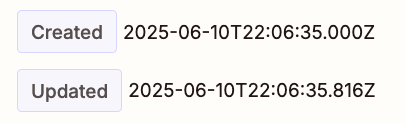
In the DATA OUT from GCal for the Event, there are variables with timestamps that indicate:
- Created
- Updated
You can use Formatter > Date & Time > Compare to determine the time difference between those.
Then configure the Path Filter conditions: https://zapier.com/apps/filter/integrations#help
This post has been closed for comments. Please create a new post if you need help or have a question about this topic.






Early access

Next Gen Zaps
Build and deploy automations from AI tools you already use. With Agentic Management, if anything breaks, the agent diagnoses the issue and proposes a fix.
Request access now
Enter your E-mail address. We'll send you an e-mail with instructions to reset your password.