Question

How to update Salesforce Lead status and custom field in Zapier

  • December 12, 2025
  • 6 replies
  • 28 views

Hello everyone,

I am trying to build a Zap that updates a Salesforce Lead when it is marked as "Lost" in my sales engagement platform (Meetime).

My Goal: I need to find a Lead by email and then update two specific fields:

  1. Change Lead Status to "Disqualified".

  2. Add a value to a custom field called "DisqualificationReason".

Important context: I am trying to resolve the mapping for "DisqualificationReason" first because filling this field is mandatory in my Salesforce setup to mark a lead as Disqualified. However, even when I try to update only the "Status" (ignoring the mandatory field for a moment), I face the exact same problem described below.

The Setup:

  1. Trigger: Meetime (Lead Lost)

  2. Action: Salesforce > Find Record (Search by Email) -> This works perfectly and returns the Lead ID.

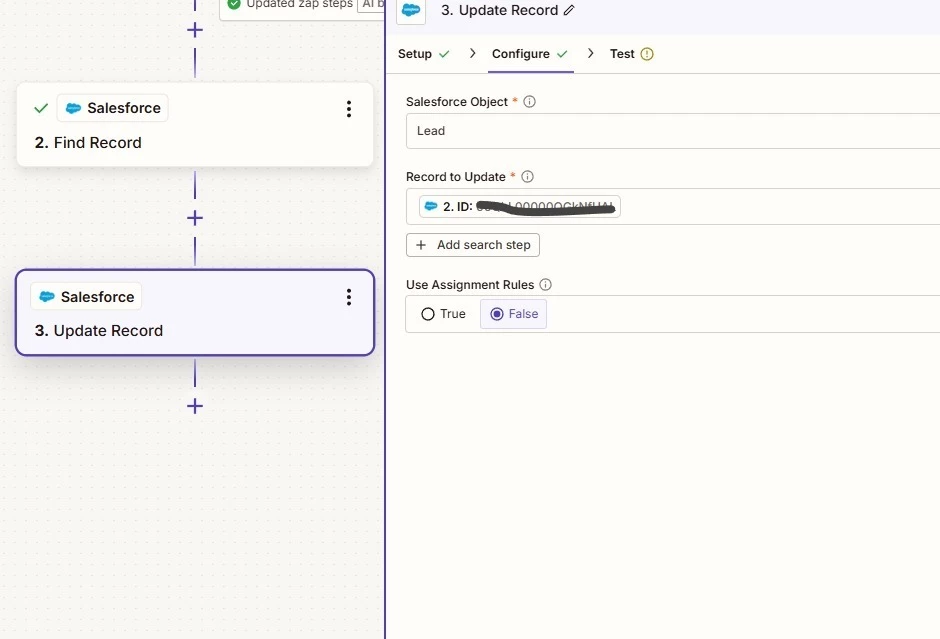
  3. Action: Salesforce > Update Record

The Problem: I am unable to see or select the fields I want to update.

  • When I add the "Update Record" step, the "Salesforce Object" dropdown list does not show "Lead" or doesn't load options properly.

  • I had to use the Zapier Copilot to force/fill the Object field with "Lead".

  • Even though the Object is set to "Lead" and I have mapped the "Record to Update" with the ID from step 2, no fields appear below for me to edit. The section where I should map "Status" or "DisqualificationReason" is completely empty.

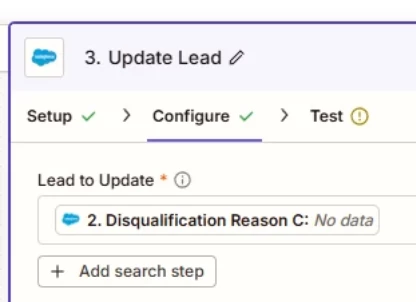
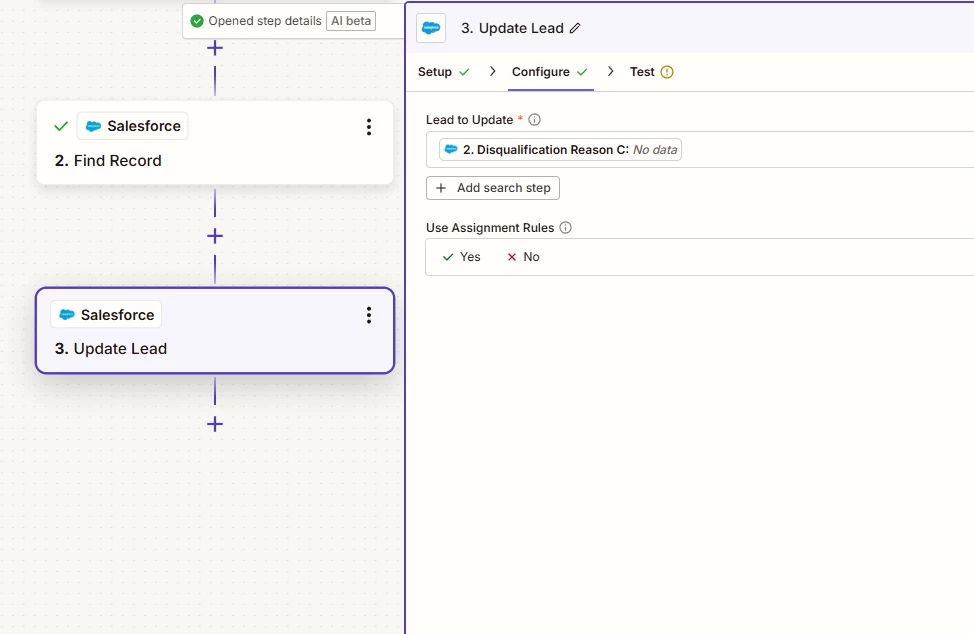
I have also tried the legacy "Update Lead" action, but I face a similar issue where the specific fields do not appear for configuration.

Has anyone experienced this issue? 

Thanks!


6 replies

Troy Tessalone
Zapier Orchestrator & Solution Partner
Forum|alt.badge.img+14
  • Zapier Orchestrator & Solution Partner
  • December 12, 2025

Hi ​@growthuser 

For Zap step 3, for the field “Lead to Update” it expects the ID of the Salesforce Record.

Once you map a variable with a valid value, then more fields may show to configure.

TIP: Click field labels to see tooltips with more info about expected values and formats.


  • Author
  • New
  • December 12, 2025

Hi, ​@Troy Tessalone !

I mapped the Salesforce Record ID into the 'Lead to Update' field, but the other fields are not loading for me to configure.

The previous 'Find Record' step worked perfectly and found all the Lead data. I also tried using the generic 'Update Record' action, and the exact same issue occurs there: the ID is accepted, but the fields to update never appear.


Troy Tessalone
Zapier Orchestrator & Solution Partner
Forum|alt.badge.img+14
  • Zapier Orchestrator & Solution Partner
  • December 12, 2025

@growthuser 

Try clicking the refresh button in the Zap step.


  • Author
  • New
  • December 13, 2025

@Troy Tessalone 
I tried clicking the refresh button, but unfortunately, nothing happens. The screen remains exactly the same as in the screenshot I sent previously.

I have tested this with both the 'Update Record' and 'Update Lead' actions, and the issue persists in both cases. 


Troy Tessalone
Zapier Orchestrator & Solution Partner
Forum|alt.badge.img+14
  • Zapier Orchestrator & Solution Partner
  • December 13, 2025

@growthuser 

For the field: “Lead to Update” or “Record to Update”

Try selecting an option from the dropdown list instead of mapping a dynamic variable.

See if that exposes the other fields.

Then once you configure the other fields, go back and map the variable for the record ID.


IsabellaThomas345
Forum|alt.badge.img

You’re hitting a common Zapier-Salesforce quirk: custom or mandatory fields sometimes don’t appear due to API permissions or caching. Make sure the Zapier user has read/write access to Status and DisqualificationReason__c. If fields still don’t show, manually type the API name (DisqualificationReason__c) in the update step, or use a Webhook POST to update the Lead directly with JSON.