Question

How to automate deleting rows in Google Sheets based on checkout dates

  • November 30, 2025
  • 9 replies
  • 39 views

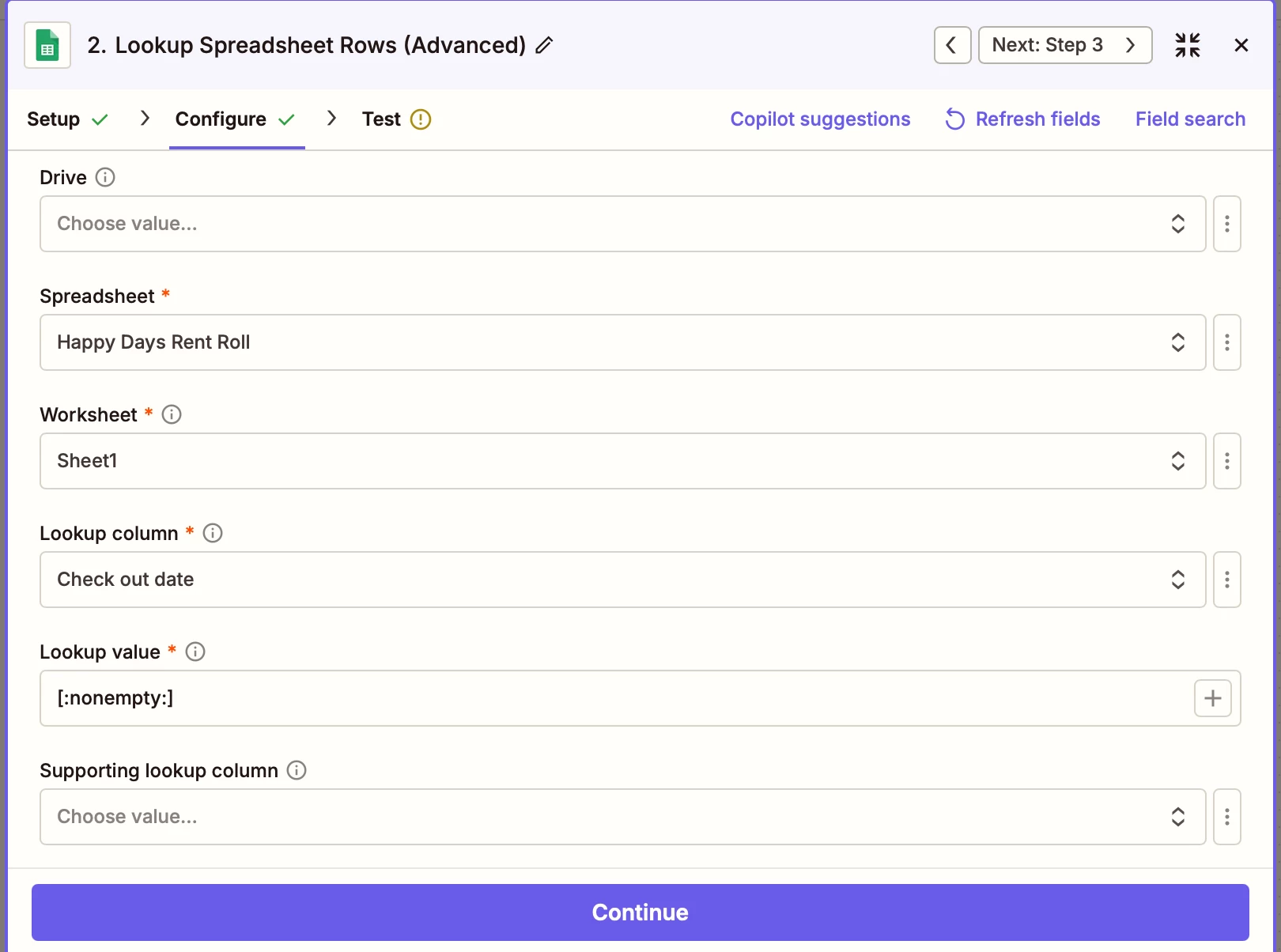
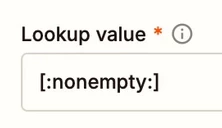
I'm attempting to automate my rent roles. I want to create a zapier that will delete all rows at the beginning of the month that have a checkout date in them. My first action is look up spreadsheet rows (advanced) in google sheets. I have check out date as my lookup column and [:nonempty:] as my look up value. For some reason during all test runs it says, “failed to find a spreadsheet rows in Google Sheets. Error from halted execution: nothing could be found for the search.” even though there's rows in my Google sheet with check out dates.

9 replies

Troy Tessalone
Zapier Orchestrator & Solution Partner
Forum|alt.badge.img+14
  • Zapier Orchestrator & Solution Partner
  • December 1, 2025

Hi ​@Jonfun 

For us to have more info, post screenshots showing:

  • how your GSheet is configured so we can see
    • Row 1 headers
    • Column with dates and the date format
  • how your Zap steps are outlined
  • how your Zap steps are configured in the CONFIGURE tab while in EDIT mode

Sparsh from Automation Jinn
Forum|alt.badge.img+6

Hey ​@Jonfun,

I don’t think Zapier supports  [:nonempty:] for lookup value. Either you can make another column in your sheet and that automatically fills the value using a formula to Yes or No depending on if the checkout is empty or not.

Other way to do this would be use Get Many Spreadsheet Row action rather than Lookup Many Spreadsheet Rows action. After that you can add a filter action with Exists condition to only filter for rows that have some value in checkout date. Here is a helpful article about Filter in Zapier- https://help.zapier.com/hc/en-us/articles/8496276332557-Add-conditions-to-Zaps-with-filters. Hope it helps!


  • Author
  • New
  • December 1, 2025

Thank you ​@Troy Tessalone !

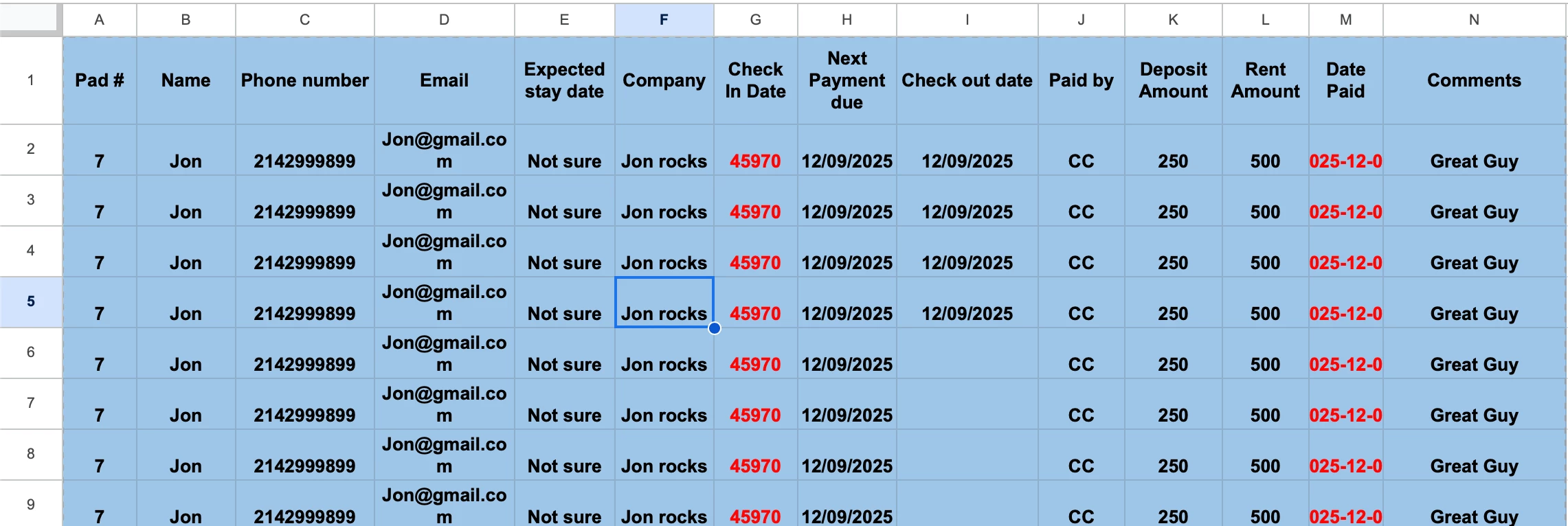
Here is my Google Sheets. 

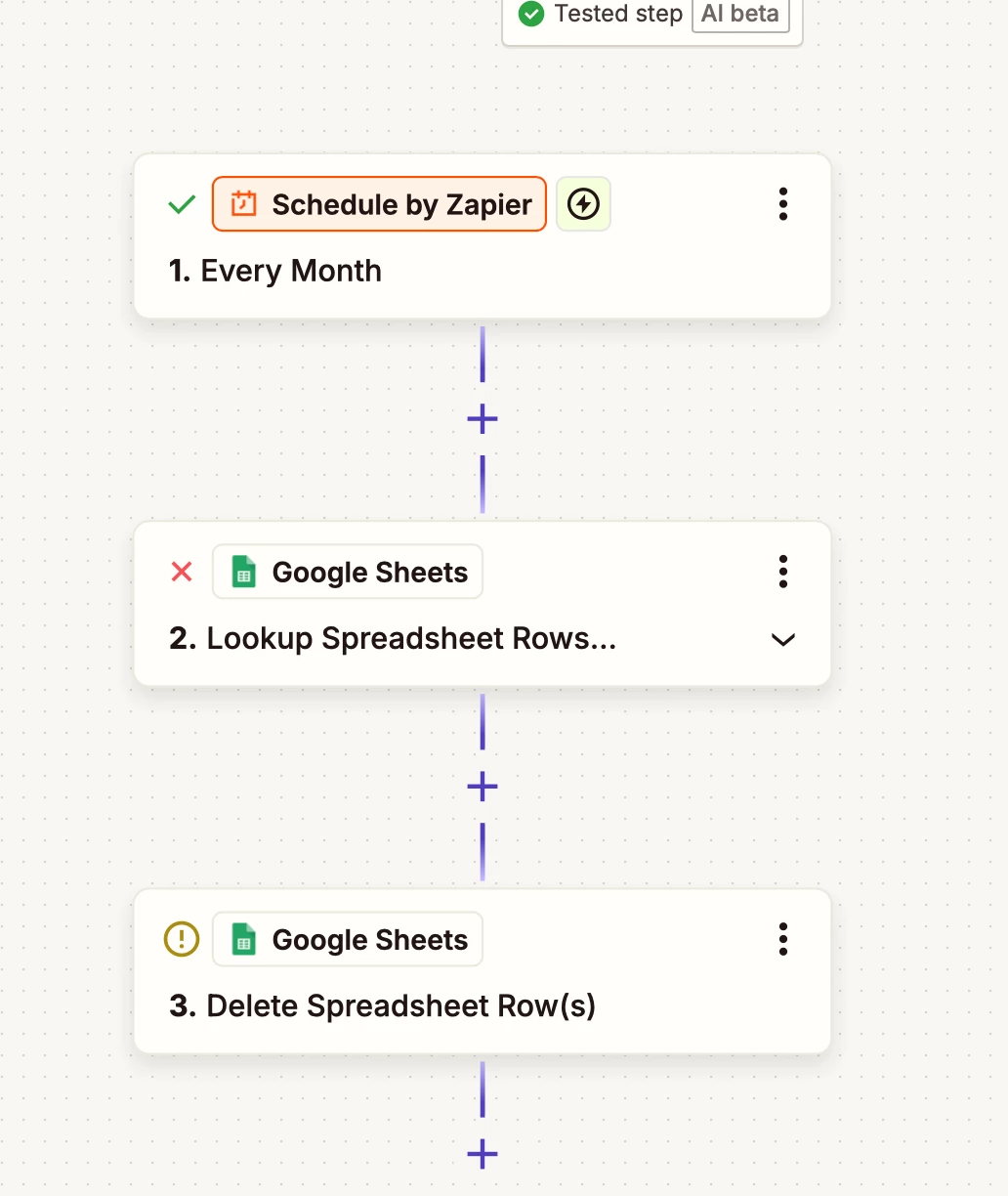
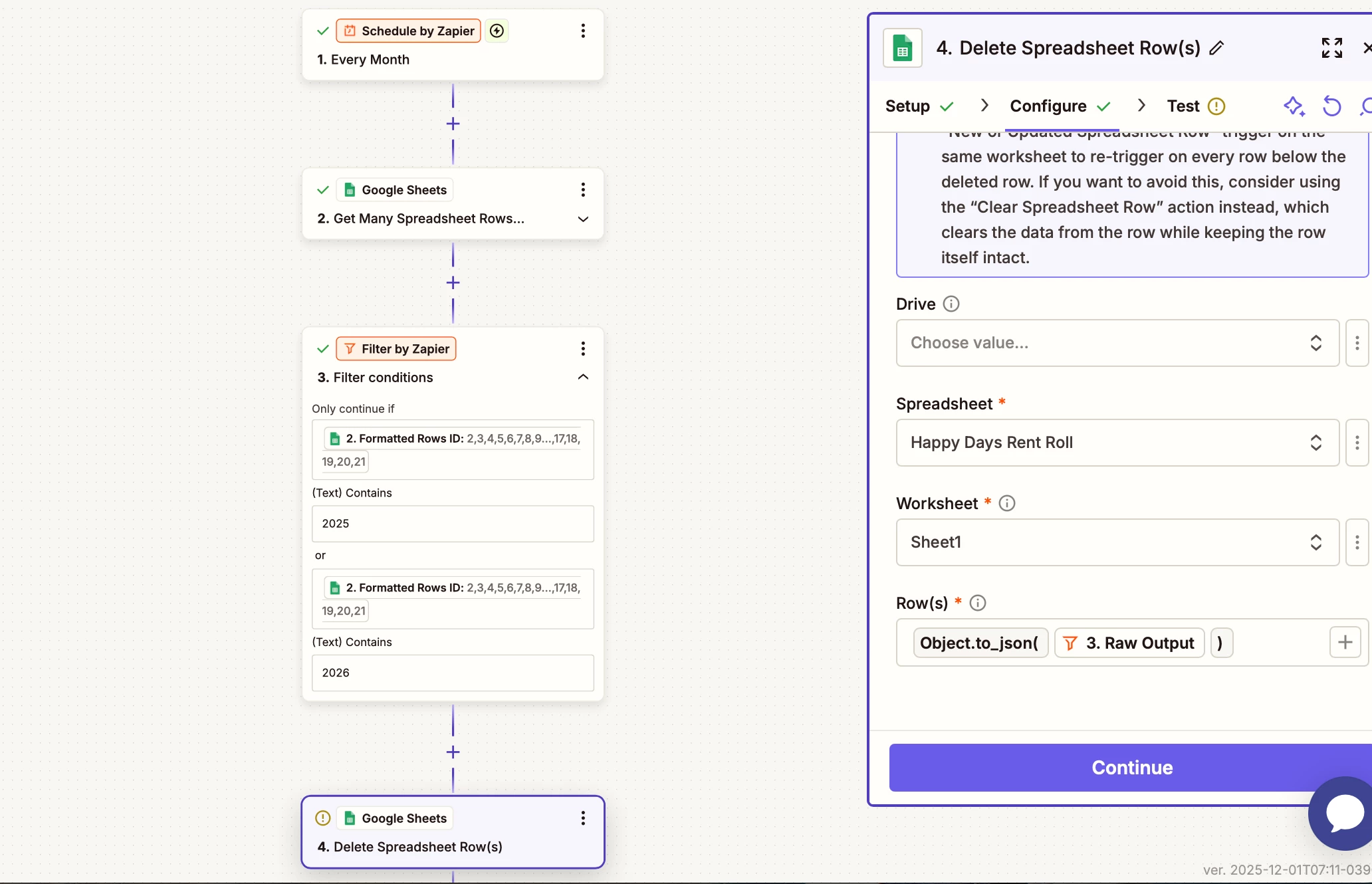
Here is my zap outline:


Here is the setup:


The issue is no data is found for nonempty even when there are rows that have data. I want it to identity any rows with a check out date and then delete those rows.


Troy Tessalone
Zapier Orchestrator & Solution Partner
Forum|alt.badge.img+14
  • Zapier Orchestrator & Solution Partner
  • December 1, 2025

@Jonfun 

For the GSheet Lookup Row step, [:nonempty:] is not a valid value.

You need to search by a specific date to find matching rows for that date.


Troy Tessalone
Zapier Orchestrator & Solution Partner
Forum|alt.badge.img+14
  • Zapier Orchestrator & Solution Partner
  • December 1, 2025

@Jonfun 

My recommendation would be to use Airtable instead of GSheets.

Airtable has Tables.

Tables have specific Field types. (e.g. date, single text, dropdown, etc.)

Tables have Views, which are segments of data. (sort, filter, group, show/hide fields, reorder fields)


You can either filter records out of a View.

Or you can use a View filter conditions to match records (e.g. records with Date = TODAY), then delete the record.

Airtable Zap app triggers/actions: https://zapier.com/apps/airtable/integrations#triggers-and-actions


  • Author
  • New
  • December 1, 2025

@Sparsh from Automation Jinn Thank you for your response!
I tried doing that. 
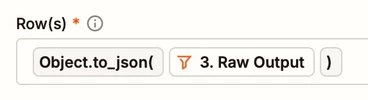
I did a filter for check out data contains 2025 and 2026. The problem is when I go to delete rows based on the filter it receives an error. 


Sparsh from Automation Jinn
Forum|alt.badge.img+6

Hey ​@Jonfun,

You are mapping wrong rows. You have to map from the second step and you can just make checkout data column does exists. Hope it helps!


  • Author
  • New
  • December 1, 2025

@Sparsh from Automation Jinn When I do this it deletes all the rows expect for four for some reason. 


Troy Tessalone
Zapier Orchestrator & Solution Partner
Forum|alt.badge.img+14
  • Zapier Orchestrator & Solution Partner
  • December 1, 2025

@Jonfun 

If you wanted an easier way to find the rows.

Then try adding these columns:

  • Year
    • Format: YYYY
  • Month
    • Format: MMMM
    • e.g. December


Then you can search by 2 lookup columns/values.

You can use Formatter > Date & Time > Format steps to get the lookup values in the expected formats.


In the GSheets Delete Rows step, it expects the ID/Row value, which is numeric.