Question

How do I add multiple attachments from Google Drive to a MS Outlook email?

  • November 9, 2025
  • 10 replies
  • 54 views

Hi,

I am having an issue where I am receiving groups of attachments for various requests which are currently saved in their own Google Drive folder that then need to be attached to an outgoing Microsoft Outlook email.


My current process:

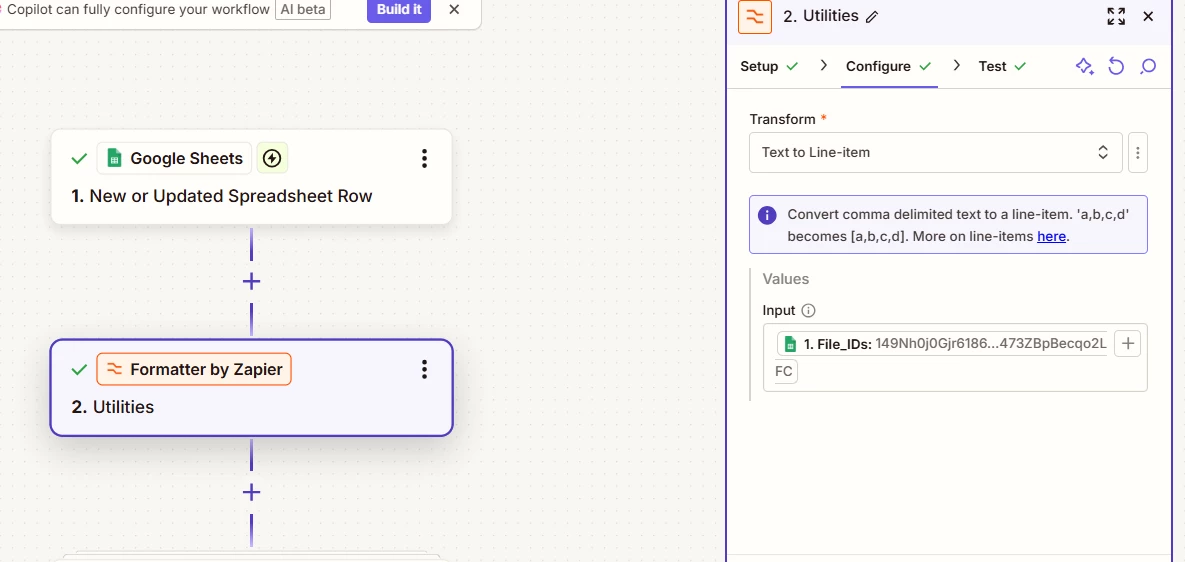
  1. I find the appropriate file names & file IDs via lookup spreadsheet rows
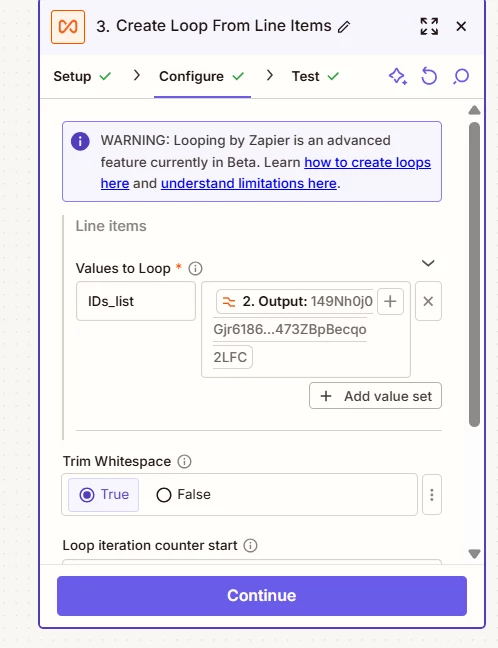
  2. Put it through a looping process
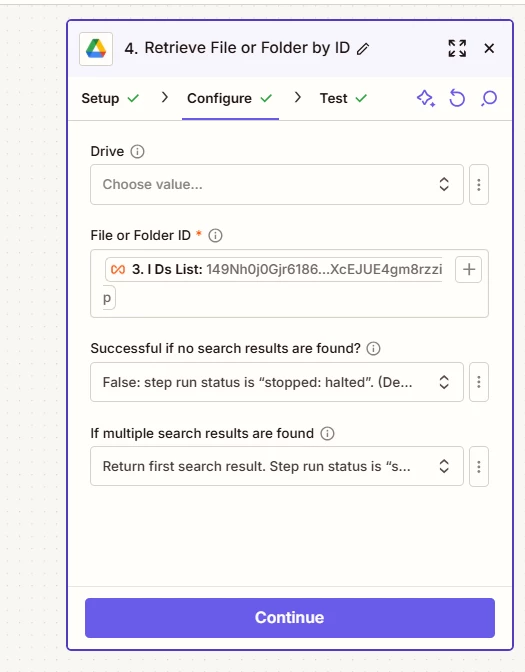
  3. Use the find file action for Google Drive
  4. Use formatter to add all the files together
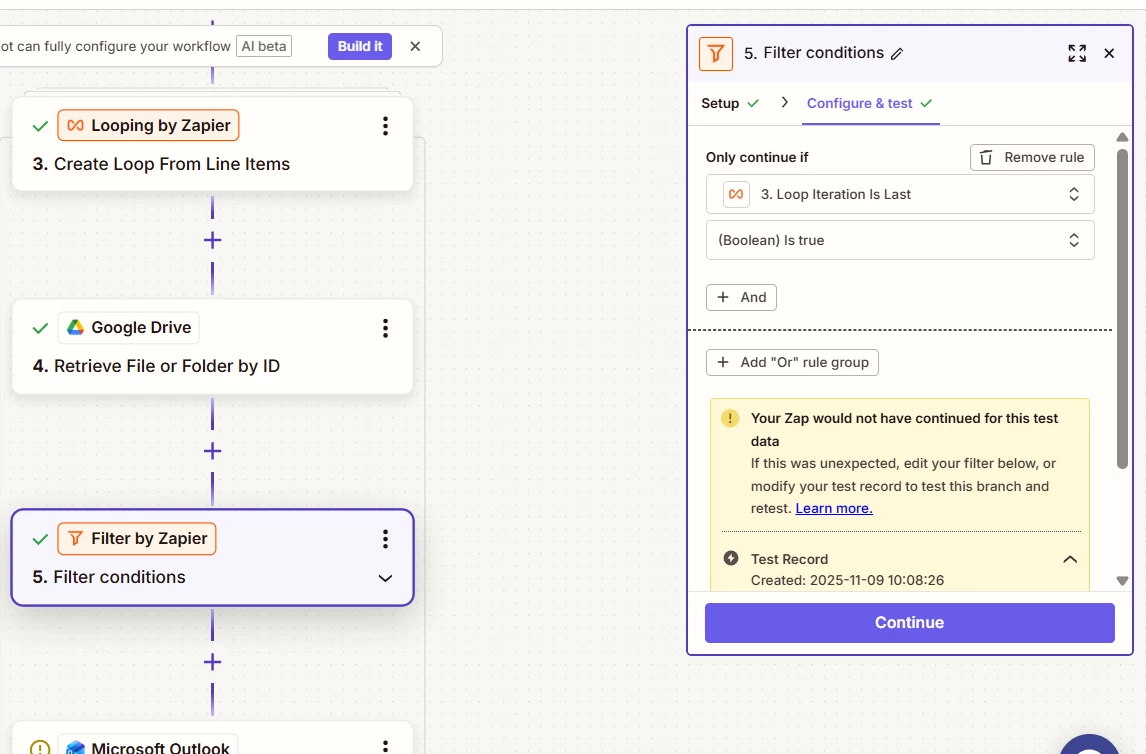
  5. Filter to end the loop
  6. Send off Outlook email with attachment (it comes up as a aws zapier link)

My issue is this process only sends out the final attachment in the process, and the other attachments get stopped in the loop.

Any help/support would be grately appreciated

10 replies

Troy Tessalone
Zapier Orchestrator & Solution Partner
Forum|alt.badge.img+14
  • Zapier Orchestrator & Solution Partner
  • November 9, 2025

Hi ​@tobias.gould1 

Help links for using files in Zaps: https://help.zapier.com/hc/en-us/articles/8496288813453-Send-files-in-Zaps


Loops run in parallel unless programmed to run sequentially.

How to do sequential looping: 


You probably need to use one of these options:


For us to have true context, post screenshots showing how your Zap steps are outlined in order and configured in the CONFIGURE tab while in EDIT mode.


  • Author
  • Beginner
  • November 9, 2025

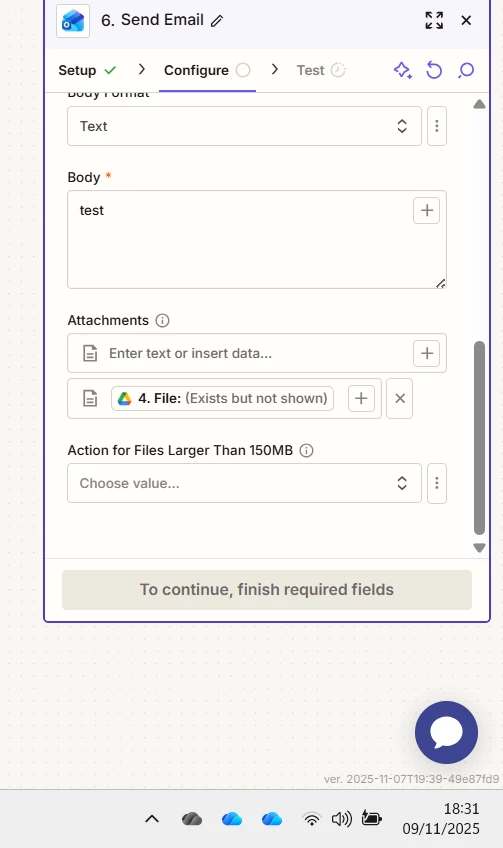
Thanks for getting back to me so quickly - these are the breakdowns of the steps I am currently using - do i just need to change it to a sequential loop? Thanks


  • Author
  • Beginner
  • November 9, 2025


  • Author
  • Beginner
  • November 9, 2025


Troy Tessalone
Zapier Orchestrator & Solution Partner
Forum|alt.badge.img+14
  • Zapier Orchestrator & Solution Partner
  • November 9, 2025

@tobias.gould1 

If you already have the file IDs in the GSheet, then you probably want to use a different approach that does not involve looping with the GDrive Find File step.


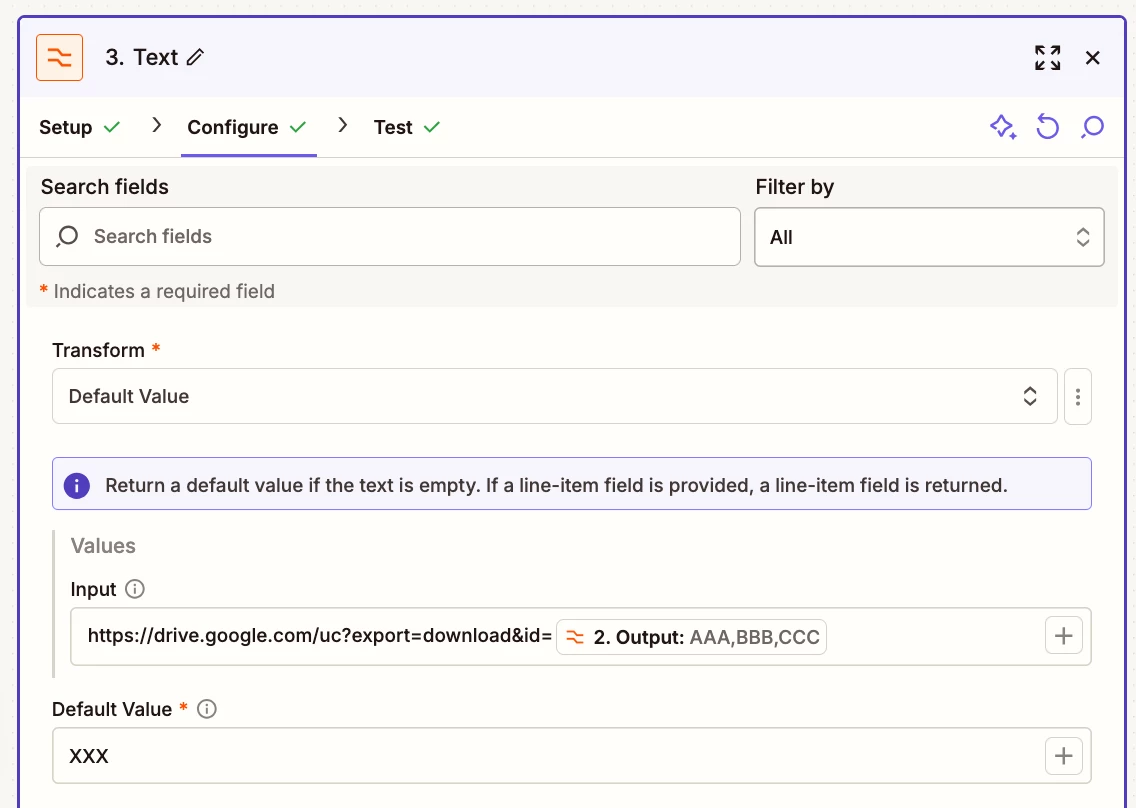
Instead, add this as Zap step 3.

Zap action: Formatter > Text > Default Value

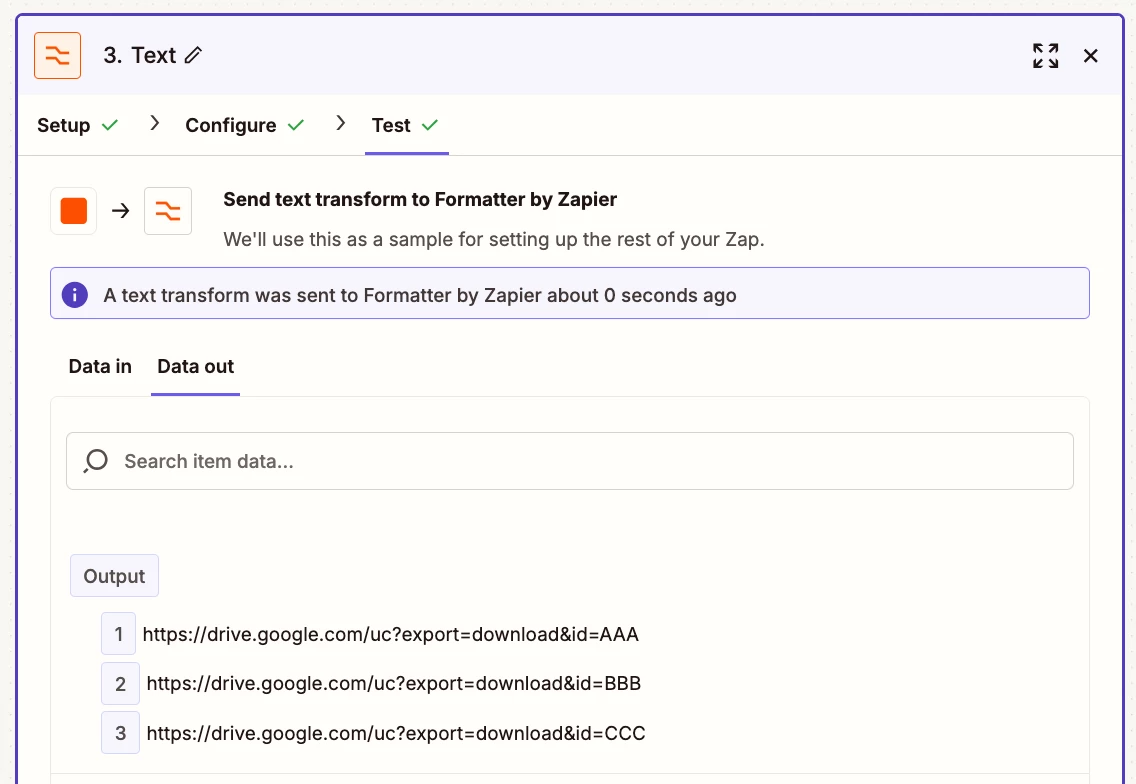
See screenshots below for how to configure.


Then map the output of the Formatter Step 3 to the Outlook Send Email Attachments field.


GDrive File direct download link format: https://drive.google.com/uc?export=download&id=XXX

Replace XXX with the GDrive File ID.

Make sure the GDrive Files are publicly accessible.


Utility to use to get the direct download link format for a GDrive file: https://sites.google.com/site/gdocs2direct/

Help links for different GDrive File link formats: 


###


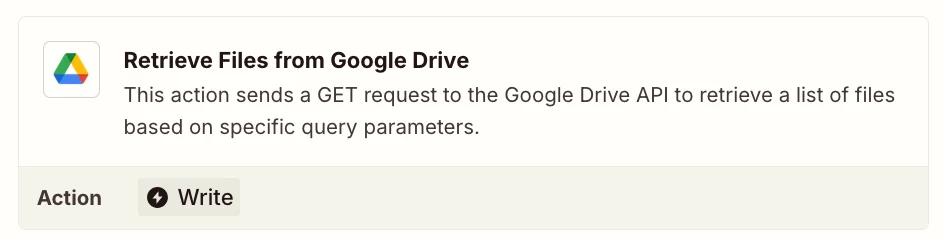
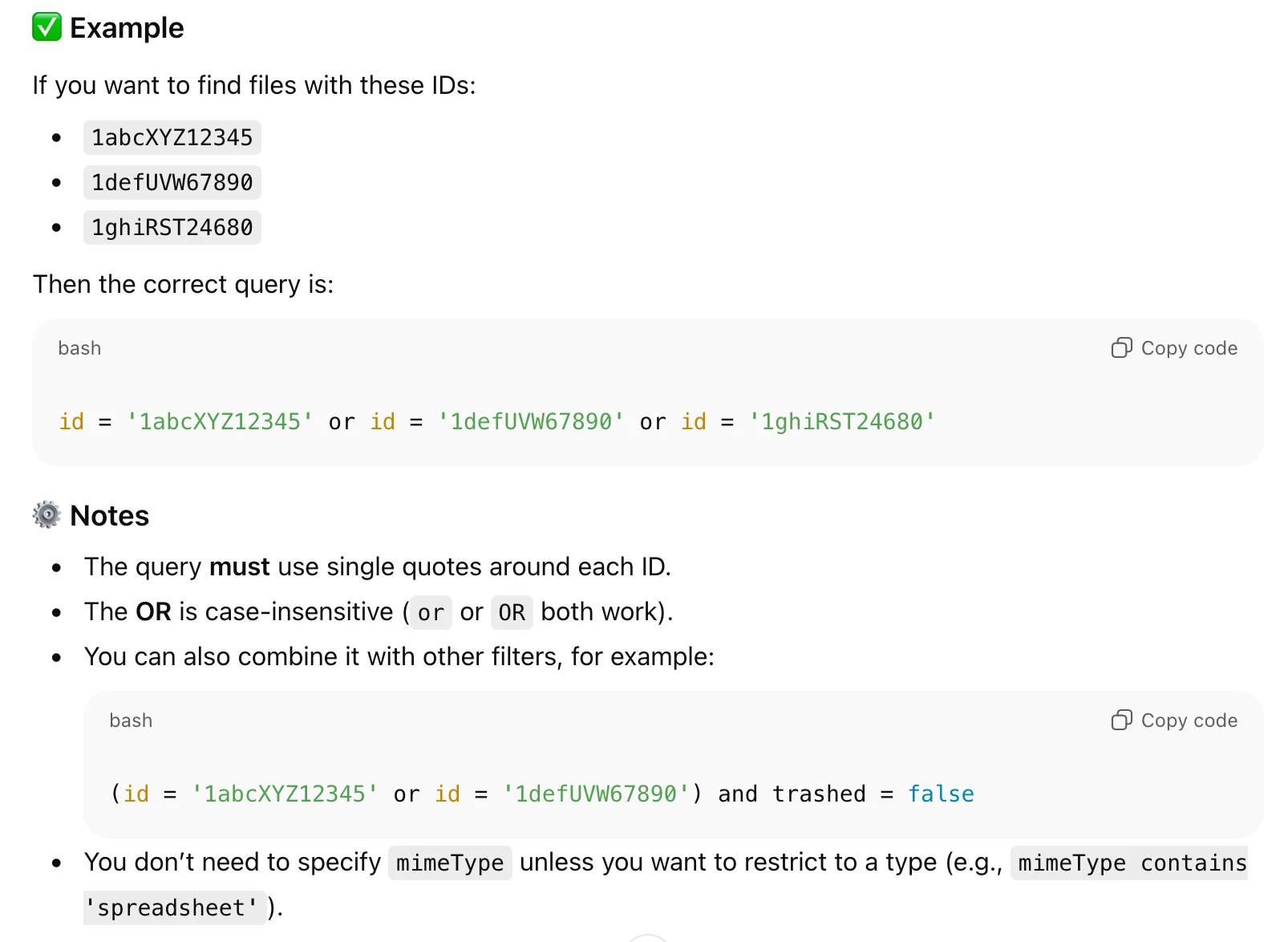
As an alternative approach, try using this Zap action: GDrive - Retrieve Files from GDrive

Ask ChatGPT to help you with the Custom Query syntax.


###

For context related to your original Zap step design approach…


If you are trying to get a list of GDrive files to send as email attachments, then you need to aggregate those found GDrive Files and find the array of aggregated files before mapping the files to be email attachments.


You probably need to use one of these options:


  • Author
  • Beginner
  • November 9, 2025

Thank you - sorry if I am being silly but after I have created the https://drive.google.com/uc?export=download&id=XXX links - can I put the output of that straight into an attachment? i did this and it failed to send, then I put them into formatter to convert to line items and then added but that just sent blank attachments.


or do I have do what you are suggesting re storage/digest/tables?


Thanks,


Toby


Troy Tessalone
Zapier Orchestrator & Solution Partner
Forum|alt.badge.img+14
  • Zapier Orchestrator & Solution Partner
  • November 9, 2025

@tobias.gould1 

Make sure the GDrive Files are publicly accessible direct download links.


We would need to see updated screenshots with how your Zap steps are outlined and configured.


  • Author
  • Beginner
  • November 9, 2025

Ah so this has sensitive info so im unable to do this - can I just edit so its only visible if download links only?


Troy Tessalone
Zapier Orchestrator & Solution Partner
Forum|alt.badge.img+14
  • Zapier Orchestrator & Solution Partner
  • November 9, 2025

@tobias.gould1 

You can redact sensitive info (variable values) and still show us how the Zap steps are outlined and configured.


  • Author
  • Beginner
  • November 9, 2025

Thank you Troy - I spent countless hours on ChatGPT trying to resolve this, which was completely useless, you have saved me a lot of time! Appreciate your help