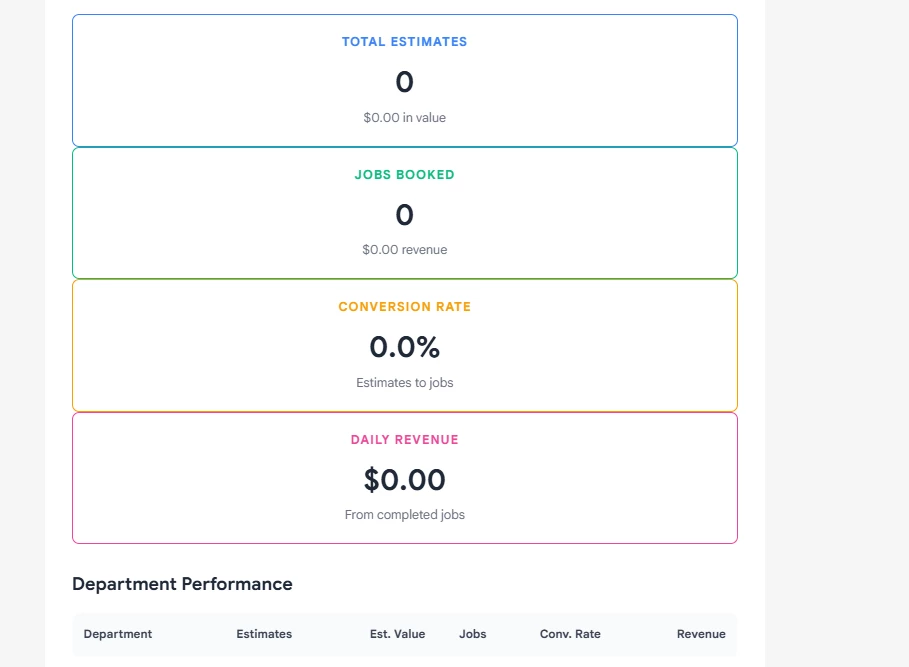
I cant get zap to pull actual data. The tests say no errors. Each morning a blank report is generated.
What am I missing. I’ve tried other AI’s to try and figure it out. Zapier is configured with HCP. API keys have been confirmed.
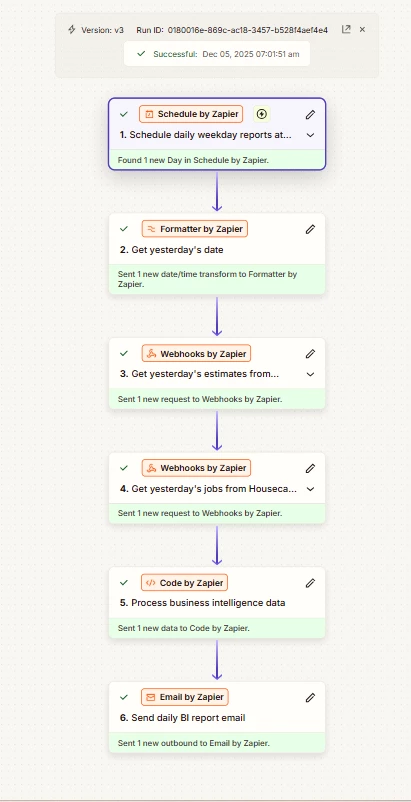
This is an automated business intelligence reporting system that runs every weekday morning at 7:00 AM. Here's what it does:
Workflow:
-
Schedule Trigger → Runs every weekday at 7:00 AM
-
Get Yesterday's Date → Calculates yesterday's date and formats it as MM/DD/YYYY
-
Pull Estimates Data → Calls the Housecall Pro API to fetch all estimates created yesterday
-
Pull Jobs Data → Calls the Housecall Pro API to fetch all jobs created yesterday
-
Process Intelligence → A Code step analyzes the raw API data and calculates:
- Total estimates and their total value
- Total jobs booked and revenue generated
- Conversion rate (% of estimates that became jobs)
- Department breakdown (HVAC, Plumbing, Other) with metrics for each
- Technician performance details
- each tech's calls, estimate values, line items, and sales
-
Send Email Report → Emails the formatted HTML report to XXXXX@XXXXXXXXXXX.com with:
- Summary cards (estimates, jobs, conversion rate, revenue)
- Department performance table
- Detailed technician-by-technician breakdown with call history
Bottom Line:
Every weekday morning, you automatically get a comprehensive performance report showing yesterday's business metrics—estimates, conversions, revenue, and which technicians are closing the most deals.
-
Detailed Step-by-Step Breakdown
Step 1: Schedule Daily Weekday Reports at 7:00 AM
- App: Schedule by Zapier
- Action: Every day
- Settings:
- Time: 7:00 AM
- Skip Weekends: Yes (only runs Mon-Fri)
- Output: Provides trigger data (date/time) for subsequent steps
Step 2: Get Yesterday's Date
- App: Formatter by Zapier
- Action: Format date/time
- Settings:
- Transform: Add/Subtract Time
- Input:
{{337479234__id}}(trigger date) - Expression:
-1 day(subtract one day from today) - Output Format:
MM/DD/YYYY(e.g., 01/22/2025)
- Output: Yesterday's date in MM/DD/YYYY format (used in API calls and email)
Step 3: Get Yesterday's Estimates from Housecall Pro
- App: Webhook by Zapier
- Action: GET request
- Settings:
- URL:
https://api.housecallpro.com/estimates - Query Parameters:
date_created_start:{{337479235__output}}(yesterday's date)date_created_end:{{337479235__output}}(same date for 24-hour window)
- Headers:
Authorization: Bearer token (your API key)Accept: application/json
- Response Format: JSON
- URL:
- Output: All estimate records created yesterday (customer info, technician assignments, line items, values)
Step 4: Get Yesterday's Jobs from Housecall Pro
- App: Webhook by Zapier
- Action: GET request
- Settings:
- URL:
https://api.housecallpro.com/jobs - Query Parameters:
date_created_start:{{337479235__output}}(yesterday's date)date_created_end:{{337479235__output}}
- Headers: Same authorization as Step 3
- Response Format: JSON
- URL:
- Output: All job records created yesterday (linked estimates, revenue, completion status)
Step 5: Process Business Intelligence Data
- App: Code by Zapier
- Action: Custom JavaScript code
-
Inputs:
- Report date:
{{337479235__output}} - Day of week:
{{337479234__pretty_day_of_week}} - Estimates data:
{{337483292__json}} - Jobs data:
{{337483406__json}}
- Report date:
-
Processing Logic:
- Parse API responses
- Converts Housecall Pro JSON into analyzable format
- Extract technician names
- Gets tech names from assigned employees
- Count line items
- Tallies options/line items per estimate
- Calculate estimate values
- Sums all option values
- Map departments
- Categorizes as HVAC, Plumbing, or Other
- Calculate metrics:
- Total estimates and total estimate value
- Total jobs booked and total revenue
- Conversion rate (% of estimates → jobs)
- Department-by-department performance
- Technician-by-technician call breakdown
- Generate HTML tables:
- Department performance summary
- Detailed technician call history with dates, values, line items, and conversion status
- Parse API responses
-
Output: Structured data object with all calculations and formatted HTML for email
Step 6: Send Daily BI Report Email
- App: Email by Zapier
- Action: Send email
-
Settings:
- To: XXXXX@XXXXXXXXXXX.com
- From Name: Midstate Plumbing BI System
-
Subject:
Midstate Plumbing Daily Performance Report - {{337482046__reportDate}} -
Email Body: Professional HTML template with:
- Header: Blue gradient banner with company name and report date
- 4 Summary Cards:
- Total Estimates (count + dollar value)
- Jobs Booked (count + revenue)
- Conversion Rate (percentage)
- Daily Revenue (total from jobs)
- Department Performance Table: Lists each department with estimates, values, jobs, conversion %, and revenue
- Technician Performance Details: Separate table for each technician showing:
- Call date
- Day of week
- Call number (sequential)
- Estimate value
- Line item count
- Whether it was sold (Yes/No)
- Footer: Timestamp and data source reference
Data Flow Summary:
Trigger (7 AM)
  ↓
Get Yesterday's Date (MM/DD/YYYY format)
  ↓
Fetch Estimates API + Fetch Jobs API (parallel)
  ↓
Process & Calculate Metrics (Code step)
  ↓
Send Formatted HTML Email
This entire workflow runs automatically every weekday morning at 7:00 AM, pulling yesterday's complete business data and sending you a comprehensive performance analysis within minutes.
This post has been edited by a moderator to remove personally identifiable information (PII). Please remember that this is a public forum and avoid sharing personal or potentially sensitive details.