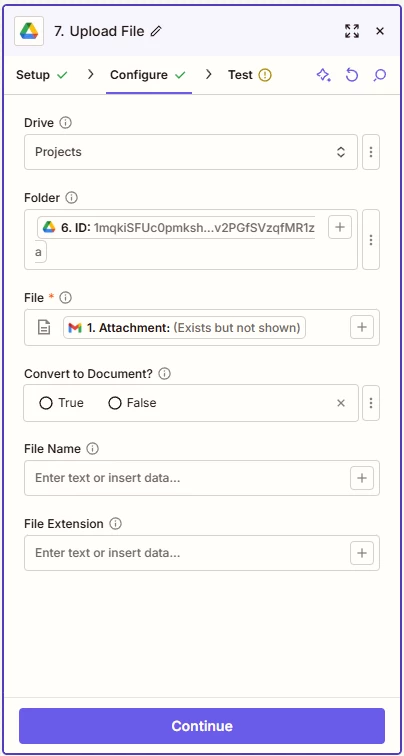
I’m trying to create a Zap that triggers when a specific email is received with an attachment (.csv file type). The attachment file is then to be uploaded to a specific google drive folder (based on the file name of the attachment). I’ve retrieved the specific subfolder Google Drive ID in a prior step, and when I attempt to upload the file and test the step I get an error “
Failed to create a file in Google Drive. The app returned ‘Access Denied’.
However, this error only seems to arise when uploading the “Attachment” field from the Gmail trigger. If I attempt to upload another field, such as the Attachment File Name as a txt file, this is successful. I should have full access permissions as I am the administrator of the Google workspace account.
Make sure you are using a fresh Zap trigger example to test as the file objects are temp files that expire
The combo of Drive/Folder may be invalid
Zapier Google Drive error explanation
Error: Failed to create a file in Google Drive. The app returned “Access Denied”.
What it means Zapier is authenticated to Google Drive, but the specific location or permission required to create the file is not allowed for the connected Google account.
Most common causes
Folder permission mismatch The target folder is owned by another user or a Shared Drive and the connected account only has Viewer or Commenter access. File creation requires Editor or Manager access.
Shared Drive restrictions The folder is in a Shared Drive and the Zap is not configured to create files in Shared Drives, or the account lacks Content Manager or higher permissions.
Disconnected or outdated Google authorization The Google Drive connection token is expired or missing required scopes after a permission change.
Invalid or stale folder ID The folder was deleted, moved, or the Zap is referencing a cached folder ID that no longer exists or is no longer accessible.
Domain or admin policy block Google Workspace admin settings restrict third-party apps from creating files in certain folders or Shared Drives.
How to fix
Verify the connected Google account has Editor or higher access to the exact folder.
If using a Shared Drive, ensure the account is Content Manager or Manager, and reselect the folder in the Zap step.
Reconnect Google Drive in Zapier to refresh permissions.
Manually reselect the destination folder instead of relying on a mapped folder ID.
Check Workspace admin settings for third-party app restrictions.
Quick diagnostic If the same account cannot manually upload a file to that folder in Google Drive, Zapier will also fail with “Access Denied”.
Make sure you are using a fresh Zap trigger example to test as the file objects are temp files that expire
The combo of Drive/Folder may be invalid
Zapier Google Drive error explanation
Error: Failed to create a file in Google Drive. The app returned “Access Denied”.
What it means Zapier is authenticated to Google Drive, but the specific location or permission required to create the file is not allowed for the connected Google account.
Most common causes
Folder permission mismatch The target folder is owned by another user or a Shared Drive and the connected account only has Viewer or Commenter access. File creation requires Editor or Manager access.
Shared Drive restrictions The folder is in a Shared Drive and the Zap is not configured to create files in Shared Drives, or the account lacks Content Manager or higher permissions.
Disconnected or outdated Google authorization The Google Drive connection token is expired or missing required scopes after a permission change.
Invalid or stale folder ID The folder was deleted, moved, or the Zap is referencing a cached folder ID that no longer exists or is no longer accessible.
Domain or admin policy block Google Workspace admin settings restrict third-party apps from creating files in certain folders or Shared Drives.
How to fix
Verify the connected Google account has Editor or higher access to the exact folder.
If using a Shared Drive, ensure the account is Content Manager or Manager, and reselect the folder in the Zap step.
Reconnect Google Drive in Zapier to refresh permissions.
Manually reselect the destination folder instead of relying on a mapped folder ID.
Check Workspace admin settings for third-party app restrictions.
Quick diagnostic If the same account cannot manually upload a file to that folder in Google Drive, Zapier will also fail with “Access Denied”.
Make sure you are using a fresh Zap trigger example to test as the file objects are temp files that expire
The combo of Drive/Folder may be invalid
Regarding the second bullet point, I am certain the folder ID is within the specified Drive.
I believe your first bullet point may be the issue. I published the zap regardless of the error and sent a new trial file to trigger the zap. It functioned as required and uploaded the file properly.
Glad to hear Troy was able to point you in the right direction and that it worked correctly once the Zap was published. Just wanted to double-check whether it’s still working as expected?
Want to make sure you’re all set! 🙂
Early access
Next Gen Zaps
Build and deploy automations from AI tools you already use. With Agentic Management, if anything breaks, the agent diagnoses the issue and proposes a fix.