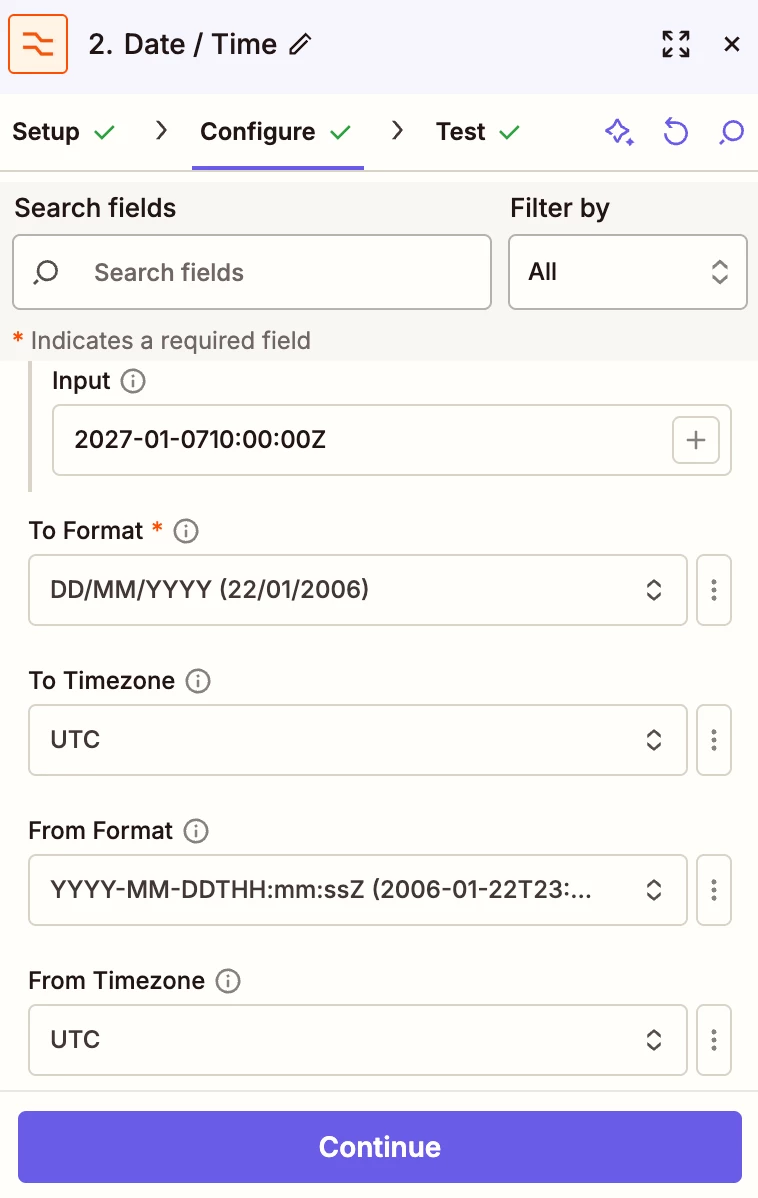
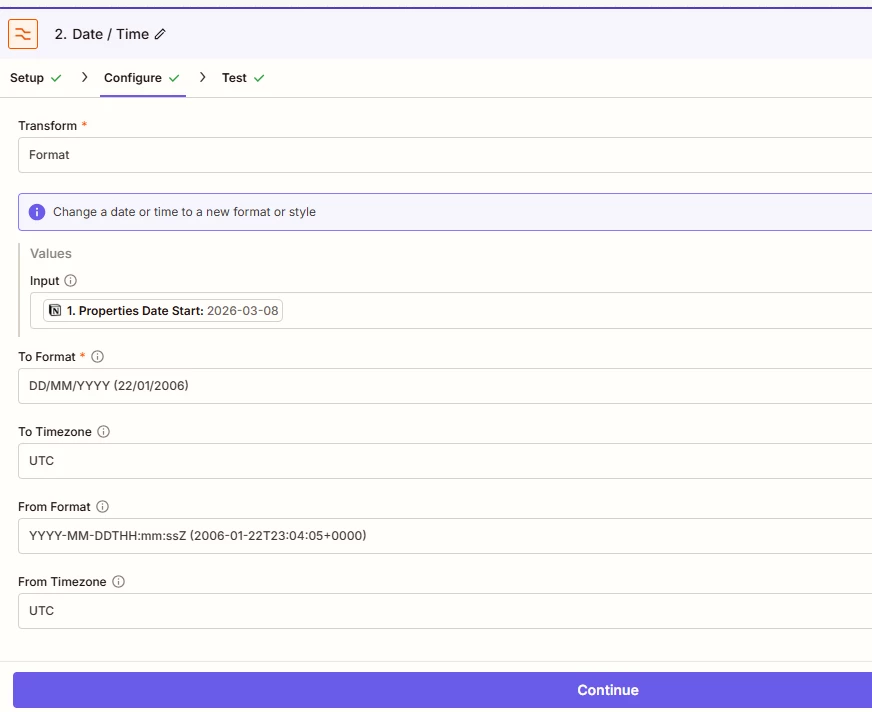
I’m having an issue with the Formatter → Date / Time step in my Zap. I need to transform dates from my source (Notion/Sheets) so that:
The timezone is correctly applied.
Only the date part is kept, without the time.
The output format can be DD/MM/YYYY.
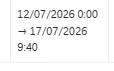
Currently, when I apply the timezone transformation, the output sometimes includes the time, or the date seems shifted unexpectedly. I want the formatted date to be consistent for filter steps and comparisons, regardless of the time.
Could you please advise the correct configuration to:
Apply timezone conversion.
Keep only the date (ignore the hour).
Output in a specific format like DD/MM/YYYY.
Best answer by SamB
Hi there @Learning together 👋
I just saw you reached out to our Support team about this and they suggested adding the time directly into the search action field where the formatted date is being used instead. Sharing their suggestion here in case it’s helpful to others with the same issue:
When searching for a data source item by a date field, Zapier expects to read the time and timezone associated with that date based on your Zapier account settings. As you found, this behavior can have unintended consequences when you are trying to search for a date only, often causing the search to fail or find the wrong item due to timezone conversion.
To resolve this, you can override Zapier’s default time and timezone setting for these Notion date fields by manually appending a specific time suffix to the date value you are using in your search.
Next Step
In the field where you are mapping the date for your search, ensure the date is followed immediately by the text T00:00-0000.
This suffix represents 12:00am in UTC. Adding this ensures that Zapier ignores your account's local timezone settings for this step and treats the value strictly as a date-only reference, allowing it to match the existing items in Notion correctly.
Hello @Learning together Best practice is to split this into two Formatter steps.
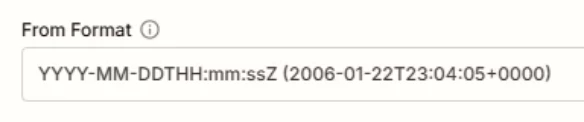
Step 1 Formatter by Zapier Event: Date / Time Input: original date Timezone: set your correct timezone Leave From Format and To Format empty This normalizes the date into the right timezone.
Step 2 Formatter by Zapier Event: Date / Time Transform: Format Input: output from step 1 To Format: DD/MM/YYYY Leave Timezone empty This removes the time and keeps the date stable for filters and comparisons.
I just saw you reached out to our Support team about this and they suggested adding the time directly into the search action field where the formatted date is being used instead. Sharing their suggestion here in case it’s helpful to others with the same issue:
When searching for a data source item by a date field, Zapier expects to read the time and timezone associated with that date based on your Zapier account settings. As you found, this behavior can have unintended consequences when you are trying to search for a date only, often causing the search to fail or find the wrong item due to timezone conversion.
To resolve this, you can override Zapier’s default time and timezone setting for these Notion date fields by manually appending a specific time suffix to the date value you are using in your search.
Next Step
In the field where you are mapping the date for your search, ensure the date is followed immediately by the text T00:00-0000.
This suffix represents 12:00am in UTC. Adding this ensures that Zapier ignores your account's local timezone settings for this step and treats the value strictly as a date-only reference, allowing it to match the existing items in Notion correctly.
It seems that it's not possible to specify a time zone without also specifying a time, even if that time is 12:00 a.m. T00:00-0000
Seems like you might be all set on this issue for now, but please do reach back out if that’s not the case. In the meantime, happy Zapping! ⚡
Early access
Next Gen Zaps
Build and deploy automations from AI tools you already use. With Agentic Management, if anything breaks, the agent diagnoses the issue and proposes a fix.