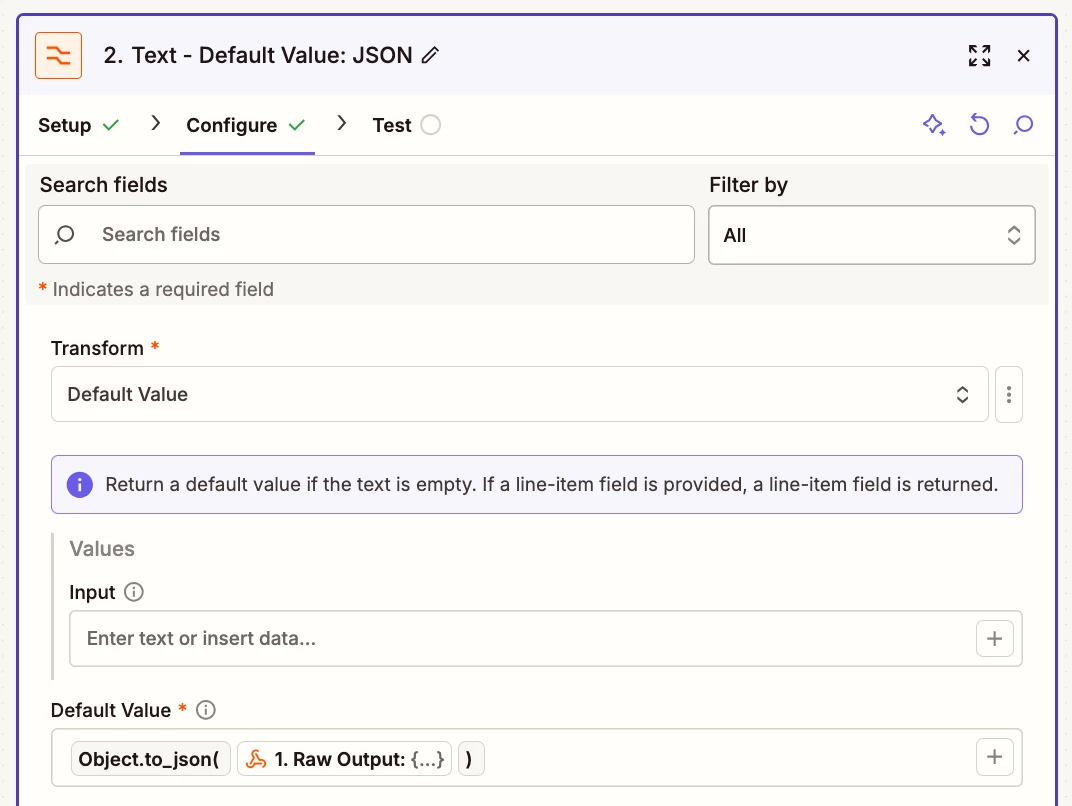
Hi Zapier Community,
When I made my Zap live and submitted a new submission from my connected Elfsight form, Zapier was able to differentiate between the fields that share the same label in the output. However, all of the fields came through jumbled in GorillaDesk (my CRM software). This appears to be because, during the Zap setup, there is no way for me to tell which field is which. In the editor, the fields are displayed with identical names and do not show the unique Field ID, nor are they listed in the order they appear in my form, so I cannot map them correctly—even though the live submission shows that they are distinct in the backend. The AI assistant is unable to do it either as it appears it too cannot differentiate between them.
In other words, the form works correctly once it’s live, but the setup process itself is extremely difficult to complete because I cannot identify which duplicate-labeled field corresponds to which one in the Zap editor. See accompanying screenshots attached showing the issue.
For reference, the four addresses I submitted in the Elfsight form test submission were:
- 1 Test Street, Test Address Line 1, Suburb1 State1 5001 – Daycare 1 – Owned by us 1
- 2 Test Street, Test Address Line 2, Suburb2 State2 5002 – Daycare 2 – Owned by us 2
- 3 Test Street, Test Address Line 3, Suburb3 State3 5003 – Daycare 3 – Owned by us 3
- Billing Address: B Test Street, Test Address Line B, SuburbB StateB 5004
Do you have any suggestions on how I can correctly configure the Zap when I’m unable to differentiate between fields that share the same label during setup? I’m on the free Zapier plan, FYI.
Thank you for any assistance you can provide.
This post has been edited by a moderator to remove potentially personally identifiable information (PII). Please remember that this is a public forum and avoid sharing personal or potentially sensitive details.