
Best answer

Workarounds for the 500 google sheet lookup limit without having to separate sheets

  • February 14, 2025
  • 7 replies
  • 192 views

Forum|alt.badge.img

I have run into the problem where the google sheet lookup allows you to lookup a maximum of 500 rows. My sheet has already exceeded 1000 so the start from bottom approach won’t work. 

My Zap feels quite complex in what its trying to achieve, and seprating my business partners into separate sheets and separate zaps will cause duplicate emails if there locations are in different regions.

Can anyone help think of an apporach that will allow me to keep everything in one sheet or one zap? 


Many thanks in advance.


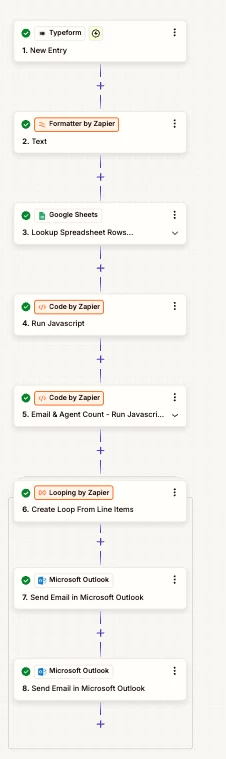
  1. Customer populates their requirements. They specify a location(s)
  2. As most will specify more than 1 location, i need to separate the typeform data into line items
  3. The lookup row uses a common field across the entire spreadsheet to ‘get’ the rows into the zap. But this is where all my agents exist
  4. The code does some smart stuff to find the agents associated to the locations 
  5. This code de-duplciates
  6. The loop iterates on all the agents in the sheet (this is why it all needs to be in one place)
  7. Send email to the agents with the requirements. If it was separate sheets, the email would get fired each time where as now its nice and succinct. 
  8. Email back to the customer with summary of their requirements. 
 

Best answer by escalateur.com

Hi! Did you think of:

  • Changing the Lookup step for a “Get many rows” step
  • Replicate this block as much as needed: if you have 1,500-2,000 rows, make 4 of these blocks
  • Each time, change the “First Row” param (1, 501, 1001, 1501...)
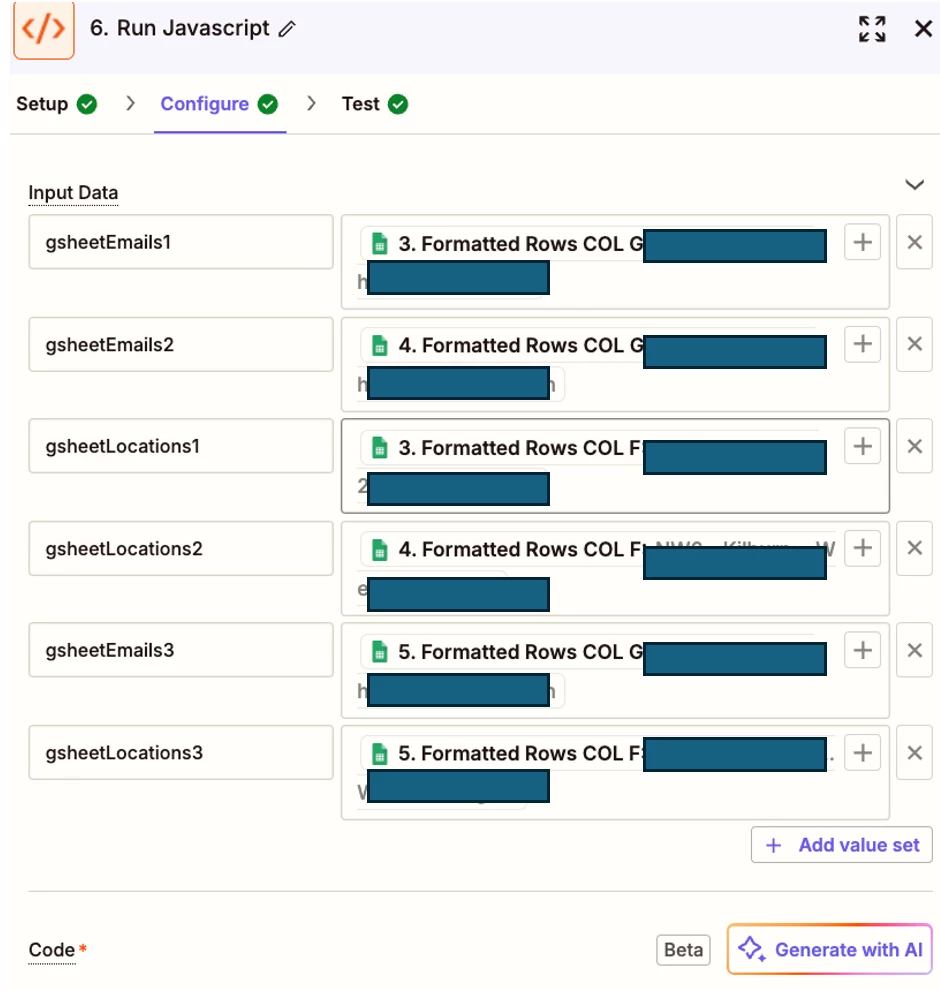
  • Finally just patch the outputs together in your Code JS step. Just make sure to put a comma between each output, so the code will remain able to correctly turn this big string back into an array. Something like: agent_emails = {{GSheets_Step_1_Col_B}},{{GSheets_Step_2_Col_B}},{{GSheets_Step_3_Col_B}},{{GSheets_Step_4_Col_B}}

Hopefully this can help :)

This post has been closed for comments. Please create a new post if you need help or have a question about this topic.

7 replies

escalateur.com

Hi! Did you think of:

  • Changing the Lookup step for a “Get many rows” step
  • Replicate this block as much as needed: if you have 1,500-2,000 rows, make 4 of these blocks
  • Each time, change the “First Row” param (1, 501, 1001, 1501...)
  • Finally just patch the outputs together in your Code JS step. Just make sure to put a comma between each output, so the code will remain able to correctly turn this big string back into an array. Something like: agent_emails = {{GSheets_Step_1_Col_B}},{{GSheets_Step_2_Col_B}},{{GSheets_Step_3_Col_B}},{{GSheets_Step_4_Col_B}}

Hopefully this can help :)


Forum|alt.badge.img
  • Author
  • Beginner
  • February 15, 2025

@escalateur.com you legend, this worked!! It took a bit of effort to get the code right but once it worked, it worked perfectly.

Thank you so much!


escalateur.com

My pleasure, thanks for letting me know 😃


SamB
Community Manager
Forum|alt.badge.img+11
  • Community Manager
  • February 17, 2025

Awesome to see this solved—great teamwork! 🙌 ​@escalateur.com, really appreciate you helping out here! 🧡

@jordan_nest, since you mentioned the code took a bit of effort to get it working, would you be open to sharing a screenshot (be sure to blur or remove any personal or sensitive information) of your final version? It could be really helpful for others who run into the same challenge. No pressure, just thought I’d ask! 😊


Forum|alt.badge.img
  • Author
  • Beginner
  • February 18, 2025

My pleasure ​@SamB 


// Retrieve input variables from the "input" object; default to empty arrays if undefined

let gsheetEmails1 = input.gsheetEmails1 || [];

let gsheetEmails2 = input.gsheetEmails2 || [];

let gsheetEmails3 = input.gsheetEmails3 || [];

let gsheetLocations1 = input.gsheetLocations1 || [];

let gsheetLocations2 = input.gsheetLocations2 || [];

let gsheetLocations3 = input.gsheetLocations3 || [];


// Ensure each input is an array (if not, wrap it in an array)

gsheetEmails1 = Array.isArray(gsheetEmails1) ? gsheetEmails1 : [gsheetEmails1];

gsheetEmails2 = Array.isArray(gsheetEmails2) ? gsheetEmails2 : [gsheetEmails2];

gsheetEmails3 = Array.isArray(gsheetEmails3) ? gsheetEmails3 : [gsheetEmails3];

gsheetLocations1 = Array.isArray(gsheetLocations1) ? gsheetLocations1 : [gsheetLocations1];

gsheetLocations2 = Array.isArray(gsheetLocations2) ? gsheetLocations2 : [gsheetLocations2];

gsheetLocations3 = Array.isArray(gsheetLocations3) ? gsheetLocations3 : [gsheetLocations3];


// Merge the arrays and filter out any falsey values (like empty strings or null)

let agentEmails = [...gsheetEmails1, ...gsheetEmails2, ...gsheetEmails3].filter(Boolean);

let agentLocations = [...gsheetLocations1, ...gsheetLocations2, ...gsheetLocations3].filter(Boolean);


// Convert each array to a string, with each item on its own line and ending in "[:space:]"

let agentEmailsLineItems = agentEmails.map(email => `${email} [:space:]`).join('\n');

let agentLocationsLineItems = agentLocations.map(location => `${location} [:space:]`).join('\n');


// Return the final text

return {

agentEmails: agentEmailsLineItems,

agentLocations: agentLocationsLineItems

};


ken.a
Forum|alt.badge.img+6
  • Zapier Staff
  • February 19, 2025

Hi ​@jordan_nest,

Thank you for sharing your code with our Community members! Your contribution is truly appreciated!

If you have any other questions, please don’t hesitate to reach out to the Community. We’re always happy to help! 🤗


SamB
Community Manager
Forum|alt.badge.img+11
  • Community Manager
  • February 19, 2025

Thanks so much for sharing the setup and code you used, ​@jordan_nest! 🤗 🧡