

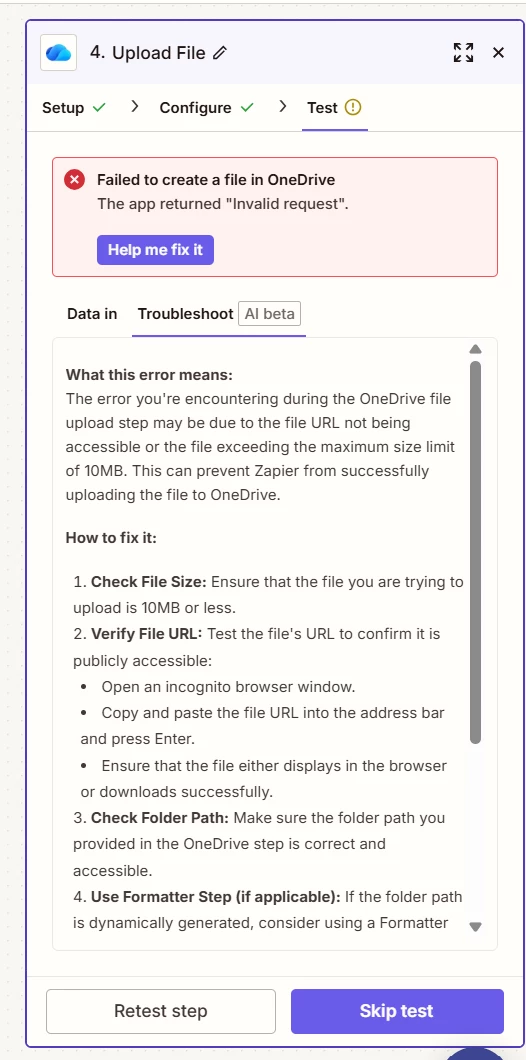
I am trying to figure out how to create an automation to have emails from a specific email address automatically uploaded to OneDrive. This doesn’t seem that hard to create but the part I’m having difficulties with is specifying a folder in my company’s shared OneDrive to upload to.
I’ve tried explain this to Zapier’s copilot but it only give me a a selection of few folders to upload to. I’m not sure where to go from here. Can anyone help with this?

Question
Uploading emails from a specific email address automatically to OneDrive
- Beginner
This post has been closed for comments. Please create a new post if you need help or have a question about this topic.








Early access

Next Gen Zaps
Build and deploy automations from AI tools you already use. With Agentic Management, if anything breaks, the agent diagnoses the issue and proposes a fix.
Request access now
Enter your E-mail address. We'll send you an e-mail with instructions to reset your password.