
Best answer

Sheets tracking email interactions

  • June 10, 2020
  • 1 reply
  • 143 views

Hello, 

I’m looking into CRM systems but actually i only really need one function - contact tracking. 

Is there a way that i can get Zapier to log the date of the last interaction from contacts in my gmail inbox? I want to be able see when my last interaction is with a client to remind me to go back and contact them. 

E.g. i’m manually updating a spreadsheet at the moment, but i want to automate this and the contact row updated each time there is a email from a certain address. 
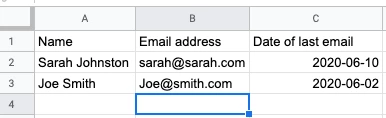
 

Any help or direction would be gratefully received!

Thanks! 

Best answer by Danvers

Hi @Alexstan! Welcome to the Community!

It looks like you could do what you need with the following Zap:

  1. Gmail - New email
  2. Google Sheets - Lookup Spreadsheet Row (tick the box that will create a new row if one isn’t found)
  3. Google Sheets - Update Row

Step 2 of the Zap will either find the row of an existing contact in the sheet or, if it can’t find one, it will create a new one. 


In step 3, you can tell the Zap which row to update by choosing the option ‘Custom’ (instead of picking a row from the dropdown list). In that field, put the Row ID that step 2 found (or created) and then update the ‘date’ column with the date of the email. 


If you need any more details for this, let us know!

This post has been closed for comments. Please create a new post if you need help or have a question about this topic.

1 reply

Danvers
Forum|alt.badge.img+12
  • Zapier Staff
  • 3731 replies
  • Answer
  • June 12, 2020

Hi @Alexstan! Welcome to the Community!

It looks like you could do what you need with the following Zap:

  1. Gmail - New email
  2. Google Sheets - Lookup Spreadsheet Row (tick the box that will create a new row if one isn’t found)
  3. Google Sheets - Update Row

Step 2 of the Zap will either find the row of an existing contact in the sheet or, if it can’t find one, it will create a new one. 


In step 3, you can tell the Zap which row to update by choosing the option ‘Custom’ (instead of picking a row from the dropdown list). In that field, put the Row ID that step 2 found (or created) and then update the ‘date’ column with the date of the email. 


If you need any more details for this, let us know!

