Answer

Salesforce to QuickBooks online for invoicing

  • January 26, 2023
  • 5 replies
  • 213 views

Forum|alt.badge.img+1

HI new to Zapier & needing help. I have 2 zaps working well, but cant get the 3rd to work.

I want to send information form SF to QB to create an invoice.

Steps:

1 - Trigger - salesforce record updated (to Order status) - all good

2 - Action: create invoice in QB online

        set up action: wants me to choose a customer from a list already in QB. The correct customer is the customer associated to the opportunity in salesforce. So I click “custom”. This gives me a list of all the fields in the SF opportunity (quantity, size, price etc), but not the fields LINKED to the opportunity (customer).

There is the option to add a search step, but I still cant get that to work.

Here is the logic:

for the updated SF opportunity record

find the linked contact object

select the customer name

Pass that to QB


Any thoughts would be appreciated.
Best answer by nicksimard

Hi @PinMaker!

The key to using the Custom option is to map the correct field. You can get an idea which field needs to be used by checking out the lighter grey text under the label when you click a dropdown.

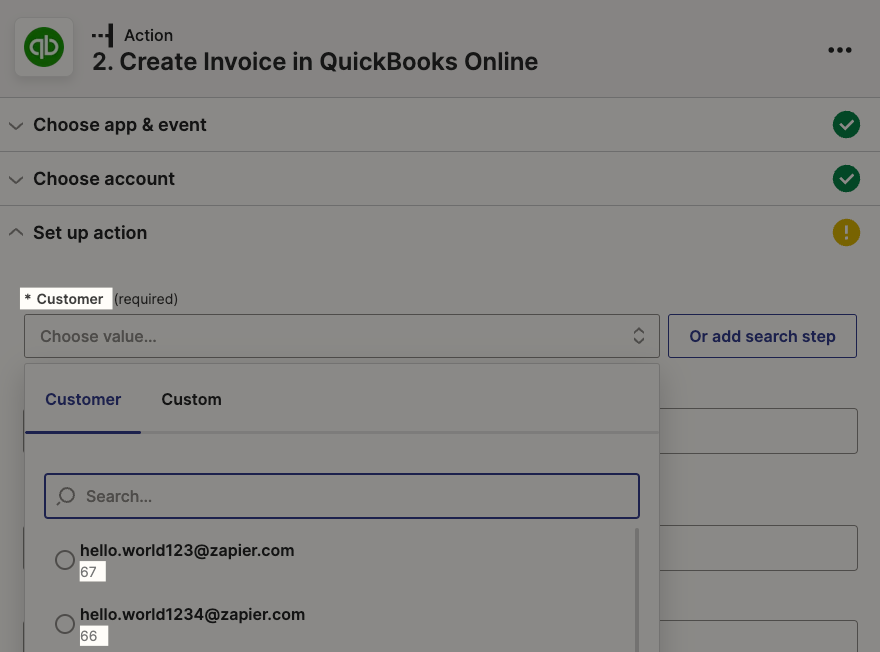
For example when you look at customers in a Create Invoice step you’ll see these values:


If you were to use the Custom tab, the value you would need from a QBO search step would look like that 66 and 67 (in other words, you’re looking for an ID rather than a name or email address).

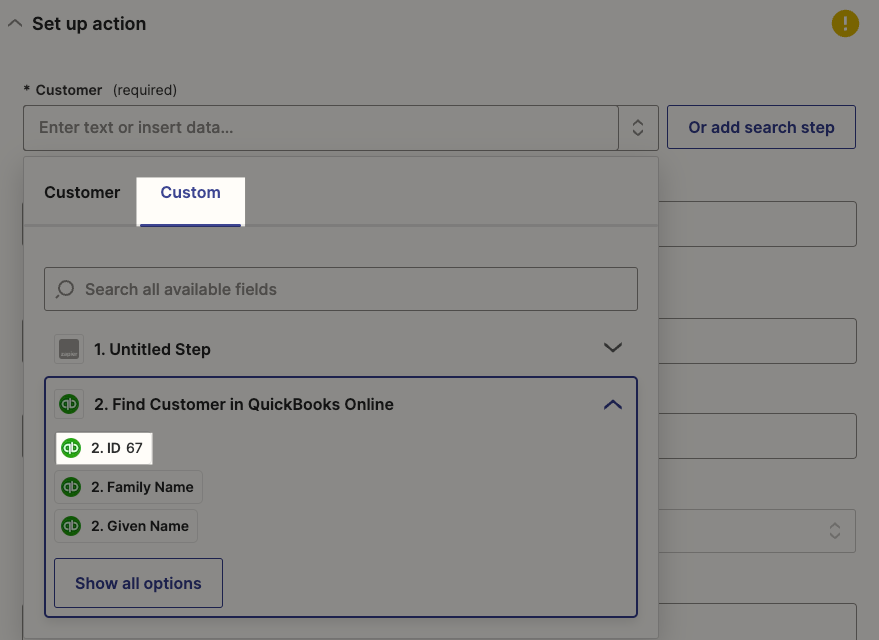
So, for customers in QBO you would map this field into your Create Invoice step:


Would you mind giving that a shot to see if it works for you?

This post has been closed for comments. Please create a new post if you need help or have a question about this topic.

5 replies

Troy Tessalone
Zapier Orchestrator & Solution Partner
Forum|alt.badge.img+14
  • Zapier Orchestrator & Solution Partner
  • January 26, 2023

Hi @PinMaker 

Good question.

For context, we’d need to see detailed screenshots with how your Zap steps are configured.

Each app will expect their internal IDs for those Contacts so you likely need to add search steps.


Salesforce should return the Contact ID of the linked Contact to the Opportunity.

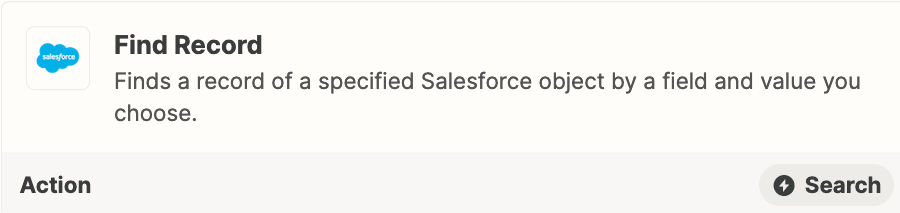
From there you can add a Zap step: Salesforce - Find Record


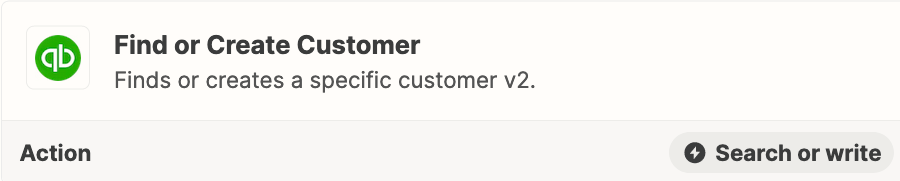
For QBO you may need to add this Zap action: QBO - Find/Create Customer

Then you can map the QBO Customer ID to the QBO Invoice.


nicksimard
Forum|alt.badge.img+11
  • Zapier Staff
  • Answer
  • January 26, 2023

Hi @PinMaker!

The key to using the Custom option is to map the correct field. You can get an idea which field needs to be used by checking out the lighter grey text under the label when you click a dropdown.

For example when you look at customers in a Create Invoice step you’ll see these values:


If you were to use the Custom tab, the value you would need from a QBO search step would look like that 66 and 67 (in other words, you’re looking for an ID rather than a name or email address).

So, for customers in QBO you would map this field into your Create Invoice step:


Would you mind giving that a shot to see if it works for you?


Forum|alt.badge.img+1
  • Author
  • Beginner
  • January 26, 2023

thank you both. will try again and let you know how I get on….


Forum|alt.badge.img+1
  • Author
  • Beginner
  • January 27, 2023

Its working THANK YOU


nicksimard
Forum|alt.badge.img+11
  • Zapier Staff
  • January 30, 2023

@PinMaker 

Yay! So great to hear that you got that working :) Thanks for letting us know.