Question

How to create Google Slides, export them as PDFs, and attach to a Gmail email

  • February 26, 2026
  • 2 replies
  • 25 views

This seems very simple but both Zapier AI and ChatGPT cannot solve this for me and we have now tried many different methods and combinations of apps (27 different attempts to be exact although at this point if I was repeating something I might not remember).

My automation is creating 3 different Google Slides from Templates.

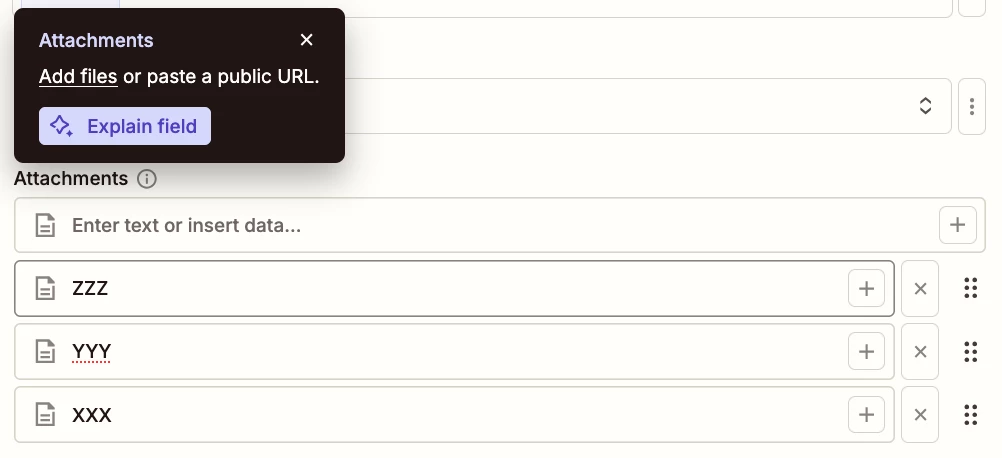
I then need those exported to PDF, and those PDFs attached to a single Gmail.

How can I do this?

Please help and thank you! 

 

2 replies

drtanvisachar
Forum|alt.badge.img+5
  • Zapier Solution Partner
  • February 26, 2026

Hey Sasha!

What’s usually going wrong in setups like this is that each Google Slides step outputs a separate file object, but Gmail’s attachment field expects files in a single line item or proper file array.

Clean way to do it:

  1. Create your three Google Slides from templates.

  2. After each one, add a “Export Presentation” step and choose PDF as the format.

  3. Now you’ll have three file objects.

  4. Add a Formatter step using “Utilities → Line-item to text” or “Create line item” and map the three PDF files into one line item array.

  5. In Gmail, use the “Attachments” field and map that combined line item output.

Important:

  • Make sure you are mapping the actual File object from the export step, not just the file ID or link.

  • Do not use the plain text attachment field. Use the file object field Zapier provides.

If this still fails, the issue is usually that one of the steps is returning a link instead of a true file object. In that case, you may need a “Webhooks → GET file” step to turn the link into a proper file object before attaching.

Dr. Tanvi Sachar
Monday Certified Partner, Monday Wizard


Troy Tessalone
Zapier Orchestrator & Solution Partner
Forum|alt.badge.img+14
  • Zapier Orchestrator & Solution Partner
  • February 26, 2026

Hi ​@Sashasasha 

Info below covers the different options for getting a GDrive File in PDF format.


Help link for using files in Zaps: https://help.zapier.com/hc/en-us/articles/8496288813453


Help link to reference about GDrive File link formats: 


GDrive File export format for PDF:

https://docs.google.com/document/d/DOC_FILE_ID/export?format=pdf


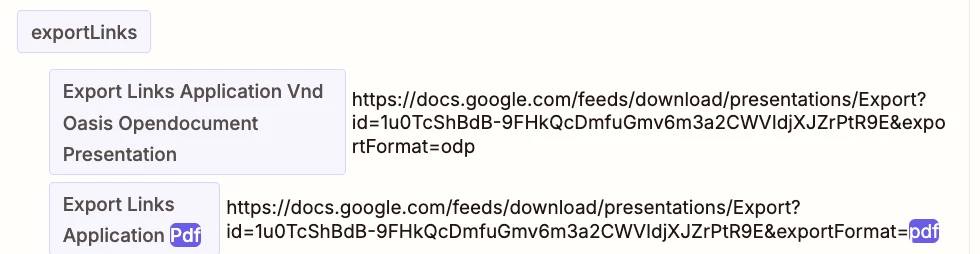
When you create a GSlide, the output should include Export Links in different formats. (e.g. PDF)

Search for “pdf” to find the variable to map.


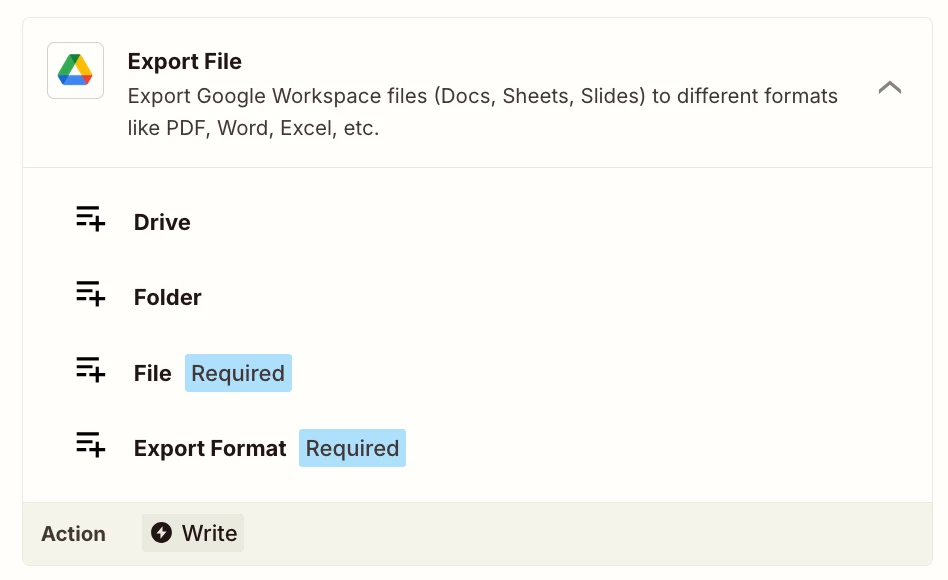
Zap action: GDrive - Export File

Select export format as PDF.


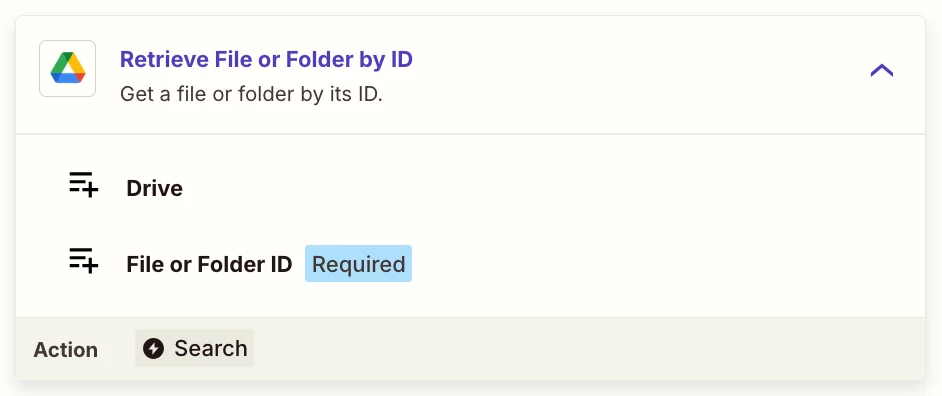
If needed, you can add this Zap action: GDrive - Retrieve File or Folder by ID

This will return the export links for the File.


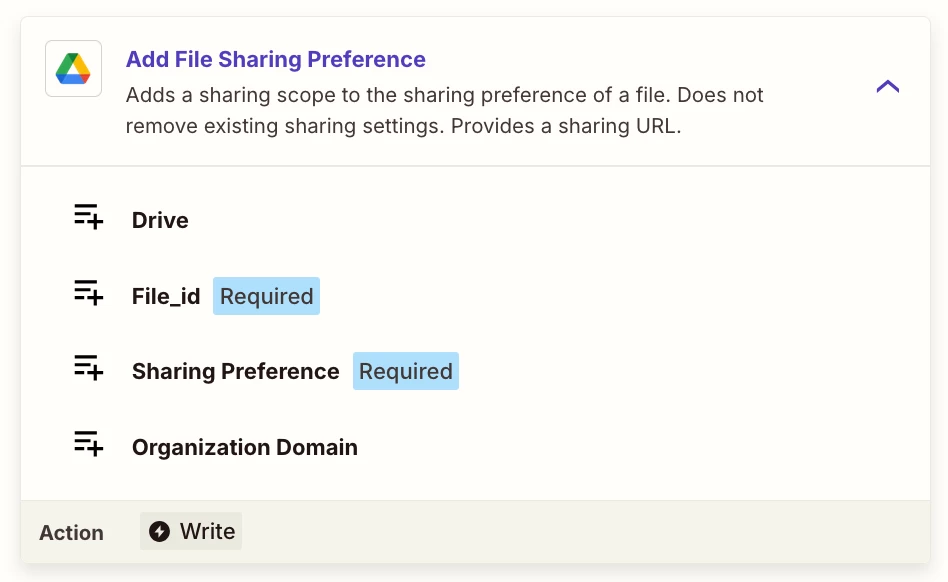
NOTE: You may need to adjust the File sharing preferences to make the file public to be used in the Zap.

Action: GDrive - Add File Sharing Preferences


Gmail can accept multiple attachments.