Question

How to Activate Integration Between Zapier, ClickUp, and Twilio After Connection

  • December 30, 2025
  • 2 replies
  • 20 views

Hello everyone! 👋

I recently connected Zapier with both ClickUp and Twilio, and the connection was successful. However, I need help activating the actual integration between the applications.

The Challenge:

The connection between Zapier and the applications is working
But the next steps to activate automation and integration aren't clear to me
I want to understand how to start creating Zaps that connect ClickUp and Twilio
Specific Questions:

What are the necessary steps to activate the integration after completing the initial connection?
Are there additional settings I need to configure in ClickUp or Twilio themselves?
What's the best Trigger and Action to start with for my use case?
Are there ready-made templates for integration between ClickUp and Twilio?
Use Case: I want to automate sending whats app messages via Twilio whenever a specific task is updated in ClickUp.

Thanks in advance for any help! 🙏

2 replies

Sparsh from Automation Jinn
Forum|alt.badge.img+6

Hey ​@elbara,

Try this workflow-

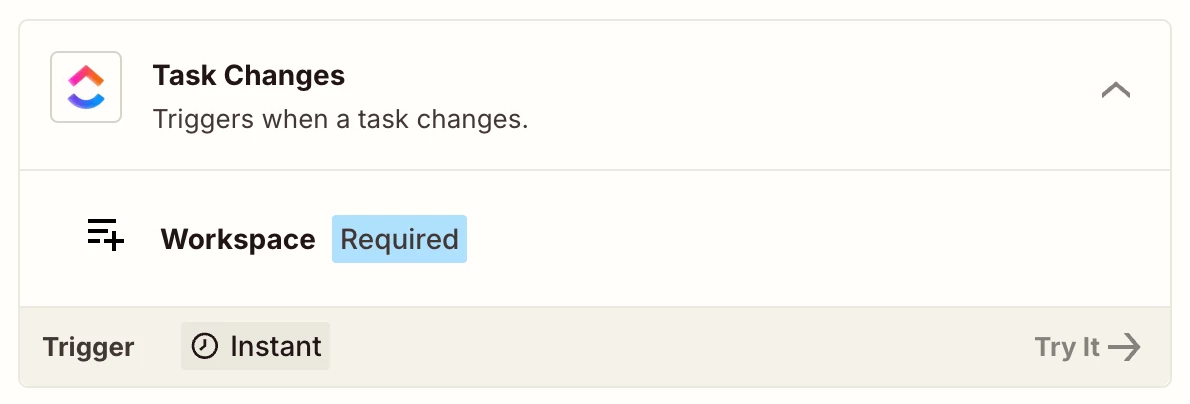
  • Task Changes trigger
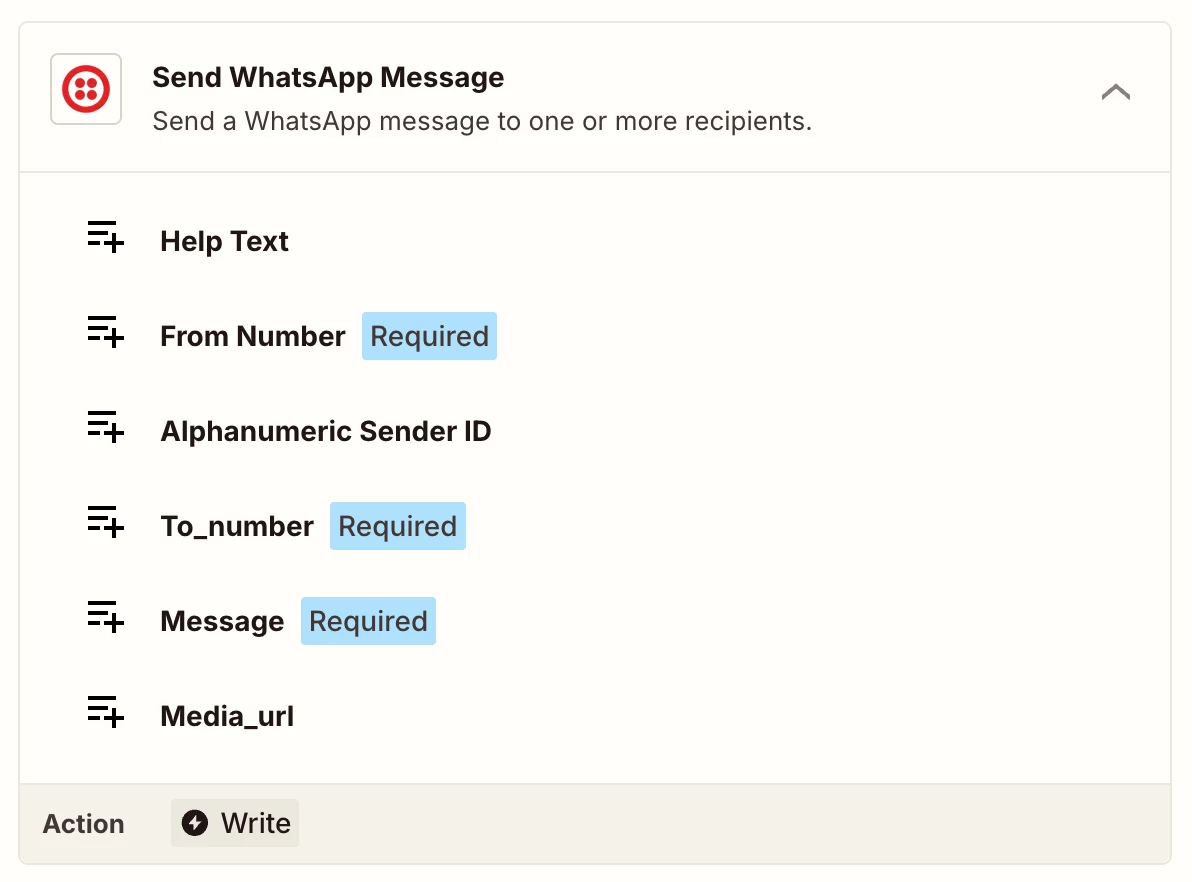
  • Send Whatsapp Message action

You have to dynamically pass the data from the Task Changes trigger to Send WhatsApp Message action. This is a sample workflow and you may need to add other actions like Filter, Formatter etc as workflows are usually personalized to user’s needs. Hope it helps!


Once the apps are connected, the “activation” actually happens inside a Zap.

Start by creating a new Zap in Zapier:
Trigger: ClickUp → Task Updated (or Task Status Changed)
Action: Twilio → Send WhatsApp Message

In ClickUp, make sure the workspace, space, and task statuses you want to track are selected.
In Twilio, confirm WhatsApp is enabled on the number and approved for messaging.

Zapier also has ready-made ClickUp ↔ Twilio templates you can customize, which is usually the fastest way to get started.

If you want, happy to walk you through the setup step-by-step here:

--Link removed by moderator--

This post has been edited by a moderator to remove self-promotional link in accordance with the Community Code of Conduct.