Best answer

How do you get data from formatter split text step to the next step? Individual items not lo-code accessible.

  • October 15, 2025
  • 11 replies
  • 105 views

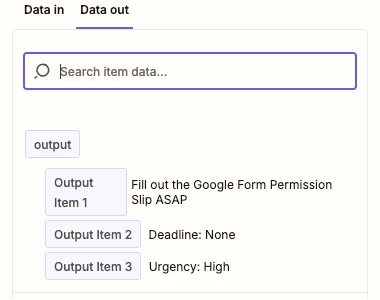
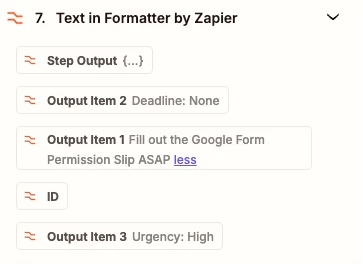
Just starting out and struggling with basic data access.  I have a formatter step that creates what you see below.  I tried every possible idea I could think of related to “pill mapping” to map each of the 3 lines out to different variables in the next step.  Seriously, why is this so hard.  Any ideas on how to solve this?  


Best answer by Troy Tessalone

Hi ​@WhoTookMyName 

The data output shown in the screenshot is structured as an array.

When you go to map a variable that has an array value, it will look like a comma separated listed.


OPTIONS

  • Formatter > Utilities > Pick From List
    • Pass in the array variable, then specify which array item you want output
  • Formatter > Utilities > Line Items to Text
    • Flatten the array into a string
      • Then use Formatter > Text > Split
        • Specify the output format as separate variables
      • Alternatively use a Code step to output variables with values
        • Probably want to delimit the array values with a | to make splitting in the code logic cleaner
  • AI by Zapier
    • Prompt AI to output specific values that you designate as a variable

This post has been closed for comments. Please create a new post if you need help or have a question about this topic.

11 replies

Troy Tessalone
Zapier Orchestrator & Solution Partner
Forum|alt.badge.img+14
  • Zapier Orchestrator & Solution Partner
  • Answer
  • October 15, 2025

Hi ​@WhoTookMyName 

The data output shown in the screenshot is structured as an array.

When you go to map a variable that has an array value, it will look like a comma separated listed.


OPTIONS

  • Formatter > Utilities > Pick From List
    • Pass in the array variable, then specify which array item you want output
  • Formatter > Utilities > Line Items to Text
    • Flatten the array into a string
      • Then use Formatter > Text > Split
        • Specify the output format as separate variables
      • Alternatively use a Code step to output variables with values
        • Probably want to delimit the array values with a | to make splitting in the code logic cleaner
  • AI by Zapier
    • Prompt AI to output specific values that you designate as a variable
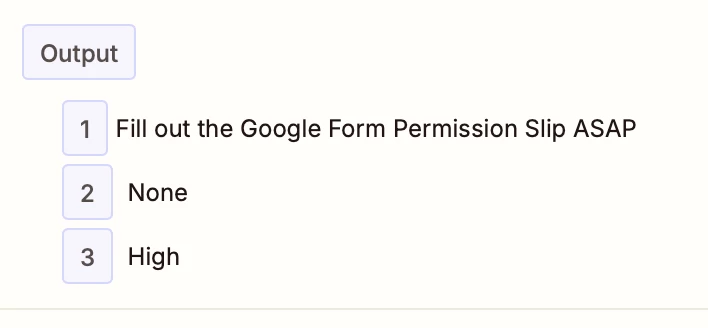
I think you are suggesting I add some additional steps to pick out the individual variables.  Which I suppose I could do.  I wanted to take the array and pick out each variable (text) and map each into 3 separate fields in the next step (Notion database insert) 


Troy Tessalone
Zapier Orchestrator & Solution Partner
Forum|alt.badge.img+14
  • Zapier Orchestrator & Solution Partner
  • October 15, 2025

@WhoTookMyName 

Yep, try the suggested options.


Easiest is to add this Zap step 3 times...

  • Formatter > Utilities > Pick From List
    • Pass in the array variable, then specify which array item you want output

Hey!

Have you tried using the Segment Index: All (as separate fields) option in the Split Text Formatter step?


Forum|alt.badge.img+1
  • Zapier Staff
  • October 15, 2025

Hi ​@WhoTookMyName 

Laura here from Zapier Support happy to chime in.

Working with arrays can be tricky at first, but there's actually a straightforward solution as already mentioned by ​@Troy Tessalone 

The line item to text formatter should do the trick based on the format of the data you are looking to split out - https://help.zapier.com/hc/en-us/articles/8496308258189-Convert-line-items-into-text-strings

I hope that clarifies things, please let me know if I can help further.

Laura


Hey!

Have you tried using the Segment Index: All (as separate fields) option in the Split Text Formatter step?

Yes, that’s how I got to the step you see above.  My question is about the next step.  I will try Troy’s approach


@WhoTookMyName 

Yep, try the suggested options.


Easiest is to add this Zap step 3 times...

  • Formatter > Utilities > Pick From List
    • Pass in the array variable, then specify which array item you want output

I had high hopes for this one, but it did not work.  You can only pick first, last or random using this formatter.

After that I tried some other transform methods - none of them worked.

I ended up getting this work using an “AI by Zapier”.  I did not like taking this approach as since I have ‘deterministic’ data from the previous step and then I’m using a non-deterministic method to then insert that into a database.  


I’ll see how it goes, but in my opinion, if this is the only way to do this in Zapier - it's not going to be a tool that I would recommend to others.


Troy Tessalone
Zapier Orchestrator & Solution Partner
Forum|alt.badge.img+14
  • Zapier Orchestrator & Solution Partner
  • October 16, 2025

@WhoTookMyName 

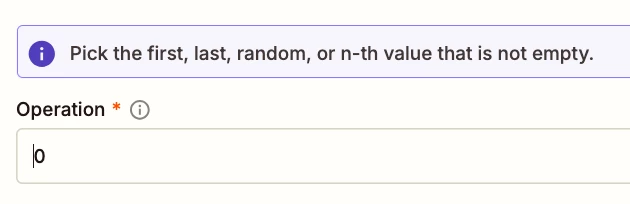
Formatter > Utilities > Pick From List

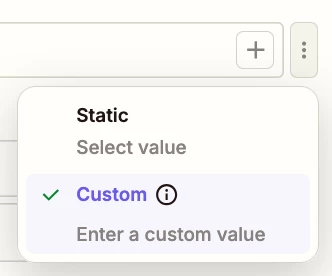
You can specify any number using the “Custom” mode option as indicated by the warning above the field.

0 for the first item

1 for the second item

2 for the third item

and so on


Support got back to me on this.  This was the more elegant solution that I was looking for.

Thanks for reaching out! I am Indra from the Zapier Support Team, happy to assist you today!
 
I understand you've text-split some content into 3 lines/segments/items, and you're trying to grab each of those items separately from the next step. You're absolutely right that this should be straightforward, and I'm happy to walk you through exactly how to do this.
 
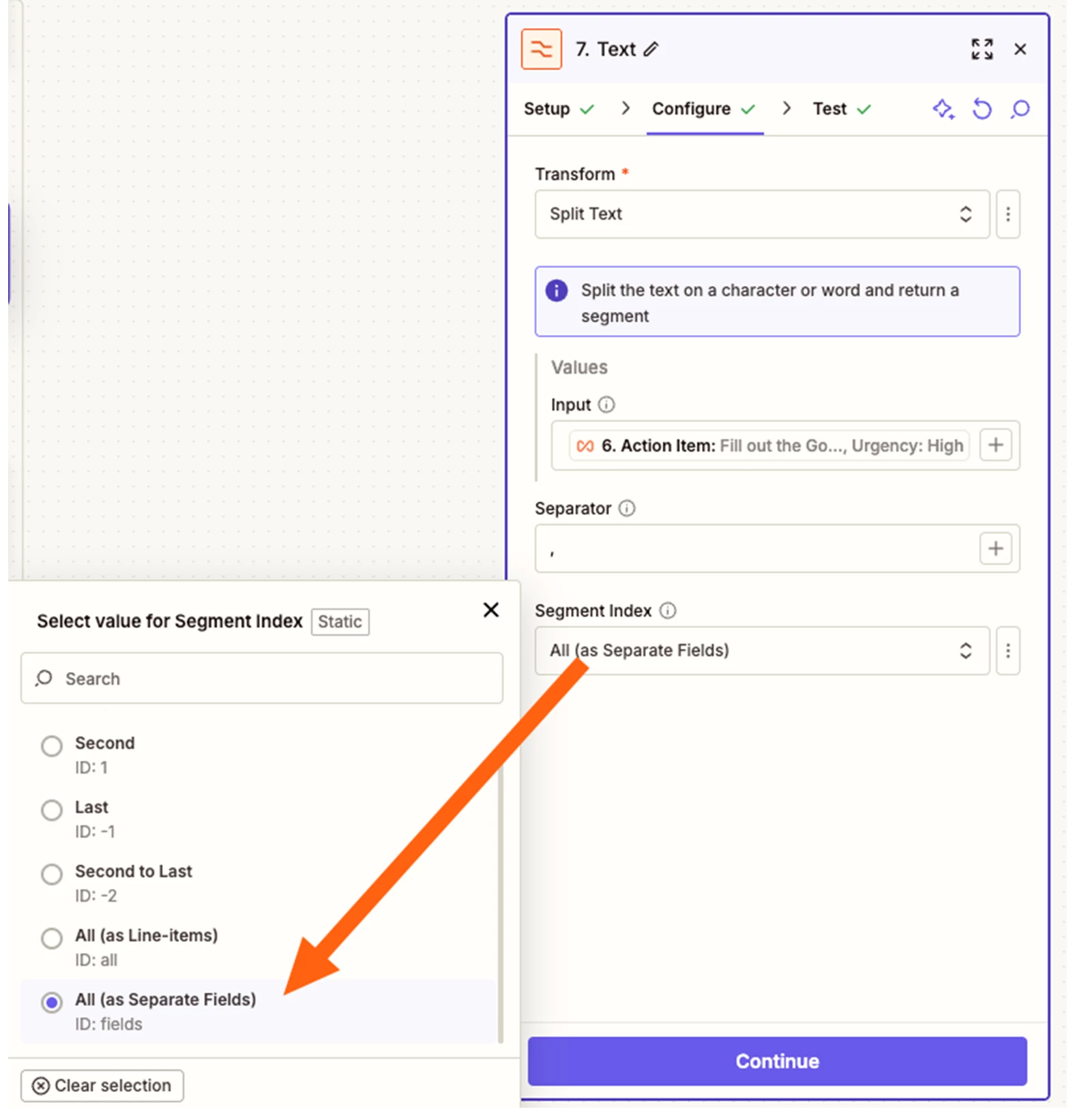
When you use the Split Text action, the key is in how you configure the Segment Index option. To grab each item separately, you'll want to select "All (as separate fields)" instead of the default setting.
 
Here's what this looks like in your Formatter step:

When you select "All (as separate fields)", your output will show each segment as individual fields:


Then, in your downstream steps, you can select each output item separately from the data picker:

This will give you individual access to each segment (Output 1, Output 2, Output 3, etc.) that you can use in separate fields or actions as needed.


Troy Tessalone
Zapier Orchestrator & Solution Partner
Forum|alt.badge.img+14
  • Zapier Orchestrator & Solution Partner
  • October 16, 2025

@WhoTookMyName 

Yep that was one of the options I originally suggested.


@WhoTookMyName 

Yep that was one of the options I originally suggested.


My bad - I’m not sure how I missed that.  Thanks for all the advise!