On my website, a visitor can download documents provided she enters her email.
All downloads informations are stored in a gsheet.
Someone can download several documents.
I want to send personalized emails from Gmail with Zapier to the downloaders and inquire if they have a question.
Issue:
if someone downloads 10 documents, I will send her 10 emails, 1 email every time she downloads something → not a good experience.
Question:
How can I send emails, let’s say one a week and not as many emails as I have downloads?
Is there a way to automatically create a “summary”, and therefore send only 1 email per downloader?
Thanks a lot for your help !!
Regards,
Best answer by GetUWired
Hi @SocoCom
Perhaps you could modify your Zap to work as follows:
Trigger: Notified about user Downloading a document
Action: Find or Create a Spreadsheet Row
Action: Filter to only continue if Zap Search was Found is true (not a necessary step if you use the unique formula below)
Action: Update Spreadsheet Row
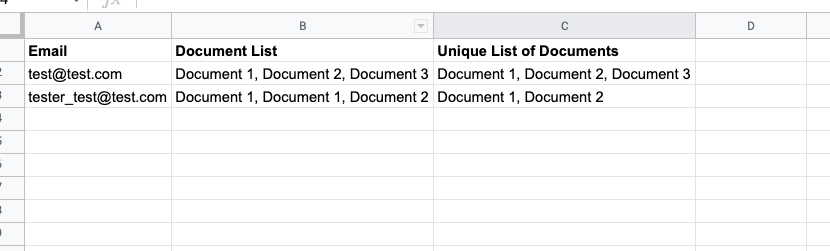
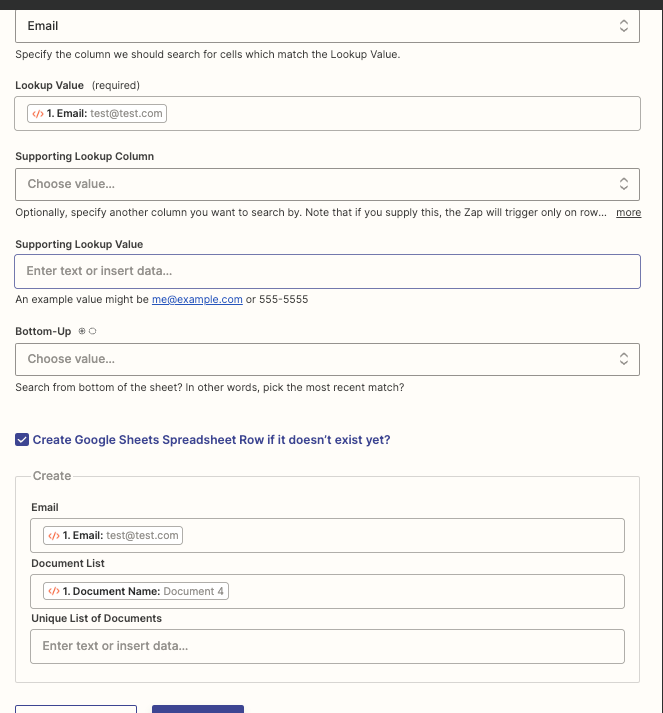
On the spreadsheet i would have 1 column for their email, 1 column for a list of document names they’ve requested, and 1 column for a unique list of documents they’ve requested (formula below).
The find or create step would search by their email address and if not found create a new row
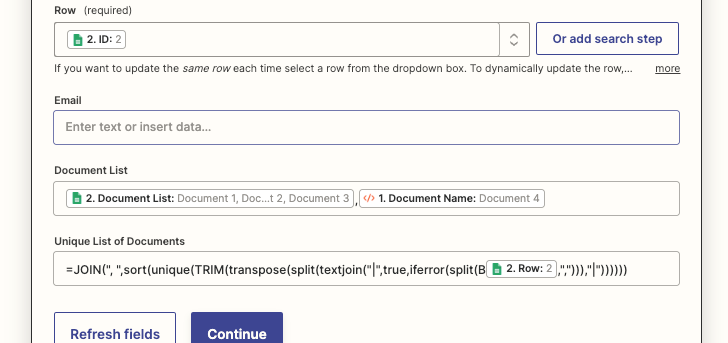
Your update step would add the documents they’ve requested to a comma separated list as shown below. The formula for unique documents requested is
=JOIN(", ",sort(unique(TRIM(transpose(split(textjoin("|",true,iferror(split(B2,","))),"|")))))) -- Where the row number is added dynamically from the previous step and the column is the document requested column (B in my formula & spreadsheet).
The formula essentially splits up the document names by comma then rejoins them in a unique list. That way if someone requested the same doc twice you don’t have it written out twice.
you can then use the guide here:
to loop through all the rows on your spreadsheet once a week. I would probably add a step at the end of the zap to delete the row once it’s been processed.
Hopefully this gets you started and works for your needs!
Perhaps you could modify your Zap to work as follows:
Trigger: Notified about user Downloading a document
Action: Find or Create a Spreadsheet Row
Action: Filter to only continue if Zap Search was Found is true (not a necessary step if you use the unique formula below)
Action: Update Spreadsheet Row
On the spreadsheet i would have 1 column for their email, 1 column for a list of document names they’ve requested, and 1 column for a unique list of documents they’ve requested (formula below).
The find or create step would search by their email address and if not found create a new row
Your update step would add the documents they’ve requested to a comma separated list as shown below. The formula for unique documents requested is
=JOIN(", ",sort(unique(TRIM(transpose(split(textjoin("|",true,iferror(split(B2,","))),"|")))))) -- Where the row number is added dynamically from the previous step and the column is the document requested column (B in my formula & spreadsheet).
The formula essentially splits up the document names by comma then rejoins them in a unique list. That way if someone requested the same doc twice you don’t have it written out twice.
you can then use the guide here:
to loop through all the rows on your spreadsheet once a week. I would probably add a step at the end of the zap to delete the row once it’s been processed.
Hopefully this gets you started and works for your needs!
Perhaps you could modify your Zap to work as follows:
Trigger: Notified about user Downloading a document
Action: Find or Create a Spreadsheet Row
Action: Filter to only continue if Zap Search was Found is true (not a necessary step if you use the unique formula below)
Action: Update Spreadsheet Row
On the spreadsheet i would have 1 column for their email, 1 column for a list of document names they’ve requested, and 1 column for a unique list of documents they’ve requested (formula below).
The find or create step would search by their email address and if not found create a new row
Your update step would add the documents they’ve requested to a comma separated list as shown below. The formula for unique documents requested is
=JOIN(", ",sort(unique(TRIM(transpose(split(textjoin("|",true,iferror(split(B2,","))),"|")))))) -- Where the row number is added dynamically from the previous step and the column is the document requested column (B in my formula & spreadsheet).
The formula essentially splits up the document names by comma then rejoins them in a unique list. That way if someone requested the same doc twice you don’t have it written out twice.
you can then use the guide here:
to loop through all the rows on your spreadsheet once a week. I would probably add a step at the end of the zap to delete the row once it’s been processed.
Hopefully this gets you started and works for your needs!
Thanks a lot ! I’ll go through your comprehensive and enlighting tips right away !
Build and deploy automations from AI tools you already use. With Agentic Management, if anything breaks, the agent diagnoses the issue and proposes a fix.