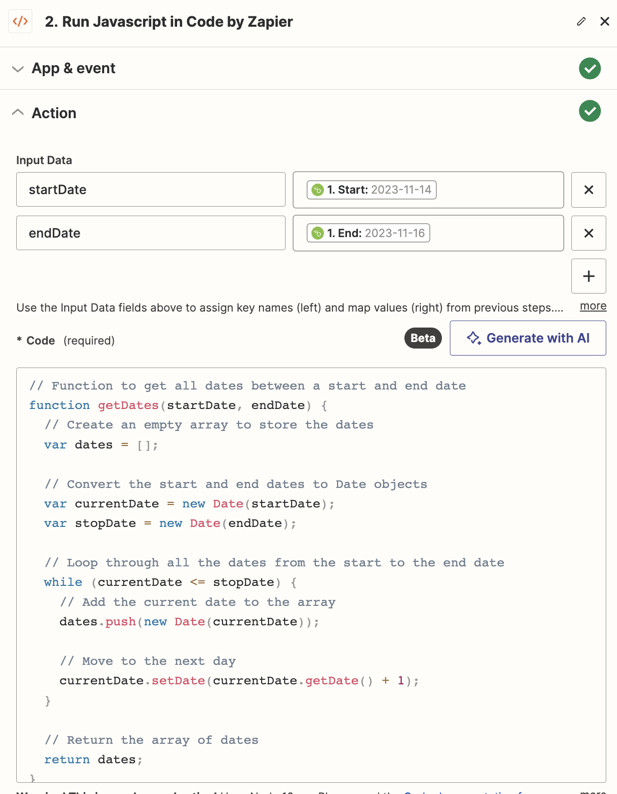
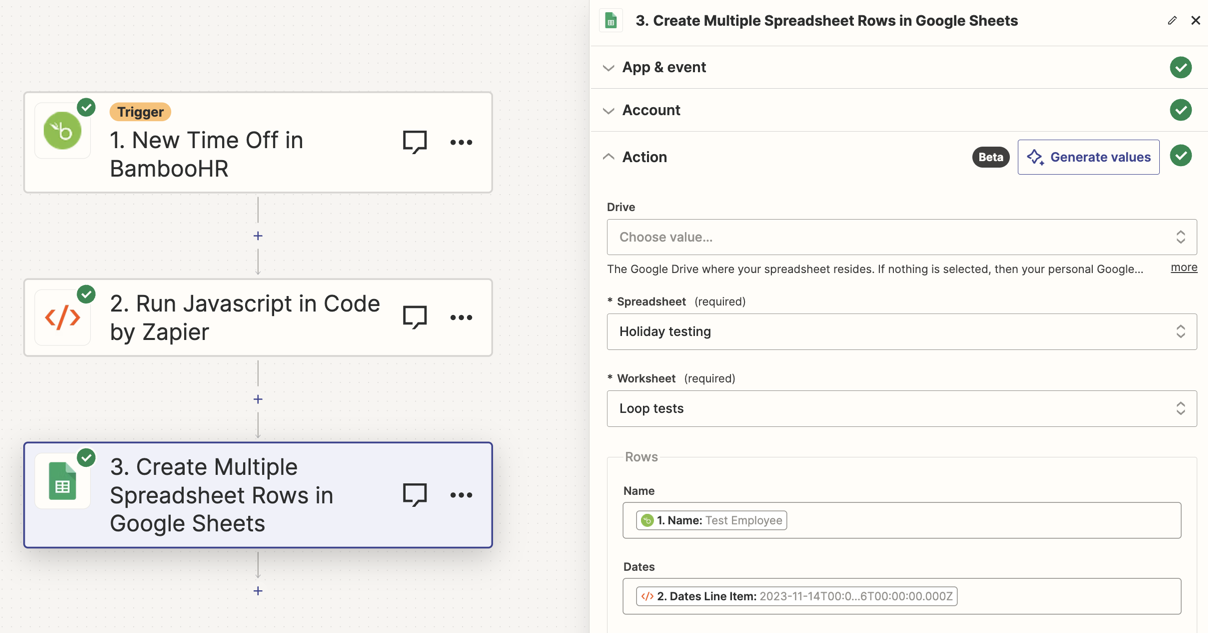
Happy to help with this@Monika!
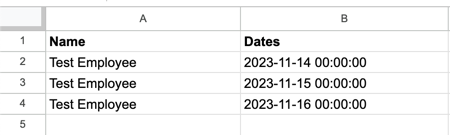
With the Google Sheets spreadsheet the headers should be whatever is most relevant to the data they’re going to contain. In the screenshot of an example Google Sheets spreadsheet I just stored the name of the employee and the individual holiday dates so I created two columns one called Name and another called Dates. But you could have fields called Employee Name and Holiday Dates for example. It’s totally up to you.
If helpful, you can find out more about how to best set up Google Sheets spreadsheets to work with Zaps here: Work with Google Sheets in Zaps
If you’re using the New Event (Google Calendar) trigger instead of using BambooHR then for the Input Data section you’d want to select the Event Begins and Event Ends fields in the Code step instead. For example:
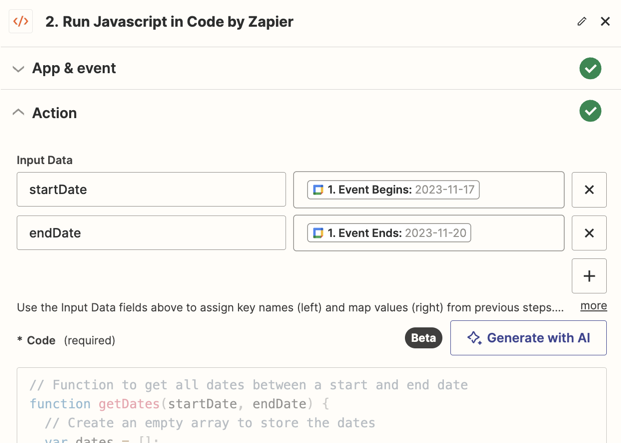
That said, I don’t know whether BambooHR adds the events as all day events or sets a start and end time. If it adds them as all day events then the event will likely be set as finishing at 12:00am on the next day which isn’t ideal as it would mean you’d get a list of dates that includes the day after the end of the holiday. So for an all day event that starts on November 17th and ends on November 19th, Google Calendar would have 2023-11-20 in the Event Ends field (as pictured in the screenshot above).
In which case you’d want to use the following code in the Code by Zapier action instead:
// Function to get all dates between a start and end date
function getDates(startDate, endDate) {
  // Create an empty array to store the dates
  var dates = [];

  // Convert the start and end dates to Date objects
  var currentDate = new Date(startDate);
  var stopDate = new Date(endDate);

  // Loop through all the dates from the start to the end date excluding the last day
  while (currentDate < stopDate) { // Change from <= to <
    // Add the current date to the array
    dates.push(new Date(currentDate));

    // Move to the next day
    currentDate.setDate(currentDate.getDate() + 1);
  }

  // Return the array of dates
  return dates;
}

// Get the start and end dates from the input data
var startDate = inputData.startDate;
var endDate = inputData.endDate;

// Call the getDates function with the start and end dates
var dates = getDates(startDate, endDate);

// Create an empty array to store the output
var output = [];

// Loop through all the dates
for (var i = 0; i < dates.length; i++) {
  // Add each date to the output array as a line item
  output.push({ line_item: dates[i] });
}

// Set the output variable to the array of dates
output = { dates: output };
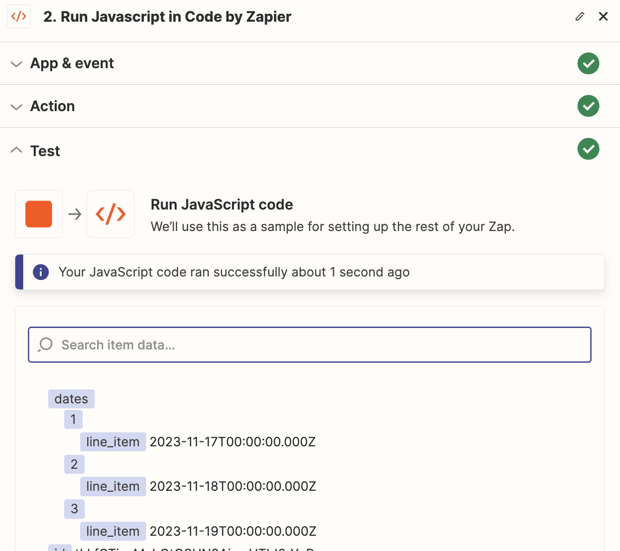
And that should get it to ignore the last day (November 20th) and only output 2023-11-17T00:00:00.000Z, 2023-11-18T00:00:00.000Z and 2023-11-19T00:00:00.000Z like so:
Does that make sense? Let me know if that doesn’t work or if you need any further assistance at all on this. 🙂