Question

Building a Daily Workflow to Notify Overdue Tasks from Google Sheets

  • December 2, 2024
  • 5 replies
  • 70 views

I am trying to build a Zap that performs the following:

1. Daily Action: Checks a Google Sheet at a specific time every day.

2. Data Setup: My Google Sheet contains a table with the following columns:

Project Name: The name of the project.

Priority: High, Medium, or Low.

Assigned To: The person responsible for the project.

Next Action Step: The specific task/action to be completed.

Next Action Date: The date the next action step is due.

3. Goal: Identify rows where the “Next Action Date” is overdue (i.e., less than or equal to today’s date).

4. Output: Send me a message in Slack containing a bullet-pointed list of overdue tasks, formatted as:


The following Projects are OVERDUE:

  • Project Name - Next Action Step
  • Project Name - Next Action Step
  • Project Name - Next Action Step


Challenges:


1. Lookup Issue: The “Lookup Spreadsheet Rows” action only allows me to search for specific values. How can I structure this step to check for dates that are less than or equal to today’s date?

2. Formatting Output: How can I format the Slack message to include each overdue task as a bullet point, showing Project Name - Next Action Step?


My Ask(s):


How can I configure Zapier to:

1. Filter for overdue tasks dynamically using “Next Action Date.”

2. Format the output as a clean, bullet-pointed list in Slack?


Bonus Points if we can ALSO send a message to me and the Action Owner with THEIR overdue items. 

This post has been closed for comments. Please create a new post if you need help or have a question about this topic.

5 replies

Troy Tessalone
Zapier Orchestrator & Solution Partner
Forum|alt.badge.img+14
  • Zapier Orchestrator & Solution Partner
  • December 2, 2024

Hi ​@jkrreed 

Consider adding a column that has a formula to check if the date is before today, then set the column value to TRUE/FALSE.

You can then use the lookup column value = TRUE to find past due rows.


For formatting, use this Zap action: Formatter > Utilities > Line Items to Text


  • Author
  • Beginner
  • December 2, 2024

@Troy Tessalone - Thanks for the response! 

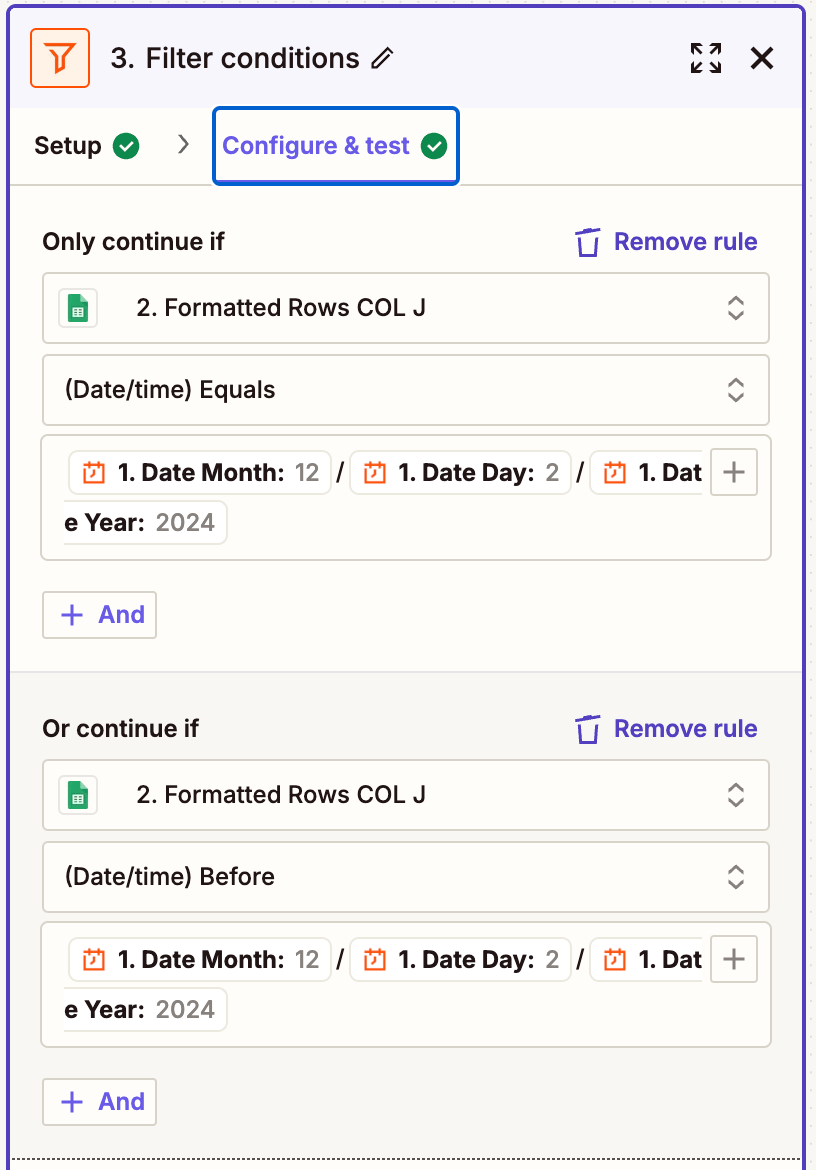
I was able to use the Filter tool to check the date. Configuration is below. 

For the Formatting + Slack messaging, I haven’t been able to determine how to use this correctly. Any advice?


Troy Tessalone
Zapier Orchestrator & Solution Partner
Forum|alt.badge.img+14
  • Zapier Orchestrator & Solution Partner
  • December 2, 2024

@jkrreed 

The Filter Zap step may not work as expected if there are 2+ rows returned from GSheets.

Would need more context about how the GSheet Zap step 2 is configured.


Help links for using Formatter: https://zapier.com/apps/formatter/help

Zap action: Formatter > Utilities > Line Items to Text

You would map the desired GSheet variables and format as needed.

Help link for formatting Slack Messages: https://help.zapier.com/hc/en-us/articles/8496025607181-Tips-for-formatting-Slack-messages

Test and adjust the text formatting as necessary.

Post screenshots if you need more help.


Badger
Forum|alt.badge.img+5
  • New
  • December 3, 2024

SamB
Community Manager
Forum|alt.badge.img+11
  • Community Manager
  • December 19, 2024

Hi ​@jkrreed 👋

How are things going with this? Did Troy and/or Badger’s latest replies help to get you pointed in the right direction?

Let us know whether you’re in need of any further help, want to ensure you’re all set!