Best answer

Automatically rename invoice PDFs in Dropbox using date/vendor/amount (Zapier)

  • January 15, 2026
  • 4 replies
  • 32 views

I’m trying to automate invoice PDF renaming so files like “invoice.pdf” become something searchable like:
YYYY-MM-DD_Vendor_Amount_InvoiceNo.pdf

Workflow I want:
- Trigger when a new PDF lands in Dropbox (Invoices folder)
- Extract fields (date, vendor, total, invoice number) from the PDF (mix of text-based PDFs + scans)
- Build a consistent filename
- Rename the file (or upload renamed copy + delete original)

Questions:
1) What’s the recommended way in Zapier to extract text from PDFs (especially scanned invoices) — built-in options vs OCR tools?
2) For “rename”, is the best practice to upload a new file with the new name and then delete the original?
3) Any pitfalls with date/decimal formats or special characters in filenames?

If helpful I can share the exact filename format + a sample of what the PDFs look like (text vs scan).
Best answer by Troy Tessalone

@Narratas 

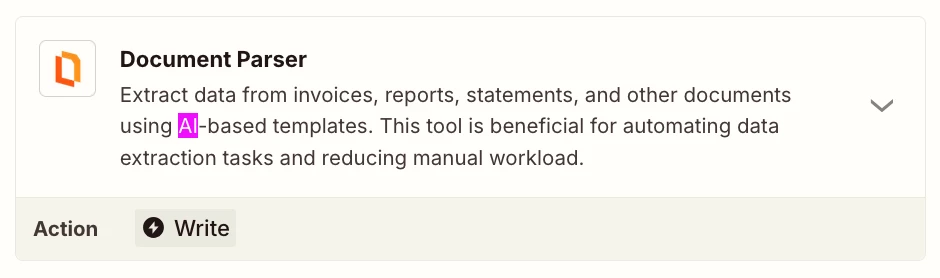
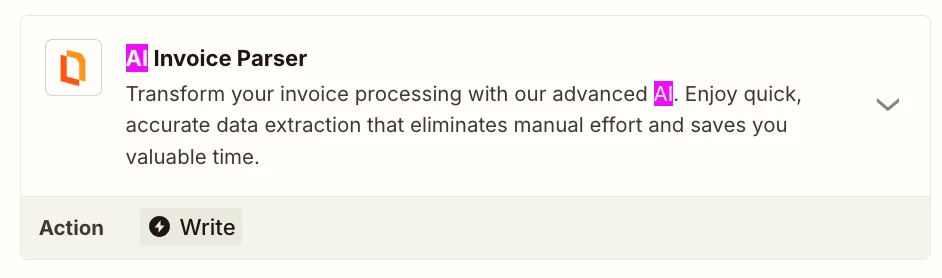
There are other Zap app integrations that can do PDF parsing.


EXAMPLE (see screenshots below)


4 replies

Troy Tessalone
Zapier Orchestrator & Solution Partner
Forum|alt.badge.img+14
  • Zapier Orchestrator & Solution Partner
  • January 15, 2026

Hi ​@Narratas 

Action: AI by Zapier - Analyze and Return Data

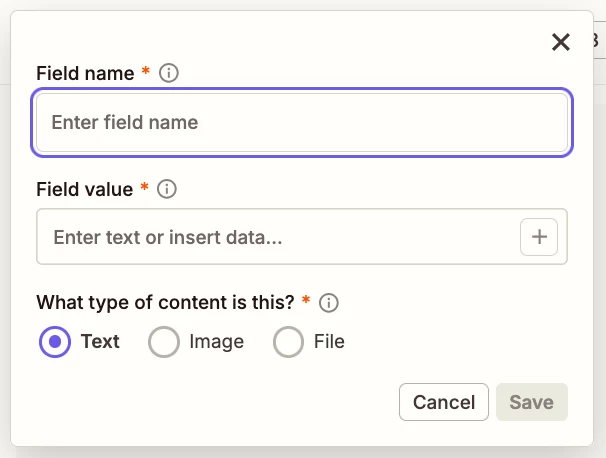
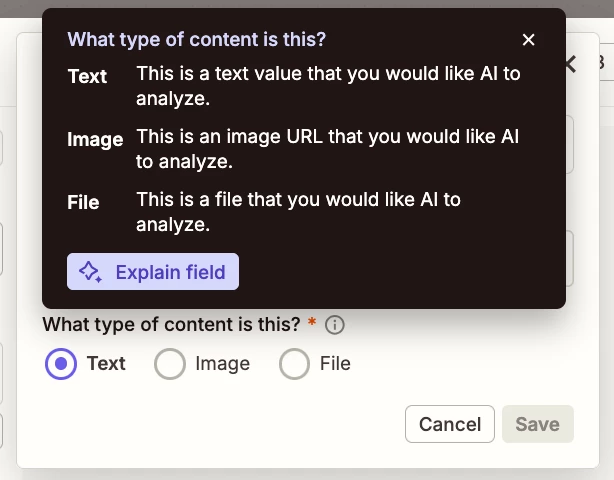
Indicate the field value is a “file” type.

Help: https://zapier.com/apps/ai/integrations#help


Troy Tessalone
Zapier Orchestrator & Solution Partner
Forum|alt.badge.img+14
  • Zapier Orchestrator & Solution Partner
  • Answer
  • January 15, 2026

@Narratas 

There are other Zap app integrations that can do PDF parsing.


EXAMPLE (see screenshots below)


  • Author
  • Beginner
  • January 15, 2026

Thanks Troy — super helpful.

I’ll (1) set the AI by Zapier input field to type = File and pass the Dropbox PDF, and also (2) review the “Documents” category options like PDF.co / invoice parsers for extraction.

Once I’ve tested it end-to-end, I’ll let you know the exact Zap step list (extract → formatter → upload renamed copy → delete original).


  • Author
  • Beginner
  • January 18, 2026

Update (tested): here’s the Zap flow that worked end-to-end for renaming invoice PDFs in Dropbox.

Goal filename:
YYYY-MM-DD_Vendor_Amount_InvoiceNo.pdf

Zap steps:
1) Trigger: Dropbox — New File in Folder (Invoices)
2) Dropbox — Download File
   - Use this so you have the actual file output to pass into parsing/AI steps.
3) Parser step (pick one):
   A) AI by Zapier — Analyze and Return Data
      - Add input field: type = File, value = the downloaded PDF
      - Prompt: “Return STRICT JSON only with keys: invoice_date, vendor, total_amount, currency, invoice_number. Use ISO date YYYY-MM-DD.”
   OR
   B) A “Documents” app (e.g., PDF.co / Invoice Parser) to extract invoice fields

4) Formatter by Zapier — Date/Time
   - Normalize invoice_date to YYYY-MM-DD (fallback to created date if missing)
5) Formatter by Zapier — Numbers
   - Normalize total_amount (decimal separator), optionally format to 2 decimals
6) Formatter by Zapier — Text
   - Sanitize vendor / invoice_number for filenames (remove / \ : ? * " < > |)
7) Formatter by Zapier — Text (or “Utilities → Line Item to Text”)
   - Build the filename string:
     {{date}}_{{vendor}}_{{amount}}_{{invoiceNo}}.pdf

8) Dropbox — Upload File
   - Upload to the same folder with the new filename (content = the original downloaded file)
9) Dropbox — Delete File (optional)
   - Delete the original file only after upload succeeds.

Notes:
- For scanned invoices, the “Documents” parser/OCR route tends to be more reliable than pure text extraction.
- You may want a “Path” for missing fields (e.g., no invoice number) so you still get a valid filename.

Thanks again for the pointers — the “File” input type tip was the key unlock.