Best answer

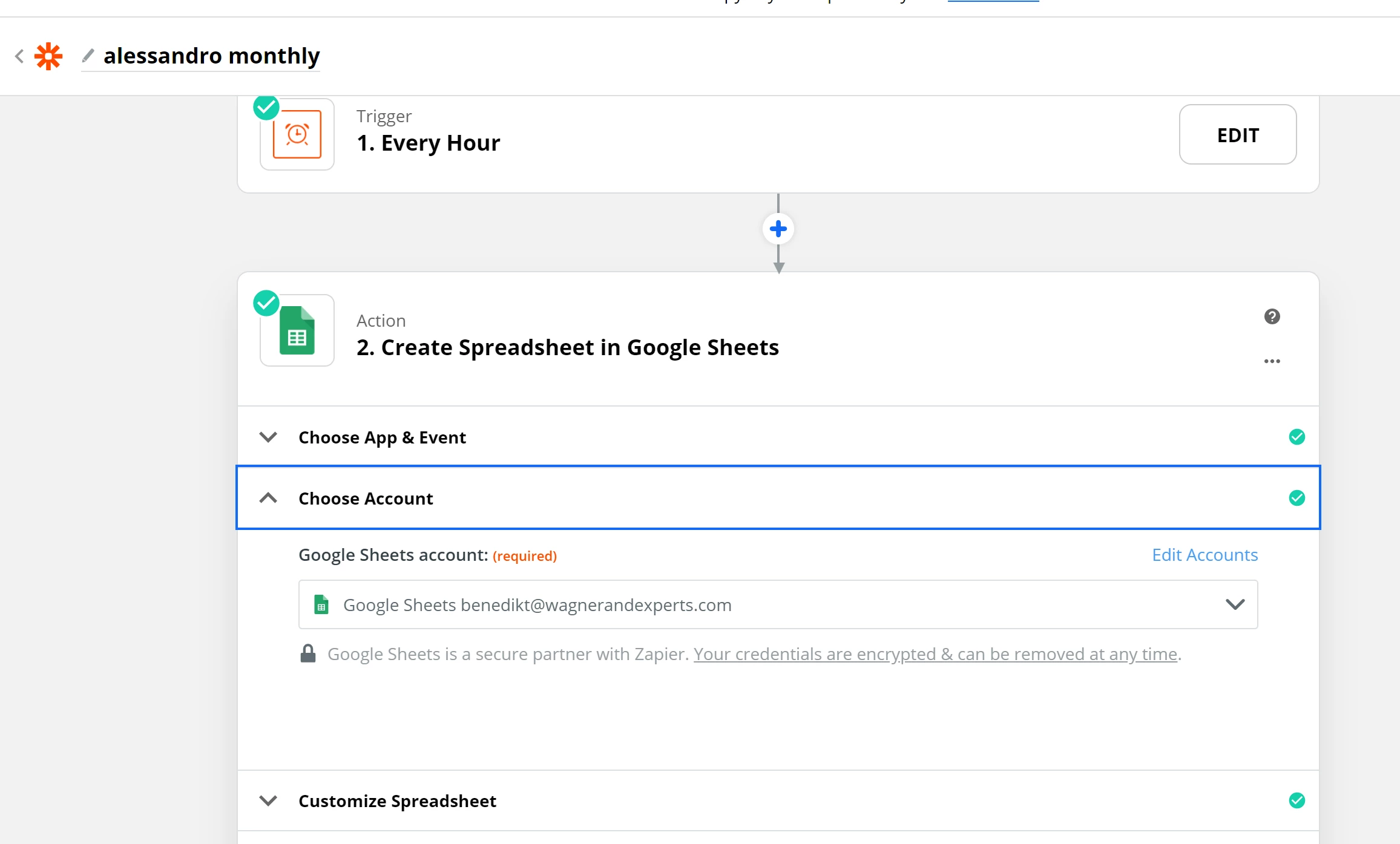
After I select the account in which I want to Create Spreadsheets in Google Sheets, how do I select the "Google Drive" in which I want these to appear?

  • November 16, 2020
  • 7 replies
  • 60 views

Here I where I select the account
And this is the next step
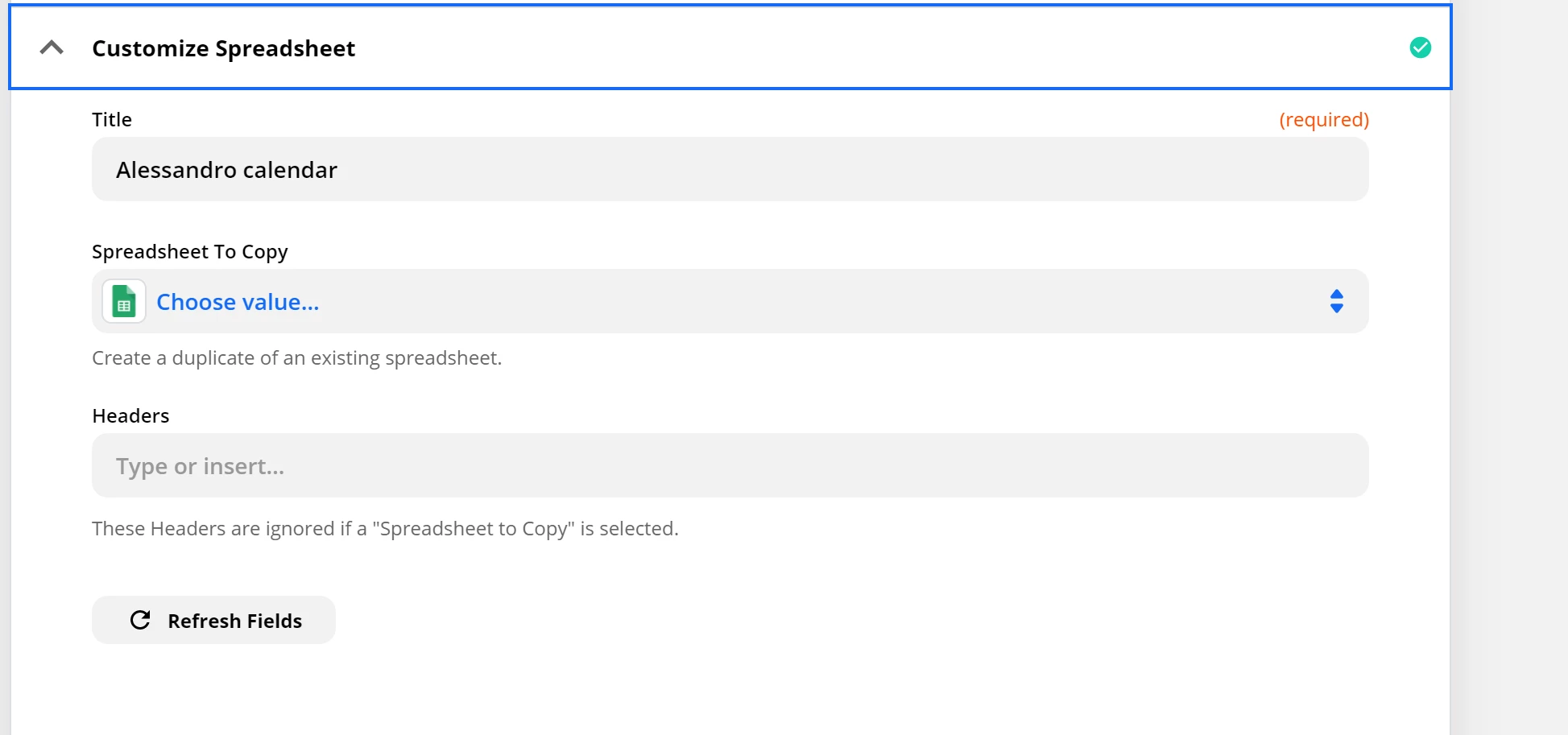
in which I would like to find this option but it’s not there
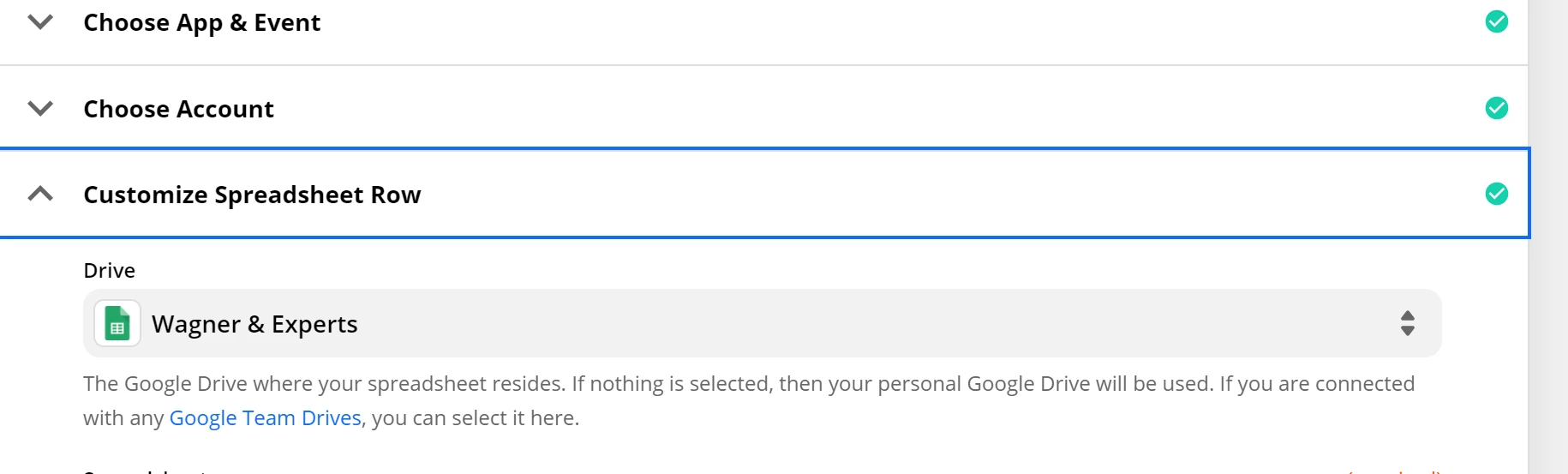
How can I work around this problem?

Best answer by andywingrave

Hey there, AleAugugliaro - I thought I’d follow up, just so it all makes sense to you. When you first start using Zapier, it can be quite overwhelming as there’s so much possibility, so I hope this breaks the steps down enough to get you on the move. 
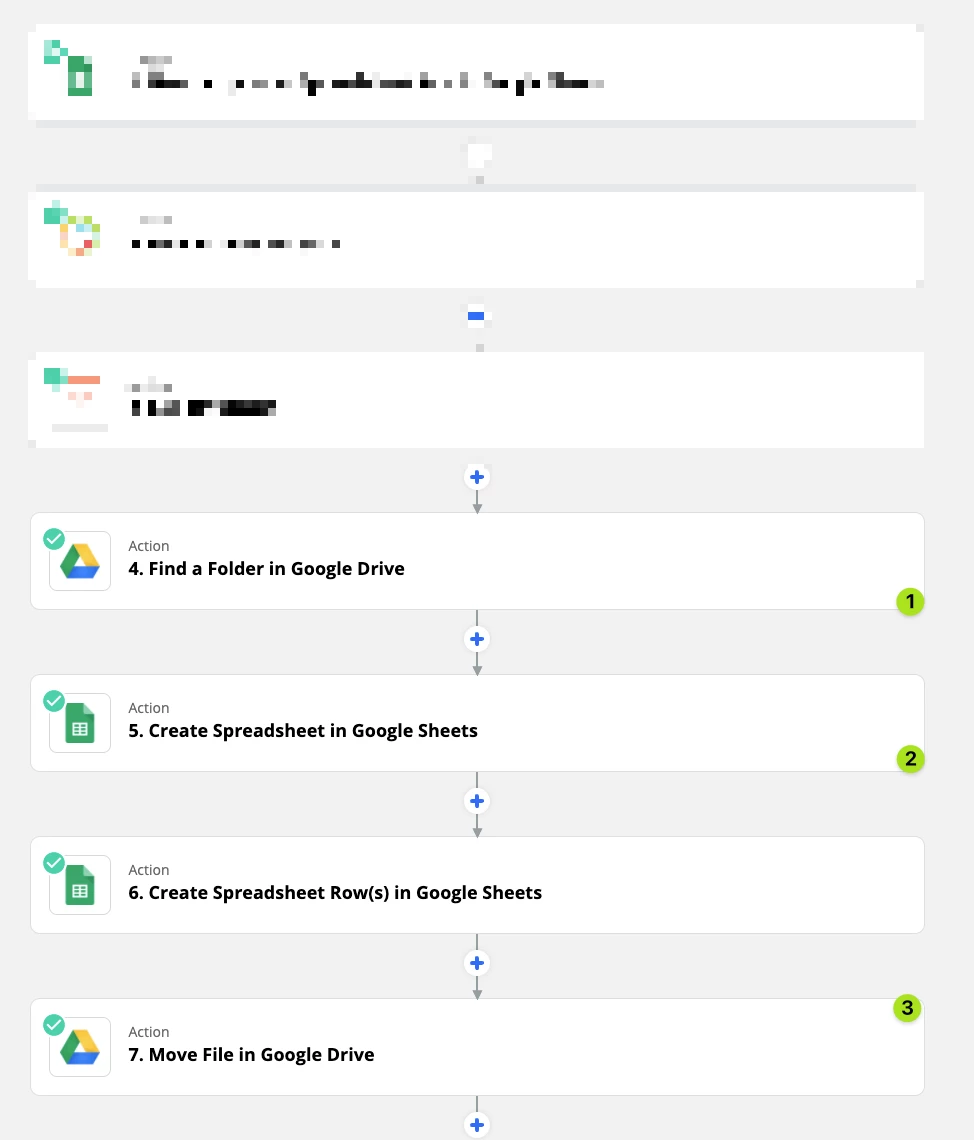
Image 1 - Zap Skeleton:

  1. First we want to Find the folder we are looking for in Google Drive (If you already know this, or if it will be the same each time, you can skip this step)
  2. Then we want to create our File. The main thing I find with this action is it never creates the file where you want it to be… So we need to then move onto step 3, which is to…
  3. Move our file. Here we want to move our file to the right place - Basically using the details we now have from step 1 and 2… I’ve broken this down further in the next image. 
Zap Skeleton

Image 2 - Moving our file

Here we can see there are two callouts: 
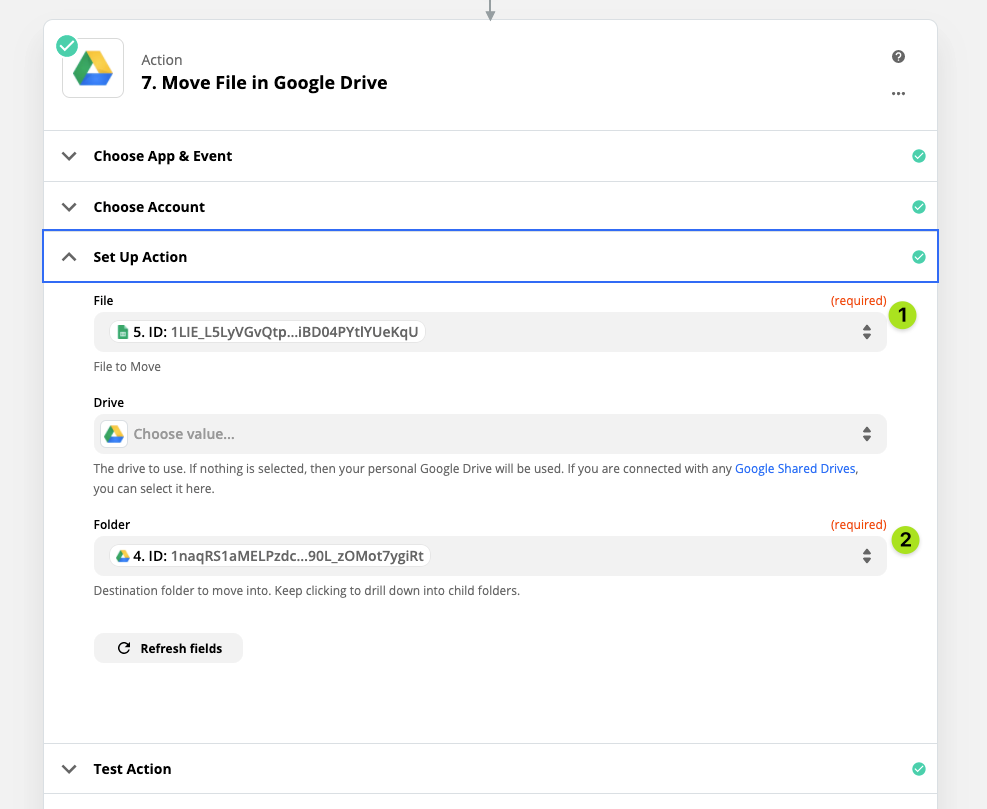
  1. This is the file we want to move (i.e. the one we’ve just created) 
  2. And this is our folder - the one we found way back in step one.
Moving our file

We can now dynamically move the file we created to the folder we want. 

Hope that helps!

This post has been closed for comments. Please create a new post if you need help or have a question about this topic.

7 replies

Troy Tessalone
Zapier Orchestrator & Solution Partner
Forum|alt.badge.img+14
  • Zapier Orchestrator & Solution Partner
  • November 16, 2020

You’ll have to use a GDrive step to Move File.

By default, the GSheet is created in the root folder of the GDrive for the selected Google Account.


  • Author
  • Beginner
  • November 17, 2020

Could you please explain the steps to complete this?


  • Author
  • Beginner
  • November 18, 2020

You’ll have to use a GDrive step to Move File.

By default, the GSheet is created in the root folder of the GDrive for the selected Google Account.

What are the steps to complete this?


steph.n
Forum|alt.badge.img+8
  • Builder
  • November 23, 2020

Hey @Troy Tessalone - It looks like @AleAugugliaro needs a little more clarification in your answer. Mind taking a look? Thanks!


Troy Tessalone
Zapier Orchestrator & Solution Partner
Forum|alt.badge.img+14
  • Zapier Orchestrator & Solution Partner
  • November 23, 2020

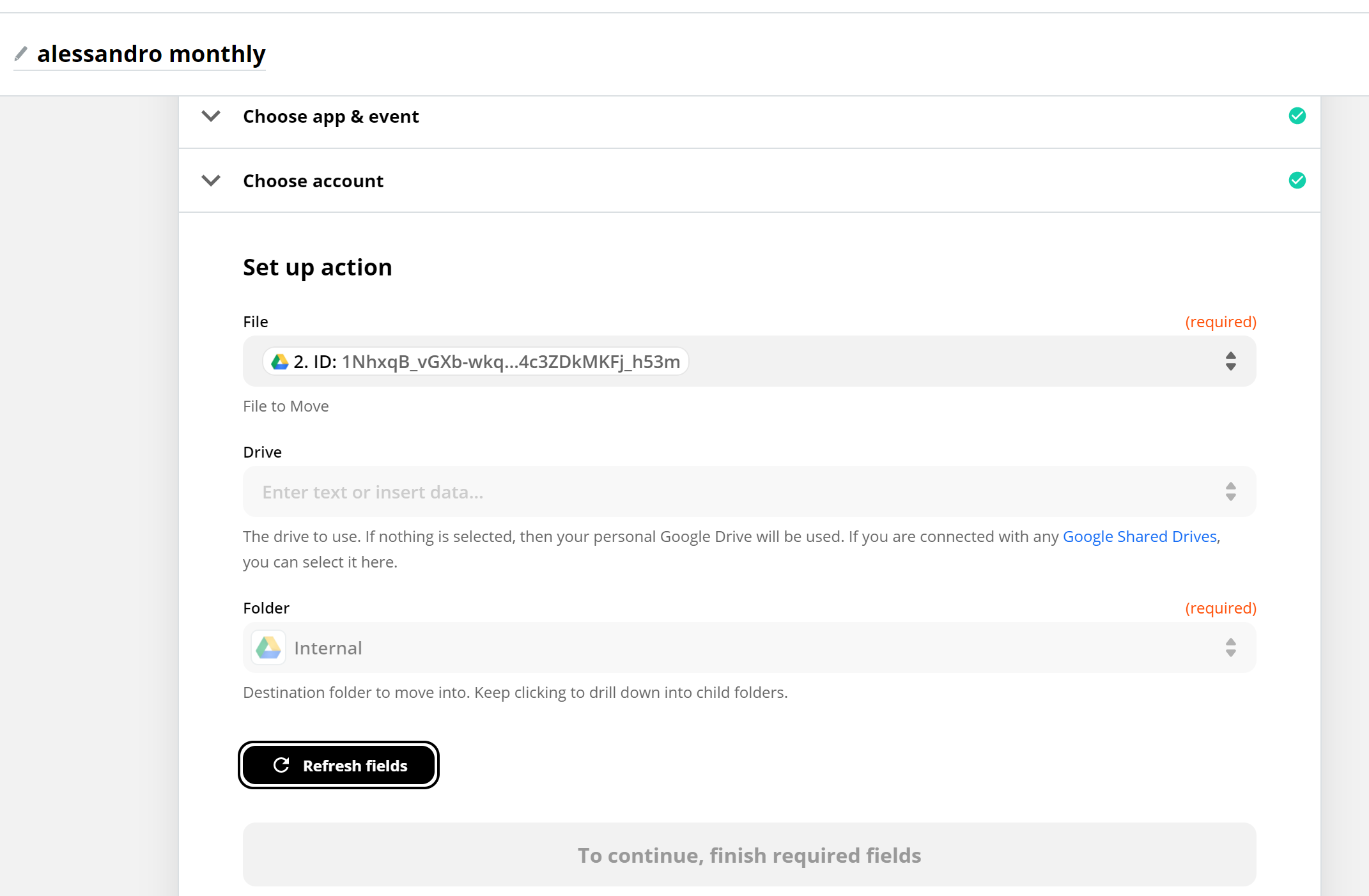
Action: GDrive Move File


andywingrave
Forum|alt.badge.img+9
  • Zapier Solution Partner
  • Answer
  • November 23, 2020

Hey there, AleAugugliaro - I thought I’d follow up, just so it all makes sense to you. When you first start using Zapier, it can be quite overwhelming as there’s so much possibility, so I hope this breaks the steps down enough to get you on the move. 

Image 1 - Zap Skeleton:

  1. First we want to Find the folder we are looking for in Google Drive (If you already know this, or if it will be the same each time, you can skip this step)
  2. Then we want to create our File. The main thing I find with this action is it never creates the file where you want it to be… So we need to then move onto step 3, which is to…
  3. Move our file. Here we want to move our file to the right place - Basically using the details we now have from step 1 and 2… I’ve broken this down further in the next image. 
Zap Skeleton

Image 2 - Moving our file

Here we can see there are two callouts: 

  1. This is the file we want to move (i.e. the one we’ve just created) 
  2. And this is our folder - the one we found way back in step one.
Moving our file

We can now dynamically move the file we created to the folder we want. 

Hope that helps!


  • Author
  • Beginner
  • December 1, 2020

The problem is like the above, on the “move file” step, as you can see it doesn’t let me “continue”