
This guide shows you how to automatically route contact form submissions to the right team member based on their language skills and department. This approach works for any form tool such as Google Forms, Typeform, or JotForm. For this example, we’ll be using Google Forms.
When a customer submits your contact form:
- AI analyzes the message to detect the language
- AI classifies which department the inquiry belongs to (Sales, Support, Billing)
- An email is sent to a qualified team member using round-robin rotation
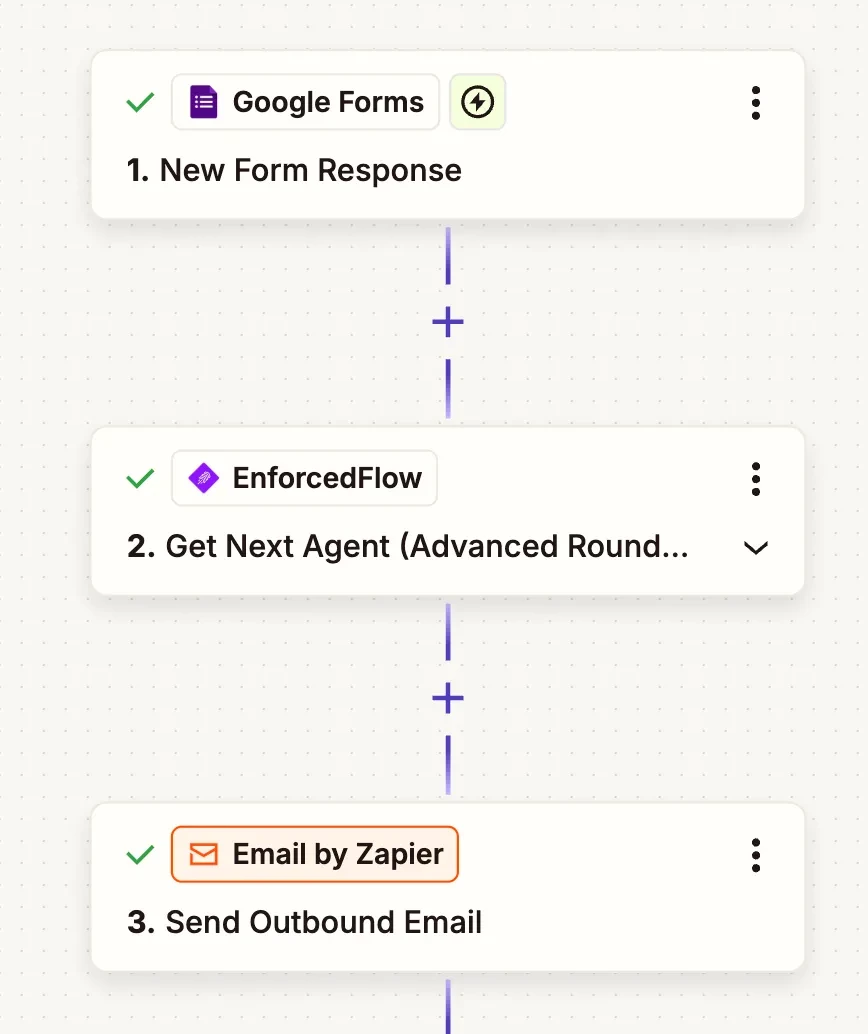
Here’s what the completed automation looks like:
Set Up the Automation
This automation triggers when someone submits your contact form and sends an email to the right team member based on their language skills and department.
Step 1: Set Up the Google Forms Trigger
Create a new Zap in Zapier, then:
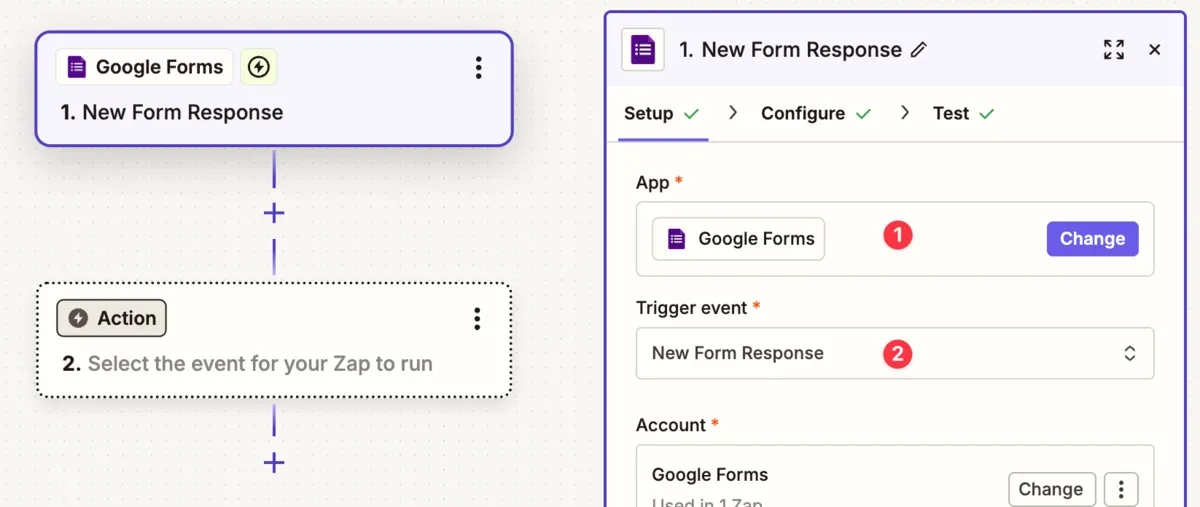
- Select Google Forms as the app
- Choose New Form Response as the trigger event
- Connect your Google account
- Select your form and click Continue
Test the Trigger
Test the trigger to pull a sample form response. This data will be used to configure the next steps.
Step 2: Add the EnforcedFlow Action
Click the + button to add a new step.
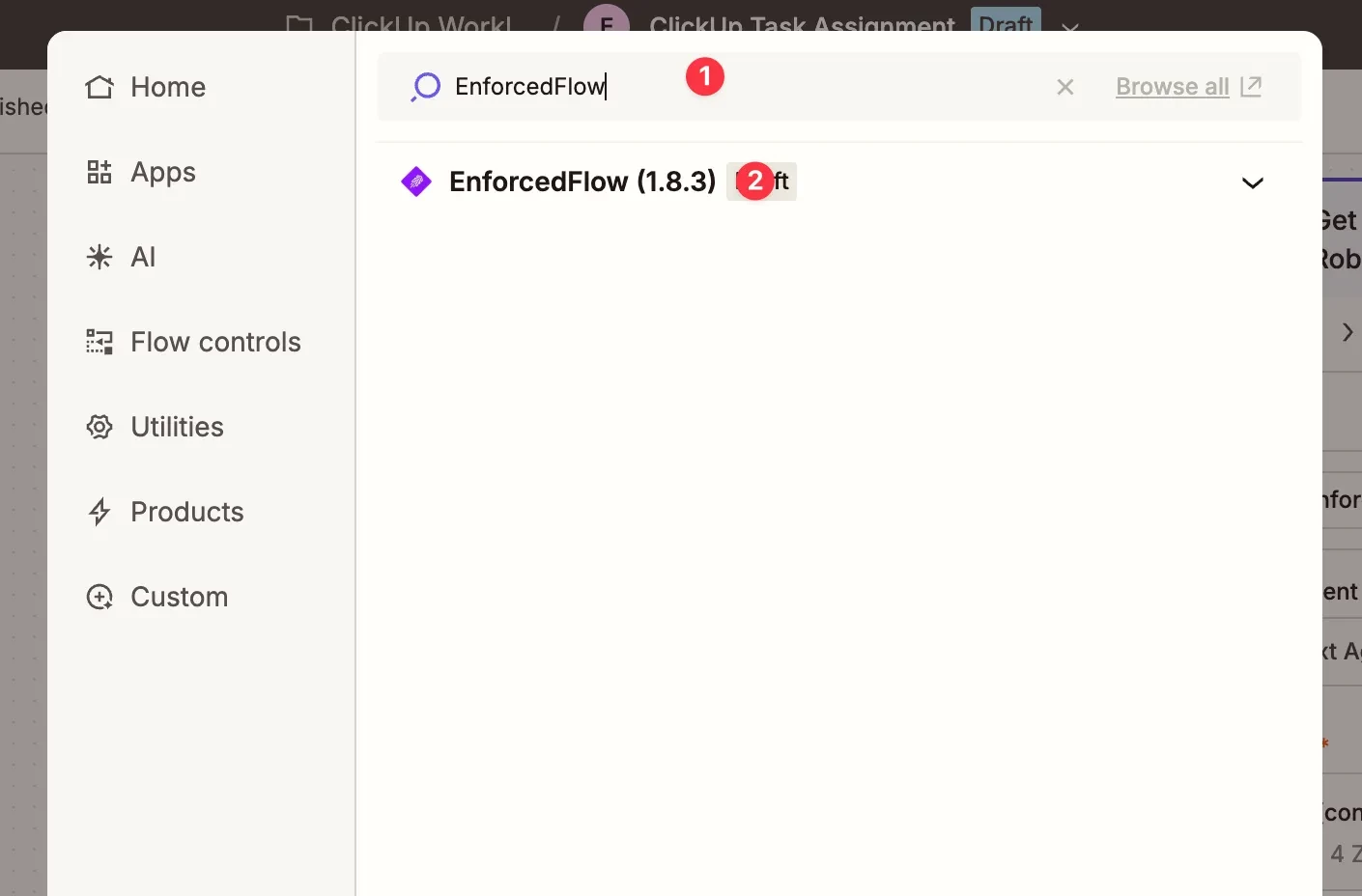
Search for the EnforcedFlow app:
- Type EnforcedFlow in the search box
- Select EnforcedFlow from the results
Configure the action:
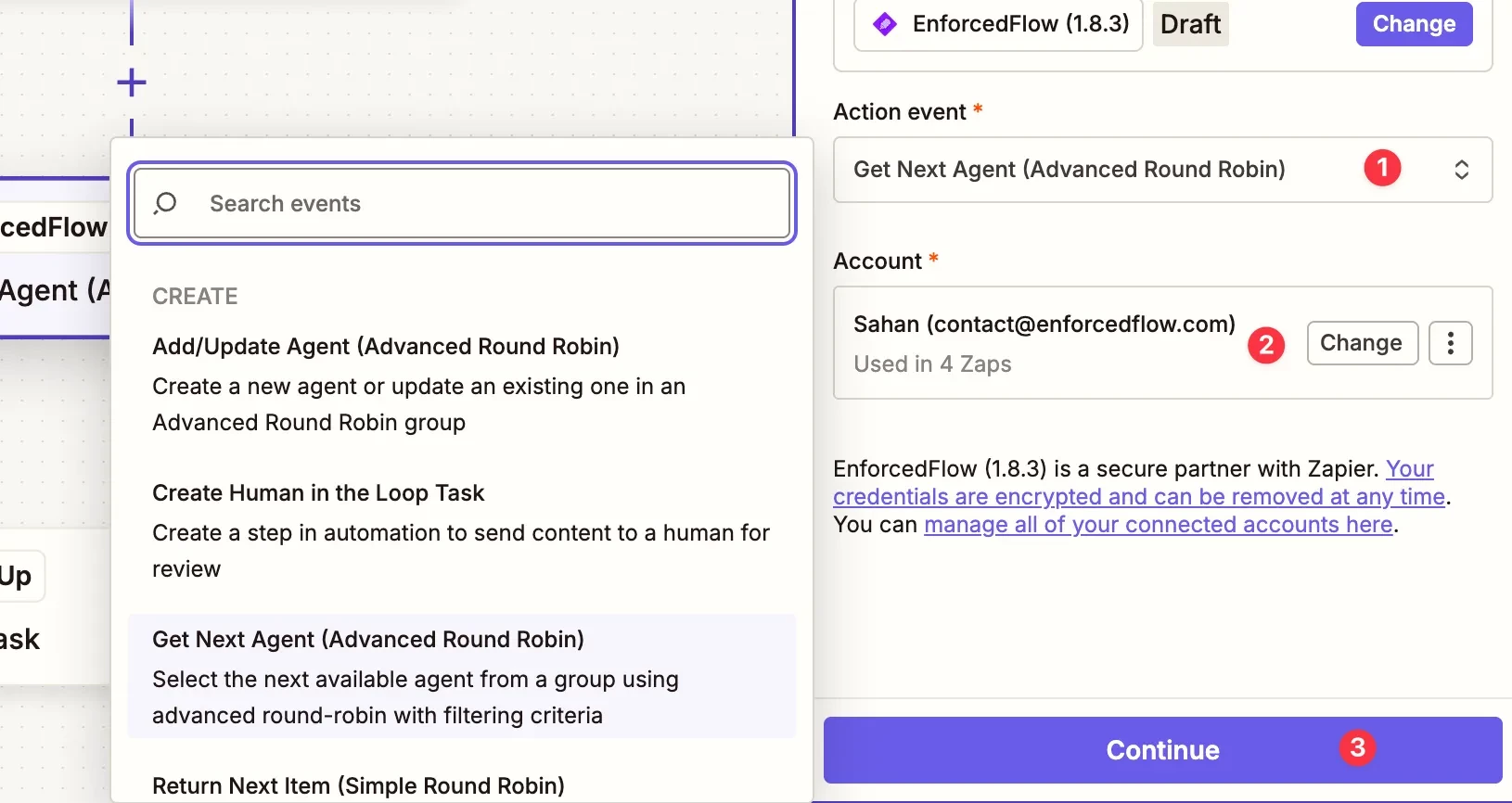
- Select Get Next Agent (Advanced Round Robin) as the action
- Click Continue
Set Up Your Round Robin Group
In the next step you’ll need to select a group. First, we need to create one - click the EnforcedFlow link in the help text to set up your group.
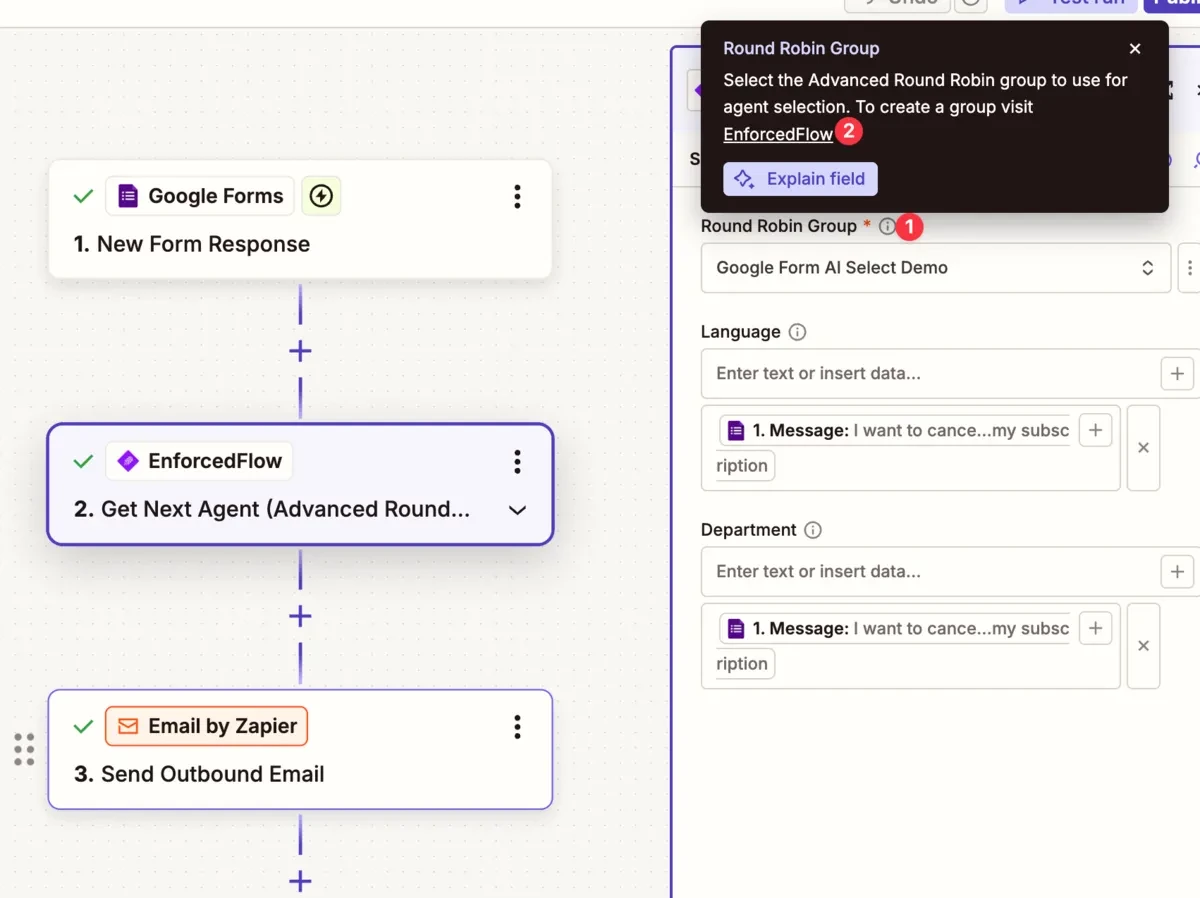
This will take you to EnforcedFlow. Navigate to the Advanced Round Robin section:
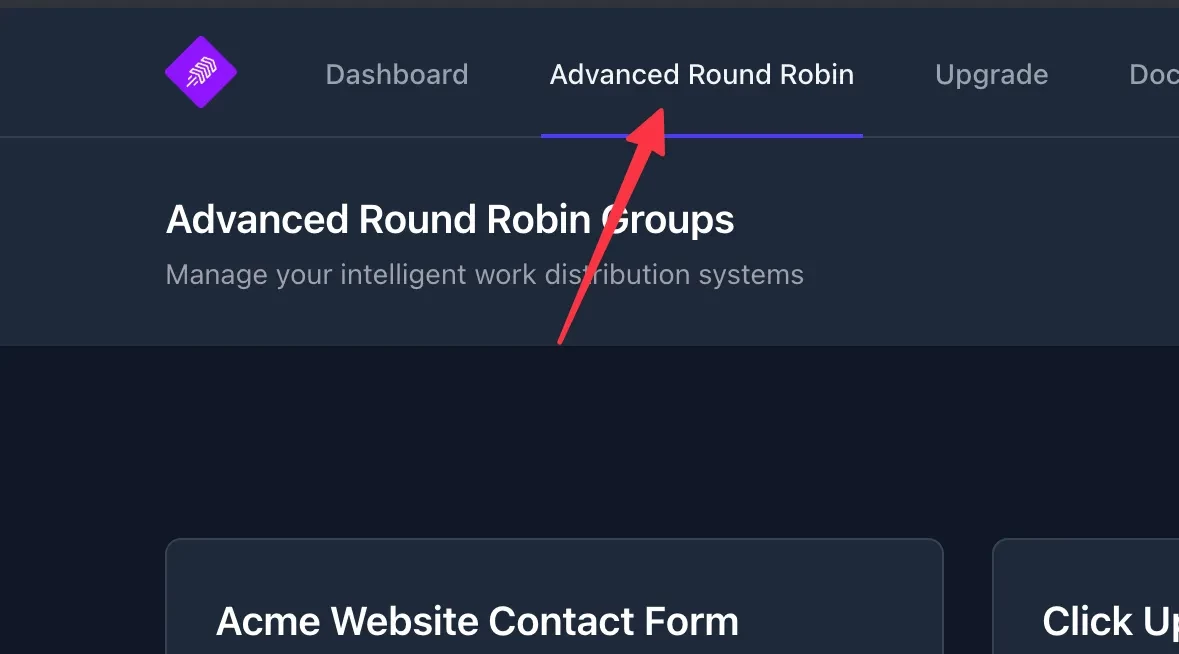
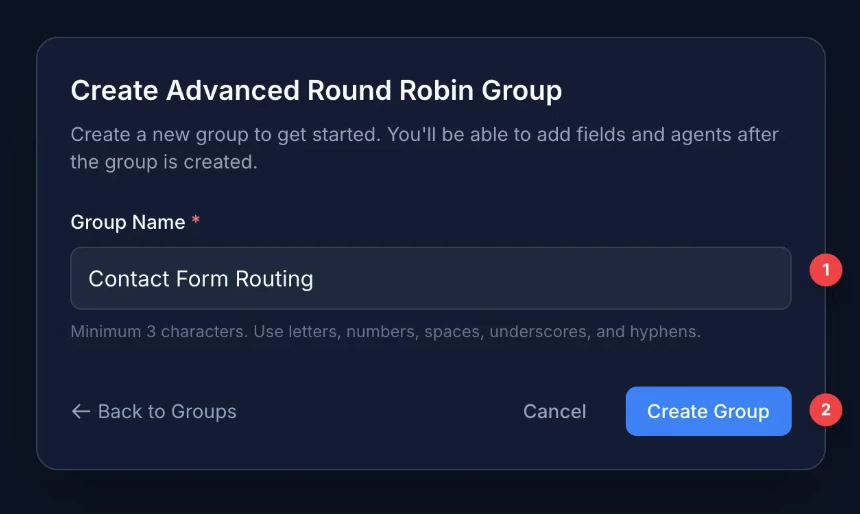
Create an Advanced Round Robin Group
Click to create a new group and give it a descriptive name (e.g., “Contact Form Routing”):
Add Agent Information Fields
You need to add a field to store each agent’s email address. This is where notifications will be sent.
- In your group, under the Settings tab, find the Agent’s Information Fields section
- In the Add New Field input, type
email - Click Add
Add an AI Select Field for Language
Switch to the Fields tab to add an AI Select field for language detection.
Click Add a New Field to open the field modal:
- Select AI Select as the field type
- Enter
Languageas the Display Label - Add context in Field Configuration to guide the AI’s classification
- Add options with AI Instructions describing when each should be selected
- Click Save
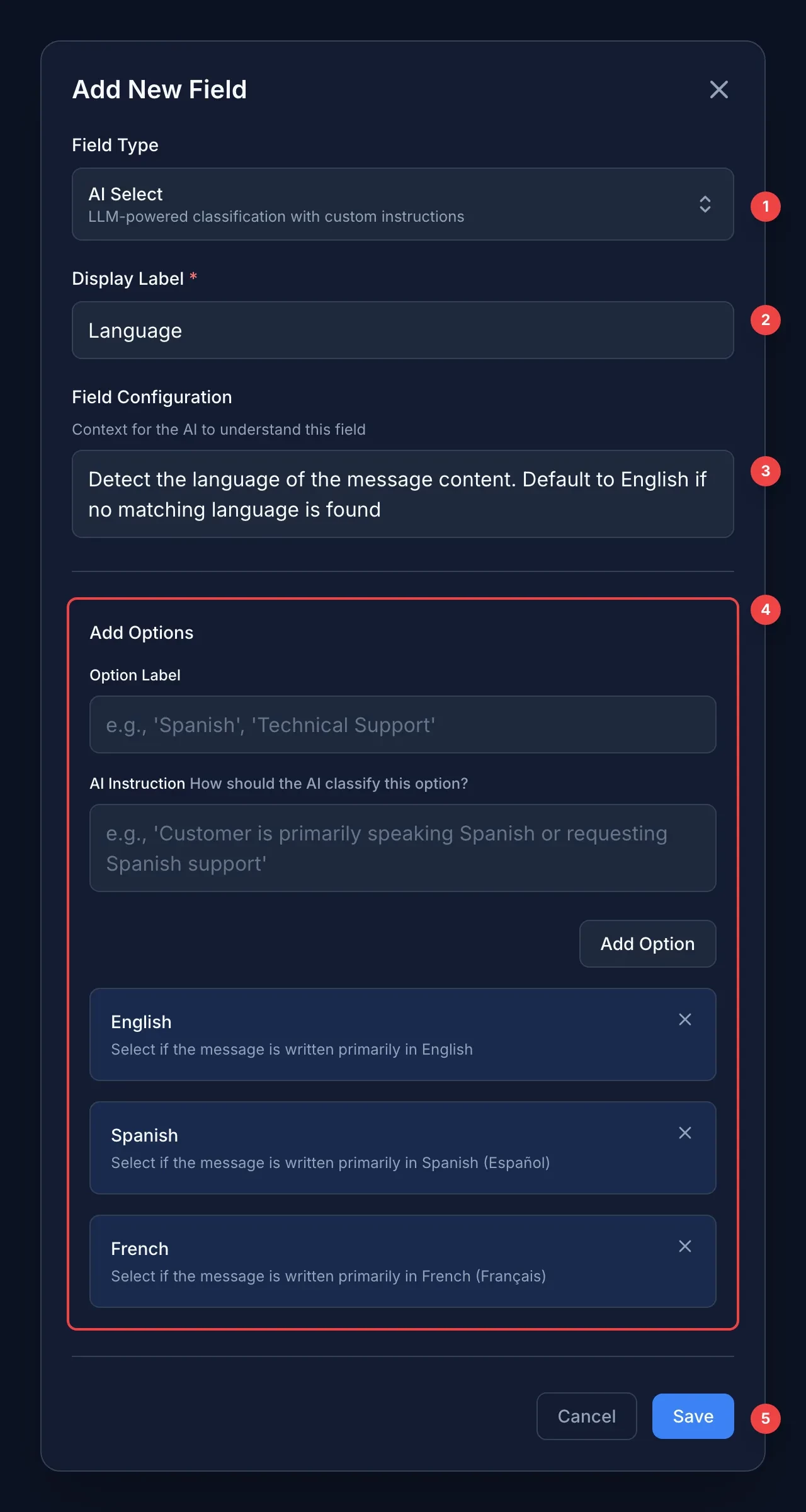
Use these values when configuring the Language field:
Field Configuration:
Detect the language of the message content. Default to English if no matching language is found
| Language | AI Instruction |
|---|---|
| English | Select if the message is written primarily in English |
| Spanish | Select if the message is written primarily in Spanish |
| French | Select if the message is written primarily in French |
Add an AI Select Field for Department
Add a second AI Select field for department classification.
Click Add a New Field to open the field modal:
- Select AI Select as the field type
- Enter
Departmentas the Display Label - Add context in Field Configuration to guide the AI’s classification
- Add options with AI Instructions describing when each should be selected
- Click Save
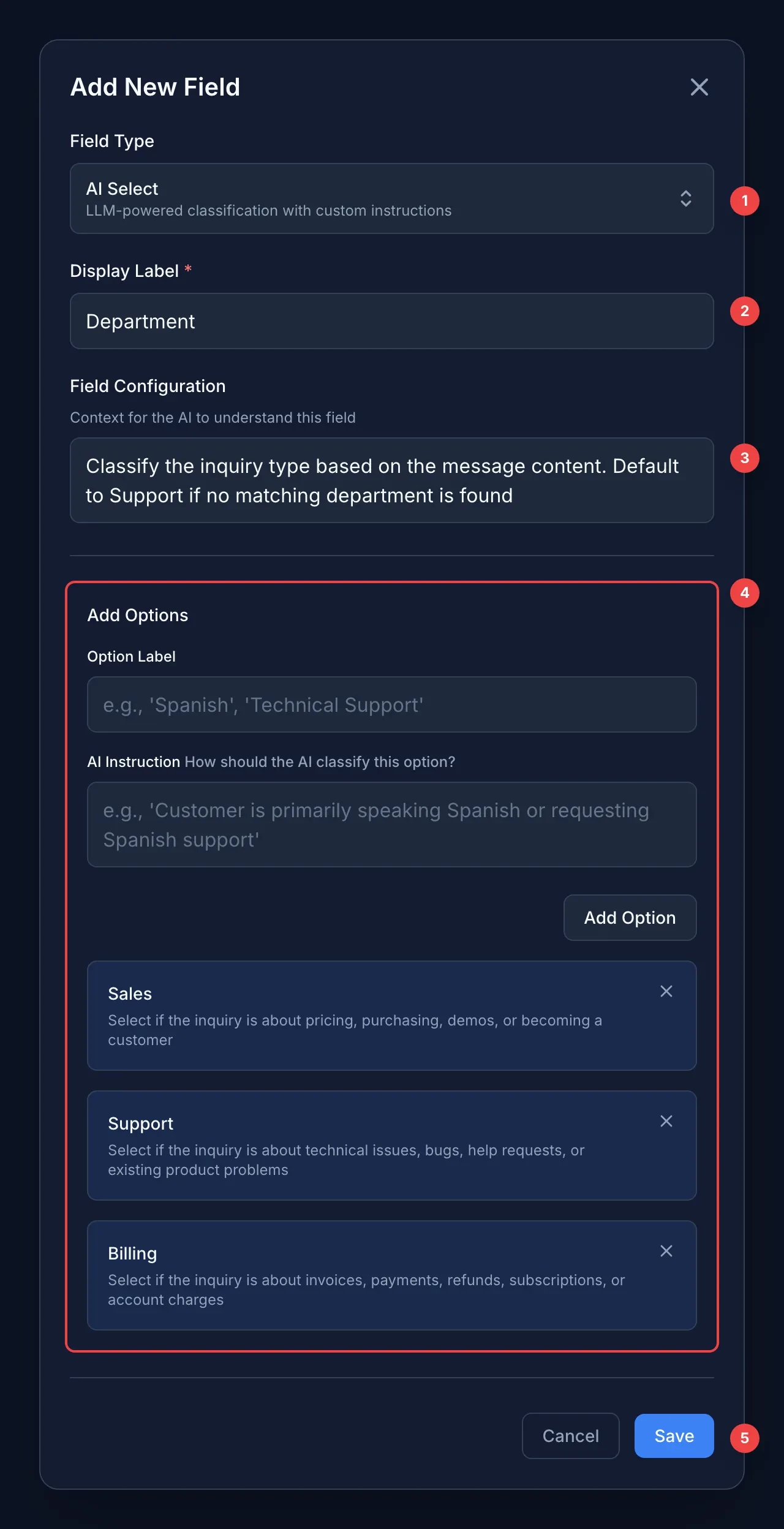
Use these values when configuring the Department field:
Field Configuration:
Classify the inquiry type based on the message content. Default to Support if no matching department is found
| Department | AI Instruction |
|---|---|
| Sales | Select if the inquiry is about pricing, purchasing, demos, or becoming a customer |
| Support | Select if the inquiry is about technical issues, bugs, help requests, or existing product problems |
| Billing | Select if the inquiry is about invoices, payments, refunds, subscriptions, or account charges |
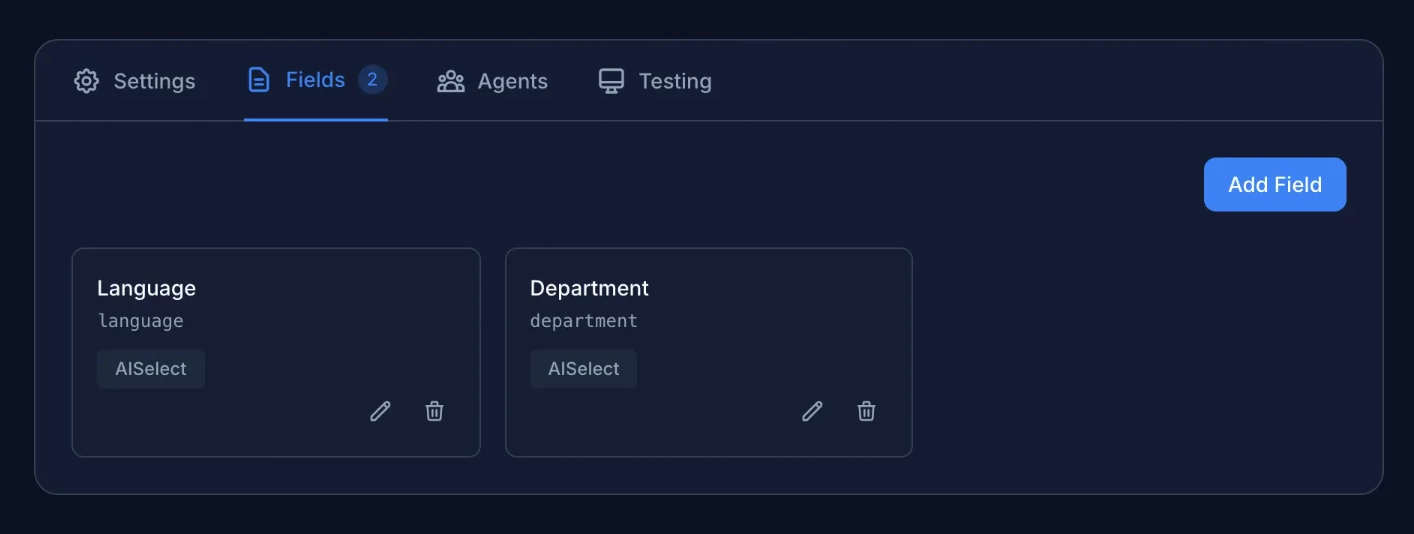
Once saved, you’ll see your fields listed in the Fields tab.
Add Your Agents
Switch to the Agents tab and click Add Agent.

For each team member:
- Agent Name - Enter a display name for this agent
- Email - Enter the agent’s email address
- Language - Select the languages this agent can handle
- Department - Select the departments this agent belongs to
- Click Add Agent
Repeat for all agents in your team.
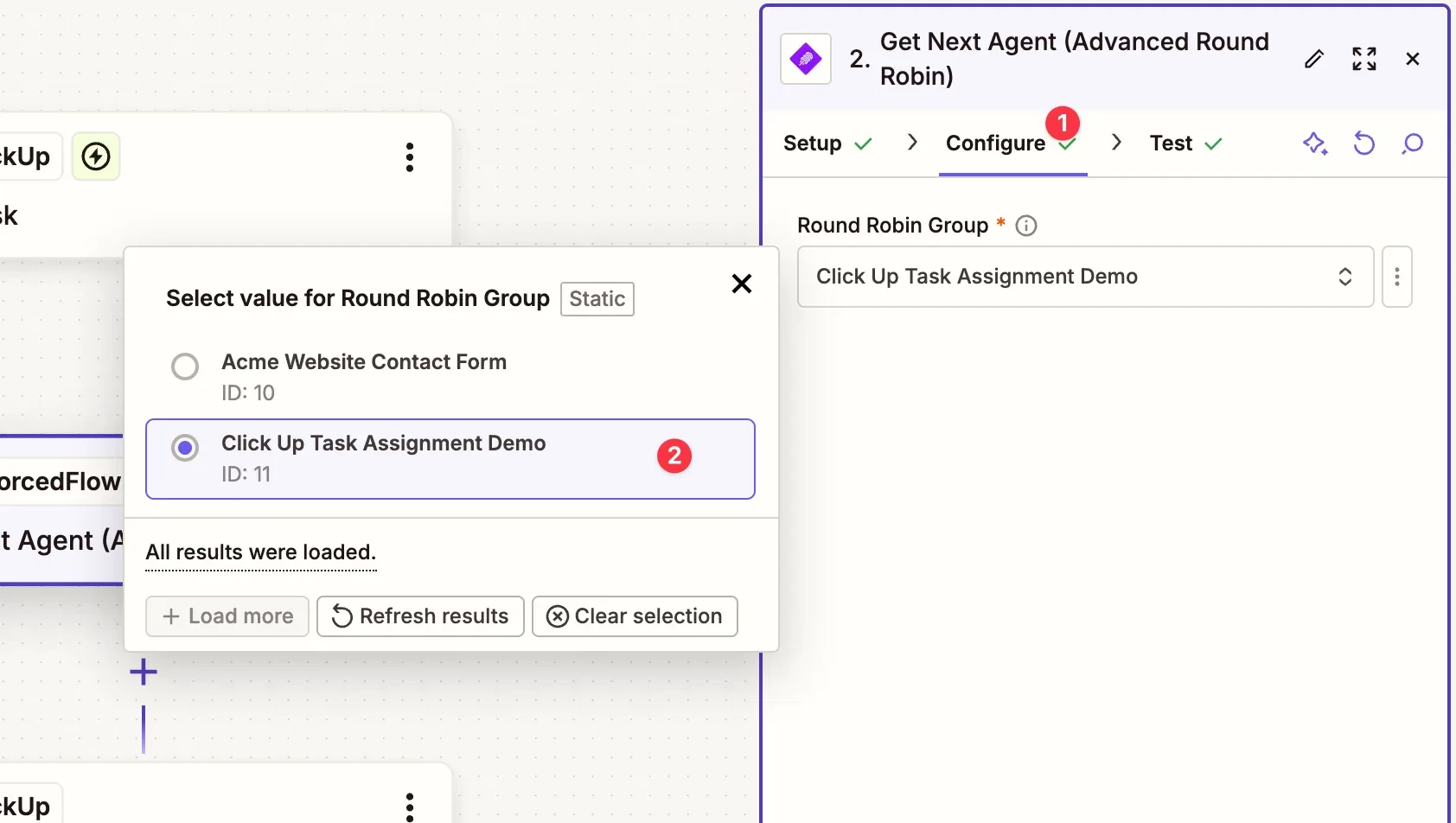
Select the Round Robin Group
Back in Zapier, after connecting your EnforcedFlow account:
Select your round-robin group:
- Click on Round Robin Group dropdown
- Select your group from the list
Configure Field Mapping
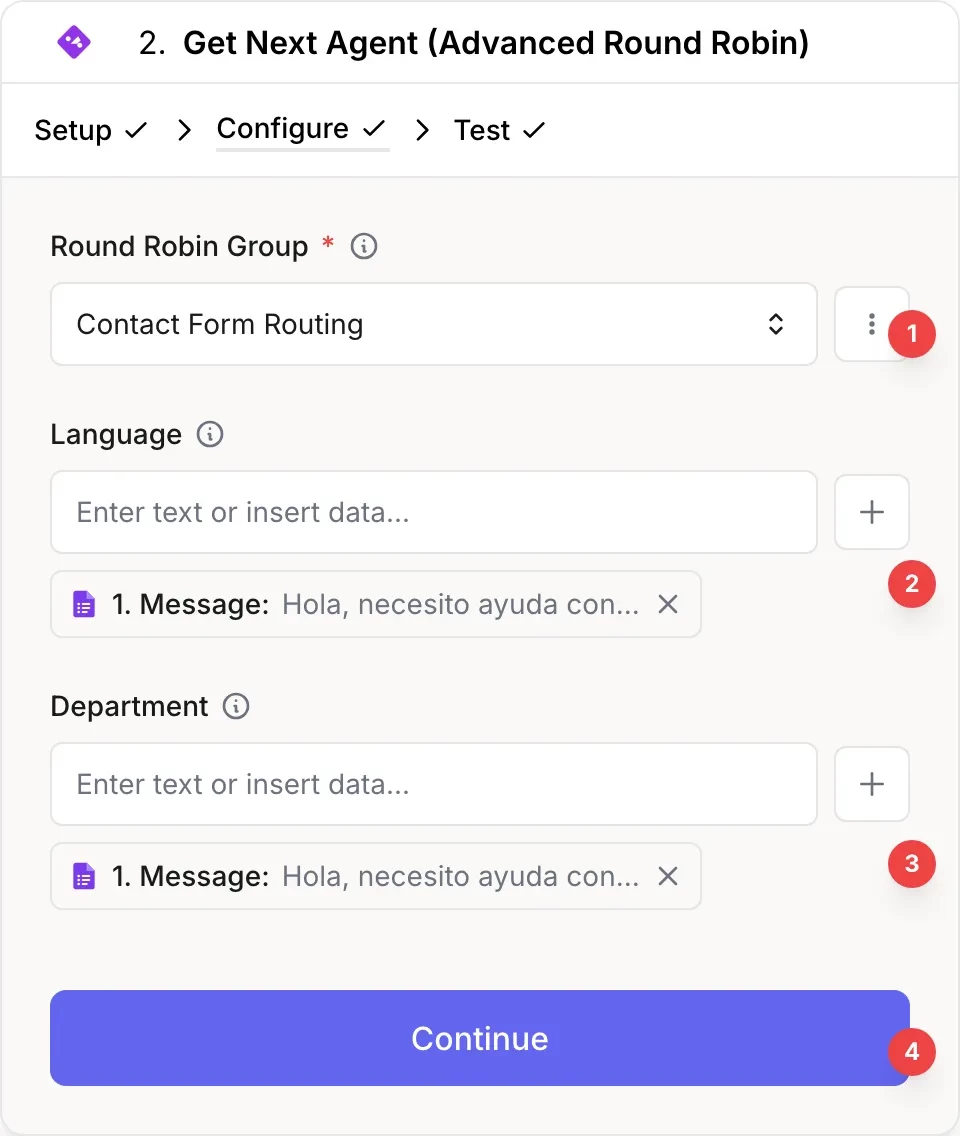
After selecting your group, configure the field mapping:
- The Round Robin Group shows your selected group
- Map the Language field to the Message field from your Google Forms trigger
- Map the Department field to the Message field from your Google Forms trigger
- Click Continue
EnforcedFlow will use these values to find the best matching agent.
Test to Retrieve Agent Data
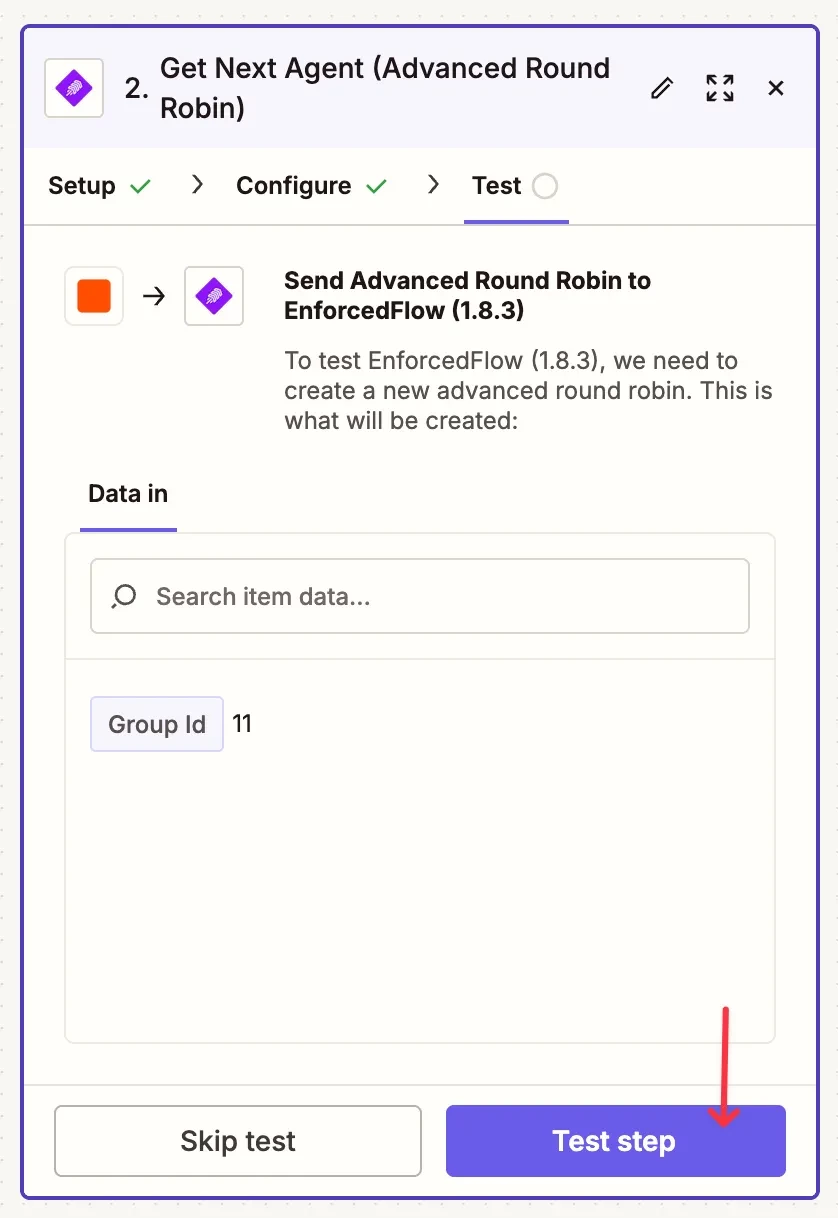
Click Test step to retrieve agent data. This is required for the next step to work properly.
Step 3: Send Email to the Assigned Agent
Add a new step and select Email by Zapier with the action Send Outbound Email.
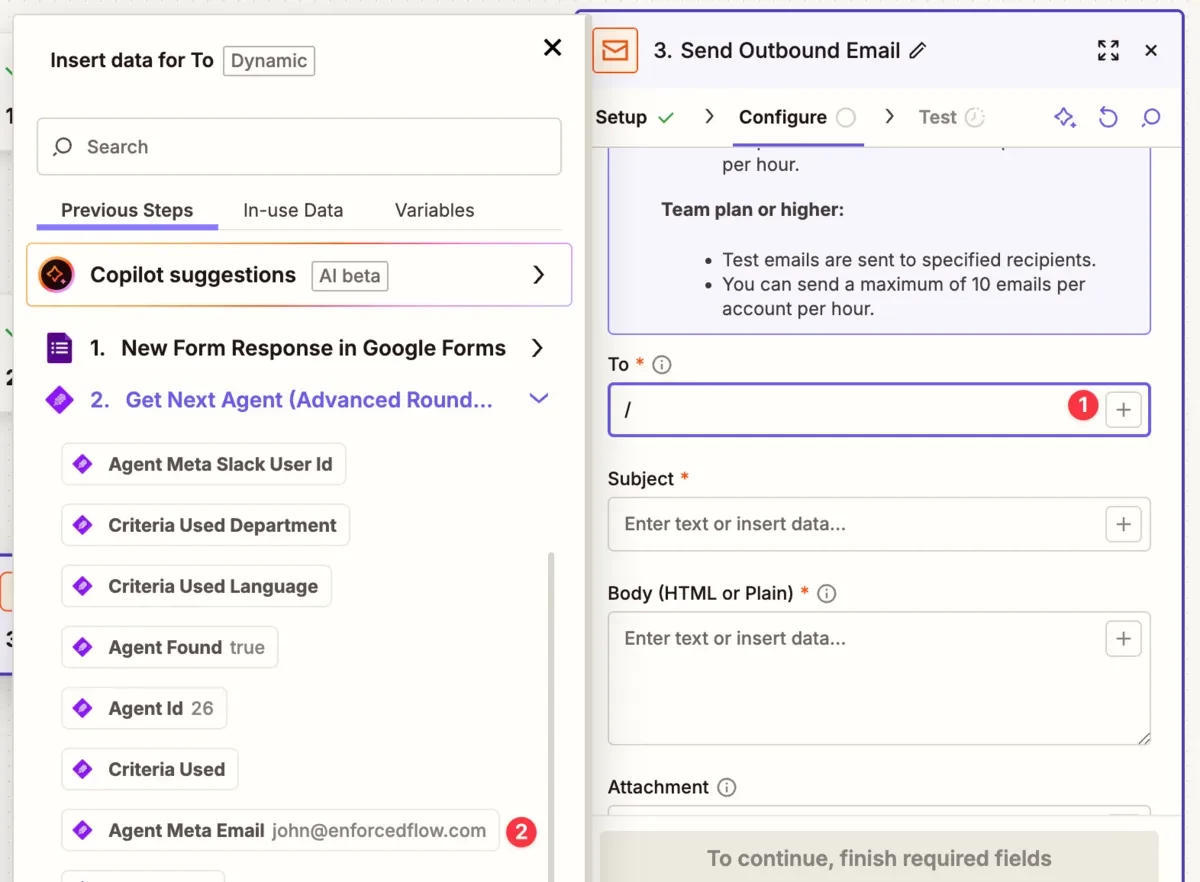
Configure the recipient:
- Click in the To field
- Expand Get Next Agent (Advanced Round Robin)
- Select Agent Meta Email
This sends the email to whichever agent EnforcedFlow selected.
Configure the email content:
- Add a Subject line (e.g., “New Form Submission”)
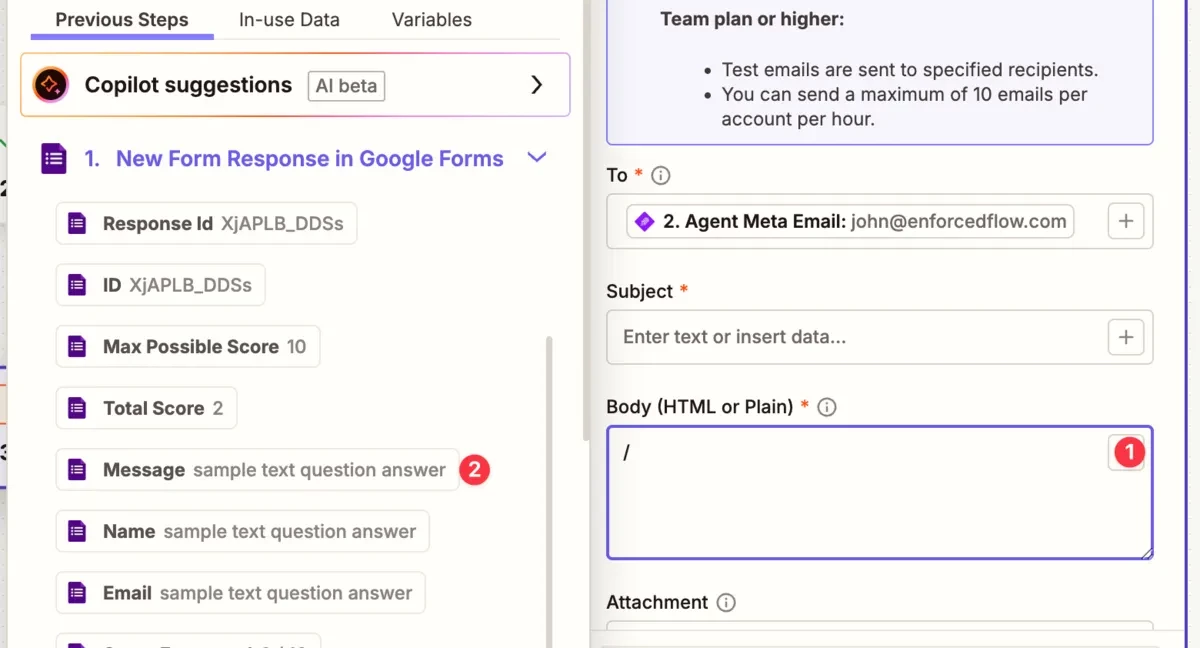
- Click in the Body field
- Select fields from the form response (e.g., Message, Name, Email)
Test the step to verify the email is sent correctly, then publish your Zap.
Summary
You’ve now set up AI-powered contact form routing:
| Component | Purpose |
|---|---|
| EnforcedFlow Group | Stores agents with their languages, departments, and email addresses |
| Language Field | AI classifies the language of the message (English, Spanish, French) |
| Department Field | AI classifies the inquiry type (Sales, Support, Billing) |
| Zapier Automation | Routes form submissions and sends email to the right agent |
How it works:
- A customer submits your contact form
- Zapier triggers and sends the message content to EnforcedFlow
- AI analyzes the message to detect language and classify department
- EnforcedFlow finds an agent who handles that language AND department (using round-robin among qualified agents)
- An email is sent to that agent with the form submission details
This ensures Spanish-speaking billing inquiries go to Spanish-speaking billing team members, French support questions go to French-speaking support agents, and so on - all automatically with fair rotation.
